Netgear Router Reset: Step-by-Step Guide
Learn how to safely perform a netgear router reset, choosing soft vs factory resets, backing up settings, reconfiguring, and troubleshooting post-reset issues with expert, practical steps.


Learn how to perform a netgear router reset safely and effectively. This guide covers when to reset, how to choose a soft reset versus a factory reset, and step-by-step actions to reconfigure your network after the reset. You’ll understand potential risks, backup tips, and verification steps to ensure your Wi‑Fi returns quickly.
What the netgear router reset accomplishes and when to use it
A netgear router reset restores settings to a known baseline, which can resolve stubborn connectivity issues, firmware glitches, or incorrect configurations. You should consider resetting when devices experience frequent drops, the admin interface becomes unresponsive, or you’ve exhausted simpler fixes like rebooting or updating firmware. Consider the scope of the reset: a soft reset (power cycle) preserves most settings and is useful for temporary glitches, while a factory reset returns the router to its original, out-of-the-box state. According to WiFi Router Help, resets are most effective after you have backed up essential information and verified you can access the admin interface again. This guidance aligns with common troubleshooting practices used by home networks and is echoed in WiFi Router Help analyses of router behavior in common household setups. If you routinely troubleshoot, keep a log of changes to avoid repeating the same steps. netgear router reset is the keyword to search when you want a reliable, repeatable procedure, and this guide will walk you through the process with clarity.
Soft reset vs factory reset: What's the difference?
A soft reset, often described as a power cycle, simply restarts the device and clears temporary memory without changing saved configurations. It is the safest first step for minor issues and can often restore normal operation quickly. A factory reset erases all custom settings, restores default credentials, and clears saved Wi‑Fi networks. This is effectively a clean slate, which can be necessary after persistent problems, configuration corruption, or when you’re handing the device to a new owner. The WiFi Router Help team emphasizes choosing the least disruptive option first, then escalating only if problems persist. After a factory reset, you must reconfigure your network from scratch, including the SSID, password, and security settings.
Backing up your settings before resetting
Before you strike the reset button, back up your current configuration. A good backup includes the admin password, Wi‑Fi network details, connected devices list, and any custom rules (port forwarding, QoS, parental controls). Some Netgear models offer a built-in backup/export feature in the management interface; if yours doesn’t, manually record critical values. Backups save time and reduce reconfiguration effort if you decide to revert or recover preferences after a reset. In line with best practices recommended by WiFi Router Help, keeping a documented snapshot of settings is a small investment that pays off when you need a quick recovery. If you use a cloud-based DNS or special routing rules, note those settings separately as they may not be preserved after a factory reset.
How to perform a soft reset (power cycle) on Netgear routers
A soft reset is often enough to resolve temporary issues. To perform it, unplug the router’s power adapter, wait 30–60 seconds, then plug it back in and allow the device to reboot. During this time, avoid pressing reset buttons. Once the LEDs stabilize, test connectivity. If problems continue, a deeper reset may be required. This method is safer because it preserves most configurations, including the wireless password, unless a firmware glitch interferes with the reboot. The goal of a soft reset is to restore normal operation without losing your current network setup. If you notice recurring instability after repeated soft resets, proceed to a factory reset after ensuring backups exist.
How to perform a factory reset safely
A factory reset should be used only when necessary. Locate the reset button usually recessed on the back or bottom of the router. With a paperclip or pin, press and hold the reset button for 10–15 seconds until the power LED blinks or the status LED changes, then release. After the reset completes, the router reboots to factory defaults. You will need to re-enter the admin username/password (often admin/password or printed on the device) and reconfigure your Wi‑Fi network. If your model supports a web-based setup wizard, follow it step by step. Ensure you have backups of the essential settings, update firmware after reconfiguration, and change default credentials for security. The WiFi Router Help guidance highlights the importance of securing the device immediately after a factory reset.
After the reset: reconfiguring your network
Follow the setup wizard to re‑establish your wireless network name (SSID) and password. Reapply security settings (WPA2 or WPA3), enable the firewall, and set up guest networks if needed. Re-enter port forwards, QoS rules, and any device-specific settings. Reconnect devices and verify internet access, speed, and latency. If your router supports mesh or 2.4/5 GHz band optimization, adjust accordingly. After initial setup, check for firmware updates and schedule automatic checks. This phase is critical to ensuring a stable, secure network and to prevent future resets due to software-related issues.
Troubleshooting common issues after reset
Post-reset problems often involve login issues, default credentials, or wireless configuration gaps. If you can’t access the admin interface, verify you’re connected to the router directly via Ethernet, confirm the default IP address (commonly 192.168.1.1 or 192.168.0.1), and try a different browser. If the wireless network doesn’t appear, ensure the SSID broadcast is enabled in the settings. In some cases, a mismatch in security settings or channel selection can cause devices to fail to connect. Regularly review network logs if available and monitor for repeated disconnections. WiFi Router Help notes that documenting each change helps diagnose intermittent issues more efficiently.
Security considerations and firmware updates after reset
Resetting a router resets security settings to defaults; therefore, it’s essential to immediately reconfigure strong passwords, WPA2/WPA3 encryption, and updated firmware. Check for firmware updates on the Netgear support site or through the router’s admin interface and apply them. Firmware updates address known vulnerabilities, bug fixes, and performance improvements. After updating, recheck your network and devices for any connectivity changes. Maintaining a proactive security posture reduces the likelihood of needing another reset soon.
Best practices to avoid frequent resets and final notes
To minimize future resets, keep firmware up to date, monitor network performance, and avoid making unnecessary changes in quick succession. Use strong, unique admin credentials and enable automatic security updates where possible. If you frequently troubleshoot, maintain a simple change log to track what was modified and why. As a closing note, the WiFi Router Help team recommends building a small playbook for your household network so you can resolve similar issues quickly without resorting to resets excessively.
Tools & Materials
- Netgear router(Model-specific button layout may vary; confirm model to follow exact steps)
- Power adapter(Keep plugged in during reset to avoid partial power loss)
- Ethernet cable (Cat5e or better)(Use for stable admin access if Wi‑Fi is down)
- Computer or smartphone with a web browser(Needed for accessing the admin interface and setup wizard)
- Owner's manual or online model guide(Helpful for model-specific steps or default credentials)
- Paper and pen or digital note tool(Record current settings and post-reset changes)
Steps
Estimated time: 45-60 minutes
- 1
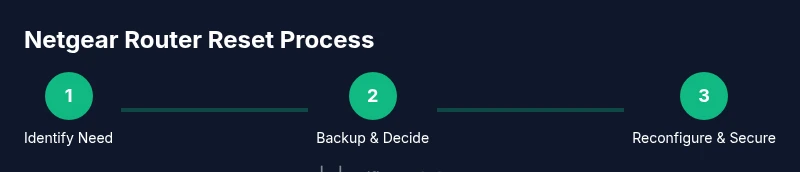
Identify reset goal
Determine whether a soft reset (power cycle) or a factory reset is appropriate. Evaluate the issue: temporary glitch vs. persistent misconfiguration. This decision frames the entire process and helps minimize data loss.
Tip: If in doubt, start with a soft reset to avoid losing custom configurations. - 2
Back up critical settings
Before making changes, document or export essential values such as Wi‑Fi names, passwords, port forwards, and any custom DNS or firewall rules. A good backup makes restoration faster if you revert the reset.
Tip: Take screenshots of the current admin pages to keep every detail handy. - 3
Perform a soft reset (power cycle)
Unplug the router, wait 60 seconds, then plug back in and allow it to reboot. This resolves many temporary glitches without touching your saved configuration.
Tip: Avoid pressing physical reset buttons during this restart to prevent an unintended factory reset. - 4
Decide if a factory reset is needed
If the issue persists after the soft reset, consider a factory reset. Note that this will erase all custom settings and return defaults.
Tip: Only proceed if you have backups and plan to reconfigure from scratch. - 5
Execute a factory reset
Use a paperclip to press and hold the reset button for 10–15 seconds until the LEDs indicate reset. Release and allow the router to reboot to defaults.
Tip: If the LED indicators don’t respond, consult the model-specific guidance in the manual. - 6
Reconfigure network after reset
Access the admin interface using the default credentials, set a new admin password, create a new Wi‑Fi name and password, and reapply essential security settings.
Tip: Change default login details immediately to protect your network. - 7
Apply firmware updates
Check for and install the latest firmware to address vulnerabilities and improve performance. Recheck settings after updating.
Tip: Enable automatic updates if available to reduce future maintenance.
People Also Ask
What is the difference between a soft reset and a factory reset for Netgear routers?
A soft reset restarts the router without erasing saved settings, while a factory reset restores defaults and wipes custom configurations. Use a soft reset first to fix minor issues; a factory reset is a last resort when problems persist.
A soft reset restarts the router and keeps your settings, but a factory reset clears everything and returns you to the basics.
Will resetting erase my ISP settings or login credentials?
A reset returns the router to its default state, which may remove saved credentials and Wi‑Fi details. You’ll need to re-enter ISP and admin credentials after the reset.
Yes, you’ll likely need to re-enter the admin password and Wi‑Fi details after a reset.
Should I back up before resetting?
Yes. Backing up current settings saves time during reconfiguration and helps restore complex rules like port forwarding and QoS rules.
Absolutely—back up your settings so you can restore them quickly after the reset.
What if I can’t access the admin page after reset?
Ensure you’re connected via Ethernet or the correct default IP address, and try a different browser. If needed, perform a factory reset again using the reset button with a paperclip.
If you can’t reach the page, check connections and default IPs, then retry with a reset if necessary.
How do I secure my network after a reset?
Change the default admin password, enable WPA2/WPA3, and disable WPS if available. Update firmware to the latest version for security improvements.
Change default admin password, enable strong encryption, and update firmware after reset.
Can I revert a factory reset if I don’t like the new settings?
There is no simple rollback to the previous configuration after a factory reset. Restoring requires a saved backup or reconfiguration from scratch.
No easy revert; you’ll need to restore from a backup or set things up again manually.
Watch Video
What to Remember
- Identify whether a soft or factory reset is needed.
- Back up essential settings prior to resetting.
- Reconfigure security and Wi‑Fi details after reset.
- Apply firmware updates to close vulnerabilities.
- Maintain a simple change log to simplify future troubleshooting.