Reset Password for Netgear Router: Step-by-Step Guide
Learn how to reset the admin password on a Netgear router, recover access, and secure your home network with a careful, step-by-step approach. Covers soft and factory resets, what to back up, and post-reset security.


Goal: reset the Netgear router’s admin password, regain access to the router interface, and secure your network after the reset. This guide covers when to reset, how to perform a soft password reset via the admin panel, and how to recover a forgotten password using the default login, or performing a factory reset if needed, plus post-reset security steps.
Why Resetting the Admin Password Matters
Your router’s admin password is the gatekeeper for your home network. When it’s compromised or forgotten, an attacker could change settings, view connected devices, or weaken your security posture. Resetting the admin password restores control and reduces risk. For Netgear routers, this means regaining access to the router’s management interface and ensuring that only authorized users can modify settings such as DNS, port forwarding, and firmware updates. In this guide, we discuss both soft resets (via the web UI) and factory resets (via the physical button), highlighting when each option is appropriate and how to proceed safely. WiFi Router Help emphasizes that a reset should be paired with a strong, unique password and updated security practices to prevent future breaches.
The reset journey starts with understanding why you’re resetting: loss of access, potential breach, or a routine security refresh. Soft resets preserve most of your network configuration, while factory resets erase all custom settings and restore factory defaults. Regardless of the path chosen, follow the steps precisely and avoid rushed changes to minimize downtime and avoid misconfigurations. This depth ensures you’ll know not only how to reset, but why each step matters and how it impacts your network’s security posture.
note”:null},{
Soft Reset vs Factory Reset: Understanding the Difference
Soft Reset (Admin UI)
- Preserves existing network settings such as your Wi‑Fi name (SSID) and password in many models.
- Requires you to know or recover the current admin password; you’ll be prompted to change it during the login.
- Quick and low-risk method for regaining access when you know the credentials.
Factory Reset (Reset Button)
- Restores the router to its original, out‑of‑the‑box state. All custom settings, including SSID, password, and port forwards, are erased.
- Useful if you’ve forgotten the admin password and cannot log in, or if you’re preparing the router for a new owner.
- After a factory reset, you must reconfigure every setting from scratch, including the Wi‑Fi credentials.
When deciding which reset to perform, consider the impact on your network and whether you can recover the admin password. A soft reset is typically the safer first step; a factory reset should be reserved for situations where login recovery isn’t possible or when you want a clean slate. WiFi Router Help notes that planning a reset with a backup of essential configurations helps avoid re‑work later.
note”:null},{
Before You Start: Gather Essentials
To reset a Netgear router password effectively, gather a few essentials before you begin:
- A computer or mobile device with a modern web browser connected to the router’s network.
- The router’s model number and the current admin login information if available.
- A method to reach the router’s web interface, typically at http://routerlogin.net or http://192.168.1.1 (model-dependent).
- A fresh, long password for the admin account and, if needed, for the Wi‑Fi network.
- Pen and paper for noting any new settings, including SSID and password.
- Access to the router’s physical location in case a factory reset is required (button is usually recessed).
Having these items ready minimizes downtime and reduces the chance of misconfiguring essential settings after the reset. WiFi Router Help recommends keeping a recent backup of your configuration if your model supports it, so you can restore preferences after a reset.
note”:null},{
Step-by-Step Context: What You’ll Do
This section provides the high‑level flow you’ll follow in the detailed STEP-BY-STEP block. You’ll confirm your goal (soft reset vs factory reset), verify access to the router’s admin panel, perform the chosen reset, and then reconfigure the device. After the reset, you’ll create new credentials, reapply your network security, and test connectivity. The goal is to regain control with minimal downtime while strengthening overall security.
Keep in mind that Netgear models vary slightly in their login URLs, label details, and button location. If you run into any model-specific quirks, consult the model’s manual or Netgear support resources. The important part is understanding when to reset, what data you’ll lose, and how to re-secure your network after access is restored.
note”:null},{
Post-Reset Security Best Practices
After resetting your Netgear router password, implement these best practices to protect your network:
- Change the admin password to a strong, unique passphrase. Avoid common words or repeating patterns.
- Update the Wi‑Fi password and ensure it uses WPA3 or at least WPA2 with a robust passphrase.
- Disable remote administration if not required, or restrict it to a trusted device list.
- Update firmware to the latest supported version to patch vulnerabilities.
- Create a periodic maintenance plan: review connected devices, enable guest networks if offered, and monitor logs (where available).
Document your changes securely, and store credentials in a password manager. This reduces the risk of future lockouts and helps maintain a secure home network across devices.
note”:null},{
Troubleshooting Common Issues
Resetting a Netgear router password often runs into a few recurring issues. If you can’t access the admin UI after resetting, check your connections, verify you’re using the correct IP address, and clear browser cache. If the router won’t respond after a factory reset, ensure you’re using the correct reset button technique (it’s often recessed and requires a pin or paperclip). If you still can’t login, try a second factory reset and re‑setup from scratch. In some models, you may need to connect a computer directly via Ethernet during initial setup to avoid wireless login conflicts.]
note”:null}, {
Common Pitfalls and Quick Tips
- Don’t rush the reset process; prying into settings you don’t understand can lock you out.
- Always back up settings when the option exists to streamline re‑setup.
- If you lose the admin password, a factory reset is a last resort after other recovery methods fail.
- After completing a reset, test both wired and wireless connections to confirm accessibility.
- Use a password manager to store admin and Wi‑Fi credentials securely.
These precautions help ensure you maintain control over your Netgear router and protect your household network from common threats.
note”:null}],
toolsMaterialsSection
stepByStep
tipsList
Tools & Materials
- Web browser (Chrome, Firefox, Edge, Safari)(No special plugins needed; ensure cookies are enabled.)
- Computer or mobile device(Same network as the router during soft reset; Ethernet is optional.)
- Netgear router model information(Model printed on device label or manual.)
- Backup plan / backup settings option(If your model supports it, export a config backup before reset.)
- Pen and paper or a note app(Record new admin and Wi‑Fi passwords for reference.)
Steps
Estimated time: 25-45 minutes
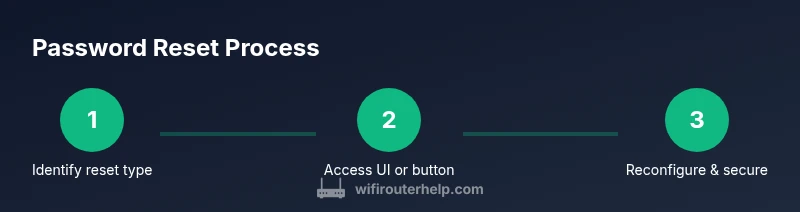
- 1
Identify reset type (soft vs factory)
Decide whether you can recover the admin password through the web UI (soft reset) or if you no longer know the login and must perform a factory reset. A soft reset preserves most settings, while a factory reset wipes all custom configurations.
Tip: If you remember part of the password or username, test login attempts briefly before triggering a reset. - 2
Log in to the router admin panel (soft reset)
Open a browser and navigate to the router’s login page (often http://192.168.1.1 or http://routerlogin.net). Enter the current admin credentials. If you forgot them, attempt the password recovery option if available or proceed to a factory reset.
Tip: Use a wired connection if possible to avoid wireless dropouts during login. - 3
Change the admin password
Once logged in, locate the password or administration section and set a new, strong password. Save changes and log out, then sign back in with the new credentials to verify.
Tip: Choose a passphrase‑length password with a mix of letters, numbers, and symbols. - 4
If you can’t log in, perform a factory reset
Find the reset button (often recessed). With the router powered on, press and hold the reset button for 7–15 seconds until the lights flash. This restores defaults and requires reconfiguration.
Tip: If the model requires a longer press, verify with the user manual to avoid partial resets. - 5
Reconnect to the router and reconfigure
After a soft reset, sign in with the default or previous credentials and reconfigure security settings. After a factory reset, set new admin credentials and re‑apply SSID and Wi‑Fi password, plus any custom rules.
Tip: Document new settings in a secure location. - 6
Set up a secure Wi‑Fi password
Create a unique, strong Wi‑Fi password and enable WPA3 if supported. Consider enabling a guest network for visitors to keep your main network protected.
Tip: Use a password manager to store the credentials securely. - 7
Verify connectivity and security
Test wired and wireless devices to confirm connectivity. Check for firmware updates and review connected devices to identify any unknown or suspicious activity.
Tip: Enable automatic firmware updates if available.
People Also Ask
Can I reset my Netgear router password without using the reset button?
Yes. If you know the current admin password, you can sign in to the web interface and reset the admin password from the settings. If you’ve forgotten the password, you’ll typically need to perform a soft reset via the UI or a factory reset via the physical button depending on access.
If you know the current login, you can reset it in the account settings. If you don’t, you’ll likely need to perform a factory reset to regain access.
Will resetting the admin password erase my Wi‑Fi network settings?
A soft reset typically preserves the Wi‑Fi network name and password, but a factory reset will erase all custom settings, including the SSID and Wi‑Fi password. Always choose the reset type based on whether you need to keep or refresh network credentials.
A soft reset keeps your network settings, but a factory reset wipes them out.
What should I do if I can’t access the router after a reset?
Check cables, ensure you’re connected to the router, try the default IP address, and clears browser data. If login still fails, repeat the reset using the correct method for your model and re‑setup from scratch.
Make sure the router is powered and directly connected, then try the standard login page again.
Where can I find the default login credentials for my Netgear router?
Default credentials are usually on a label on the router or in the user manual. If you’ve performed a factory reset, you’ll use the default admin username and password shown there. For security, change them immediately after login.
Check the router’s label or manual for the default login details, then change them after you log in.
How long does a factory reset take and what should I expect after?
A factory reset typically takes a few minutes. Afterward, you’ll need to reconfigure all settings, including the admin password, Wi‑Fi name, and password. Expect some time to re‑establish devices and rules.
Factory reset is quick, but reconfiguring the router takes a bit of time.
What security steps should I take after resetting?
Immediately set a strong admin password, enable WPA3 for Wi‑Fi if available, update firmware, disable unnecessary remote access, and review connected devices to ensure there are no unauthorized users.
Strong passwords and up-to-date firmware are your first lines of defense after a reset.
Watch Video
What to Remember
- Remember the difference between soft and factory resets.
- Always back up settings before performing a factory reset.
- Create strong, unique admin and Wi‑Fi passwords after resetting.
- Test both wired and wireless connections after reconfiguration.