Netgear Router Login: Step-by-Step Guide
Learn how to access Netgear router login, locate the login page, sign in securely, and apply essential security settings with a clear, step-by-step guide for homeowners and tech enthusiasts.


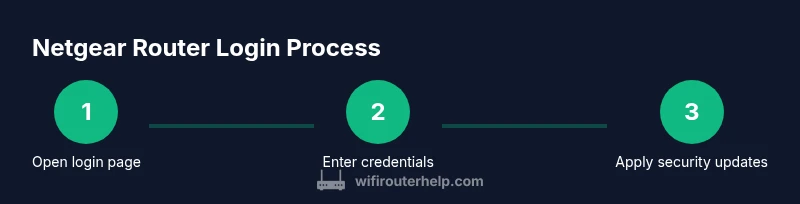
With this guide you will learn how to access the Netgear router login page, identify the correct default IP or URL, and securely log in to customize settings. You will need a connected device, your router’s admin password (or the label on the device), and a browser. The steps cover login, initial setup, and basic security hardening.
What is Netgear router login and why it matters
Understanding the Netgear router login is essential for security and control over home networks. The router login page is the gateway to configuring Wi‑Fi settings, guest networks, parental controls, firewall rules, and firmware updates. According to WiFi Router Help, mastering login basics reduces exposure to common threats and helps you tailor protection to your household. In this guide, we’ll cover where to find the login page, what credentials to use, and practical steps to log in safely and lock down settings. The Netgear router login experience is slightly model-sensitive, but the core concepts apply across most Netgear gateways. A secure login not only protects your devices but also minimizes unauthorized access to your home network, which is critical in today’s connected environments.
Finding the login page: default IPs and URLs
Most Netgear routers expose a local admin interface that you reach by a private IP address or a router-hosted URL. The two most common IPs you’ll see are 192.168.1.1 and 192.168.0.1, though some devices may use 192.168.1.254 or another variant. If your router uses a web address, you may log in via http://routerlogin.net or http://netgear-login.com in some cases, but routerlogin.net is the standard for many models. If you’re unsure, check the label on the bottom or back of the router for the exact address. Make sure your device is on the same network before attempting access. This is the moment to verify you’re not connected through a VPN that could block local addresses. For users new to home networking, start with the label on the device—it usually lists the default IP or URL you should type into your browser.
Credentials: default vs changed
Most Netgear routers ship with a default admin account, often with a username of "admin" and a password of "password" or left blank; however, models vary. It is critical to change these credentials during the first login. If you’ve previously changed the credentials, use the updated ones; if you’ve forgotten them, follow the vendor's password recovery process or perform a safe factory reset (not your first choice). Remember, the credentials protect not just the router settings but the entire home network. Keeping default credentials in place is a foundational risk; a strong, unique password for the admin account dramatically lowers the chance of unauthorized changes.
Accessing the login page safely
To access the login page, connect your device to the router via Wi‑Fi or Ethernet and open a browser. Enter the IP address or the routerlogin.net URL in the address bar, then press Enter. If the page seems blank, try a different browser or clear caches. Avoid using public or shared devices that may have weak security. If you see a certificate warning, proceed cautiously—it could be an internal security warning. For best results, disable any browser extensions that could interfere with local network access and ensure you’re on a trusted network.
First-time setup flow after login
After logging in, you should perform essential first-time steps: change the admin password, set your preferred Wi‑Fi name (SSID), and configure the security mode (WPA2 or WPA3). Update the firmware to the latest version, then create a guest network if you want to keep your main network isolated for visitors. Save changes and test your network connectivity from multiple devices. This initial configuration helps prevent unauthorized access and lays the groundwork for a stable, secure home network. When you finish, document the new credentials and change history to simplify future maintenance.
Common issues and troubleshooting
Login failures are often caused by incorrect credentials, misconfigured IP addresses, or a browser extension interfering with the login page. Confirm you’re connected to the router’s network, not a guest network with restricted access, and disable VPNs during login. If the login page loads but the credentials fail, try resetting to factory defaults only as a last resort and restore settings from a backup if available. WiFi Router Help analysis shows that many users succeed after ensuring the device is directly connected to the router's network and not attempting login through an external proxy or VPN.
Advanced settings you might configure
Beyond the basics, Netgear routers offer advanced options like QoS for prioritizing traffic, port forwarding for specific services, and firewall rules to block unwanted connections. You may also adjust DNS settings, configure a secondary wireless network, or enable bridge mode if you connect to a separate modem. For gaming or smart home devices, enabling a separate network or VLAN can improve security and stability. Depending on your model, you may also explore IP address reservation, UPnP settings, and parental controls to tailor access for family devices. Remember to document any changes and test connectivity after modifications.
After you finish: securing your network
Once your changes are saved, log out and restart the router if prompted. Keep firmware up to date and consider enabling automatic updates if your model supports it. Regularly review connected devices and change passwords periodically. The WiFi Router Help team highlights the importance of strong admin credentials and observing best practices for network security to reduce risk. Completing these steps reduces exposure to common threats and helps ensure ongoing performance and privacy for everyone in your home.
Tools & Materials
- Device with a web browser(Smartphone, tablet, or PC connected to the Netgear router network (Wi‑Fi or Ethernet).)
- Router power on(Ensure the router is plugged in and fully powered before attempting login.)
- Default login address label(Check the bottom/back label for the exact IP or routerlogin.net URL.)
- Notepad or password manager(Record new credentials and any notable changes for future reference.)
Steps
Estimated time: 25-40 minutes
- 1
Prepare your device and connection
Verify your device is connected to the router’s network via Wi‑Fi or Ethernet. Have the router on and accessible. This ensures you can reach the login page without network interruptions.
Tip: Use a wired Ethernet connection for maximum reliability during setup. - 2
Find the login URL or IP
Open a browser and enter the common IPs 192.168.1.1 or 192.168.0.1, or try http://routerlogin.net. If you’re unsure, inspect the router label for the exact address.
Tip: If the address doesn’t load, check your device’s network settings to confirm the correct gateway. - 3
Open the login page
Navigate to the login page and prepare to enter credentials. If the page fails to load, clear browser cache, disable VPNs, or try another browser.
Tip: Avoid using public computers or shared devices for login. - 4
Enter credentials
Use the default admin username/password if you haven’t changed them, or input your updated credentials if you already customized them.
Tip: If you forgot the password, pursue a safe recovery or reset method rather than guessing. - 5
Change the admin password
Navigate to the security or administration area and replace the default password with a strong, unique one.
Tip: Create a passphrase that’s long, includes numbers and special characters, and is stored securely. - 6
Update firmware
Check for firmware updates and install the latest version. Updates fix security flaws and improve stability.
Tip: Do not interrupt the device during a firmware update and ensure it remains powered. - 7
Configure essential network settings
Set a strong WPA2/WPA3 encryption, create a guest network if needed, and consider DNS tweaking for privacy or performance.
Tip: Limit admin access to trusted devices and avoid enabling unnecessary remote management. - 8
Document and log out
Save the changes and log out. Record new credentials and setup details for future maintenance.
Tip: Store credentials in a password manager and back up your configuration if available.
People Also Ask
What is the default Netgear router login URL?
Most Netgear routers use 192.168.1.1 or 192.168.0.1, or the URL routerlogin.net. Check the device label for the exact address. If in doubt, consult the manual or Netgear support.
Typically 192.168.1.1 or 192.168.0.1, or routerlogin.net.
What should I do if I can't reach the login page?
Ensure your device is connected to the router’s network, disable VPNs, and try a different browser. Confirm you’re using the router’s local address and not a remote URL.
Make sure you’re on the router’s own network and try again without VPN.
How do I change the admin password?
Log in to the router, then navigate to the Administration or Security section to set a new, strong password. Save changes and test by logging out and back in.
Log in, go to admin settings, and update the password.
Is it safe to reset to factory settings?
A factory reset restores defaults and erases custom settings. Back up important configurations and only reset if you’re locked out or must resecure the device.
Resetting wipes settings; back up first.
Should I enable remote management?
Disable remote management unless you have a specific need. If you enable it, restrict access to trusted IPs and monitor who can reach your router.
Only enable remote access if you need it and limit who can use it.
Does this apply to all Netgear models?
Most Netgear consumer routers share the same login basics, but menu labels and steps can vary by model. Refer to your model’s manual for exact navigation.
Most models are similar, but check your manual for specifics.
Watch Video
What to Remember
- Change the default admin password immediately.
- Know how to reach the login page via IP or routerlogin.net.
- Keep firmware updated and enable strong encryption (WPA2/WPA3).
- Document changes and use a password manager for credentials.