How to Log in to My Netgear Router: A Clear Step-by-Step Guide
Learn how to log in to your Netgear router, access the admin page, recover credentials, and secure your network with a practical, step-by-step approach.


Want to log in to my netgear router quickly? This guide covers the exact steps to access the router’s admin page, whether you use a web browser, the Netgear app, or the default IP. Learn where to enter credentials, how to recover forgotten passwords, and how to change the admin password for better security.
Determine the correct login path for your Netgear router
If you want to log in to my netgear router, you first need to reach the router’s admin interface. Most Netgear devices use a default gateway address you enter in a web browser: 192.168.0.1 or 192.168.1.1. Some models support a cloud-based login via the Netgear app or a browser URL like http://routerlogin.net. Before you type anything, confirm your device is connected to the router’s network (via Wi‑Fi or a wired Ethernet connection). Then open your browser and enter the IP address or the routerlogin.net URL. If the page doesn’t load, double-check that VPNs or firewalls aren’t blocking traffic and that you’re connected to the correct network. This step prevents login failures caused by wrong network context.
Which login URL to use and what to expect
Netgear routers commonly respond to 192.168.0.1 or 192.168.1.1. If you see a login window, you’ve reached the admin page; otherwise try http://routerlogin.net or the Netgear app. On some ISP-provisioned devices, the URL may differ; the quickest way to confirm is to check the label on the bottom of the router where the default gateway and login URL are printed, along with the model number. If you can’t locate the label, consult the model’s manual or search Netgear support for your exact model. When the login prompt appears, you’ll be asked for a username and password. The username is typically admin, but always verify on the device; use the password printed on the router or the documentation.
Access methods: Browser vs. mobile app
Most users log in using a web browser on a computer or phone. The Netgear Nighthawk app also offers login and basic configuration. If you prefer the browser, type the IP address or routerlogin.net. If you choose the app, sign in with your Netgear account; you may need to create one if you haven’t. The app provides a way to access basic settings without typing the admin credentials repeatedly. For both methods, ensure your device is connected to the router’s network. The interface layout may differ by model, but key sections like Wireless, Security, and Maintenance appear consistently.
Finding or resetting admin credentials
Credentials can be the system admin login; it’s crucial to locate them before attempting access. The quickest way is to check the bottom label for the login URL and possibly the default username; the password may be printed on the label or in the manual. If you can’t remember the password, use the password recovery option if available in the login prompt, or perform a factory reset as a last resort. Note that a reset wipes all custom settings, so you’ll need to reconfigure your network from scratch. After login, create a strong admin password and store it securely. If your router supports it, enable login notifications and consider separating guest networks to reduce risk.
Security steps after login
Once you gain access, secure the router by changing the default admin password to a strong, unique one. Enable WPA2 or WPA3 encryption for wireless networks, set a strong network name, and disable WPS if the option is present. Update firmware to the latest version to patch vulnerabilities. Review remote management settings and disable features not in use. Enforce strong passwords and consider enabling firewall and login attempt throttling. These steps protect your home network from common threats.
Troubleshooting login issues
Common login problems include wrong IP address, IP conflicts, or a blocked connection due to VPNs or proxies. Start by verifying device connectivity: ensure the computer or phone is connected to the router's network and not to a neighbor's. Try a different browser or clear the browser cache. If the login page never loads, reset the router to factory settings as a last resort; hold the reset button for 7–10 seconds while powered on. After reset, use the default URL (routerlogin.net) or IP (192.168.0.1 or 192.168.1.1) to reach the setup page and re-create credentials. If the login succeeds but you still can't access settings, ensure you’re not using a guest network, which typically has restricted access. Finally, contact Netgear support for model-specific guidance if issues persist.
What to do after you log in: quick setup tasks
After successful login, perform quick setup tasks to improve security and performance:
- Change the Wi‑Fi network name (SSID) to something unique, and set a strong password.
- Review connected devices and enable device access controls if available.
- Apply firmware updates and back up current settings if the router supports export.
Quick post-login checklist
- Confirm you can reach the admin interface on subsequent visits.
- Save the new admin password in a secure password manager.
- Enable automatic firmware updates if your device supports it.
Tools & Materials
- Device with a web browser (laptop, smartphone, or tablet)(Chrome/Edge/Firefox recommended; ensure you can access the browser's settings)
- Active network connection to the router(Connect via Wi‑Fi or Ethernet to the router you are trying to configure)
- Router label or manual (model number, default login URL/IP)(Check for the gateway address and default credentials)
- Netgear official app (optional)(Useful for basic setup if you prefer mobile configuration)
- Password manager or notebook(Store admin password securely for future logins)
Steps
Estimated time: 15-20 minutes
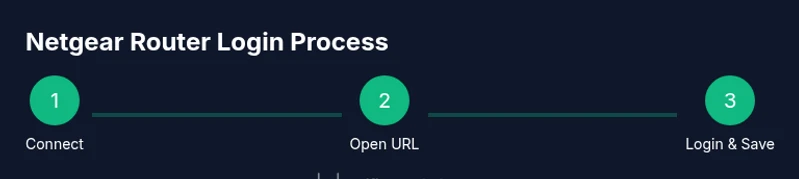
- 1
Connect your device to the router
Ensure your computer or mobile device is connected to the router’s network, either via Wi‑Fi or a wired Ethernet connection. This is essential so the login page is reachable. If you’re on a guest network, switch to the main network before proceeding.
Tip: A direct Ethernet connection reduces dropouts during login. - 2
Open the login URL or IP
Open a web browser and enter the router’s IP address (commonly 192.168.0.1 or 192.168.1.1) or the URL routerlogin.net. You should see a login prompt. If nothing loads, verify your device is on the correct network and try a different browser.
Tip: If routerlogin.net doesn’t load, use the IP address instead. - 3
Enter admin credentials
Use the admin username and password printed on the router label or in the manual. If you can’t remember them, use the recovery options provided on the login screen or prepare for a factory reset if necessary.
Tip: Never reuse credentials from other devices for router access. - 4
Change the admin password after login
Navigate to Security or Administration settings and replace the default admin password with a strong, unique one. Store it in a password manager.
Tip: Use a passphrase or a mix of upper/lowercase letters, numbers, and symbols. - 5
Secure the wireless network
Enable WPA2/WPA3, choose a strong SSID, and disable WPS if available. Apply the changes and logout when finished.
Tip: Disable remote management unless you really need it. - 6
Verify access and back up settings
Log out, then log back in to confirm access persists. If supported, export router settings for quick recovery in the future.
Tip: Keep a copy of current configuration in a secure location.
People Also Ask
What is the default IP address for Netgear routers?
Many Netgear routers respond to 192.168.0.1 or 192.168.1.1. If you don’t see a login page, check the router’s label or manual for the exact address, or contact Netgear support for model-specific guidance.
Most Netgear routers use 192.168.0.1 or 192.168.1.1; check the device label for the exact address.
What should I do if I forgot my admin password?
Use the password recovery option if available; if not, you may need to reset the router to factory settings. Remember that a reset erases custom settings, so reconfigure your network afterward.
Use the recovery option if available, or reset as a last resort.
Can I log in through the Netgear app instead of a browser?
Yes, many Netgear routers support the official Netgear app for login and basic configuration. The app is convenient for on-the-go access and quick tweaks.
Yes, the Netgear app can access your router settings.
How do I reset my Netgear router to factory settings?
Press and hold the reset button for 7–10 seconds while the router is powered on. This restores default settings and you’ll need to reconfigure the router from scratch.
Hold the reset button for about 7–10 seconds to restore factory settings.
Is it safe to login on public Wi‑Fi?
Logins over public networks are risky. If you must, use a trusted VPN and avoid saving credentials on shared devices.
Avoid logging into your router over public Wi‑Fi; use a VPN if you must.
What if the login page never loads after multiple attempts?
Check your network connection, try another browser, and ensure you’re not connected to a guest network. If needed, factory reset as a last resort and reconfigure.
If the page won’t load, check connections and try a different browser; reset only if necessary.
Watch Video
What to Remember
- Identify the correct login URL or IP first
- Know where credentials come from (label/manual) and how to recover them
- Secure the router after login with a strong password and updated firmware
- Follow a clear troubleshooting path if login fails