Reset Netgear Router: A Clear Step-by-Step Guide
Learn how to safely reset a Netgear router, whether via the hardware button or web UI. This guide covers prep, step-by-step reset methods, post-reset setup, and best practices to secure your network.


Resetting a Netgear router restores factory defaults, erasing custom settings, Wi-Fi names, and passwords. This is a common troubleshooting step when you’re locked out or experiencing persistent connectivity issues. You can perform a reset with the hardware button or through the router’s web UI, depending on your model, and then reconfigure from scratch.
What a reset does and when to use it
A factory reset returns a Netgear router to its original state, wiping custom settings, guest networks, saved passwords, and admin credentials. After a reset, the device behaves as if it were new out of the box. This is a powerful troubleshooting tool, but it also requires re-creating your network from scratch. According to WiFi Router Help, this is the most reliable way to recover from persistent login issues, a compromised Wi-Fi password, or a failing firmware update that won’t install. If you’re hands-on and comfortable reconfiguring settings, a reset can save time compared with trying multiple manual fixes.
A reset should be considered when: you cannot access the admin interface, you suspect a security breach, your Wi-Fi credentials have been changed by someone else, or you’re preparing the router for a new owner. Before you reset, confirm you can reconnect afterward by following the post-reset steps.
Safety and backup before you reset
Before you reset, make a plan for how you will reconfigure your network. Photograph or write down the current SSID and password, Ethernet settings if you use a wired connection, and any custom port forwards or QoS rules. If the router’s admin password is stored in a password manager, retrieve it now so you can log back in after the reset. Ensure the router is plugged into a reliable power source to avoid a partial reset, which can corrupt firmware. If you’re selling or giving away the router, a factory reset is the correct move to wipe personal data. WiFi Router Help recommends performing reset only when you’re ready to reconfigure immediately.
Reset options: hardware button vs web UI
Netgear routers typically support two reset methods. The hardware button reset is useful when you cannot log in to the web UI or have forgotten the admin password. The web UI reset is faster if you still know the login credentials. With the hardware button, you press and hold the recessed reset button until the status lights blink, then release and wait for the router to reboot. With the web UI, you sign in, navigate to the factory reset option, and confirm. If you perform a reset via the UI, your ISP settings and certain router features may remain intact depending on the model, but most settings will still be cleared.
Step-by-step overview (non-numbered, high level)
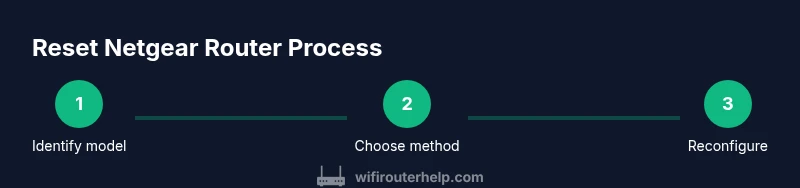
- Decide which reset path to take based on model and access. If you can log in, use the web UI path for a clean reset; otherwise, use the hardware button.
- Prepare by backing up critical information like SSID/password and any port forwards.
- Execute the reset, then allow the router to reboot fully before reconnecting devices.
- Reconfigure network settings, security options, and firmware if needed.
- Test connectivity on multiple devices and create a new backup once configuration is complete.
After reset: reconnect and reconfigure
Once the reset finishes, connect a device to the router via Wi-Fi or Ethernet. Access the router’s default login (as documented on the device label or in the manual) and create a new admin password. Re-create your Wi-Fi network name (SSID) and a strong password. Reapply essential security settings, such as WPA3 if supported, and re-enable firewall protections. If you previously used a guest network, decide whether to recreate it and set a separate password. Finally, check for firmware updates and apply them if available to close security gaps.
Common post-reset issues and how to handle them
If devices can’t connect after reset, double-check the SSID and password, and ensure you’re connected to the router—not to a neighbor’s network. If the web UI is slow or unresponsive, try a different browser or clear cache, then retry. If you still cannot access the router, perform the reset again or consult the Netgear support site for model-specific guidance. In some cases, you may need to restore a backup configuration or re-enter advanced settings manually.
Security and firmware after a reset
After resetting, immediately update the router firmware to the latest version. Enable strong encryption (WPA2 or WPA3), disable WPS if your model supports it, and create a unique admin password. Consider rotating passwords periodically and enabling automatic security updates if available. Keeping your router’s firmware current is essential for protection against known vulnerabilities.
When to contact support
If reset attempts fail or the router exhibits unusual behavior after reboot, contact WiFi Router Help or Netgear support. Have your model number, serial, and a description of the issue ready. Support can guide model-specific reset paths, advise on bridging or modem compatibility, and help recover access if the admin account is locked.
Tools & Materials
- Reset tool (paperclip or pin)(Used to press the recessed reset button on the router.)
- Stable power source(Keep the router powered during the reset process to avoid bricking.)
- Browser-enabled device(Smartphone, tablet, or computer to access the web UI after reset.)
- Current admin credentials (optional)(If known, speeds up post-reset login.)
- Backup copy of network settings (optional)(Save SSID, password, and advanced rules to restore quickly.)
Steps
Estimated time: approximately 25-40 minutes
- 1
Identify model and reset path
Locate the exact Netgear model number on the device label or in the manual. Check the router support page to confirm the recommended reset path (hardware button vs web UI) for your model.
Tip: Knowing the model avoids guessing and prevents applying the wrong reset method. - 2
Power and prepare
Ensure the router is plugged into a reliable power source and nearby a device you’ll use for setup. Have backup information ready for reconfiguration.
Tip: A stable power connection prevents interruptions that could corrupt the reset. - 3
Reset via hardware button (if needed)
If you can’t log in, press and hold the recessed reset button with a paperclip until the lights flash, then release. Wait for the router to reboot fully.
Tip: Do not press the button repeatedly; one clean reset is enough. - 4
Reset via web UI (preferred if accessible)
Sign in to the router’s admin page at the default address, locate Factory Reset, and confirm. This clears settings while preserving modem configuration if applicable.
Tip: If you’re unsure of the default login, check the sticker on the router or the manual. - 5
Reconnect and sign in
After reset, connect to the router and sign in with the default credentials. Create a new admin password to secure the device.
Tip: Avoid reusing old passwords; use a unique, strong password. - 6
Reconfigure Wi‑Fi and security
Set a new SSID and strong Wi‑Fi password. Re-enable security features like WPA3, enable guest networks if needed, and apply recommended firewall settings.
Tip: Document your new SSID and password in a safe place. - 7
Update firmware and test
Check for firmware updates and apply them. Test connectivity across multiple devices and ensure internet access is stable.
Tip: Firmware updates close security gaps and improve performance.
People Also Ask
What happens to my settings when I reset a Netgear router?
A factory reset returns the router to its original, out-of-the-box state. It erases custom settings, SSID names, passwords, and admin credentials, requiring you to set up the network anew.
A factory reset puts the router back to default settings, so you’ll need to set up your Wi‑Fi again.
Will resetting affect my internet connection from my modem?
Resetting the router does not change the modem configuration, but you may need to re-establish the internet connection after reconfiguring the router.
Your modem usually stays as is; you’ll just reconnect the router to restore access.
Can I reset Netgear router without internet access?
Yes. Use the physical reset button to restore factory defaults even if you can’t access the web UI. You’ll then reconfigure from scratch.
You can reset using the hardware button if the web interface is unavailable.
Is it safe to reset my router remotely?
Most Netgear models don’t support remote factory resets. You need physical access or the admin UI to reset.
Remote resets aren’t usually possible; you need to be near the router or sign in to its UI.
Should I reset before selling or giving away the router?
Yes. A factory reset helps protect your data by removing personal settings before transferring ownership.
If you’re handing the router to someone else, reset it first to wipe your data.
How often should I update firmware after a reset?
Check for updates right after reset and enable automatic updates if available to protect against known vulnerabilities.
After resetting, make sure the router has the latest firmware for security and stability.
Watch Video
What to Remember
- Reset restores factory defaults and clears custom data
- Back up important network details before resetting
- Reconfigure security and Wi‑Fi after reset to protect your network
- Keep firmware up to date for security and reliability
- Use model-specific guidance to avoid missteps