Is My Router Working? A Fast Troubleshooting Guide
An urgent, practical guide to quickly diagnose and fix router problems, from power lights to firmware updates. Learn step-by-step checks, how to distinguish modem vs router issues, and preventive tips to keep your home network reliable.


To know if your router is working, start with quick checks: confirm the power and status LEDs are on, ensure the router is broadcasting Wi‑Fi, and test a device on wired or wireless to reach the internet. If pages won’t load, restart both modem and router, re-seat cables, and run a speed test. If problems persist, you may need a reset or replacement.
Quick sanity checks you can do in minutes
According to WiFi Router Help, most home network hiccups are simple and fixable with fast checks. Start by confirming power: ensure the router and any linked modem are plugged in and showing steady power LEDs. If the LEDs are dark or flashing erratically, unplug, wait 10 seconds, and plug back in to power-cycle both devices. Next, verify the router is actually emitting Wi-Fi: look for the network name on your phone or computer and try to connect. If you can see the network but cannot browse, move closer to the router, reduce interference from microwaves or neighboring networks, and test with a wired connection if possible. Finally, test internet reachability by loading a few known websites. If pages load slowly or fail entirely, you’ve identified the scope of the problem and can continue with deeper checks.
Distinguishing router issues from modem or service outages
Is the issue with the router, or is the internet service down? Begin by isolating devices: try a wired connection directly from the modem (bypass the router) to see if you can reach the web. If that works, the problem is likely with the router, its settings, or the wireless signal. If the wired connection from the modem also fails, the fault is outside your router—check with your ISP for outages, account status, or line issues. Next verify the modem status lights, especially a online or sync indicator. If those lights are off or blinking, the issue may be the modem or the coax/phone line rather than the router itself. Finally, check for recent changes: new devices, updated apps, or configuration changes that could have disrupted connectivity. By narrowing down symptoms, you’ll avoid chasing the wrong fault and save time.
What to check first: power, LEDs, cables
Inspect hardware basics: power, LEDs, and cables. Make sure the power adapter is snug and the outlet is working (test with a lamp to confirm). Look for stable LEDs on the router: a solid power light and a separate status light for internet or Wi-Fi. If the lights are off, cycle power. If a light is amber/yellow or flashing, consult the manual for the meaning, often signaling a firmware or hardware fault. Check cables: ensure the Ethernet cable from the modem to the router is fully inserted at both ends, not loose or damaged. If you changed the cable recently, swap it with a known-good one. For devices connected via Wi-Fi, ensure you’re not on a guest network with restricted access. After these checks, re-test connectivity on a wired device to confirm whether the issue is Wi-Fi-specific.
Diagnostic flow: symptom → diagnosis → solution
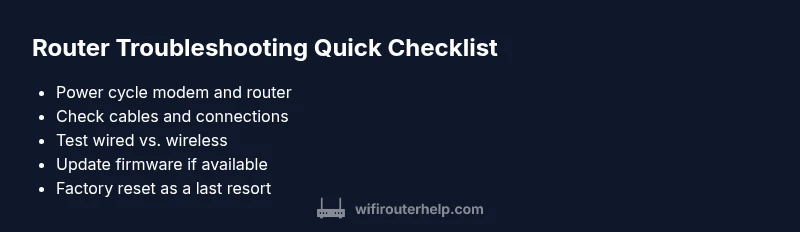
This section maps a practical troubleshooting path from observable symptoms to concrete solutions. Start with the most common, easiest checks and move toward targeted fixes. If the symptom is no internet on all devices, consider power/cable issues first, then ISP status, then firmware or hardware faults. Maintain a clear log of what you tested and the outcomes so you can escalate efficiently if needed. The goal is a repeatable, low-stress process that quickly reveals the root cause rather than masking it with temporary workarounds.
Steps
Estimated time: 30-60 minutes
- 1
Power-cycle both devices
Unplug the modem and router, wait 15 seconds, then plug them back in starting with the modem. Give each device a full boot time before testing.
Tip: Label outlets if you have multiple power strips to avoid confusion. - 2
Check physical connections
Inspect the coax/DSL line and Ethernet cable to the router. reseat or replace any cables that look worn or loose.
Tip: Use a new Ethernet cable to rule out a faulty cord. - 3
Test wired connectivity
Connect a laptop directly to the router or modem with Ethernet and run a quick speed test to verify baseline service.
Tip: Wired tests remove Wi-Fi as a variable. - 4
Inspect LED indicators
Confirm the power LED is solid and the internet/Wi‑Fi lights show expected status. If a light indicates a fault, consult the manual.
Tip: Refer to your router’s user guide for LED codes. - 5
Check for firmware updates
Log into the router’s admin page and install any available firmware updates to fix known issues.
Tip: Back up your configuration before updating. - 6
Reset if necessary and reconfigure
If issues persist after updates, perform a factory reset and reconfigure essential settings.
Tip: This should be a last resort; only reset after saving current settings.
Diagnosis: All devices report no internet despite router and modem power lights on
Possible Causes
- highPower issue
- highLoose or damaged cables
- mediumModem/ISP outage
- lowFirmware glitch
- lowHardware failure
Fixes
- easyPower-cycle the modem and router by unplugging for 15 seconds, then plug back in and let them boot fully.
- easyRe-seat or replace any loose/coax/Ethernet cables; ensure connections are secure and not damaged.
- mediumCheck for an ISP outage and confirm service status; contact your provider if outage persists.
- mediumUpdate router firmware via the admin page if an update is available.
- hardFactory reset the router only if advised by support and after backing up settings.
- hardIf persistent hardware failure is suspected, plan a replacement.
People Also Ask
Is my router the source of the problem?
If devices can connect to the router but cannot access the internet, the issue may lie with the router settings or wireless signal. Run the basic checks and consider a firmware update. If the wired modem test works, focus on the router.
If you can connect to the router but no internet, the router could be at fault. Start with basic checks and firmware update.
Why are the LED lights on my router blinking?
Blinking LEDs usually indicate activity or a fault depending on the color and pattern. Check the manual for the exact meaning, and if patterns look abnormal, power cycle or reset as recommended.
Blinking LEDs can mean activity or a fault; check your manual and respond accordingly.
Should I reset my router to factory settings?
A factory reset is a last resort. Back up your settings first and be prepared to reconfigure essential items like Wi‑Fi name and password.
Factory reset is a last resort; back up settings first.
How can I tell if the problem is my ISP?
If a direct modem test works, the issue is likely router-side. If the modem itself cannot connect, contact your ISP to check outages or line problems.
If the modem can’t connect, call your ISP to check outages.
What maintenance keeps my router reliable?
Regular firmware updates, periodic reboots, and keeping the router’s environment clear of dust and heat help maintain reliability.
Keep firmware updated and reboot periodically for reliability.
Watch Video
What to Remember
- Power-cycle first; it fixes most issues.
- Confirm Wi‑Fi is broadcasting before testing.
- Test with a wired connection to confirm service.
- If unresolved, reset or replace router if needed.