How to Check If Your Router Is Working Properly
A thorough, action-oriented guide to verify router health, diagnose common issues, and restore reliable home networking with practical checks and best practices.


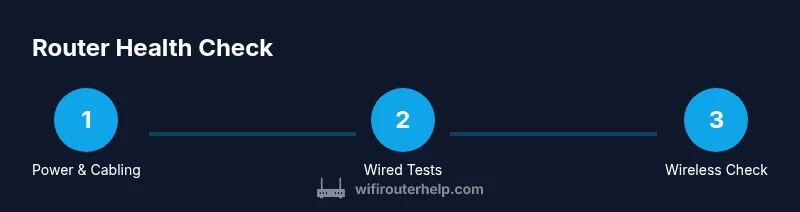
According to WiFi Router Help, to check if your router is working properly, verify basic connectivity, review power and cabling, and test both wired and wireless devices. Ensure the WAN/Internet light is solid, reboot the device if needed, and run simple tests from a computer or smartphone. These steps confirm your home network is functioning correctly and help locate where issues originate.
What 'working properly' means for a home router
According to WiFi Router Help, a router is considered to be working properly when devices can access the internet reliably, local resources are reachable, and the router's management UI responds promptly. In practical terms, this means your home network should deliver consistent web access, streaming, and online gaming across multiple devices without frequent disconnects. You should be able to connect via Ethernet or Wi‑Fi and reach common destinations such as a DNS service or a known site with minimal delay. The goal is stability, predictable performance, and the ability to diagnose issues quickly. If you regularly experience outages, slow speeds, or unexplained resets, it’s time to perform a structured check using a step-by-step approach. This not only confirms whether the router is functioning but also helps identify whether the issue lies with your modem, ISP, or a misconfigured setting.
Key indicators of proper operation include: (1) the WAN/Internet light on the router being solid or steady, not blinking irregularly; (2) devices obtaining IP addresses via DHCP and showing as connected in the admin interface; (3) local devices (printers, file servers, smart home hubs) accessible on the local network; and (4) the router’s firmware up to date and settings that preserve security without blocking essential services. If you regularly experience outages, slow speeds, or unexplained resets, it’s time to perform a structured check using a step-by-step approach. This not only confirms whether the router is functioning but also helps pinpoint whether the issue lies with your modem, ISP, or a misconfigured setting.
Quick checks you can perform without tools
Before diving into diagnostics, perform some quick checks that require no special tools. Start with power and cabling: ensure the router is plugged in, the power adapter is snug, and there are no warning LEDs. Inspect the Ethernet cable between the modem and router and the one from the router to your main device; replace a frayed or bent cable. Make sure all cables are seated correctly in their ports. If you recently changed settings, a brief reset of the device can help restore a known-good state; note that a factory reset should be a last resort. Reboot the router by unplugging it for about 30 seconds, then plugging it back in and waiting 2–3 minutes for it to boot. While it restarts, check the status lights: a steady WAN/Internet light and a healthy Wi‑Fi indicator usually signal normal operation. Finally, verify that you are using a current firmware version by logging in to the admin page and checking the version. If you see warning icons or blinking patterns, move to deeper checks rather than assuming hardware failure.
Verify wired connectivity and basic internet access
Wired tests help isolate issues from wireless interference. Use a laptop or desktop connected directly to the router with a short Ethernet cable. Open a browser and load the router’s admin page using its gateway address (often 192.168.1.1 or 192.168.0.1). If the login page loads, your local network is reachable. Next, run a ping test to the gateway to confirm the router responds. Then test external connectivity by pinging a reliable public IP or a well-known domain (e.g., 8.8.8.8 or google.com). If you can reach external sites but pages load slowly, the issue may be bandwidth or ISP related; if external pings fail, there is a problem with the router or the modem. Record latency and packet loss observations as you test. Finally, perform a quick speed check by loading a fast site and noting the time to first byte or overall page load time to gauge baseline performance.
Analyze wireless performance and coverage
Wireless performance depends on several controllable and environmental factors. Begin by checking signal strength as you move through your home; use a phone or tablet to observe how RSSI or connection quality changes with distance and obstacles. Understand that 2.4 GHz offers broader coverage but is more prone to interference, while 5 GHz provides higher speeds over shorter distances. If you notice weak coverage in common areas, try repositioning the router higher, away from thick walls or metal, and away from other electronics that emit interference. If problems persist, consider splitting networks (2.4 GHz and 5 GHz) with distinct names to identify which band is underperforming. You can also manually select a less congested channel in the router’s settings; run a quick channel scan if your device or router supports it to determine the quietest option. Document your findings and pair this with real‑world tests on multiple devices to distinguish between coverage gaps and device‑specific issues.
Use the router's built‑in tools and firmware updates
Most modern routers include diagnostic pages and firmware controls. Log into the admin interface from any connected device and navigate to the status or logs page. Look for uptime, connected clients, error events, and recent reboots to understand reliability. If you notice frequent disconnects or unusual reboots, review logs for temperatures, power events, or port activity that may reveal hardware problems. Firmware updates can fix bugs, close security gaps, and improve compatibility with new devices; enable automatic updates if available or install the latest version manually. Before updating, back up your current configuration so you can restore quickly if something goes wrong. If login fails or the page doesn’t load, perform a basic reset to regain control and reconfigure from scratch. The WiFi Router Help analysis emphasizes that many issues are resolved by timely firmware updates and correcting common misconfigurations in QoS or port forwarding.
Troubleshooting flow: reset, reboot, or replace
When problems persist after the previous steps, follow a clear, repeatable flow. Start with a reboot of both router and modem to refresh the connection and clear temporary faults. If the issue remains, perform a factory reset on the router to restore default settings, then reconfigure essential pieces such as the network name (SSID), password, and admin credentials. Verify that port forwarding rules or firewall settings aren’t inadvertently blocking traffic for the devices you use most. If problems persist after resets, test a different router if available or contact your ISP to check service status. Aging hardware may also be the culprit; if the router frequently overheats or cannot sustain steady performance under load, replacement might be warranted. Throughout, keep logs and a simple change record to help support or upgrades later.
Real‑world testing and best practices
Finally, validate your router with real‑world testing and establish a routine for ongoing maintenance. Run speed tests from multiple devices at different times of day, comparing results across both 2.4 GHz and 5 GHz networks. Confirm consistent performance for common activities such as web browsing, video streaming, and online gaming. Consider enabling a guest network to isolate devices and improve security. Maintain strong, unique passwords and disable UPnP if you don’t need it, or configure it carefully. Regularly check for firmware updates, review security settings, and keep a log of issues to track patterns. The WiFi Router Help team recommends treating routine checks as part of a monthly maintenance plan and staying proactive about replacing aging equipment. For added confidence, consult external sources when you encounter unfamiliar symptoms: external guidance from sources like FCC.gov, FTC.gov, or NIST.gov can offer corroborating context and safety considerations.
Tools & Materials
- Router and modem (or gateway device)(Have both devices on and within reach for testing.)
- Ethernet cables (short and robust)(One between modem and router, another for wired client tests.)
- A computer or smartphone(For accessing the admin page and running tests.)
- Web browser(Up-to-date browser for admin interface tests.)
- Notepad or digital note app(Record observations and configured settings.)
- Optional network analyzer app(Can help visualize wireless signal and channel usage.)
Steps
Estimated time: 40-60 minutes
- 1
Power cycle devices
Turn off the router and modem, unplug both. Wait 30 seconds to let residual power drain, then plug them back in and power up. Allow 2–3 minutes for full boot. This clears temporary faults and refreshes device state.
Tip: Note any LED changes during boot; a stuck or blinking light may indicate a problem. - 2
Check physical connections
Inspect the power adapter, modem-to-router Ethernet cable, and router-to-device connections. Replace any damaged cables and reseat ports firmly. Loose cables are a common source of intermittent issues.
Tip: Use a single, well-seated cable for each link to avoid cross-wiring problems. - 3
Log in to the router admin page
From a connected device, open a browser and enter the gateway IP (commonly 192.168.1.1 or 192.168.0.1). Enter your admin credentials. If you can reach the login page, your local network interface is accessible.
Tip: If you forgot credentials, use the reset option only after you’ve tried standard recovery methods. - 4
Verify WAN/Internet status
Check the status panel in the admin UI for Internet connectivity and uptime. A healthy reading typically shows a connected status and a valid WAN IP. If the status is offline, see if the modem is online and if the ISP service is active.
Tip: Document any error codes shown in the status page for support. - 5
Test wired connectivity
Connect a laptop directly to the router via Ethernet. Try loading a page and ping the gateway (e.g., 192.168.1.1). If wired devices fail to reach the gateway, there may be a hardware issue or misconfiguration.
Tip: If ping to gateway fails but loading the router page works, try a different browser or clear cache. - 6
Assess wireless performance
Move to different rooms with a phone or tablet and check signal quality, speeds, and reliability on both 2.4 GHz and 5 GHz bands. Note dead zones and consider repositioning the router or enabling a second access point if needed.
Tip: Aim for stronger signals in most used areas rather than perfect strength in a single spot. - 7
Update firmware and backup
Check for firmware updates in the admin UI and install the latest version. Back up current settings before updating. After updating, recheck essential settings (SSID, password, security) and test again.
Tip: Backups save time if you need to revert after an update. - 8
Escalate if issues persist
If problems remain after all steps, contact your ISP or substitute with a known-good router to isolate whether the problem is device- or service-related. Collect logs and a summary of tests to share with support.
Tip: Have date, times, and test results ready to speed up troubleshooting.
People Also Ask
Why is my internet slow with a green light?
A steady green light usually means power and basic connectivity are intact, but slow speed can be caused by ISP congestion, device misconfigurations, or network interference. Run tests across multiple devices and times, check firmware, and review QoS settings to identify the bottleneck.
If you see a steady green light but slow speeds, check for ISP issues, congestion, and misconfigurations. Test across devices and update firmware if needed.
How do I tell if the problem is with the router or the ISP?
If wired devices can access the router but external sites are slow or fail to load, the issue may be with the ISP. If both wired and wireless devices fail to reach the internet, the router or modem is likely involved. Use commands like ping to test both local gateway and external addresses.
Try pinging the gateway and an external address to see where the failure occurs, which helps distinguish router vs. ISP problems.
Should I reset my router to fix issues?
Resetting can restore default settings and resolve misconfigurations, but it also erases custom configurations. Use a soft reset first, then a factory reset only if you’ve backed up settings and are prepared to reconfigure from scratch.
A reset can help, but back up first and be ready to reconfigure.
What is a good Wi‑Fi channel to use?
For 2.4 GHz, choose a channel with the least interference (often 1, 6, or 11). For 5 GHz, use a less congested channel identified by a channel scan if your router supports it. Channel selection can improve speed and reduce dropouts.
Pick the least crowded channel, using a scan if available, to improve performance.
How often should I update router firmware?
Check for updates monthly or whenever your router reports an available update. Firmware updates fix bugs, improve security, and enhance compatibility with devices and services.
Check monthly for updates and apply them to keep your router secure and reliable.
Can a cheap router cause more problems?
Budget routers can provide adequate performance but may struggle with newer devices or heavy traffic. If you notice frequent drops, limited features, or poor coverage, consider upgrading to a more capable model.
Cheaper models may save money upfront but can cost reliability and coverage in busy homes.
Watch Video
What to Remember
- Verify wired and wireless performance to isolate issues
- Check power, cabling, and LEDs before deeper testing
- Use the admin UI to review uptime, connected clients, and logs
- Update firmware and back up settings before changes
- Document results and maintain a routine maintenance cadence