How to Tell If Your Router Is Working: A Practical Guide
Learn how to tell if your router is working with practical tests, quick checks, and proven troubleshooting steps to diagnose home-network issues and verify reliable internet access in 2026.


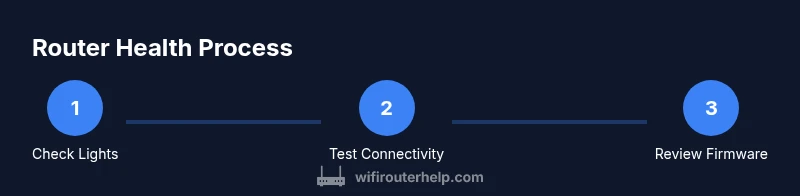
By the end of this guide, you’ll be able to tell if your router is working by checking the status lights, testing device connectivity, and running a few quick network tests. You’ll need a computer or smartphone, access to the router’s admin page, and at least one device connected to the network. We’ll cover signs of normal operation and common issues.
Understanding What ‘Working’ Looks Like
When we say a router is working, we’re looking for consistent Wi‑Fi or wired connectivity, reliable device access, and stable internet that responds quickly to tests. According to WiFi Router Help, a healthy router typically shows a predictable pattern of status lights (for example, power solid, internet solid, and Wi‑Fi blinking in regular intervals) and no repeated, unexplained reboot cycles. In practical terms, this means your devices can load websites, stream content, and run video calls without frequent dropouts. The goal of this section is to translate that general idea into concrete signs you can check without specialized hardware.
If you’re assessing loveable reliability rather than peak performance, you’ll also want to consider whether the router maintains a consistent connection across all devices and whether local network tasks (like file sharing or printer access) work as expected. The WiFi Router Help team emphasizes that a working router should provide consistent results across multiple devices and wired/wireless connections. This practical lens helps you separate router health from the broader internet service status.
Signs Your Router Is Functioning Properly
When a router is functioning properly, you should observe several clear indicators that don’t require advanced tools:
- Power light remains solid, and the Internet or WAN light is solid or blinking in a steady, predictable pattern.
- Your primary devices can connect to Wi‑Fi or via Ethernet without frequent dropouts.
- Basic web pages load within a few seconds, and streaming apps don’t buffer excessively.
- A wired test from a PC to the router shows low latency and stable throughput compared with a wireless test.
- Admin page access is reliable, and the router firmware is current or within a supported update window. WiFi Router Help analysis shows that regular, predictable performance across devices is a strong signal of a healthy router.
If you notice any of the opposite signs (flashing lights that don’t settle, frequent disconnects, or dramatic speed fluctuations), that’s a cue to continue with targeted diagnostics.
Common Causes of Perceived Failures
People often blame the router when the issue lies elsewhere, or they misread a temporary disruption as a router fault. Common culprits include:
- Internet service outages or ISP throttling – tests show no local device issue but external connectivity problems.
- Interference from neighbors, microwaves, or cordless phones impacting Wi‑Fi channels.
- Overloaded router CPU from many connected devices or outdated firmware.
- Incorrect network settings (wrong SSID, password, or DHCP conflicts) causing devices to fail to obtain an IP address.
- Hardware aging or a failing power supply.
WiFi Router Help analysis shows that many perceived router problems are actually outside the device itself. Understanding the distinction helps you avoid unnecessary resets and keeps you focused on the real cause.
Quick Diagnostics You Can Run
Run a structured set of checks to isolate where the problem lies. Start from basics and move to more advanced tests:
- Check the power and all key LEDs; ensure no unusual colors or blinking patterns.
- Confirm at least one device can connect (Wi‑Fi or wired) and test basic browsing.
- Run a speed test from a wired device to measure real throughput (compare to your plan).
- Ping the gateway (usually 192.168.1.1 or 192.168.0.1) from a connected computer to verify local network responsiveness.
- If possible, run a traceroute to a reliable domain (like google.com) to see where delays begin.
- Test DNS resolution by pinging a domain name (google.com) and an IP address (8.8.8.8) to distinguish DNS vs. raw connectivity issues.
These tests help you separate local-network problems from ISP or external outages, a distinction WiFi Router Help often emphasizes for efficient troubleshooting.
When to Reset or Reboot
Rebooting the router is a safe, first-line diagnostic that can resolve many transient issues. Before a reset, save any custom settings (port forwards, DHCP reservations) so you can restore them afterward. A soft power cycle (off for 30 seconds, then back on) clears temporary memory and reestablishes connections. If problems persist, a factory reset may be necessary, but only after backing up configuration and noting down critical settings.
The WiFi Router Help team recommends performing a controlled reboot first to distinguish simple glitches from hardware or configuration issues. If you must reset, plan for a brief downtime and plan to reconfigure essential settings immediately after.
Power cycling is often enough to restore stability, but persistent problems may point to firmware or hardware faults rather than a simple misconfiguration.
Depth Diagnostics: Wired vs Wireless Performance
Wired connections are generally more stable than wireless ones, so test both to identify where the bottleneck lies. Use an Ethernet cable to connect a computer directly to the router and run a speed test. Compare results with those from a wireless test on the same device, ideally with the same distance and channel conditions. Discrepancies often indicate Wi‑Fi interference or channel congestion.
If wireless performance is poor but wired is fine, focus on optimizing Wi‑Fi settings (channel, bandwidth, guest networks) and reducing interference. If both wired and wireless perform poorly, the issue is more likely router firmware, hardware health, or an ISP-related problem, in which case a firmware update and/or service check are warranted.
Advanced Checks: Firmware, DHCP, and IP Conflicts
Keeping firmware up to date reduces bugs and security risks while improving stability. Check the router’s status page for the current version and compare it to the latest release from the manufacturer. If outdated, update following the official instructions.
DHCP problems (IP address assignment) can mimic connectivity issues. Verify the DHCP server is enabled and leasing addresses correctly. Look for IP conflicts (two devices with the same IP) and reserve stable IPs for critical devices to avoid drops.
By patiently validating firmware health, DHCP configuration, and IP assignment, you can resolve many issues without replacing hardware.
Authoritative Sources and Practical Next Steps
This guide aligns with best-practice troubleshooting approaches used by network professionals and is supported by public-resource references such as university or government guidance on home networking and router health. If you need external validation, consult official documentation from device manufacturers and industry-standard resources. Remember that gradual, methodical testing often reveals the true root cause rather than a quick, sweeping fix.
Tools & Materials
- Smartphone or computer(For testing Wi‑Fi and accessing the router admin page)
- Router admin credentials(Username and password to login to the router interface)
- Ethernet cable(Useful for wired testing to remove Wi‑Fi interference)
- Laptop or mobile speed test app/website(To measure throughput against your plan)
- Access to a wired test device(A PC or laptop connected directly to the router)
Steps
Estimated time: 30-45 minutes
- 1
Check power and status lights
Power on the router and observe the LEDs. A healthy unit typically shows a solid power light and a stable internet/WAN light, with Wi‑Fi activity indicated by a regular blinking pattern. If any light is off or flashing abnormally, record the pattern and proceed to targeted checks.
Tip: If a light is red or off, consult the manual and note the exact LED pattern before moving on. - 2
Test basic device connectivity
Try connecting one device to Wi‑Fi and load several websites. If possible, test with a wired connection as a baseline to remove wireless variables. Ensure the device obtains an IP address and can reach the router’s gateway.
Tip: Prefer a wired test first to establish a stable baseline before diagnosing wireless issues. - 3
Run a speed and latency test
From the connected device, run a speed test to compare real throughput with your plan. Note latency (ping) and jitter, then repeat on a different device or via a wired connection for comparison.
Tip: Test multiple times at different times of day to account for network variability. - 4
Ping and traceroute to identify bottlenecks
Open a command prompt or terminal and ping the router gateway (e.g., ping 192.168.1.1). If the ping is low, move to traceroute to a reliable external site to see where delays occur.
Tip: If you see high latency early in the route, the issue may be outside the local network. - 5
Check router admin page and firmware
Log into the router admin interface and check the firmware version. If outdated, follow the manufacturer’s instructions to update. Review DHCP settings and ensure the device list is healthy.
Tip: Back up current settings before updating; some updates reset configurations. - 6
Test DNS resolution
From a connected device, resolve a hostname (e.g., www.example.com) and compare with a direct IP ping (e.g., 93.184.216.34). If hostname resolution fails, the issue may be DNS-related.
Tip: If DNS is the problem, try changing the router’s DNS servers to public defaults like 1.1.1.1 and 8.8.8.8. - 7
Perform a controlled reboot or reset if needed
If problems persist, perform a controlled reboot (power off, wait 30 seconds, power on). If issues continue after reboot, consider a factory reset after saving settings.
Tip: Record essential settings before resetting; you’ll likely need to reconfigure basic network preferences.
People Also Ask
Why can't I connect to the internet even though the router lights look normal?
Light indicators can be misleading during partial outages. Test with a wired device, run a speed test, and ping the gateway to determine if the issue is local or ISP-related.
If the lights look fine but you can’t browse, try a wired test and ping the gateway to confirm whether the problem is local or with your internet service.
What is the first thing to check if devices can't connect to Wi‑Fi?
Verify the correct SSID and password, ensure the device is connected to the right network, and test both 2.4 GHz and 5 GHz bands if available.
Check the SSID and password, then test both 2.4 and 5 GHz bands to rule out band-specific issues.
How do I know if the issue is with the router or the ISP?
Run a speed test on a wired device and compare it to your plan. If wired tests fail or mirror wireless results, the issue is likely the router or local network; if wired tests are fine, the ISP may be at fault.
If wired tests fail, the router or local network is the likely culprit. If wired tests pass but wireless fails, focus on Wi‑Fi settings and interference.
Should I reset the router to factory settings?
Only after backing up essential configurations and trying a reboot. A factory reset wipes custom settings, which can fix stubborn issues but requires reconfiguration.
Only do a factory reset after a reboot attempt and after saving your important settings, since you’ll need to set up the network again.
When should I contact my ISP?
If tests indicate an external outage or persistent issues after firmware and DHCP checks, contact your ISP for a line check or service status.
If tests point to external outages or ongoing problems after trying fixes, reach out to your ISP for a line check.
Can changing DNS help my router performance?
Yes, switching to reliable DNS servers can improve responsiveness and page load times, especially if DNS resolution is the bottleneck.
Sometimes switching to a fast DNS like 1.1.1.1 or 8.8.8.8 speeds up name resolution and improves perceived responsiveness.
Watch Video
What to Remember
- Identify whether the router’s status lights indicate healthy operation
- Differentiate local network issues from ISP outages
- Use wired tests to establish a stable baseline
- Check firmware and DHCP settings before broader resets
- Document results to track improvements over time