Router On Check: A Practical Troubleshooting Guide for Home Networks
A thorough, step-by-step guide to performing a router on check for home networks. Learn how to verify connectivity, test performance, and identify issues with practical, repeatable methods.


Goal: Run a router on check to verify network health, confirm configuration, and spot issues before they impact every device. You’ll need a computer or phone, direct access to the router admin page, a working internet connection, and a calm workspace. This quick guide outlines a repeatable, evidence-based process you can repeat whenever you suspect a problem.
Understanding the concept of router on check
A router on check is a structured, repeatable process that helps homeowners confirm their home network is healthy and performing as expected. At its core, it blends symptom observation with direct verification of router settings, firmware status, and physical connections. According to WiFi Router Help, this approach reduces guesswork by turning symptoms into testable hypotheses. The goal is to create a clear, data-driven picture of your network so you can fix issues faster and with less trial and error. You’ll learn to separate intermittent problems from consistent faults, and to distinguish a weak wireless signal from a misconfigured DHCP pool. By documenting what you observe and the results of each test, you build a reliable baseline you can compare against when problems arise. This baseline is especially valuable in households with multiple devices or smart-home ecosystems where changes can ripple across the network. As you perform checks, you’ll collect objective data—latency, jitter, packet loss, uptime—that makes it easier to communicate with service providers or tech support when escalation is needed.
Why regular router checks matter for stability and speed
Regular checks help you catch creeping issues before they disrupt streaming, gaming, or work-from-home tasks. The WiFi Router Help team has observed that many home-network problems originate not from a single malfunction but from gradual configuration drift, firmware lag, or crowded wireless channels. Establishing a routine check cadence—monthly or after any major network change—gives you a predictable workflow and a reliable baseline. You’ll also reduce mean time to resolution by prioritizing data over guesswork, which can save time and frustration during peak usage. In short, a disciplined router on check turns a reactive problem-solving process into a proactive, sustainable maintenance habit. The goal is to keep your network healthy so you can enjoy faster speeds, fewer drops, and improved stability for all devices.
Tools, data and safety: preparing for the check
Before you start, gather the essentials: a device with a web browser, the router’s IP address, and a current login. Have a notebook or digital note app handy to log test results. Make sure your testing happens on a stable device connected to the router (preferably via ethernet for admin tasks) and that you’re on a network you own. It’s important to respect safety: avoid changing settings you don’t understand, never expose admin credentials, and back up your current configuration before making any changes. If you ever feel uncertain, slow down, verify each step, and refer back to the router manual. This careful approach minimizes the risk of locking yourself out or losing internet access during the process.
What to monitor: key health indicators and baselines
A successful router on check tracks both device-level metrics and network-wide behavior. Core indicators include uptime (how long the router has stayed online), firmware version (current vs. latest), WAN status (ISP connection), LAN/DHCP settings (IP range and lease time), wireless performance (SSID uptime and channel load), and speed tests (measured vs. plan). Establish baselines by recording readings during a typical day: peak usage and off-peak usage, both wired and wireless. If you notice deviations—such as frequent disconnects, high latency, or sudden drops in throughput—prioritize those areas for deeper testing. Document your findings with timestamps, device IDs, and test results to create a traceable history.
Step-by-step troubleshooting flow: from symptom to solution
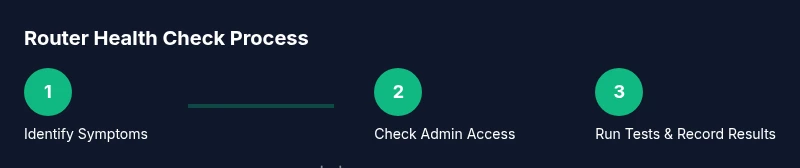
This section expands on the actionable steps you’ll take during a router on check. Start with symptom mapping (what exactly is failing, when does it occur, which devices are affected), then verify fundamental configurations (cable connections, power, login access). Move to testing connectivity across both wired and wireless paths, check the health of the gateway/modem, and review firmware. If problems persist, isolate whether the issue is internal (LAN-side, device-specific) or external (ISP, line quality). Finally, decide whether a configuration fix, a firmware update, or escalation to your ISP is warranted. The approach emphasizes reproducible tests, careful note-taking, and a clear before/after comparison to validate improvements.
How to document results and prepare for escalation
Keep a consistent log format: date, time, device, test type, observed result, and any changes made. Include screenshots of admin pages, speed test results, and channel analyses. When issues persist after a full check, summarize the likely causes and recommended next steps in a concise report for support staff or your ISP. If you must escalate, share the baseline metrics and evidence to speed up triage. A well-documented process reduces finger-pointing and makes it easier to verify whether the problem was resolved after applying a fix.
Tools & Materials
- Router user manual / model documentation(Locate model specifics, default IP, and admin credentials)
- Laptop, tablet, or smartphone(Used to access the router admin page and run tests)
- Ethernet cable(Direct connection to router for stable admin access)
- Working internet connection(Needed to validate WAN status and speed)
- Notebook or digital notes app(Record test results, times, and changes)
- Basic testing tools (speed test app, ping utility)(Optional but helpful for deeper tests)
Steps
Estimated time: Total time: 60-90 minutes
- 1
Prepare and map symptoms
Start by noting the exact problem(s) you’re seeing (drops, slow speeds, device-specific issues). Record the time and which devices are affected. Clear symptoms help you decide which tests to run first and prevent unnecessary changes.
Tip: Create a quick symptom checklist before you begin to avoid missed details. - 2
Secure admin access and verify login
Connect your testing device via Ethernet if possible. Open a browser and enter the router’s IP address to reach the admin page. Confirm you can log in with the credentials from the manual or previous setup notes.
Tip: If you’re locked out, use the reset button only as a last resort and document any changes. - 3
Check WAN status and uptime
In the admin dashboard, verify the WAN/Internet status. Note uptime, reconnect events, and any error messages from the modem. If the WAN status is unstable, the issue could lie with the ISP or the cable connection.
Tip: Log WAN uptime to determine if disconnects are random or periodic. - 4
Review LAN, DHCP, and NAT settings
Ensure the router is issuing IPs correctly within the expected range. Confirm DHCP is enabled and that there aren’t conflicting static IPs on the network. If you’ve recently changed the IP scheme, reset it to a known-good range.
Tip: Note the IP address pool and lease time for future troubleshooting. - 5
Evaluate wireless configuration
Check SSID visibility, security mode, and password strength. Review channel usage and interference (2.4 GHz vs 5 GHz). If many networks crowd a channel, switch to a clearer channel or enable auto-channel optimization if available.
Tip: Prefer 5 GHz for high-speed devices near the router and 2.4 GHz for farther devices that need range. - 6
Run speed and latency tests from multiple devices
Test wired devices first to establish a wired baseline, then compare with wireless devices. Record downstream and upstream speeds, jitter, and ping to common hosts. Use at least two test results per path to establish a pattern.
Tip: Test at different times of day to account for typical network load. - 7
Validate hardware and firmware integrity
Check for loose cables, overheating, and router fans (if applicable). Verify the firmware version against the vendor’s latest release and perform an upgrade if needed following the official procedure. After updating, re-test critical routes to confirm improvements.
Tip: Back up current settings before upgrading and keep a log of the firmware version afterward. - 8
Document results and decide on next steps
Summarize findings, including which tests passed or failed and any changes made. If symptoms persist, determine whether a hardware replacement, ISP contact, or configuration reset is warranted. Schedule a follow-up check to confirm stability.
Tip: Share the results with household members so everyone knows the current network state.
People Also Ask
What is meant by router on check?
Router on check is a structured process to verify that a home network is healthy by testing connections, reviewing configurations, and documenting results. It turns symptoms into testable steps to locate the root cause.
Router on check is a structured, repeatable process to verify your home network and locate issues.
Why should I perform a router on check regularly?
Regular checks help catch drift in settings, outdated firmware, or interference before they become noticeable problems. They establish a reliable baseline you can compare against after changes.
Regular checks help catch issues early and keep your network stable.
What data should I collect during a router on check?
Collect uptime, firmware version, WAN status, DHCP settings, channel utilization, and speed test results. Include timestamps and device IDs to build a traceable history.
Track uptime, firmware, WAN status, DHCP, channels, and speeds with timestamps.
What should I do if issues persist after checks?
If problems persist, try a targeted firmware update, channel optimization, or a controlled reset. If unresolved, escalate to your ISP or hardware vendor with your test results.
If issues continue, consider firmware updates or escalation with your provider.
Is a factory reset part of router on check?
Factory reset is a last resort and should be used only if you have credentials to reconfigure the router. Always back up settings first and document the reset process.
Only use a factory reset if you can reconfigure afterward and you’ve backed up your settings.
Watch Video
What to Remember
- Define clear symptoms before testing
- Verify firmware and login access first
- Differentiate WAN vs LAN issues early
- Document results for repeatable success