How to Check Your Router: A Complete Step-by-Step Guide
Learn how to check your router for reliability, update firmware, optimize Wi‑Fi, and troubleshoot common issues with a clear, actionable, expert-led approach from WiFi Router Help.


By the end of this guide you will learn how to check your router for reliability, verify connections, inspect firmware, and confirm your network is working. The steps apply to most home setups, including modems. You’ll test both wired and wireless performance and fix common issues quickly.
Why checking your router matters
Regular checks help prevent outages, improve security, and keep streaming, gaming, and remote work smooth. According to WiFi Router Help, many home-network problems come from simple, fixable causes: loose cables, outdated firmware, or misconfigured settings. A quick health check lets you catch issues before they disrupt daily life. In practice, a short routine can save hours of debugging later. For most households, 15 minutes is enough for a reliable snapshot.
When you design a routine, focus on four areas: power stability, physical connections, firmware status, and basic network reachability. A failure in any area can show up as buffering during video calls, dropped packets in online games, or devices that won’t connect. By addressing each area methodically, you create a resilient home network that adapts to new devices and changing interference conditions. WiFi Router Help emphasizes that consistency matters more than perfection; build a simple, repeatable checklist and follow it on a regular schedule.
Hardware health and placement
The first place to look is the physical setup. Start by ensuring the router is plugged into a stable power source and that all cables are secure. A loose modem-to-router or router-to-device cable can cause intermittent dropouts that masquerade as Wi‑Fi problems. Check the WAN/Internet LED; it should be solid or blinking in a normal pattern rather than off or flashing irregularly. Place the router in a central, elevated location away from thick walls, metal objects, and kitchen appliances that cause interference. If you must use a weaker position, consider a shelf or bookcase height rather than a cabinet. Avoid stacking it with other electronics that generate heat. The more central and elevated the router, the more predictable the signal across rooms.
Verifying the internet connection from the router
Next, confirm that your router actually has an Internet connection. If the Internet/WAN light is off or red, the issue may lie with the modem, the service line, or the ISP itself. Start by rebooting both devices in the recommended order: modem first, then the router. After reboot, check that the router’s DHCP server is enabled and that the WAN type (DHCP, PPPoE, or static IP) matches your service. If you use PPPoE, verify the username and password are correct. Run a quick test by visiting a known site from a wired device to see if pages load normally. If you can reach the web but page loading is slow, there may be congestion, a faulty line, or a device consuming excessive bandwidth.
Accessing the router admin page and verifying configuration
Access the router’s admin interface using a wired connection for stability. Open a web browser and enter the router’s default gateway (commonly 192.168.0.1 or 192.168.1.1); if you’re unsure, check the device label or user manual. Log in with the staple credentials, then navigate to the Status or Network screen to confirm current WAN, LAN, and DHCP settings. Make sure the router is distributing IP addresses on the expected address range and that there are no conflicting static IPs. Back up any existing configuration before you make changes. If you’re unable to access the admin page, clear the browser cache, disable VPNs, and ensure your device is actually on the same network.
Run speed tests and interpret results
A key part of checking your router is measuring real-world performance. Use a wired test first to establish a baseline, then test over Wi‑Fi in the rooms where you typically use devices. Compare results to your service plan; if wired speeds consistently lag behind, the issue may be the router or the modem. If Wi‑Fi speeds are low but wired speeds are fine, focus on wireless factors such as channel, interference, or distance. Run multiple tests at different times of day to gauge stability. Record latency (ping), download, and upload figures, and note how many devices are active during tests. If results are far from expectations, investigate firmware, noise on channels, or potential QoS settings that might throttle bandwidth.
Firmware checks and updates
Firmware is the software that runs the router; keeping it current improves performance, security, and compatibility with new devices. Start by checking the current version in the admin panel and compare it with the latest release on the manufacturer’s site. If an update is available, schedule a maintenance window; perform the update via a wired connection if possible, and avoid power interruptions. Before updating, back up your configuration so you can restore settings if needed. After updating, reboot and re-run a quick speed test to verify improvement. If you’re unsure about a model, enable automatic updates and monitor results.
Reducing interference and optimizing Wi‑Fi channels
Interference is a common cause of weak wireless performance. Use a device to scan for nearby networks and select a clear channel for each band. For 2.4 GHz, choose a channel with the least overlap; 1, 6, or 11 are standard recommendations in crowded environments. For 5 GHz, use a clean, high-channel range if supported by your devices. Enable separate SSIDs for 2.4 GHz and 5 GHz to help devices choose the best band. If coverage remains uneven, consider mesh extenders or a dedicated access point in high-traffic rooms. Keeping firmware updated often resolves known interference issues as routers gain smarter auto-channel features.
Documentation, backups, and planning improvements
Finish with a quick documentation pass. Record the exact model, firmware version, current settings, and any changes you’ve made. Store backup configurations in a safe location and keep a simple change log so you can revert if something goes wrong. Plan future improvements based on your usage: consider a dedicated mesh system for large homes, a stronger router for gaming, or a simple range extender for far corners. The goal is to create a clear, repeatable process you can apply whenever issues arise.
Authoritative sources
- Authoritative guidance: https://www.fcc.gov
- Standards and best practices: https://www.ieee.org
- Educational perspectives: https://www.stanford.edu
Tools & Materials
- Smartphone/tablet/PC(Device to access router admin page and test Wi‑Fi.)
- Ethernet cable (CAT5e/CAT6)(For wired tests and direct modem/router connection.)
- Power strip or surge protector(Stable power during reboots and firmware updates.)
- Admin credentials(Username and password; check label if unknown.)
- Speed testing tool(Web or app (e.g., Ookla) for baseline measurements.)
- Notebook and pen(Log results, times, and changes.)
Steps
Estimated time: 30-60 minutes
- 1
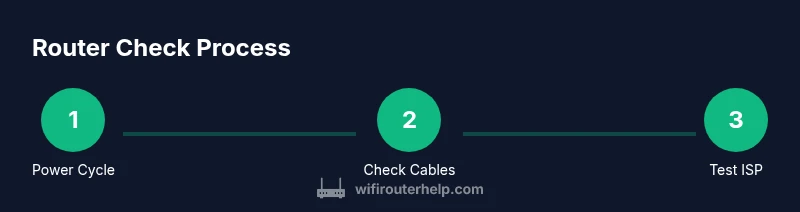
Power cycle the router
Unplug the router, wait 60 seconds, then plug it back in. Give it 2 minutes to boot and return to a steady state. This clears transient faults and refreshes DHCP leases.
Tip: If you have a separate modem, power cycle it first, then the router. - 2
Check cables and indicators
Inspect all Ethernet and power cables for secure connections. Observe the LED status as an immediate health indicator; abnormal colors or patterns suggest physical faults.
Tip: Replace a suspect Ethernet cable with a known-good one during testing. - 3
Test admin page access
Connect a device to the router and open the gateway address (typical 192.168.0.1 or 192.168.1.1). If you can’t log in, confirm you’re on the same network and try a different browser or disable VPNs.
Tip: If you forget credentials, check the router label or manual for defaults. - 4
Verify WAN and DHCP settings
In the admin panel, check WAN status and ensure DHCP is assigning addresses in the expected range. If you use PPPoE, confirm the username/password are correct.
Tip: A misconfigured WAN type is a common cause of no Internet. - 5
Run wired speed test baseline
Connect a device via Ethernet and run a speed test. Compare results with your service tier to identify potential bottlenecks.
Tip: Use a single device for clean measurements and avoid background downloads. - 6
Check firmware version and update
Navigate to the firmware or maintenance page and compare versions. If an update exists, update with a wired connection and back up settings first.
Tip: Update during a low-usage window to minimize disruption. - 7
Tune wireless settings
Adjust SSID names and password; set 2.4 GHz and 5 GHz bands to distinct channels. Enable automatic channel selection if available and review QoS if essential devices require priority.
Tip: Place 5 GHz devices closer to the router for best results. - 8
Document results and plan next steps
Record configurations, measurements, and action items. Decide if you need hardware upgrades or a mesh system for larger spaces.
Tip: Keep a simple change log and schedule a follow-up check.
People Also Ask
Why can't I access my router's admin page?
If the login page won’t load, verify you’re on the same network, try a different browser, clear caches, and check if VPNs are active. If it still fails, confirm you’re using the correct gateway address and that the router isn’t in bridge mode.
If you can’t reach the admin page, check your network, try another browser, and disable VPNs. If needed, verify the gateway address and bridge mode status.
How often should I check for firmware updates?
Check monthly or enable automatic updates if your device supports them. After updating, test your network to confirm performance improvements and verify that connected devices remain stable.
Check firmware monthly or enable auto-updates, then test your network after updating.
What is the difference between rebooting and factory reset?
A reboot restarts the router without changing settings; a factory reset restores default settings and removes custom configurations. Always back up important settings before a reset.
Reboot restarts the device; a factory reset wipes settings—back up first.
Why is my Wi-Fi slower on wireless than wired?
Wireless speeds are affected by distance, interference, and channel congestion. Try moving closer, selecting a less crowded channel, or upgrading to a mesh system for broader coverage.
Wi‑Fi is slower due to distance or interference; try changing channels or adding a mesh system.
Should I use 2.4 GHz or 5 GHz?
5 GHz offers higher speeds with a shorter range, while 2.4 GHz travels farther but is slower and more congested. Use 5 GHz for nearby devices and 2.4 GHz for devices farther from the router.
Use 5 GHz for fast, nearby devices and 2.4 GHz for farther areas with more walls.
Watch Video
What to Remember
- Inspect power and cables first; many issues are hardware-related.
- Test both wired and wireless speeds to separate bottlenecks from interference.
- Keep firmware current and back up settings before updates.
- Document changes and plan improvements for future reliability.