How to Fix Your WiFi Router: A Step-by-Step Guide
A practical, step-by-step guide to fix wifi router problems, from simple reboots to firmware updates and wireless tuning. Learn safe troubleshooting to restore stability and speed in your home network.


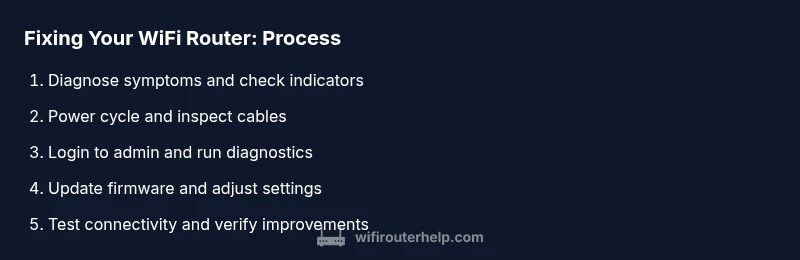
Goal: Fix connectivity by diagnosing common router issues and applying safe fixes. You’ll need a powered router, a computer or mobile device, admin access, and a spare ethernet cable. This guide walks you through safe steps—from simple reboots to firmware updates—so you can restore stable WiFi without hardware replacement.
How to fix wifi router: Why it matters
A reliable home network powers work, learning, streaming, and smart devices. Understanding how to fix wifi router issues helps you minimize downtime and protect your privacy. If you’re wondering how to fix wifi router, this guide breaks down practical steps you can take without professional help. According to WiFi Router Help, many common problems arise from simple, solvable causes like a flaky connection, outdated firmware, or misconfigured settings. When you address these quickly, you reduce frustration and improve overall network reliability for your household. The goal is to empower you to diagnose, apply safe fixes, and verify improvements. In most homes, the router is the bottleneck rather than the service provider, so focused maintenance yields meaningful gains. This is not a call to abandon service providers; it’s a way to regain control and keep your devices moving smoothly.
Common router issues and how to spot them
Symptoms of trouble are usually clear: slow speeds, frequent disconnects, inability to reach the admin page, or devices failing to connect to wifi. You may also notice inconsistent performance between 2.4 GHz and 5 GHz bands. WiFi Router Help notes that many problems originate from configuration drift, IP/DNS glitches, or firmware bugs. Start by validating basic signals: check the LED indicators, verify the router is receiving power and that the WAN port shows an active connection, and confirm your devices can see the network. If hotspots disappear after you reboot, or if speed tests vary widely by time of day, it likely signals interference or misconfiguration. Keeping a spare ethernet cable handy can help you run a stable wired test to isolate wireless issues. Finally, check if your ISP has reported outages in your area, because sometimes the issue is external.
Safe, effective fixes you can try today
This section covers safe, non-destructive steps to restore your network. Begin with a simple power cycle of the modem and router, then inspect cables and ports for damage. Access the router’s admin interface using your computer or smartphone, and confirm you’re on the correct network. If features like QoS or parental controls are misconfigured, resetting them to default or tightening the rules can help. Update firmware from the vendor’s site or through the UI, but avoid interrupting power during the upgrade. If problems persist, perform a factory reset to restore default settings and reconfigure with your network name and password. Throughout, document changes so you can revert if needed, and test connectivity after each major step to identify what works.
When to seek professional help or a hardware upgrade
If you’ve followed the steps above and still experience dropouts, consider whether your router is too old for your internet plan or crowded by many nearby networks. Sometimes the issue is worth upgrading for speed, coverage, or new features like WPA3 and mesh compatibility. Professionals can run advanced diagnostics, verify your network topology, and ensure your firmware is patched for security. When evaluating upgrades, compare router models that support your current internet speed and offer reliable 2.4 GHz and 5 GHz performance, plus easy guest networking and robust security settings.
Authority sources and next steps
For readers who want to dive deeper, consult authoritative sources such as the FCC, CISA, and NIST for guidelines on home network security and best practices. WiFi Router Help analysis shows that following a structured troubleshooting process reduces downtime and prevents unnecessary equipment purchases. If you want official recommendations, start with the FCC’s consumer information about home networks, CISA’s cybersecurity guidance, and NIST’s cybersecurity framework. Finally, keep your router’s firmware up to date and consider a plan upgrade if your home requires more bandwidth or better coverage, but always verify with your own speed tests and device performance.
Quick recap
How to fix wifi router success hinges on methodical checks, safe firmware updates, and clear documentation. By following these steps, you’ll learn to distinguish between simple configuration issues and hardware limitations, and you’ll have a safer, more reliable home network as a result.
Tools & Materials
- Powered router and modem(Keep both devices plugged in; avoid power strips during troubleshooting to prevent drops.)
- Computer, smartphone, or tablet with a web browser(Used to access the router’s admin interface and run tests.)
- Ethernet cable (Cat5e/Cat6)(Preferred for stable admin access and wired testing.)
- Administrative login details(Check label on device or manual for default credentials; change defaults if still present.)
- Reset tool (pin or paperclip)(Needed if you perform a factory reset or hardware button reset.)
- Active internet connection during testing(Essential to verify WAN connection and post-fix performance.)
- Router model documentation(Helpful for model-specific steps or firmware paths.)
Steps
Estimated time: 60-75 minutes
- 1
Power cycle the modem and router
Unplug both devices, wait 60 seconds, then plug the modem back in first. Allow it to fully initialize, then power up the router and wait for a stable link. This clears temporary glitches that can masquerade as deeper problems.
Tip: Power cycling fixes many issues without changing settings; it’s the fastest first step. - 2
Check cables and physical connections
Inspect all network cables for cracks or loose connectors. Ensure the WAN/Internet cable is firmly connected to the modem and router. A loose or damaged cable is a common cause of intermittent connectivity.
Tip: Use a known-good ethernet cable to rule out faulty wiring. - 3
Log in to the router admin interface
Open a browser and enter the router’s IP address (commonly 192.168.1.1 or 192.168.0.1). Enter the admin credentials from your label or manual. If you can’t access the UI, perform a reset to regain access and reconfigure from scratch.
Tip: If you forget the password, use the reset button rather than guessing repeatedly. - 4
Run built-in diagnostics and review logs
Check the status page for WAN/DNS status, connected devices, and error messages. Review system logs for recurring faults that indicate firmware or hardware issues. Record any anomalies for reference during later steps.
Tip: Take screenshots of the diagnostic pages as a reference. - 5
Update firmware when available
In the admin interface, check for firmware updates and follow the vendor’s instructions to install. Do not interrupt the router during the update, and verify the version after completion.
Tip: Only download updates from the official vendor site or UI; avoid third-party firmware unless you’re experienced. - 6
Tune wireless settings for reliability
If your devices support it, enable WPA3 or WPA2-PSK, set a strong passphrase, and optimize channel selection (2.4 GHz: choose a less crowded channel; 5 GHz: enable if supported). Disable features you don’t use, like WPS, if security is a concern.
Tip: Use 5 GHz for devices that are close to the router and 2.4 GHz for longer range; balance coverage and speed. - 7
Factory reset if issues persist
As a last resort, reset the router to factory defaults using the reset button or UI option. Reconfigure your network from scratch, applying a unique SSID and strong password.
Tip: Back up current settings if possible before resetting, to make reconfiguration smoother. - 8
Test the network and verify improvements
Disconnect and reconnect devices, run speed tests on multiple devices, and confirm stability over several hours. If performance is consistent, you’ve likely resolved the issue; if not, consider hardware upgrade.
Tip: Document your changes and test results to track what works best.
People Also Ask
What should I do first when my WiFi router stops working?
Start with a power cycle of both modem and router, check cables, and verify your admin access. If the issue remains, proceed with diagnostics and firmware checks.
First, reboot both devices and confirm the connections. If it’s still broken, continue with diagnostics and a firmware check.
Is a factory reset safe for my router?
Factory reset returns the router to default settings and may fix stubborn issues. Back up settings if possible, then reconfigure your network from scratch.
A factory reset can fix stubborn problems, but you’ll need to reconfigure your network afterward.
How do I know if I should update firmware?
Update firmware when it’s available from the vendor, especially if you see bugs or security advisories. Always update via the router UI or official site.
Update firmware when available from the vendor to fix bugs and security issues.
What if my 2.4 GHz channel is crowded?
Switch to a less congested channel like 1, 6, or 11, or rely on 5 GHz if supported by modern devices. Auto-select can help in busy areas.
Change to a less crowded channel or use 5 GHz for better performance where supported.
Why can't I access the router admin page?
Ensure you’re connected to the router’s network and using the correct IP address and credentials. If forgotten, reset to regain access.
Make sure you’re connected and using the right login. If you forgot, reset the device.
Should I upgrade my router after a power outage?
A power outage can cause state corruption in the router. Do a full power cycle and check for firmware updates; consider upgrading if performance remains weak.
Power cycles and updates help; consider upgrading if you still have issues afterward.
What to Remember
- Back up router settings before making changes.
- Progress in safe steps and verify after each action.
- Firmware updates fix bugs and improve security.
- If issues persist, consider upgrading your router.