How to Fix Router Issues: A Step-by-Step Guide
Learn how to diagnose and fix router issues quickly. This guide covers common symptoms, reboot strategies, firmware updates, channel optimization, and safe troubleshooting for a stable home network.


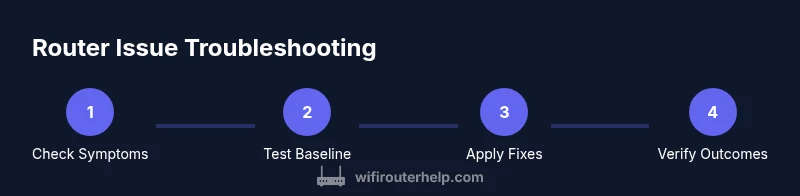
Learn how to diagnose and fix common router issues, including dropped connections, slow speeds, and coverage gaps. This safe, repeatable sequence starts with a quick baseline and progresses through reboot, firmware updates, channel optimization, security checks, and placement tweaks. By following these steps, most home networks become more stable, faster, and easier to manage.
Quick diagnostics: symptoms and root causes
When your home network behaves oddly, the first step is to note symptoms and consider likely root causes. If you’re wondering how to fix router issues, start by listing the observable problems and testing basics. Common signs include intermittent connection drops, devices failing to connect, inconsistent speeds across rooms, buffering on streaming, or devices reporting poor signal strength even when close to the router. While some problems originate with the modem or the internet service provider, many are the result of router settings, outdated firmware, channel interference, or hardware limits. A clear baseline helps you measure improvements, so start by testing speeds with a wired device and comparing them to your advertised plan. If wired speeds are close to expected while wireless performance lags, focus on wireless-specific fixes. Also, keep an eye on LED indicators and the router’s temperature; overheating can throttle performance and trigger resets. WiFi Router Help analysis shows that most frequent issues stem from outdated firmware, misconfigured security, and interference from neighboring networks. By identifying symptoms early and separating ISP issues from router behavior, you can choose the right next steps.
Step 1: Reboot and reset basics
Rebooting is the simplest, most effective first action. Power cycle the router and any modem or gateway device by unplugging for 30 seconds and plugging back in. A soft reset can clear transient faults without changing your settings; a factory reset should be reserved for stubborn problems or after security breaches, because it restores defaults and may erase personalized setups. After reboot, log back into the admin interface and confirm your connection type (DHCP vs PPPoE) and WAN status. If your ISP uses a separate modem, reboot that device as well to re-establish a clean link. Note the time it takes for devices to reconnect and test a few speed measurements to establish a new baseline. Pro tip: have your login credentials handy before you reset, so you can quickly reconfigure essential settings if needed.
Step 2: Check physical connections and hardware
Physical faults are common and fixable. Inspect all cables (power, WAN, and LAN) for damage or looseness, and ensure the router is well-ventilated to prevent thermal throttling. Check LEDs: a solid power light with consistent WAN and wireless indicators usually signals normal operation; blinking or red lights often indicate a fault or misconfiguration. If you recently moved the router or added a USB drive, reseat connectors and test again. Make sure the router is placed in a central, elevated location away from walls and metal objects to maximize coverage. If you are using a separate ISP modem, confirm its firmware is up to date and that it isn’t in bridge mode unless you intend it. A bad power supply can cause intermittent drops; substitute with a known-good adapter if you have one.
Step 3: Update firmware and adjust settings
Firmware updates fix bugs, close security gaps, and improve stability. Check the router’s admin page for available updates, or use the manufacturer’s mobile app if offered. Apply updates during a low-usage window and avoid interrupting the process. After updating, review security settings: enable a strong WPA3 (or WPA2) passphrase, disable WPS if not needed, and verify that UPnP and NAT are correctly configured for your network. If your router supports a guest network, enable it to reduce main-network traffic from IoT devices. Consider switching to a DNS provider that prioritizes privacy and speed; simple tests show performance dips can be reduced by avoiding default ISP DNS servers. In some cases, a factory reset after updating is recommended to ensure a clean slate, but only if you have recorded required credentials and reconfiguration steps beforehand.
Step 4: Optimize Wi‑Fi performance: channels, band, and placement
Interference from neighbors and legacy devices can degrade wireless performance. Start by using a wireless analyzer or the router’s built-in signal strength tool to identify the least congested channel on 2.4 GHz and 5 GHz bands. If you’re in a dense apartment, 2.4 GHz may be crowded; consider pairwise SSIDs or enabling 5 GHz where possible. Assign static channels only if you’re experienced, as many modern routers support dynamic channel selection that adapts automatically. For placement, aim for a central, elevated position with minimal obstructions. Avoid placing the router behind a TV, inside a cabinet, or near cordless phones and microwaves. If coverage remains uneven, a mesh system or a Wi‑Fi range extender can fill gaps; configure them to operate on the same SSID or a dedicated backhaul network to avoid roaming issues. After changes, test speeds again across multiple rooms to verify improvement.
Step 5: Advanced fixes and when to replace
If issues persist after standard fixes, consider more advanced steps. Check for NAT type, UPnP status, and any port-forwarding rules that could impede traffic. Disable features you don’t need, such as malware protection or firewall rules, temporarily to diagnose conflicts; re-enable with carefully chosen exceptions. Review QoS rules if you are gaming or streaming; misapplied QoS can throttle other devices. Ensure your router firmware is current; if no updates are available and performance remains poor, the hardware may be at its limits, and upgrading to a newer model with better antennas and processor can yield tangible gains. Finally, when your router no longer meets your home’s demands after years of use, replacement is often the best option to restore reliability and performance.
Tools & Materials
- Computer, smartphone, or tablet with browser access to router admin page(Used to log into the router's settings (IP often 192.168.0.1 or 192.168.1.1))
- Ethernet cable(Wired connection to router for stable setup or testing)
- Router login credentials(Admin username/password; have them documented)
- Current network configuration notes(Record existing SSIDs, passwords, device names)
- Spare power supply or known-good adapter(Useful for troubleshooting power issues)
- Firmware file or access to official update channel(Only if manual update is needed)
- Wireless analyzer app or tool(Optional for diagnosing interference)
Steps
Estimated time: 60-90 minutes
- 1
Identify symptoms and baseline
Record observed issues, compare wired vs wireless speeds, and establish a performance baseline. Use this baseline to measure improvements after fixes. Document the time of day and affected devices to spot patterns.
Tip: Have a notebook or digital log ready for quick reference. - 2
Power cycle devices
Power off the router (and modem if separate) for 30 seconds, then power back on in the same order. Allow 2-5 minutes for full reboot and re-establishment of connections. Re-test a few devices to confirm baseline stability.
Tip: Avoid unplugging while updates are in progress. - 3
Inspect hardware and connections
Check all cables for wear, reseat connectors, and ensure the router sits upright in a ventilated space. Confirm LEDs indicate normal operation and look for overheating signs. Address any loose cables or physical damage before further tests.
Tip: Replace a damaged power adapter to prevent intermittent drops. - 4
Update firmware and secure settings
Check for firmware updates via the admin page or app, then apply them. After update, strengthen security by using WPA3, disable unnecessary features like WPS, and verify NAT/UPnP. Keep a record of changes for future troubleshooting.
Tip: Back up current settings before major updates. - 5
Tune wireless settings and placement
Experiment with 2.4 GHz and 5 GHz usage, adjust channel selection, and optimize router placement for central coverage. If performance remains uneven, add a mesh satellite or extender with a backhaul strategy to maintain seamless roaming.
Tip: Test in multiple rooms to verify coverage gains. - 6
Test results and plan next steps
Run speed tests again from wired and wireless devices to quantify improvements. If results still fall short of expectations, review ISP issues, consider equipment upgrade, or call your provider for advanced troubleshooting.
Tip: If problems persist, prepare a shortlist of potential hardware upgrades.
People Also Ask
What are common signs of router issues?
Common signs include dropped connections, slow speeds, Wi‑Fi gaps, and devices failing to connect. Test both wired and wireless performance to identify whether the problem is router-related or ISP-related.
Common signs include dropped connections and slow speeds. Test wired and wireless to see if the issue is caused by the router.
Should I reset my router to fix issues?
Soft resets can clear transient faults. Use a factory reset only if problems persist and you have your credentials to reconfigure essential settings.
A soft reset often fixes issues; only use a factory reset if you can reconfigure the router afterward.
Is a slow internet always the router's fault?
No. Slow speeds can stem from ISP issues, congestion, or device placement. Use the diagnostic steps to isolate the source before replacing hardware.
Not always the router's fault—test with wired speed tests and check the ISP first.
How often should I update router firmware?
Check for updates monthly or enable automatic updates if available. Updates improve stability and security and often fix known issues.
Check for updates monthly or enable automatic updates for better stability and security.
Can changing Wi‑Fi channels improve performance?
Yes. Changing channels can reduce interference, especially on the 2.4 GHz band. Use 5 GHz when possible for higher speeds.
Switching channels can cut interference; use 5 GHz when you can for better speeds.
When should I replace my router?
Replace when hardware is old or cannot meet your speed and coverage needs after troubleshooting. Newer models often offer better performance and security.
Replace the router if it can’t meet your needs after fixes; newer models improve speed and security.
Watch Video
What to Remember
- Reboot first; many issues resolve with a simple reset.
- Keep firmware updated to improve stability and security.
- Optimize placement and channels to maximize coverage.
- Test with wired connections to establish reliable baselines.
- Upgrade hardware when problems persist after fixes.