Restart Router: A Step-by-Step Guide to Fix and Optimize Your Home Network
Learn how to restart router effectively with a clear, actionable guide. Fix common issues, improve speed, and maintain security with smart restarts and post-restart optimization.


Goal: Restart router to restore stable internet and fix common glitches. You can perform a quick power-cycle or a software reboot via the router’s admin interface. Before you start, locate the power cable and ensure you can access the admin page. This guide covers two reliable methods and safety tips to avoid data loss or misconfiguration.
Why restarting your router matters
According to WiFi Router Help, restarting your router is a simple, effective first step to resolve connectivity glitches. Restart router actions can clear a stuck state, revive stalled connections, and refresh routing tables. The process interrupts ongoing tasks and allows the device to reinitialize its software stack, which often resolves issues without touching deeper settings. A quick reboot can also restore device visibility on the network and reduce latency when congestion or minor firmware hiccups are the root cause. The WiFi Router Help team found that many households see improvements after a short reboot, especially when multiple devices contend for bandwidth or when the router has operated for several days. Observe LED indicators during the reboot; a healthy restart typically completes within a couple of minutes. If you’re routinely restarting for the same symptoms, you may have a deeper issue that warrants a different fix.
Quick context: soft restart vs. hard restart
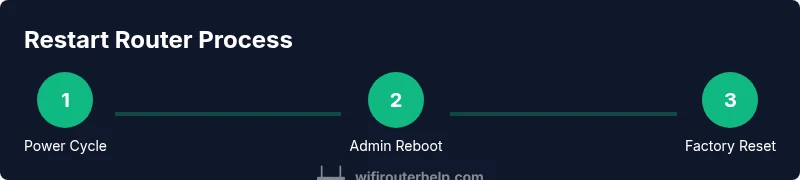
A soft restart (power-cycle) restarts the router without altering your configured settings, making it ideal for routine maintenance. A hard restart or factory reset can erase custom configurations, so use it only after you’ve backed up essential data. In most homes, a soft restart suffices to clear memory leaks, refresh DHCP leases, and restore NAT translations. When devices fail to obtain an IP or DNS resolution remains flaky after a power cycle, moving to a reboot via the admin interface can provide a cleaner software reset while preserving user settings. Understanding when to choose each method helps you keep the network stable with minimal downtime.
The typical impact on home networks
Restting the router generally improves speeds by reducing queueing delays, clears stuck sessions, and re-establishes clean routes to the internet gateway. In households with many smart devices, a restart can re-balance connections and liberate bandwidth pressure from multiplexed wireless channels. It’s also a useful diagnostic tool: if performance improves after a restart but deteriorates again soon after, you’re likely dealing with interference, aging hardware, or an ISP-related issue rather than a one-off glitch. Keep expectations modest: a restart is not a substitute for firmware updates or hardware upgrades, but it is a reliable first step in the troubleshooting toolkit.
Brand note
The WiFi Router Help team emphasizes that restart strategies are part of a broader network health plan. Regular, well-timed restarts complement firmware updates, proper placement, and secure configurations to maintain a robust home network.
Tools & Materials
- Router(Must be powered on and reachable to access admin interfaces.)
- Power cable(Keep it plugged into a reliable outlet near the device.)
- Reset tool (pin or paperclip)(Needed only for hard factory resets via recessed button.)
- Web browser or mobile device(Required to access the admin interface or companion app.)
- Ethernet cable(Optional for a wired connection during admin tasks.)
- Documentation/manual(Helpful for model-specific reboot steps.)
Steps
Estimated time: 10-15 minutes
- 1
Power-cycle the router
Unplug the router from power, wait 30 seconds, and plug it back in. This completes a full power cycle, allowing internal hardware and software to reset cleanly. After reconnecting power, observe the status lights to confirm the device is booting normally.
Tip: If you hear unusual sounds or the LEDs stay off, check the power outlet or cable for damage. - 2
Test basic connectivity
Once the router powers up, connect a device and try to load a few websites to verify basic connectivity. This confirms that the reboot produced a working network path from the gateway to the internet.
Tip: Prefer a wired device for a more stable test before testing WiFi clients. - 3
Log in to the admin interface
Open a browser or the router’s app and sign in using the credentials on the device label or in the manual. This gives you access to reboot options and deeper diagnostics.
Tip: If you can’t remember the password, consult the manual or perform a factory reset as a last resort. - 4
Initiate a soft reboot from the dashboard
Find the Reboot or Restart option within the administration area and confirm. The router will shut down briefly and then restart automatically, preserving your current settings in most cases.
Tip: If a reboot option isn’t visible, use the manufacturer’s app or check for a firmware update that adds this feature. - 5
Validate post-reboot connectivity
After the reboot completes, re-test internet access on several devices. Confirm that DHCP assigns IPs, DNS resolves, and streaming apps load normally.
Tip: If some devices still fail to connect, try renewing their DHCP lease or reconnecting to the SSID. - 6
Back up settings before a reset (optional)
If you anticipate needing a factory reset, export or copy important configuration like your WiFi name/password, custom DNS, and port forwards. This makes restoration smoother after erasing settings.
Tip: Label backups with your router model and date for easy retrieval. - 7
Perform a factory reset if needed
Use the recessed reset button with a pin or paperclip; hold for 10-15 seconds until the lights flash. This returns the device to default settings, erasing custom configurations. Only do this if you’ve exhausted soft-restart options.
Tip: Factory resets can fix stubborn problems, but you will need to reconfigure your network from scratch. - 8
Reconfigure network after reset
After a reset, set a strong admin password, re-create your SSID and guest network if desired, and apply firmware updates. Reconnect devices and test performance to ensure stability.
Tip: Enable automatic updates where possible to maintain security and reliability.
People Also Ask
What is the difference between a soft restart and a factory reset?
A soft restart restarts the device without changing configured settings, while a factory reset restores all settings to default and erases custom configurations. Use a soft restart first to preserve your network.
A soft restart restarts the router without wiping your setup; a factory reset wipes everything and starts from defaults.
How long should a restart take?
Most restarts take about one to three minutes, depending on device age and firmware. If it takes significantly longer, there may be an underlying issue.
Most restarts are finished in a few minutes; if it delays, check for hardware or ISP problems.
What should I back up before a factory reset?
Back up your WiFi name and password, any custom DNS settings, and port-forward rules. If you used a vendor app, note device links and accounts.
Back up your network name, password, and any custom rules before resetting.
What if I can’t access the admin page after restart?
Ensure your device is connected to the router, try a different browser or app, and confirm you’re using the correct IP address or URL. If needed, perform a factory reset as a last resort.
Make sure you’re connected and try another device or browser; you may need a reset if access is impossible.
Can I restart my router remotely?
Yes, many modern routers support remote restarts via a companion app or web interface. Enable secure remote management and use strong authentication.
You can restart from an app or web portal if your router supports it.
How often should I restart my router?
Restart only when you notice issues or performance drops. Frequent resets can hide root problems and reduce device lifespan.
Restart when there are problems or performance issues; don’t rely on routine resets.
Watch Video
What to Remember
- Restart router first for most issues
- Soft reboot preserves settings
- Factory reset is a last resort
- Post-restart optimization boosts reliability