How to Test Wifi Speed with Your Router: A Step-by-Step Guide
Learn to run reliable wifi speed tests on your router, compare wired and wireless performance, and optimize home networks with practical, step-by-step guidance from WiFi Router Help.


By the end of this guide you will run a reliable wifi speed test with your router, both over wired LAN and wireless Wi‑Fi. You'll learn how to set up test conditions, choose appropriate tools, interpret results, and spot bottlenecks in your network. This quick approach helps homeowners troubleshoot performance issues without specialized equipment.
Why measuring wifi speed matters
Understanding wifi speed in a real home matters because advertised speeds rarely reflect actual experience. A router’s performance depends on multiple factors, including wired versus wireless paths, interference, distance, and device capabilities. According to WiFi Router Help, thorough testing helps homeowners identify bottlenecks, verify plan expectations, and guide upgrades. This awareness translates into practical outcomes: smoother 4K streaming, steadier video calls, and more reliable online gaming. By focusing on consistent test conditions and repeatable measurements, you can separate temporary fluctuations from persistent issues and make informed decisions about placement, channel selection, or firmware updates. In short, a well-executed wifi speed test router exercise yields actionable steps rather than guesswork.
Key terms and measurement concepts
To read results effectively, you need a shared vocabulary. Speed refers to data rate typically measured in megabits per second (Mbps) and can differ between wired and wireless paths. Latency is the time it takes for a data packet to travel from source to destination; lower latency reduces feed lag in interactive tasks. Jitter describes variation in latency over time, which can affect real-time activities. Throughput is the actual useful data delivered after protocol overhead, and packet loss indicates dropped data. When you test, aim to isolate each variable: device, connection type (wired or wireless), and test server location. Understanding these concepts helps you interpret whether a drop is device-related, network-wide, or a cross-band issue.
Test environment and prerequisites
Create a controlled testing space by selecting a moment with minimal other network activity. Position the router centrally, away from walls and metal objects, and ensure firmware is up to date. You’ll need at least one test device (laptop or mobile) that can run speed tests, plus an Ethernet cable for wired tests. It’s beneficial to have a second device for cross-checks. Disable VPNs and heavy background apps during tests to prevent skewed results. Having your ISP plan documentation handy helps you interpret whether observed speeds align with your subscription. Record the test conditions to compare over time.
Hands-on test plan: wired first, then wireless
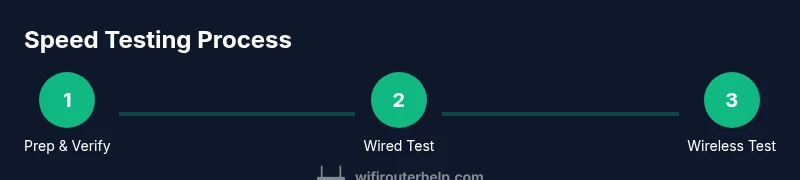
- Connect a test device to the router via an Ethernet cable and disable other devices from the test network. 2) Run a wired speed test using a reputable tool and record the result. 3) Switch the test device to the 2.4 GHz wireless band and run the same test from the same location. 4) Move to the 5 GHz wireless band and repeat the test. 5) Repeat tests at different times of day to observe variability. 6) If you have multiple devices, compare results to identify device limitations. 7) Document all results in a simple log for trend analysis. 8) If wired and wireless speeds diverge significantly, consider firmware updates or hardware upgrades.
Analyzing results and diagnosing bottlenecks
Compare wired results to wireless results to gauge hardware limits versus network conditions. A large gap between wired and wireless speeds typically signals interference, distance, or channel congestion. If both paths are slow, investigate your ISP connection, router hardware, or backhaul limitations. Look for patterns: consistent drops on 2.4 GHz but stable on 5 GHz suggest band-specific interference, while occasional dips at peak times hint at external traffic. Use timestamps to correlate with household activity and test again after changes to confirm impact.
Optimization strategies to improve speed
Start with non-destructive changes: reposition the router for better line-of-sight, or move interference sources away. Update the router’s firmware to ensure performance and security improvements. If coverage is weak, enable QoS to prioritize essential traffic (video, gaming, VoIP). Consider switching channels to reduce interference, or upgrading to a more capable router or mesh system for larger homes. For persistent issues, test with a wired backhaul in a mesh network or upgrade to higher-capacity hardware. Finally, confirm your ISP’s plan supports the speeds you expect and discuss options if times of day consistently underperform.
Common mistakes to avoid
- Testing only at one location or one time of day, which risks an unrepresentative result.
- Using a VPN or heavy background processes during tests, which can distort throughput.
- Failing to update firmware prior to testing, which can skew performance measurements.
- Comparing disparate devices (new vs old) without accounting for hardware limits.
- Ignoring the difference between link speed (maximum capacity) and actual throughput (what you observe in practice).
Tools & Materials
- Laptop or smartphone with internet access(Any modern browser or speed test app will do)
- Ethernet cable (Cat5e or better)(Used for wired tests to ensure stable baseline speeds)
- Second testing device (optional)(For cross-device comparison to detect device bottlenecks)
- Router admin access (credentials)(Needed to disable/enable features or update firmware as part of testing)
- Stable power source and minimal interference(Avoid heavy appliances or microwaves during tests)
Steps
Estimated time: 60-120 minutes
- 1
Prepare the test environment
Clear the network workspace, close bandwidth-heavy apps, and ensure the router firmware is up to date. Gather test devices and ensure you can access the router admin UI for any adjustments. This creates consistent conditions for reliable results.
Tip: Document the baseline firmware version and current router placement before changes. - 2
Connect a wired test device
Plug your test device directly into a router LAN port using a certified Ethernet cable. This establishes a stable baseline for wired speeds, free from wireless interference.
Tip: Use a dedicated cable with no other devices sharing the link during the test. - 3
Run a wired speed test
Open a trusted speed test tool and run a full test to capture download and upload throughput along with latency. Record the numbers in your log.
Tip: Run at least two tests and average the results for accuracy. - 4
Switch to the 2.4 GHz wireless test
Move the test device to a nearby location and run the same test on the 2.4 GHz band to gauge coverage and interference impact.
Tip: Keep the device within a few meters to minimize distance-based errors. - 5
Test the 5 GHz wireless path
Repeat the test on the 5 GHz band from the same location, noting any improvement or drop in performance.
Tip: Ensure the device supports 5 GHz and is connected to that band profile. - 6
Test at different times of day
Perform additional tests during typical peak hours and off-peak times to observe variability and congestion effects.
Tip: Use a simple log entry to compare results over a week. - 7
Cross-check with a second device
If available, run the same tests on another device to confirm whether results are device-dependent or router-related.
Tip: Discrepancies between devices often point to hardware limits rather than network faults. - 8
Review results and adjust
Analyze the collected data, compare against your plan, and decide on improvements like placement, firmware updates, or hardware upgrades.
Tip: Close any unnecessary tests and perform a final verification after changes.
People Also Ask
What devices can run a wifi speed test on my router?
Any device with a browser or speed test app can run tests. For consistency, use the same device type and position for all measurements.
Use the same device type and position for all tests to keep results comparable.
Should I test both 2.4 GHz and 5 GHz networks?
Yes. Testing both bands helps identify coverage gaps, interference effects, and where your device performs best.
Definitely test both bands to see which one delivers the best balance of speed and coverage.
Can VPNs or background apps affect speed test results?
Yes. VPNs and background processes can add overhead and skew results. Disable them during testing for clean measurements.
VPNs and background apps can skew results, so disable them while you test.
Why are wired speeds sometimes faster than wireless?
Wired connections bypass wireless interference and distance limitations, often delivering more stable throughput and lower latency.
Wired links usually beat wireless in stability and latency, but depends on hardware and environment.
How often should I run speed tests?
Test periodically to monitor performance, especially after changes like firmware updates or reconfigurations.
Run tests after any change and periodically to track stability over time.
What should I do if speeds are consistently poor?
Troubleshoot in layers: verify hardware, check firmware, test with wired backhaul if possible, and consider upgrading router or service plan.
If speeds stay poor, check hardware, firmware, and backhaul; upgrade if needed.
Watch Video
What to Remember
- Test wired and wireless paths to isolate bottlenecks
- Interpret speed tests by considering latency and jitter, not just Mbps
- Update firmware and optimize placement before hardware upgrades
- Use consistent test conditions for reliable trend analysis