Speed Router: Practical Guide to Faster Home Wi‑Fi
Learn practical steps to maximize speed on your home network. This step-by-step guide covers setup, optimization, and troubleshooting for a faster, more reliable Wi-Fi.


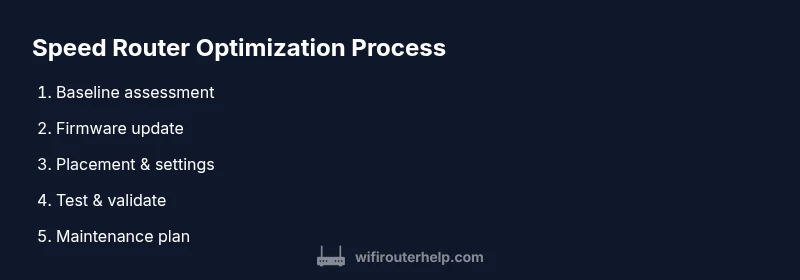
Learn how a speed router can maximize home Wi-Fi performance. In two to three simple steps you will assess baseline speeds, optimize placement and settings, and verify improvements with repeat tests. This quick guide sets expectations, lists essential prerequisites, and outlines safe, repeatable actions to boost throughput and reduce interference.
Why Speed Router Performance Matters
In modern homes, the speed of your router directly influences how quickly web pages load, streams play, and video calls stay stable. A speed router is capable of higher throughput and lower latency than older gear, which makes a real difference in crowded networks or homes with many connected devices. According to WiFi Router Help, optimizing a speed router begins with a clear view of your current performance and setup. Understanding where bottlenecks live—whether in the modem, the router itself, or the wireless environment—helps you pick the right fixes and avoid wasted effort. In practice, speed router performance translates to faster downloads, smoother gaming, and more reliable video conferencing, particularly when your plan can deliver higher speeds on wired or wireless links. This section frames the problem: you’re aiming for a robust, fast home network that remains stable under peak usage, not just brief bursts of speed. The strategies here emphasize repeatable actions that deliver real, verifiable improvements.
Baseline Assessment and Goals
Before tinkering with settings, establish a clear baseline and achievable goals. Start by confirming your internet service plan matches what you actually receive in tests; many homes see a mismatch between advertised speeds and what’s measured in real life. Use multiple devices to test at different times of day and in different rooms, recording results in a simple table. A speed router upgrade is most effective when you know where you stand: speed metrics, latency, jitter, packet loss, and Wi‑Fi coverage maps all matter. WiFi Router Help Analysis, 2026 indicates that many households underestimate the value of a baseline and chase short-term gains instead of durable improvements. Set goals for both peak performance (fast downloads, streaming) and consistency (reliability in the busiest rooms). This planning makes it easier to measure progress after each change and to decide whether further investments, like additional access points or a mesh system, are warranted.
Optimal Hardware Considerations
The hardware you choose matters as much as any setting, especially for a speed router. Look for a modern processor, sufficient RAM, and support for current Wi‑Fi standards (at least Wi‑Fi 5/802.11ac or newer). Antenna configurations, USB ports for storage or network extensions, and PoE support can influence performance and maintainability in busy homes. Consider the router’s radio hardware and ventilation: overheating throttles speed and stability. In large homes, a single device often fails to cover every corner; plan for effective coverage rather than cosmetic specs. Replace aging cabling or use better backhaul options to keep the link fast where devices connect. Finally, verify the router’s compatibility with your internet plan, including any fiber or fiber‑to‑the‑home features that require different optical modems. Investment in better hardware yields long‑term benefits, especially when paired with smart placement and firmware updates.
Core Settings to Improve Speed
Many gains come from adjusting a few core settings rather than replacing hardware. Start with enabling the most efficient wireless mode your devices support and setting appropriate channel widths (20 MHz on crowded 2.4 GHz networks, wider widths like 80 MHz on 5 GHz when interference is low). Disable features you don’t use, such as redundant guest networks, unused SIP/VoIP services, or heavy firewall rules that add latency. Configure a clean, predictable IP scheme with DHCP reservations for key devices to reduce ARP traffic and stabilize connections. If your router supports QoS, enable it and create sensible rules prioritizing time‑sensitive traffic (work video calls, gaming) over bulk downloads. Keep security in mind, using WPA3 where available and strong passwords to prevent unauthorized users that would bog down bandwidth. Document every change so you can revert quickly if something disrupts performance.
Wiring and Network Topology for Speed
For speed, stable physical connections beat all else. Whenever possible, connect bandwidth‑sensitive devices via Ethernet rather than Wi‑Fi, especially gaming consoles and desktop PCs. Use wired backhaul for mesh nodes or multi‑AP setups to maintain strong throughput across the home. Position the primary router in a central, elevated location away from walls and metal objects; avoid closets and stacked furniture that block signals. If you need to extend coverage, add access points or a mesh unit with a unified management system, and keep Ethernet backhaul whenever feasible. Run a simple floor plan to map where signals weaken and place devices to minimize dead zones. Finally, ensure your cabling is in good condition; damaged cables can introduce errors that reduce speeds and stability.
Wireless Channel and Interference Management
Interference is a universal speed killer. Use automatic channel selection where your router can scan and pick the least congested channel, or manually select a channel with the least interference. Keep 2.4 GHz limited to essential devices if your 5 GHz network is robust, since 2.4 GHz is more crowded and prone to interference from microwaves and Bluetooth. Use the appropriate channel width: 20 MHz for 2.4 GHz for reliability, and 40–80 MHz on 5 GHz if you have clean air in your environment. Consider the placement of neighboring networks; even small movements can reduce interference and boost throughput. If your router supports MU‑MIMO and beamforming, enable them to improve multi‑device performance. Finally, check for cross‑talk from nearby devices such as baby monitors, wireless speakers, or neighbors’ networks; removing interference sources can yield meaningful speed gains.
Firmware and Security Best Practices
Firmware updates aren’t glamorous, but they matter for speed and stability. Regularly check for firmware updates from the manufacturer and apply them after reviewing the changelog for performance or reliability fixes. Enable automatic updates if available to avoid falling behind. Maintain strong security settings to prevent intruders from draining bandwidth: use WPA3, a strong admin password, and disable remote administration if you don’t need it. Back up current configurations before applying major changes so you can roll back easily. Some vendors offer performance‑related features in newer firmware, such as improved traffic shaping or smarter channel management. Keep a separate guest network for visitors to limit the load on your primary network. With these practices, you’ll preserve speed gains while keeping your network protected.
Testing and Validation Methods
After each change, verify results with structured testing. Use a wired baseline test to quantify peak speeds and then test in typical usage conditions across multiple rooms. Use a mix of devices and browsers, and test both 2.4 GHz and 5 GHz bands. Track latency, jitter, and packet loss as well as throughput. Document your results with date stamps and device details to compare progress over time. Tools like simple speed tests, IPERF, and streaming tests can give a richer picture than a single number. If results decline after a change, revert or tweak the setting. The goal is not a single spike but sustained improvement across your home environment.
Common Pitfalls and Debunked Myths
There are common myths about speed that can waste time. Myth: more expensive gear automatically equals faster speeds; truth: placement and interference often matter more. Myth: turning on every feature will boost speed; advantage comes from selective, purposeful optimization. Myth: 2.4 GHz is always slower than 5 GHz; reality depends on range and obstacles. Myth: restarts solve chronic slowdowns; while rebooting helps, ongoing performance requires targeted changes, not routine resets. Pitfalls include neglecting cable quality, ignoring backhaul, and assuming your ISP is always delivering its advertised speeds. Successful optimization is iterative: measure, change, measure again, and stop when results plateau. By avoiding these myths, you’ll focus on impactful actions rather than chasing random speed improvements.
Advanced Options: Mesh vs Single Router
For larger homes, mesh networks can deliver uniform coverage and consistent speeds, especially when walls or floors create dead zones. A single high‑end router can suffice in compact spaces, but many households see large gains by adding mesh points or multiple access points with a unified management system. When evaluating options, consider backhaul type (Ethernet vs wireless), the number of bands (tri‑band often helps in dense environments), and management features such as per‑node QoS and guest networks. A mesh approach reduces coverage gaps while maintaining a simple user experience, but it may require slightly more network planning. If you’re confident in wiring, wired backhaul between nodes yields the best performance. Whichever path you choose, test comprehensively in real rooms and adjust placement and settings to preserve speed where users cluster.
Maintenance Plan for Sustained Speed
Speed router performance isn’t a one‑time fix; it benefits from a simple, repeatable cadence. Schedule a quarterly check of firmware, channel assignments, and device inventory. Re‑test speeds in peak usage windows and after major changes to confirm continued gains. Keep an up‑to‑date diagram of your network topology and device map so you can quickly diagnose drift in throughput or coverage. Document changes and results to track progress over time. Finally, plan periodic upgrades when your devices no longer support newer Wi‑Fi standards or when your ISP increases speeds beyond your current hardware’s capabilities. The goal is sustained, reliable performance that adapts to changing usage patterns. The WiFi Router Help team recommends treating speed optimization as an ongoing practice, not a one-off fix.
Tools & Materials
- Laptop or smartphone with a web browser(Access router admin and run tests)
- Ethernet cable (Cat5e/C6)(For wired speed tests and stable connection)
- Power outlet and surge protector(Ensure stable power to router)
- Notepad and pen(Record test results and changes)
- WiFi signal analyzer app(Scan channels and interference)
- ISP plan details(Reference speeds against plan)
Steps
Estimated time: 60-90 minutes
- 1
Measure baseline performance
Use multiple devices to run wired and wireless speed tests in several rooms at different times of day. Record latency and jitter, plus throughput in both 2.4 GHz and 5 GHz bands. This establishes a reference to compare against after changes.
Tip: Use a wired test as the anchor to separate wired vs wireless performance. - 2
Update firmware and reboot
Check the router’s admin page for available firmware, review the changelog, and apply updates. Reboot to ensure changes take effect and to clear temporary caches that may affect performance.
Tip: Back up current settings before updating in case you need to revert. - 3
Improve router placement
Move the router to a central, elevated location away from walls, metal objects, and large appliances. A better physical position often yields faster, more consistent speeds across the home.
Tip: Avoid placing the router inside a cabinet or closet where signals get trapped. - 4
Tune wireless settings
Set 2.4 GHz to 20 MHz channel width on crowded networks and use 80 MHz on 5 GHz if interference is low. Disable unused features and ensure security uses WPA3.
Tip: Test both automatic and manual channel selections to find the best fit. - 5
Enable QoS and prioritize critical traffic
Turn on QoS and create rules prioritizing work video calls, gaming, and essential streaming. This helps ensure important tasks get bandwidth when the network is busy.
Tip: Keep a simple rule set to avoid overcomplicating the configuration. - 6
Test after each change
Run the same tests you did for the baseline after each adjustment to quantify impact. If a change hurts performance, revert.
Tip: Document every change and result for future reference. - 7
Consider wired backhaul for large homes
If you’re extending coverage, use Ethernet backhaul between access points or mesh nodes to preserve speed and reduce latency.
Tip: Wired backhaul is often the biggest win for speed consistency. - 8
Plan for long-term upgrades
Assess whether your router supports newer Wi‑Fi standards and whether your ISP plan requires a hardware upgrade for sustained speed gains.
Tip: Schedule upgrades only after confirming current hardware limits. - 9
Document and revisit
Keep an updated diagram of your network and a log of changes. Revisit quarterly to maintain peak speed router performance.
Tip: Set a reminder to re‑evaluate every 3 months.
People Also Ask
What is a speed router?
A speed router is a modern router designed to maximize throughput and minimize latency for home networks. It typically features a faster CPU, more memory, better radios, and advanced management features to improve overall performance.
A speed router is a fast, feature-rich router that helps you get better throughput and lower latency at home.
How do I measure baseline speeds?
Run speed tests on multiple devices at different times of day, using both wired and wireless connections. Record results and compare them to your ISP plan or advertised speeds to identify gaps.
Test speeds on several devices at different times to establish a baseline.
Does firmware update improve speeds?
Yes, firmware updates can improve performance, stability, and security. Always review the changelog before updating and back up current settings.
Yes—keeping firmware up to date can boost speed and stability.
Should I enable QoS?
QoS helps prioritize critical traffic like video calls and gaming. However, misconfigured rules can hurt performance, so start with simple, device-based prioritization and test.
QoS helps prioritize important traffic, but start simple and test.
Is it safe to reset my router?
Yes. A factory reset returns to default settings and clears misconfigurations. You’ll need to reconfigure your network afterward.
Yes, reset is safe; you’ll need to set up again afterward.
When should I upgrade to a mesh system?
Consider a mesh system if you have a large or multi-story home with dead zones, or if a single router can’t maintain speed across spaces.
Upgrade to mesh if your home has dead zones or multiple floors.
Watch Video
What to Remember
- Establish a baseline before changes
- Placement often matters more than fancy specs
- Firmware updates can deliver meaningful speed gains
- Consider mesh or additional access points for large homes