Does Router Work? A Step-by-Step Troubleshooting Guide for Home Networks
An urgent, practical troubleshooting guide to verify does router work and fix common home network issues fast. Includes quick checks, a diagnostic flow, step-by-step fixes, safety tips, and guidance on when to contact a professional.


Does router work? Yes, when it’s powered, properly connected, and configured. Start with the basics: confirm the modem is online, power cycle both devices, and verify WAN is reaching the router. If devices still can’t reach the internet, move to the diagnostic flow for deeper checks. This quick check gives you a solid starting point.
What does a router do and why it works
In practical terms, a router acts as the traffic controller for your home network. It directs data between your devices and the internet, assigns local IPs, and manages security. The core question does router work is answered by how consistently these tasks are performed: power stays on, the modem provides a stable signal, and the firmware is current. When one piece falters, users see slow speeds, dropped connections, or devices that can't join the network. A well-functioning router doesn't require heroic effort—just reliable power, proper cabling, and timely updates. The WiFi Router Help approach emphasizes actionable steps that homeowners can execute without professional help. We explain common failure points, offer a diagnostic flow, and provide practical, step-by-step instructions. By sticking to observable signals—LED indicators, cable status, and client reports—you can quickly judge whether the issue is the router itself or an upstream component like the modem or ISP. Remember: most problems are solvable with careful checks, and a little method beats guesswork every time.
Does router work matter for every device?
Yes. Whether you’re streaming video, gaming, or simply browsing, your router’s health affects latency, bandwidth distribution, and device visibility. If one device shows issues while others seem fine, you’re looking at a localized problem (e.g., a single device’s Wi‑Fi settings) rather than a full network failure. In contrast, widespread symptoms indicate a broader problem with the router’s handling of traffic, firmware, or hardware. The aim here is to separate symptoms from root causes and apply targeted fixes rather than blanket replacements. This mindset saves time and money while restoring reliable connectivity across the home.
How the diagnostic flow helps you stay objective
Starting from observable symptoms, the diagnostic flow keeps you away from guesswork. You’ll verify physical connections, confirm power and modem status, test with both wired and wireless devices, and rule out ISP or service outages. Each step narrows the list of possible causes, so you know exactly when to replace a component or adjust configuration. This approach also helps you communicate clearly with support staff if you need to escalate the issue, because you’ll have documented observations and tested results.
Common setup pitfalls that look like router problems
Many issues masquerade as router failures but originate from simple setup mistakes: incorrect WAN/LAN ports, misconfigured DHCP, wrong SSID/password, or a crowded guest network consuming resources. Others stem from outdated firmware that fails to negotiate with newer modems or ISP gateways. The antidote is a structured approach: check power, verify internet signal at the modem, confirm device DHCP operation, and ensure firmware is current before swapping hardware. Staying methodical reduces unnecessary replacements and speeds resolution.
Safety, privacy, and best practices during troubleshooting
Always unplug devices before handling power-sensitive steps during resets or firmware updates. Back up your router settings before performing a factory reset so you can restore your network name, password, and guest access quickly. If you have a complex home network (multiple access points or a mesh system), avoid making broad changes across all devices at once. Document each change, so you can revert if something breaks. When in doubt, contact the manufacturer’s support or a qualified technician to prevent misconfiguration or data exposure.
Long-term prevention: keeping the router healthy
Keeping your router healthy is about routine checks: monitor LED indicators for abnormal patterns, verify firmware regularly, and schedule periodic reboots to apply updates cleanly. Place the router in a central, elevated location away from interference from microwaves or cordless phones. Use strong, unique passwords and enable WPA3 if available. Consider a guest network to isolate IoT devices. Regular maintenance reduces the likelihood of sudden disconnections and keeps your network resilient over time.
Steps
Estimated time: 45-60 minutes
- 1
Power-cycle the modem and router
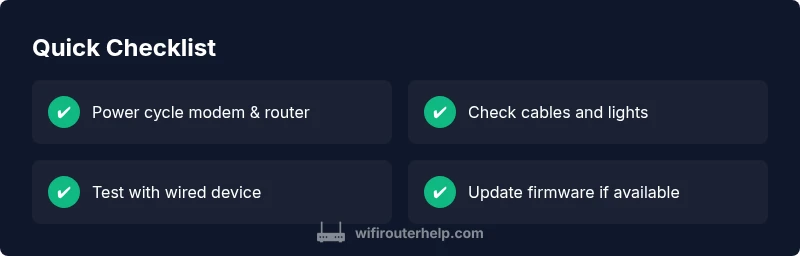
Unplug both devices, wait 30 seconds, then plug the modem back in first, wait for it to fully initialize, then plug in the router. Monitor LED indicators for a stable pattern.
Tip: Always start with a clean power reset before testing any settings. - 2
Check physical connections and indicators
Ensure all cables are firmly connected to the correct ports. Confirm the WAN/Internet light on the router indicates an active connection. If LEDs blink irregularly, reseat cables.
Tip: Use a known-good Ethernet cable if available to test wired connectivity. - 3
Verify DHCP and IP settings
Log into the router admin page and confirm DHCP is enabled. Check that devices receive a valid IP from the router. Disable/reenable DHCP if needed and test a device again.
Tip: Avoid static IP assignments during initial troubleshooting unless required. - 4
Test with wired and wireless devices
Connect a laptop via Ethernet to verify wired access, then test wireless devices. If wired works but Wi‑Fi fails, the problem may be wireless-specific.
Tip: If Wi‑Fi is disabled by mistake, re-enable SSID broadcasting. - 5
Update firmware and reset if necessary
Check for available firmware updates and install them. If issues persist, perform a factory reset and reconfigure from scratch, documenting settings beforehand.
Tip: Back up current configuration before resetting. - 6
Retest and document results
After each fix, test internet access on multiple devices. Note the outcome and any changes in speed or stability.
Tip: Keep a troubleshooting log to track what works and what doesn’t.
Diagnosis: Devices cannot access the internet through the router
Possible Causes
- highPower issue or outlet instability
- mediumModem not bridging to the router or incorrect WAN status
- highLoose or damaged Ethernet/cable connections
- lowISP outage or service degradation
- mediumOutdated firmware or misconfiguration on the router
Fixes
- easyPower cycle modem and router; ensure power lights are stable
- easyCheck all cables, reseat ethernet/wireless connections, and verify WAN status
- mediumConfirm modem is in bridge mode if using separate gateway; verify IP/Gateway on devices
- mediumUpdate router firmware via admin panel; reboot after update
- hardFactory reset if configuration is corrupted, then reconfigure from note
People Also Ask
What is the first thing to check when my router isn't working?
Begin with the basics: ensure power, confirm the modem is online, and verify the WAN connection. A simple restart often clears glitches. If the problem persists, proceed through the diagnostic flow.
First check power and cables, then restart the modem and router. If that doesn’t solve it, follow the diagnostic steps.
Why do I see connected Wi-Fi but no internet?
This usually points to DNS, gateway, or ISP issues. Check the router’s WAN status, try a different DNS server, and test with a wired device to isolate the problem.
Wi‑Fi connected but no internet typically means DNS or gateway problems or an ISP issue.
Is resetting the router a safe first step?
A reset is safe if you follow the steps and back up settings. It returns you to factory defaults, so you’ll need to re-enter network names and passwords.
Factory resetting is safe but it wipes custom settings; back up first.
How often should I update router firmware?
Regular updates improve security and compatibility. Check for updates monthly and after major hardware changes or ISP updates.
Keep firmware up to date for security and performance.
When should I call a professional?
If outages persist after multiple fixes, if you suspect hardware failure, or if you manage a complex mesh network, professional help can save time and prevent data loss.
Call a pro if problems continue after your best troubleshooting effort or if the setup is complex.
What is bridging mode and when should I use it?
Bridging mode turns a router into a pass-through device, letting another router handle routing. Use it when you want a dedicated router or a mesh system to manage all traffic.
Bridging mode lets a second router control the network; use it for advanced setups.
Watch Video
What to Remember
- Start with power and cabling checks
- Follow the diagnostic flow to isolate causes
- Keep firmware up to date
- Back up settings before resets
- Call a pro when ISP or hardware issues persist