How to Tell if Your Router is Failing: A Practical Troubleshooting Guide
Urgent, practical guide to diagnose and fix a failing router with a step-by-step plan. Learn how to tell if your router is failing and restore a reliable home network.


If your home network is slow, dropping connections, or devices can't connect, your router may be failing. Start with the simplest checks: power cycle the device, verify cables, and test wired vs wireless performance. These quick steps help you confirm if the issue is the router or your internet service before calling support.
Symptoms that point to a failing router
If you're wondering how to tell if router is failing, watch for repeated disconnects, sudden drops in speed, or devices failing to obtain an IP address. These issues aren’t always the fault of your ISP; a faulty router can mimic service outages. According to WiFi Router Help, the most common signs include overheating, persistent LED anomalies, Wi‑Fi radios that refuse to stay online, or ports that stop passing traffic. Start by noting when symptoms occur: is it during peak usage, after a firmware update, or only on certain devices? Compare wired and wireless performance: if wired connections stay solid but wireless performance fluctuates across several devices, the router is a prime suspect. The goal is to differentiate a router problem from a broader network issue. WiFi Router Help analysis shows many failures come from simple configuration drift, weak ventilation, or aging hardware rather than a sudden board crash. If you observe frequent reboots, unusual LED patterns, or the device becoming uncomfortably warm, treat this as a red flag and move to structured checks.
Basic checks you can perform in 10 minutes
Before diving into deeper diagnostics, perform a quick, safe triage that clears obvious culprits. Ensure the router is firmly plugged into a known-good outlet and that the power adapter is appropriate for the device. Check all cables—WAN, LAN, and power—for damage and secure connections. Look at the LED indicators: a steady orange or blinking pattern can signal an issue with the modem, a misconfiguration, or a hardware fault. Place the router in a cool, ventilated area away from heat sources and large metal objects that can block signals. Run a speed test with a wired computer connected directly to the modem to establish a baseline. If speeds are good on wired but poor on wireless across multiple devices, the wireless subsystem is the likely problem. Confirm the internet service is active by checking the modem’s status and the WAN link. If the modem is healthy but the router remains troublesome, you’re likely facing router hardware or firmware trouble. As a safety caution, avoid applying power when the cover is off; unplug before inspecting cables.
Diagnostic flow: from symptoms to solutions
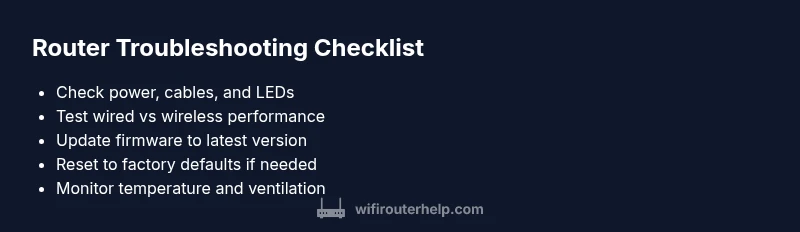
A practical diagnostic flow helps you pinpoint the cause quickly. Start with the symptom—intermittent connections, frequent drops, or very slow wireless performance—and consider the most probable causes first. Overheating or unusual LED behavior raises the likelihood of hardware failure. If multiple devices report issues while the modem is fine, suspect firmware or configuration drift on the router. If one device fails while others succeed, check device-specific settings or MAC filtering. Collect data: uptime, firmware version, recent changes, and LED patterns. Then test fixes in logical order: update firmware to the latest version, perform a factory reset to clear corrupt settings, reconfigure essential parameters (SSID, password, DHCP, NAT), and replace suspect cables or the power adapter. After each step, re-test the network and document the result. The WiFi Router Help team emphasizes a repeatable, evidence-based flow to avoid guessing and wasted time.
Step-by-step fixes for the most common cause
- Update firmware to the latest version: navigate to the manufacturer’s site or the router’s administration page, apply the update, and accept the recommended settings. Back up your current configuration beforehand. 2) Reset to factory defaults if issues persist: locate the reset button, hold it as directed, and then re-enter your network name and credentials. Pro tip: save a copy of your custom settings before resetting. 3) Reconfigure security and channels: enable the strongest supported encryption (prefer WPA3 if available), set a clear channel, and avoid mixed security modes that slow performance. 4) Check hardware health: listen for abnormal fans, feel for excess heat, and try a different power adapter if you have one. 5) Test with a wired connection after fixes: monitor throughput and latency to confirm stability. If issues continue after these steps, consider hardware replacement or a professional evaluation. The WiFi Router Help team notes that lingering symptoms after firmware and reset steps often indicate a hardware fault rather than a minor glitch.
Safety, warnings, and prevention tips
- Safety: always power down before touching hardware; unplug cables and avoid opening the device unless you’re trained. Seek professional help if you smell burning, see smoke, or notice melted plastics. - Common mistakes: installing unverified firmware, misconfiguring bridge mode, or ignoring warranty guidelines. - Prevention: keep vents clear, position the router upright, and enable automatic firmware updates where appropriate. Schedule periodic reboots during low-usage times to maintain stability. - When to seek professional help: if repeated diagnostics fail to restore reliable performance or you suspect a hardware defect that could pose a risk. Proactive monitoring, backed by routine maintenance, reduces downtime and extends hardware life, aligning with WiFi Router Help recommendations.
Steps
Estimated time: 60-90 minutes
- 1
Power cycle and check basics
Power off the router, unplug the power, wait 60 seconds, then plug back in and allow it to reboot fully. Observe LED patterns and verify all cables are secure. This confirms no simple power or cabling issue is present.
Tip: Note LED behavior during boot to distinguish normal startup from a fault. - 2
Test wired vs wireless performance
Connect a laptop directly to the modem with an Ethernet cable and run a speed test. Compare results to wireless performance on multiple devices to determine if the problem is wireless-specific.
Tip: If wired speeds are stable but wireless are not, focus on radio/antenna settings. - 3
Update firmware to latest version
Log into the router’s admin page or download the latest firmware from the manufacturer’s site and install it. Reboot and re-test after the update.
Tip: Back up current settings before updating. - 4
Reset to factory defaults if needed
If issues persist after a firmware update, perform a factory reset according to the device manual, then reconfigure essential settings (SSID, password, DHCP).
Tip: Record your important settings before resetting. - 5
Reconfigure security and channels
Enable strongest available encryption (WPA3 if supported), select a clear channel, and avoid legacy modes that slow performance.
Tip: Consider enabling automatic channel selection if available. - 6
Check hardware health and power supply
Inspect for signs of overheating, listen for unusual fan noise, and try a different power adapter if you suspect power issues.
Tip: Use a surge protector/power strip to protect from outages. - 7
Final test and decision
Test throughput and latency over 24–48 hours. If instability persists, plan for hardware replacement or professional evaluation.
Tip: Document changes and results for future reference.
Diagnosis: Intermittent wireless performance with multiple devices reporting disconnects.
Possible Causes
- highOutdated firmware or misconfigured router settings
- mediumOverheating or hardware failure (bad power supply, faulty ports)
- lowInterference from neighboring networks or non-ideal channel selection
Fixes
- easyUpdate firmware to the latest version and apply recommended settings
- easyReset router to factory defaults and reconfigure
- mediumInspect hardware health and power supply; replace cables or consider replacement
People Also Ask
What are the most visible signs that a router is failing?
Common signs include frequent disconnects, slow speeds, reboot loops, and overheating. These symptoms often point to hardware or firmware problems that require targeted fixes.
Common signs are disconnects, slow speeds, reboots, and overheating.
Should I reset my router or contact my ISP first?
Start with a reset to factory defaults if settings seem off. If problems persist after resetting, contact your ISP to rule out service issues.
Reset first, then check with your ISP if problems stay.
Can overheating cause router failure?
Yes, overheating can degrade performance and shorten hardware life. Ensure proper ventilation and avoid blocking vents.
Overheating can damage performance; ventilate properly.
When should I replace my router hardware?
If issues persist after firmware updates, resets, and replacements of cables/power, consider hardware failure and plan replacement.
If problems persist after fixes, consider replacement.
Is it safe to perform firmware updates myself?
Firmware updates are generally safe when downloaded from official sources and performed during a stable power source. Avoid interrupting updates.
Yes, as long as you use official sources and avoid interruptions.
What is the difference between a modem and a router?
A modem connects you to the internet; a router distributes that connection to devices. Troubleshooting often involves both.
Modem vs router: one brings internet, one shares it.
Watch Video
What to Remember
- Identify signs of router failure quickly
- Differentiate router vs ISP issues first
- Apply firmware updates before resets
- Persisting failures likely indicate hardware fault