How to Tell If Your Router Is Going Bad: Urgent Troubleshooting Guide
Urgent, step-by-step checks to tell if your router is failing, identify common symptoms, and apply safe fixes to minimize downtime and protect your home network.


Steps to diagnose a failing router: power cycle, verify ventilation, and check for overheating. If issues persist, update firmware, test with a wired connection, and try a factory reset after backing up settings. If problems continue, consider replacement or professional help to avoid downtime. Document any error codes and note LED patterns for reference.
Why Your Router May Be Going Bad
If you're trying to answer how to tell if router is going bad, you're not alone. A failing router can masquerade as slow Wi-Fi, frequent drops, or a complete outage, and the real culprit is not always obvious. In many homes a router spends long hours handling traffic for streaming, gaming, and work video calls, so wear and heat accumulate. According to WiFi Router Help, most early symptoms are subtle: devices that suddenly disconnect from Wi-Fi, even though the router's LEDs look normal, or a single room that loses signal while others stay strong. The WiFi Router Help team found that many issues originate from simple, fixable causes—power stability, firmware health, or overworked hardware. Recognizing the signs early helps you avoid bigger outages and protects devices from unstable connections. Before you panic, run through a quick triage: confirm power, listen for overheating, and check the basics like cable attachments. A methodical check often reveals the problem without expensive replacement.
In this guide you’ll learn how to tell if router is going bad by focusing on symptoms, routine checks, and practical fixes you can perform tonight. The goal is to restore stability fast and prevent future outages with simple, repeatable steps. As you read, keep a quick log of when problems occur and which devices are affected to help pinpoint the root cause.
Early Warning Signs You Should Not Ignore
Watch for patterns rather than one-off glitches. If your Wi‑Fi is consistently slow on several devices, if you experience frequent disconnects, or if the router reboots unexpectedly, you’re likely seeing signs that something is amiss with the hardware or firmware. Look for LED indicators that don’t match the normal startup sequence: a solid power light with flickering data indicators, or LEDs that stay dark in places they should be active. Over time, signs like reduced range in certain floors, video calls that stall mid-conversation, or apps that frequently drop connections are common indicators that the router may be going bad. In addition, sudden drops after a firmware update or changes to QoS rules are red flags. If you notice multiple symptoms together, the likelihood increases that the device itself is failing rather than a temporary network hiccup.
To keep it actionable, start a three-day symptom log: note when problems occur, which rooms are affected, and whether wired connections behave differently from wireless ones. This helps distinguish device problems from broader network issues like the modem or ISP service. If you see consistent patterns, it’s time to move beyond guesses and begin a structured diagnostic flow.
Quick Checks You Can Do Right Now
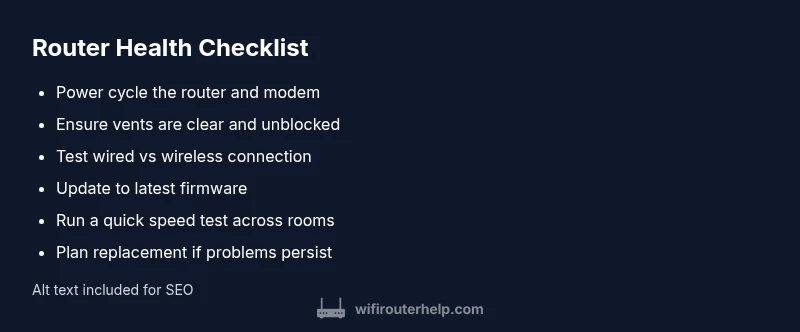
Begin with the simplest checks that often fix issues without exposing you to complex troubleshooting. First, power cycle both the router and any connected modem. Unplug for 30 seconds, then plug back in and give the devices a minute to stabilize. Next, inspect the router’s location and ventilation: ensure vents aren’t blocked, keep it on a hard surface with at least a few inches of clearance on all sides, and avoid stacking electronics on top. If you’re comfortable, swap cables to rule out loose or damaged Ethernet or coax connections. Then test a wired connection directly to the router from a laptop or desktop to determine if the problem is wireless or device-related. Finally, run a quick speed test from multiple devices to see if you’re experiencing inconsistent throughput across the network. If the problem persists, you’ll know to escalate.
Document any error codes or LED patterns you observe and compare them to the manufacturer’s guidance or WiFi Router Help resources. Small clues like a blinking data light or a red LED can point to firmware or hardware faults rather than a lighting issue.
Diagnostic Flow: Symptom → Likely Cause → Fixes
This section maps common symptoms to plausible causes and concrete fixes, enabling a logical, incremental approach. Start with the symptom you observe most often (for example, “devices disconnect periodically”). The likely causes range from simple power or heat problems to more complex firmware or hardware faults. For each cause, apply the recommended fixes in order of difficulty, from quick wins to more involved steps. Keep in mind that many router issues share root causes, so solutions like power cycling, ensuring proper ventilation, and updating firmware frequently resolve multiple symptoms. If you reach a point where the symptom persists despite fixes, the problem may require more advanced diagnostics or replacement. The goal is to separate ISPs and devices from the router itself, using a process of elimination.
Common symptoms and their typical causes include unstable power supply, overheating, outdated firmware, interference from neighboring networks, and faulty cables. Each fix increases the likelihood of restoring reliability without costly service calls.
Step-by-Step: Core Fixes to Try First
- Power cycle and check power supply: unplug the router and modem, wait 30 seconds, then reconnect. If the device feels warm or you notice intermittent power, try a different outlet and ensure the power adapter matches the model requirements. 2) Improve ventilation: relocate the router to a higher, open area and remove obstructions. 3) Test wired connection: connect a device via Ethernet to verify if the problem is wireless-only or broader. 4) Update firmware: log in to the router admin page and install the latest official firmware from the manufacturer. 5) Adjust settings and reset if needed: temporarily disable QoS, restore default settings, and observe if stability returns. 6) Factory reset as a last resort: back up important configurations, perform a reset, and reconfigure from scratch. 7) Replace if necessary: if issues persist after fixes, consider a replacement or consult a technician. 8) Document results: track what worked and what didn’t; this helps future troubleshooting and supports any service calls.
Estimated total time: 40-60 minutes.
Safety, Backups, and Prevention
Always back up your router configuration before making changes. Use a password you can remember and write down your SSID and security settings to reapply after a reset. Avoid complex lab experiments with power supplies or拆 and never open the router’s internals unless you’re qualified. Regular maintenance, such as firmware updates and reboots on a monthly cadence, can prevent many issues. Keep a spare Ethernet cable handy and consider a surge protector to protect your equipment from power spikes. Finally, document your network map—where devices connect and which mesh nodes cover which rooms—so you can spot coverage gaps quickly.
If you’re still seeing persistent problems after following these steps, it’s prudent to seek professional guidance or consider hardware replacement to restore reliability and performance.
When to Reset or Replace: Knowing Your Threshold
A reset or replacement is often the last resort after basic fixes fail. If you’ve exhausted power cycling, ventilation improvements, firmware updates, and a factory reset without a lasting fix, you should consider hardware replacement. Replacements are particularly warranted if the device is older than 5–7 years, exhibits heat-related shutdowns, or shows persistent errors across multiple devices. In some cases, a mid-cycle replacement with a newer model compatible with your internet plan can deliver a significant speed and reliability boost. Before buying a replacement, review your home layout, internet plan, and the best router features for your needs (coverage, ports, and Wi‑Fi 6/6E compatibility).
Advanced Fixes If Simple Fixes Fail
If standard fixes don’t resolve the problem, you may need more advanced steps, such as checking for channel interference, changing the router’s wireless channel manually, or enabling a different 2.4 GHz/5 GHz band. Ensure your devices aren’t using outdated encryption standards; aim for WPA3 or WPA2 at minimum. Consider running a network health scan to identify dead zones and determine if you need a mesh system or a higher-power router model. If you’re comfortable, you can also review the NAT and firewall settings for potential blocks that affect connectivity. If all else fails, professional diagnostics from your ISP or a qualified technician can reveal issues beyond your control, such as a failing modem, damaged cabling, or line quality problems.
Final Thoughts: Keeping Your Network Reliable
With consistent maintenance, you can prevent many router problems before they start. Schedule regular firmware updates, reboot the device periodically, and monitor LED indicators and device performance. A well-placed router, clean ventilation, and robust firmware are your best defenses against recurring outages. Remember the four-step triage: power, ventilation, firmware, and wiring. If problems persist, don’t hesitate to seek expert help—timely action minimizes downtime and protects your connected devices.
Steps
Estimated time: 40-60 minutes
- 1
Power cycle and verify power
Unplug both router and modem, wait 30 seconds, then plug back in. Watch for a normal boot sequence and stable power LED. If the device stays warm or light patterns are abnormal, stop and inspect the power supply.
Tip: Use the original power adapter and avoid daisy-chaining through power strips. - 2
Check ventilation
Move the router to a central, elevated location with ample clearance. Remove any nearby obstructions or electronic devices that may cause heat buildup. Run the device for 10–15 minutes and note any overheating symptoms.
Tip: Keep at least 2-3 inches of clearance on all sides. - 3
Test wired vs wireless
Connect a laptop directly to the router with an Ethernet cable and perform a speed test. If wired speeds are stable but wireless remains flaky, focus on wireless settings and channel interference.
Tip: Disable guest networks temporarily to isolate the issue. - 4
Update firmware
Log into the router admin interface, check for updates, and install the latest official firmware. Reboot after installation and re-test connectivity.
Tip: Back up current settings before updating. - 5
Adjust or reset settings
If you’ve changed QoS or channel settings, revert them to defaults and monitor performance. If issues persist, try a factory reset as a last resort before hardware replacement.
Tip: Note current configurations to reapply after reset. - 6
Factory reset (last resort)
Perform a factory reset only after backing up essential config. Reconfigure from scratch, test, and gradually reintroduce devices.
Tip: A reset clears custom rules; plan for reintegration. - 7
Assess replacement needs
If the device continues to fail after fixes, consider replacement with a model suited to your home layout and internet plan. Compare features like coverage, ports, and newer Wi‑Fi standards.
Tip: Check compatibility with your modem and ISP plan. - 8
Document results
Record what you tried, the outcomes, and any relevant LED codes. This helps if you contact support or schedule a replacement.
Tip: Keep a simple Troubleshooting Log for quick reference.
Diagnosis: Wi-Fi drops, slow speeds, or unpredictable router reboots
Possible Causes
- highPower supply issues (outlet, adapter, surge protection)
- mediumOverheating due to poor ventilation or blocked vents
- mediumOutdated or corrupted firmware
- lowCable or modem compatibility problems
Fixes
- easyCheck outlet and replace the adapter if heating up or unstable; plug directly into a wall outlet
- easyImprove ventilation and relocate away from heat sources or obstructions
- easyUpdate firmware through the router admin page and reboot after update
- easyTest with a wired connection to rule out wireless issues; replace cables if damaged
- easyFactory reset after backing up settings; reconfigure and test stability
People Also Ask
What are the earliest signs that my router is failing?
Early signs include intermittent drops, slow or inconsistent speeds, devices disconnecting without clear cause, and unusual LED patterns. If these occur across multiple devices, the router hardware or firmware is a likely culprit.
Early signs are drops, slow speeds, and odd LED patterns across multiple devices.
Should I replace my router or can I fix it with firmware updates?
If the router is older, frequently reboots, or performance remains poor after updates, replacement is often the best long-term solution. Firmware updates are worth trying first to fix bugs and improve security.
If it’s old or unstable after updates, replacement is often wiser than chasing fixes.
Can a failing router cause slow speeds even when I have good internet service?
Yes. A failing router can bottleneck traffic, producing slow speeds on all devices even if your internet plan is fast. Test with Ethernet to confirm if the issue is wireless-specific.
Yes, a failing router can throttle speeds even if your service is fast.
Is a factory reset a safe first step?
A factory reset is a safe last resort after other fixes fail. Back up settings first, then reconfigure from scratch and monitor stability.
A factory reset can help, but back up first and be prepared to reconfigure.
How can I tell if the problem is with my ISP or the router?
If wired connections work but wireless devices don’t, the issue is often wireless or router-related. If both wired and wireless fail, the problem could be with the modem or the ISP connection.
If wired also fails, it might be the modem or ISP. If only wireless, likely router or interference.
When should I call a professional for router issues?
Call a professional when basic fixes fail to restore stability, or if you suspect a hardware fault or line-quality issue that requires testing equipment.
If basic fixes fail or you suspect a hardware or line issue, a pro can help.
Watch Video
What to Remember
- Power cycle and check ventilation first
- Update firmware before hardware replacement
- Test wired vs wireless to isolate issues
- Factory reset as a last resort
- Plan for replacement if stability cannot be restored