What Happens When Your Router Goes Bad (Troubleshooting Guide)
When your home network stalls, you need fast, actionable steps. This guide from WiFi Router Help walks you through diagnosing, fixing, and preventing router failures with a clear, step-by-step approach.


When a router goes bad, you’ll see dropped connections, slow speeds, or a complete loss of internet. The fix usually starts with simple checks (power, cables, and reboots), then firmware updates or factory resets if needed. If problems persist, the issue may be hardware or ISP-related, and replacement or professional help is recommended.
What happens when the router goes bad
When your home network experiences problems, the router is often the root cause. A failing router can silently degrade performance or abruptly cut off devices from the internet. A quiet slowdown or constant buffering can be just as disruptive as a full outage. According to WiFi Router Help, most households first notice intermittent WiFi drops, longer page load times, or devices that won’t connect at all. The impact extends beyond convenience—it affects work tasks, streaming, gaming, and smart-home routines. In practice, you may see two common patterns: 1) a router that seems healthy but won’t route traffic properly, with all LEDs behaving in a confusing rhythm; or 2) devices that show a connection, but cannot obtain an IP address or access the internet. Both symptoms warrant systematic testing rather than guesswork. The WiFi Router Help team found that quick triage—power cycling, checking cables, and confirming firmware status—solves the majority of routine outages, saving you time and frustration. If problems persist after these steps, you’re likely facing firmware corruption, overheating, or a hardware fault. When that happens, move to deeper diagnostics and follow the step-by-step fixes below.
Common failure modes and their telltale signs
Routers can fail in several ways, and recognizing the pattern helps you pick the right fix. Power issues are among the most visible: LEDs may flash irregularly, the device reboots itself, or the router barely stays on. Overheating is another culprit; a warm body and a hot vent can throttle performance or trigger thermal shutdowns. Firmware problems show up as failed updates, stalls in administration pages, or inconsistent DNS responses. Congestion and misconfiguration—like wrong DHCP settings or a conflicting NAT table—can cause devices to fail to obtain IPs or experience flaky connections. Finally, an ISP outage or a degraded modem can masquerade as a router problem when, in fact, the external link is down. By mapping symptoms to likely causes, you can prioritize fixes and avoid unnecessary replacements. This approach aligns with the data from WiFi Router Help analysis, which highlights firmware status and wiring as the top levers for quick recovery.
Tips to spot signs quickly include noting LED behavior, testing wired vs wireless behavior, and testing after each fix to confirm improvement.
Immediate checks you can do (the 5-minute triage)
Before you dive into deeper fixes, run through these quick checks. They usually take 5 to 10 minutes but resolve the majority of common outages.
- Verify the router is powered on and connected to a working outlet. If the power brick feels unusually hot or smells burnt, power down and let it cool before retrying.
- Confirm all cables are firmly seated: the power adapter, the WAN/Internet cable, and any Ethernet cables linking devices. A loose plug or a damaged cable is a frequent culprit.
- Observe the LEDs. A steady power light is normal; blinking Internet or WAN LEDs often indicates an external link problem or a misconfiguration.
- Reboot: unplug the router for 30 seconds, then plug back in and wait for it to fully boot. If you also have a modem, power cycle it as well after the router comes back up.
- Test with a wired connection. If wired devices have internet but wireless devices don’t, focus on wireless settings, interference, or band issues.
- Check for firmware updates in the router’s admin interface and apply any available updates. A fresh firmware can fix bugs and restore stability.
- If you have a guest network or parental controls, temporarily disable them to see if they’re contributing to the problem.
If the issues persist after these checks, move to the diagnostic flow below to pinpoint the root cause and determine the next fixes. Remember to keep safety in mind: never open the router’s case or touch internal components unless you are trained to handle electrical equipment.
Diagnosing the issue: a practical flow
A structured diagnostic approach helps you separate symptoms from causes. Start with the most common, least invasive checks and progressively move toward more involved fixes. First, confirm whether the problem affects all devices or only one (this helps distinguish a router issue from a device or account problem). Then assess wired versus wireless performance to determine if the problem is limited to Wi‑Fi or spans the entire router. If you suspect firmware, check the admin page for version information and recent release notes. If the problem appears to be hardware-related, you may need to replace the unit or use a temporary workaround like a mesh extender or second router. In all cases, document what you test and when, so you can spot patterns and avoid repeating steps. The diagnostic flow below maps symptoms to likely causes and practical fixes, so you can work methodically instead of guessing.
Step-by-step fixes for the most common causes
This section provides actionable fixes for the most frequent router problems. Each fix starts with a quick assessment, followed by the recommended action. If a fix does not resolve the issue, proceed to the next one in the list. Remember: when in doubt about safety, pause and consider professional help.
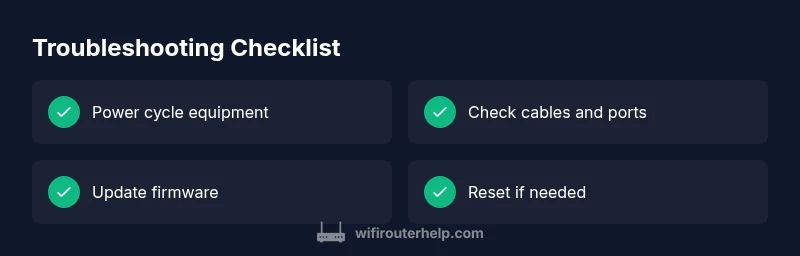
- Power cycle and check power supply. A failing PSU can mimic a dead router. Unplug, wait 30 seconds, plug back in, and observe the boot sequence. Tip: try a different outlet to rule out outlet issues.
- Check cables and ports. Ensure WAN, LAN, and power cables are secure. Faulty ports are a common cause of intermittent outages. Tip: avoid using damaged cables and replace them as needed.
- Update firmware. Navigate to the admin interface, download the latest version, and perform an update. A failed update can leave the device in a degraded state. Tip: back up settings before updating.
- Reset to factory defaults. If the router still misbehaves, perform a factory reset, reconfigure from scratch, and test. Tip: document your settings, as you’ll need to re-enter them after reset.
- Test with a wired connection. If wired works but wireless does not, focus on wireless settings and interference. Tip: change the wireless channel to avoid congestion and interference.
- ISP or modem check. If the problem persists for all devices, test with a different modem or contact your ISP to verify outages or service degradation. Tip: schedule a service call if you still have no internet after steps above.
- Consider replacement. If the router is old or overheats frequently, replacement is often more economical and reliable in the long run. Tip: compare models for future-proof features like tri-band Wi‑Fi and newer security standards.
If you exhaust all these steps without a stable fix, professional assessment may be required, especially if you suspect hardware failure or a complex configuration issue.
Safety tips and common mistakes to avoid
- Do not open the router’s case or touch internal components unless you are trained. USB sticks or external antennas can be damaged if mishandled.
- Avoid combining firmware updates with other sensitive changes in the same session; back up configurations first.
- Do not repeat the same fix repeatedly without testing its effect; logging each step helps avoid circular troubleshooting.
- Never rely on a single diagnostic approach; combine wired testing, wireless testing, and service checks for a complete picture.
- If you are uncomfortable performing resets or updates, seek help from a professional to prevent accidental misconfigurations.
The goal is to stabilize your network quickly while maintaining safety and preserving data. The steps above align with the best practices from WiFi Router Help and are designed to minimize downtime.
Prevention: keeping your network healthy long-term
Proactive maintenance reduces the odds of router failure. Schedule regular firmware updates, replace aging cables, and monitor temperatures in your equipment closet. Use a clean, ventilated space to prevent overheating, and avoid stacking devices tightly, which can trap heat. Consider network expansion with a mesh system if you have a large home or many devices. Regular resets (no more than once every several months) can help your router stay responsive, but avoid unnecessary resets, which can erase custom configurations and require time to re-enter settings. Implementing QoS rules and limiting unnecessary background devices can also help relieve load on the router, improving stability and performance. In addition, keep a simple backup plan: know how to revert to a previous firmware version and keep a spare power supply. The long-term payoff is improved uptime and fewer emergency troubleshooting sessions.
Brand-wise, the WiFi Router Help team recommends maintaining a routine check-in every 6–12 months and keeping software up to date to defend against emerging threats and compatibility issues with new devices.
When to seek professional help
If you have tried the above steps and still face instability, it’s time to call in a professional. A technician can perform hands-on diagnostics, check electrical grounding, verify house wiring, and test for deeper hardware faults. If the router is under warranty, contact the manufacturer for service or replacement. In enterprise-like homes with complex setups (nested networks, multiple access points, ISP-managed devices, or fiber connections), a certified technician can optimize the entire network to ensure reliability. Don’t delay professional help when the problem repeats after resets or firmware updates—prolonged issues can lead to higher costs and reduced security.
Next steps: verify your network after fixes
After applying fixes, verify that all devices can access the internet reliably. Run speed tests at different times of day, check streaming quality, and monitor for any recurring outages. If you’ve replaced firmware or hardware, re-check security settings and ensure your password protection stays strong. Document any changes and schedule future maintenance reminders. The goal is to keep your network resilient and responsive, with minimal downtime and predictable performance.
Steps
Estimated time: 60-120 minutes
- 1
Power cycle everything
Unplug the router (and modem if used) for 30 seconds, then plug back in starting with the modem. Wait for full boot and verify Internet connectivity on a wired device.
Tip: Use a surge-protected outlet to protect hardware. - 2
Check cables and LEDs
Inspect all cables for damage and reseat them firmly. Observe LED indicators; a steady power light with a stable WAN light is a good sign. If LEDs blink abnormally, note the pattern for reference.
Tip: Avoid bending or pinching cables; replace damaged ones. - 3
Update firmware
Log in to the router’s admin page, check for updates, and install the latest firmware. Reboot and test both wired and wireless connections afterward.
Tip: Backup settings before updating to ease recovery if something goes wrong. - 4
Reset to factory defaults if needed
If issues persist, perform a factory reset from the reset button. Reconfigure essential settings from scratch instead of restoring from a previous backup.
Tip: Note sensitive configuration like custom DNS and port forwarding; write them down before resetting. - 5
Test wireless performance
Connect a device via Wi‑Fi and run throughput tests. Change the channel or band if interference is suspected. Ensure SSID and password are correctly configured.
Tip: If your router supports guest networks, disable them temporarily to test baseline performance. - 6
Isolate ISP or hardware faults
If wired devices work but wireless devices fail, focus on wireless settings. If no devices access the Internet at all, contact your service provider and verify external outages or modem health.
Tip: Ask for a technician visit if symptoms persist after firmware and hardware checks. - 7
Plan for replacement
If the router is old or repeatedly overheats, replacement is often more economical and reliable. Compare features like firmware support and security protocols.
Tip: Look for models with current security standards and expandable coverage if you have a large home.
Diagnosis: Devices report no internet or intermittent connectivity after router issues
Possible Causes
- highPower or hardware failure (overheating, failing PSU)
- mediumFirmware corruption or outdated software
- highCabling or network configuration issue (WAN cable loose, incorrect DNS)
- lowISP outage or modem issue
- lowOverloaded router due to too many connected devices or QoS misconfiguration
Fixes
- easyPower cycle router and check power supply; test with a known-good power adapter if available
- easyUpdate firmware from the admin interface; perform a clean reboot
- easyVerify WAN/Internet cable firmly connected; check LAN ports; reset modem if applicable
- mediumReset router to factory settings if problems persist; reconfigure from scratch to avoid legacy errors
- hardSchedule a professional diagnostic if hardware fault suspected or replacement needed
People Also Ask
What are the signs that my router is failing?
Common signs include intermittent connectivity, sudden drops, slow Wi‑Fi, or devices failing to obtain IP addresses. If issues persist after basic checks, there may be firmware or hardware problems. Always start with power, cabling, and firmware status before replacing hardware.
Look for intermittent connectivity, slow Wi‑Fi, or devices not getting IP addresses. Start with power, cables, and firmware status to determine if you need a replacement or further diagnostics.
Can a bad router cause slower internet even when the modem is fine?
Yes. A failing router can bottleneck traffic, especially with older firmware or high device load. Check firmware, reset, and test both wired and wireless connections to isolate the bottleneck. If performance remains poor, consider hardware upgrades.
Yes, a bad router can slow things down even if the modem is fine. Update firmware and test wired and wireless connections to confirm.
Is it safe to reset my router?
Resetting is safe and often necessary, but it wipes custom settings. Back up configurations, then reconfigure essential features like Wi‑Fi name, password, and security. If you’re unsure, seek professional help.
Resetting is safe, but it wipes settings. Back up first, then reconfigure important features.
When should I replace a router rather than trying to fix it?
If the router is old, frequently overheats, or requires repetitive fixes, replacement is more economical and reliable long-term. New models offer better security and performance, especially for larger homes or smart homes.
If it’s old or keeps failing, replacing it is often the better choice.
Why would wired work but wireless not?
That usually points to wireless-specific issues like interference, channel congestion, or outdated Wi‑Fi standards. Update firmware, change channels, or adjust security settings. If needed, consider a mesh system for better coverage.
Wired working but wireless not usually means wireless interference or misconfiguration.
What can I do to prevent router failures?
Keep firmware up to date, use strong passwords, monitor heat and ventilation, and replace aging cables. Regular resets and performance checks help catch issues early and reduce downtime.
Regular firmware updates and good ventilation prevent many failures.
Watch Video
What to Remember
- Start with quick checks before heavy fixes
- Firmware updates fix many router issues
- Factory reset is a last resort
- Power supply matters for stability
- Preventive maintenance reduces downtime