What Causes Routers to Go Bad: A Troubleshooting Guide
Diagnose common router failures quickly. Learn what causes routers to go bad, how to test power, firmware, cables, and when to replace for better stability.


Most router problems trace to power, overheating, firmware bugs, or faulty hardware. Start with a power cycle, then check for firmware updates and a factory reset if needed. Verify cables, LEDs, and the device temperature. If issues persist, test with a known-good power adapter or contact your ISP. This quick path guides deeper troubleshooting.
Common Causes of Routers Going Bad
If you're asking what causes routers to go bad, several culprits consistently appear. The most common include power issues, overheating, firmware bugs or outdated software, hardware aging, and environmental interference. Understanding these categories helps you triage quickly and decide whether a DIY fix is worth pursuing or if you should escalate to support. In practice, many outages trace back to a faulty power supply or a dusty, cramped location that traps heat. A modern router has several delicate components: the power adapter, the internal capacitor network, and the wireless radio. When any of these degrade, performance can deteriorate, devices may fail to obtain IP addresses, or you may see frequent drops in throughput. By framing the problem around these categories, you can systematically test each area and avoid chasing phantom issues.
Key culprits to consider:
- Power issues (loose outlet, bad adapter) which can cause intermittent outages.
- Overheating due to blocked vents or crowded spaces.
- Firmware bugs or stale software that crash services or drop connections.
- Aging hardware components that fail under load.
- Interference from dense electronics or poor placement in the home.
Quick Environmental Check
Environmental factors often masquerade as device faults. Before you assume the router is failing, inspect the room and placement. A router sitting in a closed cabinet or next to a heat source can overheat, reducing throughput and causing reboots. Dust build-up reduces cooling efficiency. Humidity and proximity to cordless phones or microwave ovens can cause signal interference. For stability, place the router on a hard surface with at least a few inches of clearance on all sides, away from heat sources, and never in a cramped cabinet. Regular dusting and ventilation checks help prevent future failures. Tools like a small brush or canned air can keep vents clear.
Practical checks:
- Ensure the device is not in a closet or cabinet.
- Keep it away from heat sources and large metal objects.
- Clean dust from vents every few months for sustained cooling.
Cable, Power, and Hardware Health
Physical connections matter as much as software. A loose Ethernet cable or a damaged power adapter can create intermittent connectivity that mimics deeper router faults. Inspect all cables for wear, kinks, or exposed wires, and replace damaged cables with certified equivalents. Check the power adapter for stability; a fluctuating voltage can cause reboot cycles or reduced performance. Look at LED indicators: a solid power light but no WAN or LAN activity often points to a wiring or device issue rather than a total failure. If the router feels unusually hot to the touch, power down, unplug, and allow it to cool in a clean environment before powering back up. If overheating recurs after a quick cooling period, consider replacing the unit.
Checklists:
- Inspect power adapter and outlet; try a different outlet.
- Swap Ethernet cables to rule out port faults.
- Confirm LED patterns and reboot behavior.
Firmware, Settings, and Security
Firmware quality is critical for router reliability. Outdated firmware can contain bugs that cause crashes, performance degradation, or security vulnerabilities, all of which can appear as a router that goes bad. Check the vendor’s site for the latest firmware and apply updates following the official procedure. Always back up your configuration before any update or reset. If issues continue after updating, consider a factory reset to restore defaults, then reapply your settings carefully. Misconfigurations—such as incorrect DNS, IPv6 misconfig, or QoS rules—can also cause connectivity irregularities. After updates or resets, re-test with a minimal configuration to isolate the root cause.
Best practices:
- Enable automatic firmware updates where possible.
- Back up your current configuration before major changes.
- Disable features you don’t need to reduce complexity during troubleshooting.
Internet Service and Network Factors
Sometimes the problem lies beyond your router. ISP outages, modem incompatibilities, or DNS issues can make a perfectly healthy router appear faulty. Run a quick test by connecting a single device directly to the modem to see if the issue persists. If the problem vanishes with the modem alone, the router or local Wi-Fi network is likely the culprit. Check service status pages for your provider and inspect the modem’s logs if available. If your router’s performance improves after bypassing the ISP’s device, contact your provider to address compatibility or line issues.
Common checks:
- Confirm whether a service outage affects your area.
- Verify modem compatibility and bridge mode settings if applicable.
- Test with a different DNS or public DNS service to rule out DNS errors.
When to Replace vs Repair
If your router is several years old, or if it repeatedly experiences power cycles, overheating, or non-recoverable hardware failures, replacement is often more cost-effective than ongoing repairs. Compare the repair cost (including potential downtime) against a new device with modern features like better range, security, and firmware support. Consider warranty status and the cost of professional diagnostics. A fresh unit can support newer standards (e.g., Wi-Fi 6/6E) and improved efficiency, reducing future troubleshooting needs. Before replacing, ensure you have backup configurations and recovery steps ready to minimize downtime.
Practical Prevention Steps
Preventive care reduces the likelihood of future router issues. Keep firmware up to date, improve ventilation, use quality power adapters, and perform regular health checks on cables and ports. Maintain a clean environment around the device and avoid stacking it with other electronics that can cause heat or radio interference. Establish a simple maintenance routine: quarterly dusting, annual firmware reviews, and a yearly evaluation of your home network layout to minimize interference and maximize signal stability.
Steps
Estimated time: 25-40 minutes
- 1
Identify symptoms and isolate the device
List the exact symptoms (drops, reboots, slowdowns) and confirm they occur with multiple devices. Determine if the issue is isolated to Wi-Fi or also happens on a wired connection. This helps distinguish router faults from device or service problems.
Tip: Document error messages and LED patterns to speed up diagnosis. - 2
Power cycle and observe
Unplug the router, wait 30 seconds, and plug back in. Observe whether the device boots normally and stays online for several minutes before issues recur. This can clear transient faults and refresh internal state.
Tip: Avoid power cycling too frequently; extended outages can indicate deeper problems. - 3
Check cables and hardware health
Inspect the power adapter, Ethernet cables, and ports for wear or damage. Replace any suspect cables with certified ones and test a different Ethernet port. A damaged port often masquerades as a router issue.
Tip: Use new or known-good cables; cheap cables can cause intermittent failures. - 4
Update firmware and back up
Connect to the router’s admin interface and check for firmware updates. If available, apply updates and reboot. Back up current settings before any update to enable easy rollback if needed.
Tip: Enable automatic updates if you trust the vendor’s cadence. - 5
Test with minimal configuration
If issues persist, reset to factory defaults and reconfigure only essential features (basic Wi‑Fi, DHCP). This helps determine if a setting caused the fault. Reintroduce features one by one to identify the culprit.
Tip: Record initial configurations so you can reproduce a working baseline. - 6
Decide on replacement or repair
If the device is old (several years) or repeatedly fails despite fixes, replacement is often cheaper and more reliable. Check warranty coverage and consider energy efficiency and future-proofing when choosing a new model.
Tip: Plan for data backup and a smooth migration to minimize downtime.
Diagnosis: Router frequently drops internet connection or restarts on its own
Possible Causes
- highPower issue (faulty adapter, loose outlet, brownouts)
- highOverheating due to poor ventilation or dust buildup
- highOutdated or buggy firmware (security issues, firmware crash)
- mediumHardware failure (capacitors, ports, PCB damage)
Fixes
- easyTest with a known-good power adapter and outlet; try a different outlet
- easyClean vents, ensure at least 2-3 inches of clearance; improve airflow
- easyUpdate to the latest firmware from the vendor, then reboot
- mediumFactory reset and reconfigure only after backing up settings
- mediumIf issues persist, consider hardware replacement or professional service
People Also Ask
What are the most common causes of router failures?
Power, overheating, firmware bugs, and hardware aging are typical failure modes. Isolate each area with the diagnostic flow to confirm the root cause.
The most common causes are power issues, overheating, firmware bugs, and aging hardware.
Can overheating damage a router?
Yes. Prolonged heat can degrade components and cause random reboots or reduced performance. Improve ventilation and avoid heat sources.
Yes, overheating can damage a router. Improve ventilation and keep it away from heat sources.
Is it safe to reset my router to factory defaults?
Factory resets are safe if you back up your settings first. They remove misconfigurations but require reconfiguration afterward.
Factory resets are safe, but back up settings first and be prepared to reconfigure.
When should I replace my router instead of updating firmware?
If the hardware is old or repeatedly failing after updates, replacement is often cheaper and more reliable than continual repairs.
If the device is old and unreliable, replacement is usually the best option.
What if the problem persists after all steps?
Contact manufacturer support or your ISP; check warranty and service options to avoid extended downtime.
If it still fails after all steps, reach out to support or your ISP.
Watch Video
What to Remember
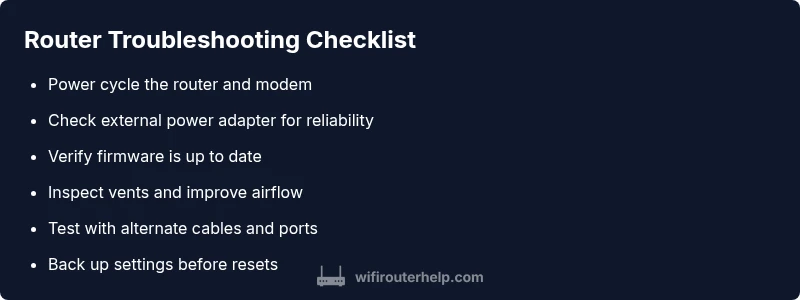
- Start with power and firmware checks.
- Improve ventilation to prevent overheating.
- Back up settings before resets.
- Differentiate ISP issues from router faults.
- Decide between replacement and repair based on age and cost.