How to Get Your Router to Work: A Step-by-Step Guide
Learn how to get your router to work with a practical, beginner-friendly setup. Verify service, connect hardware, configure WAN and Wi‑Fi, secure your network, and troubleshoot common issues for a stable home network.


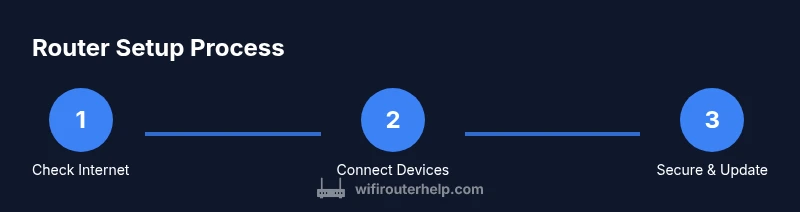
According to WiFi Router Help, the fastest way to get a router working is to verify your service, connect the modem to the router, access the admin interface, and configure WAN and wireless settings in clear steps. Start with physical connections, then secure the network and test with a wired device before moving to wireless testing.
Confirm Internet service and hardware readiness
According to WiFi Router Help, before you begin, confirm your internet service is active and you have the right equipment. This step prevents misdiagnosis and wasted time. Ensure the modem is powered, the service is active, and there are no outages in your area. Inspect all cables for damage and verify a solid connection from the provider to your router. If you notice any abnormal LED indicators, power cycle the devices, allowing a full boot sequence. This initial check helps you avoid chasing software issues when the root cause is hardware or service status.
Physically connect the router to the modem
With power on, connect the router to the modem using a high-quality Ethernet cable. Insert one end into the modem’s Ethernet port and the other end into the router’s Internet/WAN port. Do not use a LAN port for this initial connection. Wait about a minute for the router lights to stabilize. If you’re using a separate gateway provided by your ISP, ensure it’s in bridge mode or properly configured for your router. This wired link provides the most reliable path to your home network and sets the foundation for a stable wireless network.
Access the router admin page safely
From a device connected to the network, open a browser and enter the router’s local IP address (common defaults are 192.168.0.1 or 192.168.1.1). Log in with the default username and password found on the device label or manual. Change these credentials immediately to prevent unauthorized access. If you can’t reach the login page, try another device, disable VPNs temporarily, or perform a factory reset as a last resort. Keep the new credentials written down in a secure place. This step unlocks the configuration options you’ll use next.
Configure Internet connection (WAN/PPPoE/dynamic IP)
In the admin panel, locate the Internet or WAN settings. Many ISPs assign dynamic IP addresses via DHCP; others require PPPoE with a username and password. If you’re unsure, check your service agreement or contact support. Enter the required details, save changes, and reboot the router if prompted. After reboot, verify a successful WAN status on the status page. If you encounter failures, double-check credentials, MAC address cloning settings, and DNS configurations. This step establishes the actual internet path from your ISP to your home network.
Set up wireless network name (SSID) and security
Create a unique SSID and a strong password for both 2.4 GHz and 5 GHz networks if available. Avoid using personal information in the SSID. Use at least 12–16 characters with a mix of letters, numbers, and symbols. Prefer WPA3 if available; otherwise WPA2 is acceptable. Name the bands distinctly (e.g., HomeWiFi-2.4, HomeWiFi-5) to reduce confusion. Ensure broadcasting is enabled and the security setting matches your device capabilities. Save changes and reconnect your devices with the new credentials. This step protects your network from unauthorized access.
Improve security and update firmware
Security should be ongoing. Change the router’s admin password to a unique, complex string and disable remote management if you don’t need it. Enable the firewall and automatic firmware updates if available. Review connected devices periodically for unknown clients. Firmware updates fix bugs and enhance stability, so keep firmware current. If your router offers a backup/restore option, save a configuration file before updating. After updating, ensure SSID and password remain correct on all devices. WiFi Router Help analysis shows that timely firmware updates improve stability and security.
Improve placement and reduce interference
Place the router in a central, elevated location away from walls, metal appliances, and dense furniture. Avoid microwaves, cordless phones, and large metal obstacles that degrade signal. For larger homes, consider a mesh system or extender to maintain coverage. Use 2.4 GHz for legacy devices and 5 GHz for newer devices if there are many neighbors. Check channel use with a Wi‑Fi analyzer and adjust as needed. Proper placement dramatically improves speed and reliability.
Troubleshooting common issues
If you see a “no internet” message despite a green router light, power cycle all devices. Confirm the WAN status is active; if not, contact your ISP and verify credentials. If devices can’t connect wirelessly but a wired connection works, review your wireless security settings and channel assignment. For DNS or DNS-over-HTTPS problems, switch to public DNS servers (e.g., 8.8.8.8 and 8.8.4.4) or use ISP DNS. Document changes so you can revert if needed. This systematic approach helps isolate root causes quickly.
Maintain and document your setup
After you’ve got it working, document the setup details for future changes: admin URL, login credentials, SSIDs, and passwords stored securely. Schedule periodic checks for firmware updates, connected device audits, and password changes. Keep backups of your current configuration, especially before applying major updates. This ongoing discipline keeps your network secure and performing well over time.
Authoritative references and further reading
For additional guidance and credible sources, consider these references: FCC.gov for general network safety and device guidelines; FTC.gov for consumer tips on securing Wi‑Fi networks; PCMag’s router setup guide for practical, real-world steps. These sources complement hands-on practice and help homeowners stay informed about best practices.
Tools & Materials
- Router(Ensure compatibility with your ISP and supports current Wi‑Fi standards (Wi‑Fi 5/6).)
- Modem(If you have a separate modem, verify it's working and in bridge mode if needed.)
- Ethernet cable (Cat5e or better)(One end to the modem, the other to the router's WAN/Internet port.)
- Computer or smartphone(Used to access the router admin page.)
- Power adapters for router and modem(Power cycle if necessary.)
- Pen and paper or password manager(Keep admin credentials and network details secure.)
- Optional: Wi‑Fi analyzer app(Helps pick best channels and placement.)
Steps
Estimated time: 30-60 minutes
- 1
Power down and inspect hardware
Unplug both devices and inspect cables. Look for damaged connectors and ensure all power indicators are normal. This resets potential minor faults and ensures a clean starting point.
Tip: Wait 15 seconds after unplugging before reconnecting to ensure complete power cycle. - 2
Connect modem to router with Ethernet
Plug the Ethernet cable from the modem’s LAN port to the router’s WAN/Internet port. This creates the primary data path for your network.
Tip: Use a fresh cable if the link seems unstable. - 3
Power on devices and wait for boot
Reconnect power to both devices and wait about 60–90 seconds for a full boot. Look for solid, steady indicators indicating a healthy startup.
Tip: Do not press any buttons during boot unless instructed by the manual. - 4
Access the router admin page
From a connected computer or phone, open a browser and enter the router’s IP (e.g., 192.168.0.1). Log in with the default credentials, then change them.
Tip: If you can't reach the page, try another device or reset to factory defaults. - 5
Configure Internet connection (WAN)
Navigate to WAN/Internet settings. Choose DHCP/Dynamic IP or PPPoE as required by your ISP, and enter credentials if needed.
Tip: If uncertain, consult your ISP’s setup guide. - 6
Create SSID and set security
Set one or two SSIDs (2.4 GHz and 5 GHz) with strong passwords. Enable WPA2/WPA3 and disable WPS if possible.
Tip: Keep SSIDs unique to avoid client confusion. - 7
Enable essential security features
Turn on the firewall, disable remote management unless needed, and update admin password to a strong one.
Tip: Do not reuse passwords across devices. - 8
Test wired connectivity
Connect a computer directly to the router with an Ethernet cable and verify internet access by visiting a site or running a ping test.
Tip: If wired works but Wi‑Fi doesn’t, focus on wireless settings and channels. - 9
Test wireless devices and coverage
Connect a phone or tablet to the network, measure speed, and verify stability across rooms. Adjust placement if there are dead zones.
Tip: If needed, enable a basic QoS rule for video calls. - 10
Update firmware and backup
Check for firmware updates and apply them if available. Back up the configuration after a successful update.
Tip: Keep a backup file in a secure place. - 11
Document setup details
Record SSIDs, passwords, admin URL, and key settings for future changes. Store this information securely.
Tip: Share access with trusted household members only. - 12
Plan ongoing maintenance
Schedule periodic checks for updates, connected devices, and security settings to maintain performance.
Tip: Review at least every 3–6 months.
People Also Ask
Why can't I access the router admin page?
Common causes include using the wrong IP address, incorrect login credentials, or a device not on the network. Try a different device, verify the IP, and reset the router if needed.
Common causes are wrong IP, wrong credentials, or the device not being on the network. Try another device and reset if necessary.
What if there is no internet after setup?
Check WAN status in the admin page, verify DHCP or PPPoE settings, and confirm credentials with your ISP. If needed, reboot the modem and router in sequence.
Check the WAN status, verify your ISP settings, and reboot the devices in order if you still have no internet.
What’s the difference between 2.4 GHz and 5 GHz networks?
2.4 GHz travels farther but is slower and more crowded; 5 GHz is faster but shorter-range. Use both and assign distinct SSIDs.
2.4 GHz covers longer distances but slower; 5 GHz is faster with less interference, but shorter range.
Should I enable a guest network?
Yes, a guest network isolates visitors from your main devices and reduces security risks while allowing internet access.
Yes, a guest network is a good idea to keep your main devices protected while guests access the internet.
How do I update firmware safely?
Check for updates in the admin interface, apply them, and reboot. Back up current settings before updating to avoid loss if something goes wrong.
Check for updates, apply them, and reboot. Back up settings first in case you need to revert.
What if I forget the admin password?
If you forget the password, use the router’s reset button to restore factory defaults, then reconfigure security settings and credentials.
Use the reset button to restore defaults if you forget the password, then reconfigure.
Watch Video
What to Remember
- Verify service and hardware before configuring.
- Use wired connections to bootstrap setup.
- Secure the network with strong passwords and current encryption.
- Test both wired and wireless connectivity for reliability.
- Keep firmware up to date and document settings.