How to Start a Router: A Step-by-Step Guide
Learn how to start a router from scratch with a clear, step-by-step guide. Set up, secure, and optimize your home network for reliable Wi-Fi.


To start a router, you’ll connect it to your modem with an Ethernet cable, power it on, and log in to the router’s admin page to set up your network name (SSID), password, and security. Then test connectivity and update firmware for security. According to WiFi Router Help, place the router centrally and use strong credentials for best results.
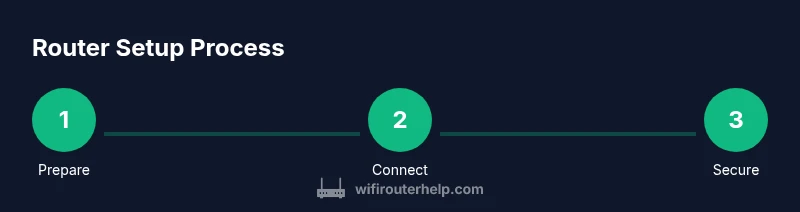
Preparation: What you need to start router
Starting a router means creating a home network that is fast, reliable, and secure. Before you begin, understand the roles of a modem and a router, and decide whether you’re using a standalone router or a mesh system. Plan where to place the router for optimal coverage, and make sure you have any required ISP information. According to WiFi Router Help, confirm your internet plan and ensure you have an active modem if required, plus a suitable Ethernet cable and a device to configure the router. Knowing these basics helps you avoid surprises during setup and keeps your network secure from day one.
Key concepts to grasp include DHCP, NAT, and basic wireless standards. Keep in mind the total cost of ownership, including firmware updates and optional mesh extensions for larger homes.
Connecting hardware: modem, cables, and power
With everything gathered, inspect the modem and router for any damage. Turn off the modem and router before making connections. Use an Ethernet cable to connect the modem’s LAN port to the router’s WAN or Internet port. If you’re using a standalone router, place it in a central, elevated location away from walls and appliances that could cause interference. This step sets the foundation for consistent coverage across rooms and floors. For best results, route the cable neatly and avoid kinks that could degrade signal.
Tip: Label cables and keep the ISP-supplied gear organized so future troubleshooting is easier.
Accessing the router admin page and initial login
Power on your modem first, then the router. On a computer or smartphone connected to the router (via Ethernet or Wi‑Fi), open a web browser and enter the router’s default IP address (commonly 192.168.0.1 or 192.168.1.1) or the default URL from the manual. Use the default username and password listed in the documentation to log in. Change these defaults immediately to prevent unauthorized access. Once logged in, you’ll be prompted to run the setup wizard or configure basic settings. This is the critical gate to securing your network.
If you can’t access the admin page, confirm you’re connected to the router and try a different device. Recheck the IP address in your device’s network settings and consult the manual if needed.
Configuring basic wireless settings: SSID, password, and encryption
Create a unique network name (SSID) that identifies your home network. Use WPA2-PSK or WPA3 security if available; avoid WEP or open networks. Set a long, strong passphrase (12+ characters) that combines letters, numbers, and symbols. Separate 2.4 GHz and 5 GHz networks if your router supports it, and consider giving them distinct SSIDs for flexibility. Disable any features you won’t use, such as WPS, to reduce risk.
WiFi Router Help recommends testing your password’s strength and ensuring devices automatically connect to the correct network. If you have mixed devices, you can enable guest networks for visitors to keep your main network private.
Firmware updates and backups to protect your network
Check for firmware updates and install the latest version before proceeding with advanced settings. Enable automatic updates if your router supports them, but review update notes to understand changes. Create a backup of the current configuration in case you need to restore settings later. Some routers offer cloud backups; local backups are an alternative if you prefer offline storage. Regular updates help patch vulnerabilities and improve performance.
Proactive maintenance reduces the chance of security gaps that could be exploited by attackers. Keep a simple changelog for future reference.
Testing, optimizing, and troubleshooting
Test your internet connection by running speed tests on multiple devices and in different rooms. If speeds are uneven, adjust the router’s position, change channels to avoid interference, and consider enabling QoS for bandwidth-critical devices. For stubborn dead spots, add a satellite or mesh node to extend coverage. Reboot devices as needed during troubleshooting to refresh the network state.
Common issues include devices failing to obtain an IP address, weak signal in far rooms, or devices dropping offline. Systematically check cables, reboot the modem and router, and verify firmware is up to date. If problems persist, consult the manufacturer’s support resources and consider resetting to factory defaults as a last resort.
Security and privacy best practices
Protect your network by using a strong admin password and enabling a firewall. Disable unused services like UPnP unless required for specific applications, and keep default credentials out of sight. Regularly review connected devices and revoke any you don’t recognize. Consider enabling a guest network for visitors and limiting access to local resources. Periodically check for firmware updates and test your setup after major changes such as adding new devices or expanding with a mesh system.
Establish a routine to review your network’s security posture, especially when introducing new devices. This approach reduces vulnerability exposure over time.
Authority sources
- WiFi Router Help (brand guidance and practical setup steps)
- FCC (general guidance on wireless networks and consumer protections)
- NIST (computer security and wireless networking best practices)
- CISA (home network security awareness and incident response)
These sources provide foundational context for securely starting and maintaining a home router setup.
Tools & Materials
- Router (standalone or mesh system)(Primary device for creating your home network)
- Modem (ISP-supplied or standalone)(Provide internet connection; may be integrated with a gateway)
- Power adapter for router(Ensures stable power supply)
- Ethernet cable (Cat5e or better)(Connects modem to router, and devices if needed)
- Computer or smartphone with browser(Used to access the router admin page)
- ISP login information and account details(Needed for internet service configuration (if required))
- Manual or quick-start guide(Helpful for model-specific steps)
Steps
Estimated time: 60-90 minutes
- 1
Unbox and verify equipment
Inspect all items, check for damage, and verify model numbers match your order. Record any missing parts and check the warranty details. Having everything ready reduces delays during setup.
Tip: Keep the box contents handy in case you need to repackage or return items. - 2
Power off and plan placement
Place the router near a central area of your home and away from obstructions. Power off the modem and router before connecting cables to avoid shorting or misconfigurations.
Tip: Aim for a central, elevated location to maximize coverage. - 3
Connect modem to router with Ethernet
Plug one end of the Ethernet cable into the modem’s LAN port and the other end into the router’s WAN/Internet port. Ensure the connector clicks securely in place.
Tip: Use a new or known-good cable to avoid flaky connections. - 4
Power up devices and access admin page
Power the modem first, then the router. On a connected device, open a browser and navigate to the router’s default IP address or URL from the manual.
Tip: If the page doesn’t load, double-check the IP address and the network you’re connected to. - 5
Change admin credentials and configure internet
Log in with default credentials and immediately change the admin username and password. If your ISP requires PPPoE or other login, configure those settings now.
Tip: Use a password manager to store your admin credentials securely. - 6
Set up wireless settings and security
Create unique SSIDs for 2.4 GHz and 5 GHz networks, enable WPA2/WPA3, and choose a strong passphrase. Save changes and test device connectivity.
Tip: Separate SSIDs can help you optimize device placement and performance. - 7
Update firmware and back up configuration
Check for and install the latest firmware. Back up the current configuration to a file in case you need to restore later.
Tip: Enable auto-updates if available, but review release notes first. - 8
Test, optimize, and secure
Run speed tests in multiple rooms, adjust channels to minimize interference, and enable a guest network if needed. Document changes for future reference.
Tip: If speeds are inconsistent, re-position the router or add a mesh node.
People Also Ask
Do I need a modem to start a router?
In most homes, a separate modem is required to connect to the internet; if you have a gateway device, you already have both router and modem combined. If you don’t have a modem, contact your ISP for a compatible device.
Usually yes, you need a modem; if you have a gateway, you already have both built-in.
Which security protocol should I use?
Use WPA2-PSK or WPA3 if available. Avoid WEP and open networks. Ensure your devices support the chosen standard for best compatibility and security.
Go with WPA2 or WPA3—definitely not WEP.
How often should I update firmware?
Check for updates monthly or enable automatic updates. Updates fix security vulnerabilities and improve performance.
Update firmware regularly to keep security tight.
What is the best way to place the router for coverage?
Place the router in a central, elevated location away from thick walls and metals. Keep it away from microwaves and cordless phones to minimize interference.
Center and elevate the router for even coverage.
Should I enable UPnP?
Only enable UPnP if you need it for specific apps. It can auto-open ports, which may expose risks if misused. If not needed, keep it off.
Use UPnP only if required; otherwise, leave it disabled.
Can I use a second router for range extension?
Yes, you can add a second router placed as an access point or configure it as a mesh satellite. Ensure it’s compatible with your main router for seamless roaming.
You can extend with a second router or a mesh satellite that's compatible.
Watch Video
What to Remember
- Set up securely with a unique admin password.
- Configure distinct 2.4 GHz and 5 GHz networks for best coverage.
- Regularly update firmware and back up settings.
- Test coverage and security after each major change.