How to Install a Router: A Step-by-Step Guide
A comprehensive, user-friendly guide to installing a router at home, covering placement, configuration, security, firmware updates, and troubleshooting for a reliable, fast network.


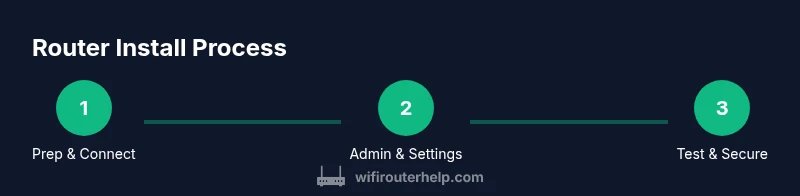
Set up a home router by connecting it to your modem, powering it up, and configuring the admin panel. You'll need a modem, power adapter, Ethernet cable, and a computer or phone. After setup, you'll secure the network with a strong password and update firmware for best performance. Finally, test coverage, adjust settings, and enable guest networks as needed.
Why installing a router matters
Whether you’re new to home networks or upgrading from a dated device, understanding how to install a router is the first step toward reliable WiFi. The router is the central hub that distributes your internet signal wirelessly and over cables to every room. A proper installation improves coverage, speeds, and security. In this guide, we walk through a practical, no-nonsense method for installing a router from box to fully configured network. You’ll learn how to connect the hardware correctly, pick a sane location, choose the right settings, and test performance. By the end, you’ll have a secure home network with a clear naming scheme, guest access options, and a plan for firmware updates. The WiFi Router Help team designed this approach for homeowners and tech enthusiasts, focusing on reproducible steps and minimizing guesswork. Expect a straightforward path, even if you’re starting from scratch.
What you need before you begin
To install a router successfully, gather a modem (from your ISP), the router itself, one or two Ethernet cables, a power adapter, and a computer or smartphone for setup. If you’re replacing an old router, reset it to factory defaults to avoid conflicts. Confirm you have access to the admin credentials or a user manual, and set aside 20–40 minutes for a basic installation. Having a plan for SSID naming and password security ahead of time makes the process smoother. This is particularly important for homes with multiple floors or many devices, where a consistent naming scheme helps guests and family members connect quickly. As you work, keep in mind your home layout and potential interference sources like microwaves or thick walls.
Planning placement for best signal
Placement is the single most impactful factor in WiFi performance. Start by locating your router in a central, elevated spot away from metal appliances, large mirrors, and dense walls. If possible, place it higher on a shelf or cabinet to reduce furniture obstructions. For homes with multiple floors, a central point on the middle level usually yields the most even coverage. If you must situate the router near a hallway or corner, consider a small accessory like a mesh node or a WiFi extender for dead zones. Splitting networks into a 2.4 GHz band (longer range) and a 5 GHz band (faster but shorter range) can also improve reliability, especially in larger homes.
Unboxing and inventory check
Unbox the router and verify all components are present: the router, an AC power adapter, at least one Ethernet cable, and quick-start papers. Inspect the device for any visible damage and note the model number and default login details from the sticker on the bottom. If you find missing parts or damage, contact the vendor before powering up. Keeping the original packaging and receipt in case you need support helps, as does photographing the contents for your records. Confirm you’re using a new, properly rated Ethernet cable (preferably CAT5e or higher) for the best results.
Pre-configuration: network name and security basics
Before you connect devices, plan your network name (SSID) and security settings. Choose a unique SSID that doesn’t reveal your address or personal details, and select WPA2 or WPA3 encryption with a strong passphrase (12–16 characters or longer). Disable WPS if possible to reduce risk of unauthorized access. Consider enabling a guest network to keep visitors off your main devices. If your router supports IPv6, leave it enabled to future-proof your network.
The core setup steps you’ll follow
With hardware ready, connect the modem to the router’s Internet/WAN port using an Ethernet cable. Power on the modem first, then the router, and wait for a stable connection. Open a browser and access the router’s admin page using the default gateway address shown in the manual or on the device label. If prompted, run the setup wizard to configure your internet type (DHCP, PPPoE, etc.). Create your SSID, set a strong password, and apply the recommended security settings. Save changes, and then reboot if required. This sequence forms the backbone of how to install router for most homes and ISPs.
Fine-tuning for performance
After the basic setup, optimize the network for real-world use. Separate the names for the 2.4 GHz and 5 GHz bands if your device supports it, and set distinct passwords for each, or unify with one passphrase if supported. Channel selection can affect crowded neighborhoods; use automatic channel selection or manually pick channels with minimal interference. Enable Quality of Service (QoS) for priority devices such as work laptops or gaming consoles if your router offers it. Consider disabling UPnP if you don’t need it for added security and keep the admin interface accessible only from your home network.
Firmware updates and ongoing maintenance
Regular firmware updates improve security and add features. Check for updates in the router’s admin interface, and enable automatic updates if available. After updating, recheck critical settings like the SSID and password, and verify guest network status remains enabled. Create a configuration backup once you’re satisfied with the setup so you can restore quickly after a reset or hardware change. Periodic maintenance helps prevent performance decline and protects against emerging threats.
Troubleshooting common issues
If devices can’t connect after setup, verify you’re connected to the router (wired or wireless) and that you’re using the correct SSID and password. Check the router’s status lights and ensure the WAN connection is active. If you still have no internet, reboot the modem and router in the correct order, then re-run the setup wizard. For coverage gaps, adjust the router location or add a mesh node/extender. If you encounter repeated disconnections, update firmware, reset to factory defaults, and reconfigure from scratch to rule out misconfigurations.
Next steps: documentation and backup
Document your network layout, SSIDs, and passwords in a secure location. Save a backup of the router configuration once everything is running smoothly. Schedule periodic checks (every 3–6 months) to ensure firmware is current and settings still fit your needs. This habit saves time during future upgrades or troubleshooting and makes it easier to hand off the network to others if necessary.
Tools & Materials
- Router(The device you are installing; ensure it is new or reset to factory defaults before setup)
- Modem(Your ISP’s modem or gateway device; keep current login info if you rent from ISP)
- Ethernet cable(CAT5e or better; use a short, quality cable for the WAN connection)
- Power adapter(Adapter provided with router; ensure voltage matches the device requirements)
- Computer or smartphone(Used to access the router’s admin interface; wired or wireless connection ok)
- Optional extra Ethernet cable(Useful for testing wired connections to devices)
Steps
Estimated time: 25-40 minutes
- 1
Power down and prep equipment
Before you touch cables, unplug power from the modem and router. If you’re replacing an old device, note any existing configurations or labels. This pause helps prevent electrical issues and ensures a clean slate for setup.
Tip: Unplug devices one at a time to avoid surges and to keep track of what you disconnect. - 2
Connect the modem to the router’s WAN/Internet port
Plug the Ethernet cable from the modem into the router’s Internet/WAN port. This establishes the primary data path from your ISP to your home network.
Tip: Use a fresh Ethernet cable to minimize interference and ensure a solid link. - 3
Power on the modem, then the router
Plug in the modem first and wait for it to stabilize (lights should indicate a stable connection). Then power on the router and wait for its status indicators to show a healthy link.
Tip: If nothing lights up, recheck power connections and try a different outlet. - 4
Access the router’s admin interface
From a connected computer or device, open a browser and enter the router’s default gateway address shown in the manual or on the device label. Log in with the default credentials if you haven’t changed them yet.
Tip: If you don’t know the gateway, check the label on the router or the manufacturer’s quick start guide. - 5
Run the setup wizard
If your router includes a setup wizard, follow the prompts to configure basic settings like internet type (DHCP/PPPoE), timezone, and admin access. If your device lacks a wizard, proceed to manual configuration.
Tip: Choose DHCP as a safe default if you’re unsure about your ISP’s connection type. - 6
Set a unique SSID and strong password
Create an SSID that doesn’t reveal personal info and choose strong WPA2/WPA3 encryption. Use a passphrase at least 12–16 characters long and avoid common words.
Tip: Write down the credentials and store them securely for future connections. - 7
Configure security settings and admin access
Change the default admin username and password, enable the firewall, and disable remote management if you don’t need it. Consider turning off WPS for better security.
Tip: Only allow admin access from your home network to reduce exposure. - 8
Enable guest network and QoS if needed
Set up a separate guest network to keep visitors off your main devices. If your router supports QoS, prioritize critical devices like work laptops or video calls.
Tip: Use distinct passwords for guest networks to keep guests isolated. - 9
Update firmware and back up configuration
Check for firmware updates and install the latest version. Save a backup of your current configuration so you can restore quickly if needed.
Tip: Enable automatic updates if your router supports them, but review changes first. - 10
Test connectivity and map coverage
Test internet access from multiple devices in different rooms. If speed is uneven, move the router or add a mesh node to eliminate dead zones.
Tip: Run basic speed tests to confirm you’re achieving expected performance.
People Also Ask
Do I need a modem to install a router?
In most setups you will connect the router to a modem provided by your ISP. If you have a gateway device, you might use it as both the modem and router. Check your ISP’s instructions for your plan.
Usually you’ll need a modem or gateway from your ISP to connect the router.
What is the difference between 2.4 GHz and 5 GHz?
2.4 GHz covers a wider area and penetrates walls better; 5 GHz offers higher speeds with shorter range. Many routers support both bands simultaneously.
2.4 GHz is farther reach, 5 GHz is faster; use both if you have devices spread across rooms.
How can I extend WiFi to dead zones?
Consider moving the router to a more central location, using a mesh system, or adding a wireless extender to reach far corners of the home.
If some rooms stay slow, a mesh system or extender can help fill gaps.
Why can't I access the router admin page after setup?
Ensure you’re connected to the router, use the correct gateway IP, and check that you haven’t locked yourself out with VPNs. A factory reset may be necessary if access is blocked.
Make sure you’re on the network and try the device’s reset if you can’t reach the admin page.
Should I enable WPS?
WPS is convenient but less secure. If security is a priority, disable WPS and rely on manual WPA2/ WPA3 password entry.
WPS makes joining easier but is less safe; disable it for tighter security.
How often should I update firmware?
Check for updates monthly or enable automatic updates if available. Firmware updates fix bugs and improve security.
Update firmware regularly to stay secure and get new features.
Watch Video
What to Remember
- Plan central placement for even coverage
- Secure the network with a strong password and updated firmware
- Test speeds in key areas and adjust placement as needed
- Create a guest network to protect primary devices
- Document settings and back up the router configuration