What to do with router: A practical guide to home networks
A comprehensive, step-by-step guide to setting up, optimizing, and maintaining your home router for faster, more reliable WiFi.


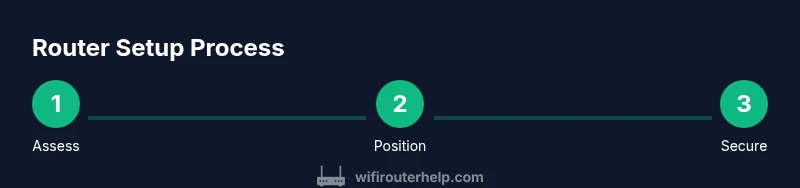
In this guide, you will learn what to do with a router: set up a secure network, optimize placement, update firmware, configure guest networks, and troubleshoot common issues. You'll need a modem, power supply, your router's admin credentials, and a few hours for thorough optimization. This includes choosing the right spot, enabling encryption, creating a separate guest network, and keeping devices safe from unauthorized access.
Why what to do with router matters
A router is the backbone of your home network. The way you configure, place, and protect it directly affects every device—phones, laptops, smart TVs, and IoT sensors. According to WiFi Router Help, a router that sits behind furniture or is left with the factory default settings can create dead spots, slow speeds, and security risks across your home. Taking control of your router is not just for tech enthusiasts; it’s essential for reliable streaming, smooth gaming, and safe internet access for every family member.
In practical terms, what you do with your router boils down to five goals: improve coverage, maximize speed where it matters, block unwanted intrusions, simplify guest access for visitors, and maintain a predictable experience as devices multiply. You’ll see results when you approach setup as a small, repeatable process rather than a one-time experiment. The decisions you make today—placement, encryption, and maintenance—set the baseline for months to come.
Core objectives when managing a home router
Your router is the gateway to every online experience in your home. The core objectives are reliability, speed, security, and simplicity. Reliability means a consistent connection across rooms and floors; speed means usable throughput for streaming, gaming, and video calls; security means preventing unauthorized access; simplicity means a setup that family members can manage without frustration. WiFi Router Help recommends thinking about future needs such as a growing number of smart devices and the possibility of expanding to a mesh system later. Even if you’re not planning to install a mesh network now, designing with coverage in mind will save you headaches later. Start by mapping your home’s most used spaces and identify any dead zones. Consider how many devices will connect at peak times: phones, laptops, smart speakers, TVs, gaming consoles, and IoT sensors. The more predictable your environment, the better your router can allocate resources in real time. Metrics to watch include signal strength in key rooms, consistency of speeds across devices, and the stability of connections during peak hours. A solid plan addresses coverage, capacity, encryption, and management. The result is a better user experience and fewer manual workarounds when devices change locations or new products arrive. Keep notes on your configuration so you can reproduce success in the future.
Practical setup steps: placement, security, and basics
Placement and basic setup are the foundations of a solid home network. Place the router in a central, elevated location, away from walls, metal cabinets, and large appliances like microwaves that can cause interference. A shelf or high table near the center of the home usually yields the best overall coverage. Avoid placing the router inside cabinets or behind furniture where signals get trapped. Connect the router to the modem with a reliable Ethernet cable, then power it up and wait for it to boot. On a connected device, open the router’s admin page using the default gateway address and the credentials found in the user manual. Before changing settings, snapshot the current configuration so you can revert if needed. Change the default admin username and a strong password to prevent unauthorized access. Enable modern encryption (WPA2/WPA3) and disable WPS if possible. If available, upgrade to WPA3 or the highest supported standard. Name the network with a clear, unique SSID and ensure the guest network (if offered) is separate from your main network. Keep firmware up to date; enable automatic updates if your device supports them. Finally, document your settings for future reference and share the plan with household members so everyone knows how to connect.
Optimization techniques: firmware, QoS, and guest networks
Once the basics are in place, optimization can significantly improve real-world performance. Regular firmware updates are essential for security and stability; check the manufacturer site or the router interface for updates and apply them promptly. Consider enabling QoS (Quality of Service) to prioritize critical activities like video calls, gaming, and work-related applications during peak times. Create a dedicated guest network to keep visitors off your main network and to isolate IoT devices. If your router supports dual-band operation, assign devices to 2.4 GHz for longer range or 5 GHz for higher speeds, and enable band steering if available to simplify device connections. For interference-prone environments, manually select the least congested channel on the 2.4 GHz and 5 GHz bands. If your home is large or has dead zones, explore mesh options or additional access points to extend coverage. Regularly review connected devices and remove any that are no longer in use. Consider enabling features like firewall rules, two-factor authentication for admin access, and URL filtering for extra security. Finally, back up the configuration after any major change so you can restore quickly if something goes wrong.
Troubleshooting common issues and diagnosing problems
Even a well-setup router will encounter occasional issues. Start with the basics: check power, verify all cables are secure, and reboot the router and modem. If devices report slow speeds, run speed tests from near the router and in far corners of the home to map performance. Look for dead zones and consider repositioning the router or adding a mesh node or repeater to fill gaps. If devices cannot connect, verify the Wi-Fi password, ensure the network is enabled, and confirm MAC address filtering isn’t blocking access. Interference from neighboring networks can degrade performance; changing the channel or using a less congested band can resolve this. If problems persist, reset the router to factory settings and reconfigure from scratch, then test again. Regularly review logs if your router provides them, and monitor for unusual devices that might indicate unauthorized access. Safety note: only reset or update firmware from trusted sources to avoid bricking the device.
Maintenance and long-term strategy
A durable home network requires ongoing maintenance and planning. Schedule quarterly checks to review firmware versions, password strength, and connected devices. Keep a network map that shows device types, typical locations, and security settings; update it whenever you add new equipment. Periodically test speeds at different times of day to catch evolving congestion and adjust QoS rules or firmware accordingly. Create a recurring reminder to back up router configurations after meaningful changes. Review parental controls and guest network settings to ensure they still meet household needs and privacy expectations. Finally, as your home grows with more smart devices or a larger family, reassess whether you need a mesh system or additional access points to maintain reliable coverage.
Tools & Materials
- Router(Current model with admin access; document model and firmware version)
- Modem (if separate)(Coax/DSL/tethered connection to router)
- Ethernet cables (Cat5e/Cat6)(At least one longer cable for wired setup and tests)
- Power supply(Original power adapter or equivalent with stable output)
- Laptop or smartphone(Access to admin interface and speed tests)
- Notebook or digital notes(Document settings, SSIDs, and passwords after changes)
Steps
Estimated time: 45-75 minutes
- 1
Assess your current network
Take note of coverage areas, device usage, and peak times. Map dead zones using a mobile device, then identify which rooms need stronger signals. This establishes a baseline for what you want to improve.
Tip: Record current speeds in key rooms to compare after changes. - 2
Prepare devices and firmware
Gather your modem and router, login details, and ensure you have reliable internet access. Check the router’s firmware version and update if a newer release exists before making changes.
Tip: Backup current settings before updating firmware. - 3
Position the router optimally
Move the router to a central, elevated location away from thick walls and metal appliances. This reduces dead zones and improves overall coverage.
Tip: Avoid closing doors or placing it inside cabinets for best results. - 4
Secure the network
Change the default admin credentials, enable WPA2/WPA3 encryption, and disable WPS if possible. Create a strong unique SSID for your main network.
Tip: Use a password manager to generate and store complex passwords. - 5
Configure guest and IoT networks
Set up a guest network to isolate visitors from your main network. If possible, create a separate network for IoT devices to limit access to sensitive devices.
Tip: Limit guest network access to internet only if supported. - 6
Tune bands and channels
If your router supports dual-band, assign devices to 2.4 GHz for range and 5 GHz for speed, enabling band steering if available. Manually select the least congested channel.
Tip: Run a quick, repeatable speed check after changing bands. - 7
Test and document results
Perform speed tests in multiple rooms and at different times of day. Document results and adjust QoS or placement as needed.
Tip: Keep a simple chart of results for ongoing reference. - 8
Establish ongoing maintenance
Set a routine for firmware checks, password reviews, and device audits. Maintain backups of configurations for quick recovery.
Tip: Automate firmware checks if your router supports it.
People Also Ask
Where is the best place to put a router in a typical home?
Aim for a central, elevated location away from thick walls and metal appliances. This minimizes dead zones and improves overall coverage. If you have a multi-story home, placing the router near the center of the highest traffic floor often yields the best balance between range and speed.
Place the router in a central, elevated spot, away from walls and appliances for even coverage across floors.
Should I upgrade firmware or replace my router?
Start with firmware updates to fix bugs and improve security. If your router is several years old and struggles with new devices or speeds, consider a hardware upgrade or mesh system for better performance.
Update firmware first; if performance remains poor, a hardware upgrade may be needed.
How often should firmware be updated?
Check for updates every few months or enable automatic updates if your router supports them. Regular updates keep security features current and improve stability.
Check for firmware updates regularly or enable automatic updates.
What is a guest network and why would I use it?
A guest network provides internet access to visitors without giving them access to your main devices. It helps protect your private devices and data while still offering convenience to guests.
A guest network keeps visitors online without exposing your private devices.
What is QoS and should I enable it?
QoS prioritizes traffic for critical activities like video calls and gaming. Enable it if you have devices or applications that need stable performance during peak times.
QoS helps important apps get priority when the network is busy.
How can I test Wi-Fi speeds accurately?
Use a reliable speed test from near the router and in typical user spaces. Run tests at different times of the day to capture variability and set expectations.
Test near the router and in typical spots at different times to gauge real-world speed.
Watch Video
What to Remember
- Follow a repeatable setup process for consistency.
- Secure the network before expanding features.
- Regularly test coverage and document changes.
- Plan for growth with guest networks and device diversification.