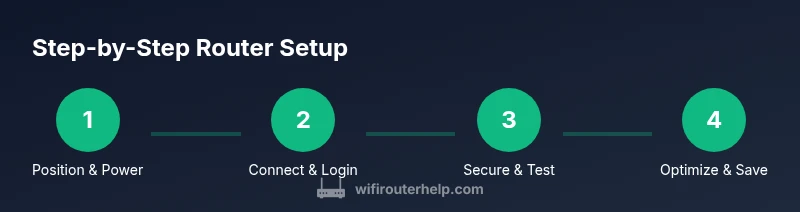
How to Use a Router: Step-by-Step Guide for Home Networks
Learn how to use a router to set up and optimize your home network with practical steps, security best practices, and troubleshooting tips from WiFi Router Help for reliable, fast WiFi coverage.


Learn how to use a router to set up a reliable home network, secure it, and optimize performance. This guide walks you through essential steps—from connecting the router to configuring Wi-Fi, guest networks, and parental controls—plus common troubleshooting tips. You'll need your router, a web browser or app, an admin password, and your internet service details. Follow the steps to get fast, stable coverage.
Understanding Router Fundamentals
A router is the central device that connects your home devices to the internet and to each other. For many homeowners, the term gets confused with a modem or a gateway, but a router's job is to direct traffic, assign local addresses, and manage multiple connections securely. According to WiFi Router Help, a router acts as the traffic director for your home network: it forwards data between devices, translates private IP addresses with NAT, and creates a shared wireless network so laptops, phones, smart TVs, and IoT devices can communicate. Modern routers often handle both 2.4 GHz and 5 GHz bands, providing options for range and speed. When you learn how to use router effectively, you gain control over coverage, security, and performance, rather than relying on a single, opaque device provided by your internet service. Understanding the difference between a single-band and dual-/tri-band system, and the role of DHCP, firewall, and guest networks will help you decide settings and placement. The goal is to create a stable, secure network that supports work, schooling, streaming, and smart-home devices without constant reconnects.
Before You Start: Tools and Materials
Before you begin the setup, gather the essentials. This quick prep helps avoid mid-setup frustration and reduces the risk of misconfigurations. Gather the following items so you can complete the setup without interruptions:
- Router (your main device; ensure it supports current standards) – required
- Modem (if your ISP uses a separate device) – required if you have a separate modem
- Ethernet cable (Cat6 or better) – recommended for a reliable wired uplink
- Power adapter and a nearby outlet – required
- A device with a web browser or the router’s mobile app – required
- ISP account details and connection type (PPPoE, DHCP, etc.) – required
- Pen and paper for notes during configuration – optional
Having these on hand reduces setup friction and helps you verify settings as you go.
Positioning for Maximum Coverage
Placement is one of the most impactful decisions for Wi‑Fi performance. Start by placing the router in a central, elevated location away from thick walls and metal objects. Avoid the kitchen, where appliances can cause interference, and steer clear of large mirrors or dense shelving that can block signals. If your home has multiple floors, a central floor is usually best, with minimal obstructions between the router and typical usage areas. For large homes, consider a stand or shelf ~4–6 feet off the ground and away from devices like microwaves and cordless phones. Real-world testing with a smartphone or laptop in several rooms will reveal where signal strength is strongest and where dead zones occur. Remember, even small tweaks in position can produce noticeable improvements in speed and reliability.
Hardware Setup: Power, Cables, and Network Ports
Power up the router and connect the WAN/Internet port to your modem using an Ethernet cable. If you’re using a combo gateway from your ISP, you can skip the WAN connection and follow the on-device setup prompts. Once connected, power cycle both devices by turning them off, waiting a moment, and turning them back on to re-establish connections. Check that all indicator LEDs reflect normal operation—typically steady power, connected WAN, and active Wi‑Fi signals. If you’re wiring a desktop or smart devices, consider a wired Ethernet link for devices requiring the lowest latency. Taking a few minutes to verify cabling and port activity now saves time later when configuring Wi‑Fi and security settings.
Accessing the Admin Interface and Initial Login
To configure your router, you must access its admin interface. Open a web browser or the router’s mobile app and sign in with the admin credentials. The login URL is usually the router’s IP address shown on the device label or in the manual; if you don’t see it, check the manufacturer’s support site for the model. If you’ve never changed the default password, do so immediately for security. When you’re in the dashboard, note the key sections: Wireless Settings, Security, Network Map, and Firmware Update. If you can’t reach the admin page, ensure your device is connected to the router and try a different browser or app. A factory reset is a last resort and will erase all custom settings.
Securing Your Network: Passwords, Encryption, and Updates
Security is foundational to a healthy home network. Change the default admin password to a strong, unique one and enable the router’s firewall feature if available. Choose the strongest supported encryption (ideally WPA3; if not, WPA2) and disable legacy options that lack protection. Keep firmware up to date; manufacturers release updates to close vulnerabilities and improve performance. If you have a guest network, isolate it from your primary devices to reduce risk. Regularly review connected devices and remove any that you don’t recognize. When security settings are properly configured, your home network remains resilient against common threats while maintaining easy access for trusted devices.
Configuring Wi‑Fi: SSID, Password, and Channels
Configure a clear SSID that doesn’t reveal personal information and set a strong password with a mix of upper and lower case letters, numbers, and symbols. If your router supports dual-band or tri-band operation, consider giving separate names for 2.4 GHz and 5 GHz bands and assign devices accordingly. For most homes, using an automatic channel selection works well, but manual tuning to avoid interference from neighbors can yield steadier performance. If you experience congestion, experiment with channel width (20/40/80 MHz) and consider enabling MU‑MIMO if available. Document your settings so you can re-create the setup if needed.
Managing Devices and Quality of Service (QoS)
Organizations and homes with many devices benefit from QoS controls that prioritize traffic for critical tasks, such as video calls or online gaming. Access QoS in the admin interface and set rules based on device type, application, or service. You may limit bandwidth for non-critical devices or services to ensure essential work tasks stay smooth. If your router supports Wi‑Fi scheduling, you can automatically turn off Wi‑Fi for idle hours to save electricity and reduce exposure. Regularly review the device list and update QoS profiles as your family’s usage evolves.
Guest Networks, Parental Controls, and Privacy Considerations
A guest network separates visitors’ devices from your main network, reducing exposure for your primary computers and smart-home hubs. Enable password protection for guests and limit access to local resources if needed. Parental controls help manage when and what content is accessible, which is especially useful for families. Consider setting time limits, content filters, and monitoring where appropriate, and explain to household members how to reconnect if filters disrupt normal usage. Privacy-conscious users should disable unnecessary remote access features and review shared credentials.
Maintenance, Firmware Updates, and Routine Checks
Ongoing maintenance is essential for security and performance. Set firmware update notifications or enable automatic updates if supported, and periodically review security settings and connected device lists. Create a backup of your current configuration so you can restore quickly after a reset or a move. If you notice degraded performance, run speed tests from multiple rooms and consider reconfiguring placement or updating hardware. WiFi Router Help recommends establishing a regular maintenance routine to keep your home network reliable.
Tools & Materials
- Router(Your main device; ensure it supports current standards (Wi‑Fi 5/6/6E) and features you want.)
- Modem (if separate)(Only needed if your ISP provides a separate modem.)
- Ethernet cable (Cat6 or better)(Used for a stable uplink between modem and router.)
- Power adapter(Keep a reliable power source nearby.)
- Device with browser or router app(For admin login and configuration.)
- ISP login details(Needed for some ISPs (PPPoe, etc.).)
- Pen and notebook(For recording settings and password notes.)
Steps
Estimated time: 30-60 minutes
- 1
Power up and position the router
Place the router in a central, elevated location and plug it into a power source. A good start improves signal distribution and reduces dead zones. If you’re testing placement, use your phone to walk around the home and note signal strength in common areas.
Tip: Test multiple spots before finalizing placement to maximize coverage. - 2
Connect router to modem via WAN
Use an Ethernet cable to connect the router’s WAN/Internet port to the modem. If you have a gateway from your ISP, you may skip this step and follow on-device prompts. Ensure both devices are powered off during the cable connection and then power them on.
Tip: A wired uplink is more reliable than a wireless one for initial setup. - 3
Access the admin interface
Open a browser or router app and sign in using the admin credentials. The login address is typically shown on the router’s label or in the manual. If you don’t remember the password, use the reset option as a last resort.
Tip: Use a strong, unique password for admin access. - 4
Change the default admin password
Immediately replace the factory admin password with a strong, unique credential. This prevents unauthorized changes and protects your settings from exposure.
Tip: Store the new password in a safe app or password manager. - 5
Configure Wi‑Fi: SSID and password
Set a clear SSID and a robust passphrase. If your router supports both 2.4 GHz and 5 GHz bands, consider separate names to manage device connections. Enable automatic channel selection unless you want manual tuning.
Tip: Avoid personal information in the SSID to protect privacy. - 6
Enable security and firewall
Choose the strongest available encryption (prefer WPA3; if not available, WPA2) and ensure the firewall is active. Disable older, insecure options. Update firmware if a new version is offered.
Tip: Turn on automatic security updates if your device supports them. - 7
Set up a guest network and parental controls
Create a separate guest network to isolate visitors’ devices from your main network. If needed, enable parental controls to filter content and manage screen time for family devices.
Tip: Keep guest network password different from the main network. - 8
Test, review, and back up configurations
Run speed tests in multiple rooms, check device connectivity, and ensure guests can connect without issue. Save a backup of your current configuration to restore easily later.
Tip: Document your settings and keep a backup file in a safe place.
People Also Ask
What is the difference between a router and a modem?
A router directs traffic between your devices and the internet, creates local networks, and manages security. A modem connects your home to the ISP and provides internet access. In many setups, you’ll use a router with a separate modem, or a gateway that combines both functions.
A router directs traffic inside your home and protects your devices, while a modem connects you to the internet. In many homes, you use both a modem and a separate router or a gateway that does both.
Do I need a password for Wi‑Fi?
Yes. Set a strong password for both the 2.4 GHz and 5 GHz networks if you use them. Strong passwords include a mix of letters, numbers, and symbols. Avoid common words or easily guessable information.
Absolutely. Use strong, unique passwords for your Wi‑Fi networks to keep your network secure.
How often should I update firmware?
Check for firmware updates regularly and enable automatic updates if available. Updates fix security issues, improve stability, and sometimes unlock new features. Make sure to back up your settings before applying updates.
Check for updates regularly and enable automatic updates if you can. Always back up your settings first.
What is QoS and should I use it?
Quality of Service (QoS) prioritizes critical traffic like video calls or gaming. Enable it if you have multiple devices competing for bandwidth. Start with device- or application-based rules and adjust as needed.
QoS helps ensure important tasks get bandwidth first. Enable it if you have streaming or gaming in your home.
Can I use my existing router with my ISP?
Many ISPs allow you to use your own router with their service, but you may need to configure the connection type (DHCP, PPPoE) or disable the ISP’s gateway. Check with your ISP for compatibility and any rental fees.
Usually yes, but check your ISP’s requirements and settings to ensure compatibility.
What should I do if I forget the admin password?
If you forget the admin password, you’ll typically need to perform a factory reset. This will erase all custom settings, so have your configuration notes ready to re-enter after the reset.
If you forget the admin password, perform a factory reset and set up your network again from scratch.
Watch Video
What to Remember
- Position the router strategically to maximize coverage
- Secure the network with strong passwords and current encryption
- Create guest networks and parental controls as needed
- Regularly update firmware and back up configurations