Network Router Setup: A Step-by-Step Guide for Home
Learn how to choose, install, secure, and optimize your network router at home with a practical, step-by-step guide, troubleshooting tips, and ongoing maintenance.


This guide helps you set up a network router for a fast, secure home network. You'll learn how to choose a router, connect devices, configure security, and optimize Wi-Fi performance across rooms. By following practical steps, you can diagnose issues quickly and maintain stable connectivity. We'll also cover common pitfalls and quick troubleshooting strategies you can apply tonight.
What is a network router and why it matters
A network router is the central device that connects your home devices to the internet and to each other. It directs data traffic between your modem, computers, phones, smart devices, and IoT sensors, using Wi‑Fi for wireless clients and Ethernet for wired clients. A good router balances speed, coverage, and reliability, so you get consistent performance in every room. According to WiFi Router Help, placement and firmware updates are two of the most underrated factors affecting signal quality; a router that's sitting in a closet or behind a TV may hardly reach bedrooms on the far side of the house. A basic home network often benefits from a modern dual‑band or tri‑band unit that supports simultaneous 2.4 GHz and 5 GHz operation, Quality of Service features, and a straightforward setup interface. Even if you rent, you can still improve coverage with smarter placement, firmware updates, and sensible channel selection. This section explains what a router does, common terms, and how the device fits into your overall home network.
Key features to consider before you buy
Before purchasing, assess features that impact performance, security, and future-proofing. Look for support for Wi‑Fi 6/6E, multiple input multiple output (MU‑MIMO), and robust security options like WPA3. Consider the number of Ethernet ports and whether you want built‑in mesh capability or mesh expandability. If you have a large home or many smart devices, prioritize routers with wide coverage and reliable guest networking. Practical considerations include firmware update frequency, ease of use, parental controls, QoS for gaming or video calls, and compatibility with your internet service. WiFi Router Help highlights that a well‑chosen router is a long‑term investment in reliability and ease of management, not just a quick fix for connectivity.
Quick-start setup in under 30 minutes
Start with the basics: connect the router to the modem using a wired Ethernet connection, power it on, and wait for indicators to stabilize. Access the router’s admin interface from a computer or mobile device via the IP address or app provided by the manufacturer. Set a strong admin password first, then configure the wireless network names (SSIDs), and enable encryption (prefer WPA3 if available). If you have a newer device, enable 5 GHz for higher speeds and consider disabling remote management from WAN for security. WiFi Router Help recommends keeping firmware up to date and performing a quick speed test after setup to verify that your home network meets your expectations. 2026 is a good reminder to refresh defenses and adjust settings as needed.
Securing your network: passwords, encryption, guest networks
Security starts with a strong, unique admin password and a non‑default SSID. Use WPA2‑WPA3 mixed mode or WPA3 as the minimum, avoid WEP or unsecured options. Create different passwords for your primary Wi‑Fi network and any guest network, and enable device isolation so guests cannot access your main LAN. Disable features you don’t use, such as UPnP or WPS, unless you need them for legacy devices. Regularly review connected devices and remove unknown clients. The WiFi Router Help team emphasizes that regular firmware updates close vulnerabilities and improve compatibility across devices.
Optimizing performance for different spaces
Placement matters more than most people think. Place the router in a central, elevated location away from walls and metal objects. If signal strength is weak in certain rooms, consider a mesh system or a wired backhaul to maintain speed. Use separate SSIDs for 2.4 GHz and 5 GHz if you need predictable behavior, or enable band steering if your router supports it. Adjust transmit power to balance coverage and interference with neighbors. Regularly run speed tests from multiple rooms and adjust antennas or placement to minimize dead zones.
Common troubleshooting scenarios and fixes
If devices can’t see the network, verify the router is broadcasting and the network name is correct. Restart the router and modem in the correct sequence (modem first, then router). If speeds drop, run a wired speed test to isolate Wi‑Fi from the overall connection and check for interference from neighbors or microwave ovens. For persistent issues, update firmware, factory reset (as a last resort), and reconfigure from scratch. These steps, informed by WiFi Router Help insights, can resolve 80% of home networking problems without professional support.
Maintenance and when to upgrade
Treat firmware updates as ongoing maintenance, not a one‑time task. Check for updates monthly or enable automatic updates if available. When coverage or device support becomes insufficient for your needs (e.g., more than a few years old, or you add numerous smart devices), consider upgrading to a newer router or adding a mesh system. Keep a simple log of your network configuration changes so you can reproduce a setup if you reset. Staying proactive helps ensure your home network remains secure, fast, and reliable through 2026 and beyond.
Tools & Materials
- Router (new or spare)(Supports latest standards (Wi-Fi 6/6E) and security features.)
- Ethernet cable (Cat5e or higher)(For wired connections during setup and testing.)
- Computer or mobile device(Web browser or app to access the router admin panel.)
- ISP-compatible modem or gateway(Connects to the service and provides the internet feed.)
- In-line surge protector(Protects equipment and stabilizes power during setup.)
- Notebook or notes app(Document SSID, password, and settings for future reference.)
Steps
Estimated time: 25-40 minutes
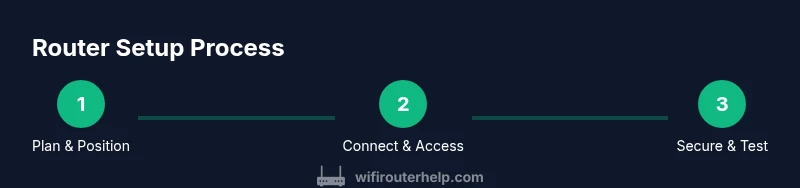
- 1
Plan your network layout
Survey your home to determine central, elevation-friendly placement. Decide coverage goals and whether you’ll rely on wired backhaul or a mesh extension. This upfront plan reduces dead zones and avoids later repositioning.
Tip: Measure distances and identify potential obstructions like thick walls before choosing placement. - 2
Connect the modem and router
Power off both devices. Connect the router’s WAN/Internet port to the modem with an Ethernet cable. Power on the modem first, wait for the light to stabilize, then power on the router and wait for indicators to settle.
Tip: If you don’t see an internet connection, cycle power (modem, then router) again. - 3
Access the admin interface
From a computer or smartphone, open a web browser and enter the router’s IP address, or use the manufacturer app. Log in with the default credentials and change the admin password immediately. Enable secure remote management only if you truly need it.
Tip: Write down the new admin password and store it securely. - 4
Configure wireless basics
Set distinct names for 2.4 GHz and 5 GHz bands or enable band steering if supported. Choose strong, unique passphrases for each network. Enable WPA3 if available; otherwise use WPA2 with AES.
Tip: Avoid easy-to-guess SSIDs; avoid including your address or personal info. - 5
Update firmware and security
Check for firmware updates and install them. Back up current settings before applying updates. If available, enable automatic updates to stay protected against new threats.
Tip: Only update from the official vendor portal or app to prevent tampering. - 6
Create a guest network and firewall rules
Set up a separate guest network to keep visitors off your main devices. Enable the router’s firewall and disable unused features such as UPnP or WAN‑based remote access unless needed.
Tip: Periodically review connected devices on both networks and remove unfamiliar ones. - 7
Test coverage and optimize
Run speed tests from multiple rooms and devices. If areas still show weak signal, adjust antenna orientation, move the router, or deploy a mesh node for seamless coverage.
Tip: Keep logs of test results to track improvements over time.
People Also Ask
Do I need a modem separate from the router?
Most homes connect to the internet through a modem or gateway provided by your ISP. The router sits behind the modem to share the connection with all devices. If you have a gateway, you can use bridge mode to avoid double NAT and improve performance.
Usually you need a modem; some providers supply a combined gateway. If you have one device, bridge mode can help.
Where should I place my router?
Aim for a central, elevated spot away from metal objects and thick walls. Avoid placing it behind TVs or inside cabinets to reduce signal blockage. If you have tall floors or many walls, consider a mesh system for consistent coverage.
Place it high and central. Avoid enclosed spots where signals can be blocked.
2.4GHz or 5GHz: which should I use?
2.4 GHz travels farther but is slower and more prone to interference. 5 GHz is faster with a shorter range but works well in open spaces. Using both bands wisely helps balance speed and coverage.
2.4 GHz covers more area; 5 GHz is faster but shorter range.
Is WPS safe to use?
WPS is convenient but has known security flaws. If possible, disable WPS and rely on manual setup with a strong passphrase. This reduces the risk of unauthorized access.
WPS is convenient but less secure; disable it if you can.
How often should I update firmware?
Check for updates regularly and install them when available. Enabling automatic updates keeps your router protected against emerging threats and improves compatibility.
Check for updates regularly and enable automatic updates if available.
Can I use a guest network safely?
Yes. A guest network isolates visitors from your main devices, reducing security risks. Remember to monitor guest access and disable it when not needed.
Guest networks are safe when isolated; monitor usage and disable when not needed.
What to Remember
- Choose a router with up-to-date standards and security.
- Place centrally and elevated for best coverage.
- Secure your network with strong passwords and updated firmware.
- Test, adjust, and consider mesh if needed.