New Router Setup: Your Complete Home Network Guide
Learn how to choose, install, and optimize a new router for a fast, secure home network. Step-by-step guidance, safety tips, and troubleshooting for a smooth upgrade.


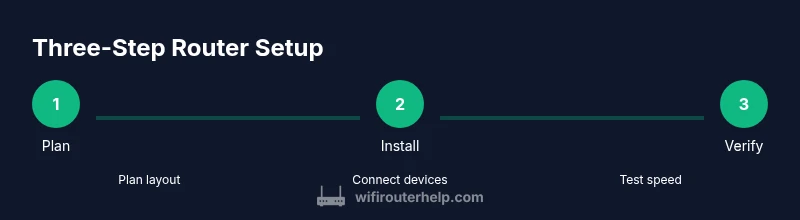
A new router can dramatically improve home network coverage, speed, and security. This quick answer outlines the essentials: plan optimal placement, gather the necessary tools, connect the hardware, access the admin interface, update firmware, set a strong admin password, and configure basic wireless settings to get a reliable network up and running fast.
Understanding why a new router can transform your home network
A new router can dramatically improve your home network by delivering stronger coverage, higher speeds, and better security. If your Wi‑Fi seems flaky in the far corners of the house, or if your devices keep buffering during peak hours, a modern router can help. This section explains how aging hardware, outdated standards, and limited features reduce performance. It also outlines how to evaluate your internet plan, home size, and device mix to determine whether a replacement is the right move. According to WiFi Router Help, a new router with modern standards can dramatically improve home network reliability. The WiFi Router Help team found that many common issues stem from aging hardware or limited features, and upgrading often resolves them without changing your service plan.
Planning and evaluating your needs for a new router
Before buying a new router, map out your home network goals. Consider how many devices actively use Wi‑Fi, where you need the strongest signal (living room vs. home office), and whether you run smart home gadgets that require stable connections. Evaluate your internet plan for peak speeds and latency; a router that keeps up with your service ensures you don’t bottleneck on wireless or wired connections. If you share devices across multiple floors or thick-walled spaces, plan for adequate coverage and consider a mesh option if a single unit won’t suffice. This upfront analysis helps you avoid overkill or underspec compared to your actual needs.
Features that matter for a solid new router
When evaluating candidates, prioritize features that directly affect performance and security. Look for Wi‑Fi 6/6e support for efficiency, dual-band or tri‑band networks for better traffic distribution, and QoS to prioritize essential devices. MU‑MIMO improves simultaneous device handling, while beamforming can focus signals toward active devices. Built‑in security tools—automatic firmware updates, a firewall, and guest networks—simplify protection. Check port options (Ethernet, USB), compatibility with your modem, and whether the device supports your preferred management app. A good balance of features ensures a future‑proof setup.
Planning your network layout before you buy
Placement drastically affects coverage. Choose a central, elevated location away from metal cabinets and appliances that create interference. Avoid placing the router inside a cabinet or behind large mirrors. If you live in a large home, determine whether one strong router suffices or if a mesh system would prevent dead zones. Consider future needs like smart TVs, game consoles, and work devices. This planning reduces the risk of weak signals and helps you select hardware that matches your space.
Basic setup steps for a new router
Getting started involves unboxing, powering up, and connecting the router to your modem if required. Then access the router’s admin interface through a browser, update the firmware, and set a strong admin password. Create your wireless network(s) with clear SSIDs and robust passphrases, preferably enabling WPA3 (or WPA2 if WPA3 isn’t available). Decide whether to broadcast a single SSID or separate 2.4 GHz and 5 GHz networks. Disable remote management unless you need it, and document the default credentials so you can change them later. This foundation keeps your network secure from the start.
Optimizing performance after installation
Post‑setup, run a quick sweep of your home to identify weak spots. Test speeds at key locations using wired and wireless connections, and adjust the router’s placement if needed. Use the 2.4 GHz band for longer range and the 5 GHz band for higher speeds when close to the router. Enabling Auto Channel selection helps avoid congested channels, while manual tweaks can improve stability. Enable Quality of Service (QoS) to prioritize critical devices like work laptops or gaming consoles. Consider a mesh node for larger homes to extend coverage without sacrificing speed. Regularly update firmware to keep features secure and efficient.
Security and maintenance practices for your new router
Security should be ongoing, not a one‑time step. Change the default admin password immediately and enable automatic firmware updates where available. Use WPA3 or at least WPA2‑Personal and disable WPS for additional protection. Create a guest network to isolate visitors from your main devices and IoT networks for extra segmentation. Back up configuration settings when you feel stable, monitor connected devices, and review permissions periodically. By maintaining good security hygiene, you protect your entire home network from common threats.
Troubleshooting common issues after installation
If devices show intermittent connectivity, relocate the router away from interference sources and check cable integrity and modem status. If you can’t connect to the admin interface, verify you’re on the correct network and try a wired connection. Slow speeds can result from channel congestion, device distance, or ISP issues; perform a speed test on wired connections to isolate variables. If problems persist after updates, consider a factory reset and re‑configuring from scratch, ensuring you have a recent backup of your settings.
Tools & Materials
- New router(Model; confirm 2.4GHz/5GHz support and latest firmware)
- Modem (if separate)(Only needed if your ISP provides modem+router combo that isn’t bridging)
- Ethernet cables (Cat5e/Cat6)(For reliable wired connections during setup and backhaul)
- Power adapter(Ensure it matches the router’s power specs)
- Computer or smartphone(To access the admin interface via a web browser or app)
- Paper and pen(For documenting credentials and settings)
- Access to admin credentials(Keep safe and change from defaults)
Steps
Estimated time: 45-60 minutes
- 1
Unbox and plan placement
Unbox the router and inspect included accessories. Plan placement by selecting a central elevated location with minimal obstructions to maximize coverage. Avoid placing near metal objects or inside closed cabinets. This step sets the foundation for reliable performance.
Tip: Take a quick photo of the setup location to reference later if you move equipment. - 2
Connect power and modem (if needed)
Plug the router into power and connect the WAN/Internet port to your modem using an Ethernet cable. If you’re using a separate modem/router setup, bridge mode may be required; consult your ISP’s guidance before changing modes.
Tip: Use the provided Ethernet cable for the backhaul to ensure stable speeds. - 3
Access the admin interface
Power on the router and connect a device to its default network. Open a browser and enter the router’s default IP address or URL as listed in the manual, then log in with the default credentials. Change the admin username and password immediately.
Tip: If you can’t access the interface, try a wired connection or check the manufacturer’s support site for the correct address. - 4
Configure basic wireless and security settings
Set a unique network name (SSID) and a strong passphrase. Enable WPA3 if available; otherwise use WPA2‑Personal. Disable remote management unless you have a specific need, and enable auto‑updates if offered.
Tip: Create separate SSIDs for 2.4 GHz and 5 GHz if your devices don’t support Smart Connect. - 5
Create a guest and IoT network
Optionally enable a guest network to keep visitors off your main network. If you have IoT devices, place them on a separate network or VLAN to reduce cross‑device access and improve security.
Tip: Label guest networks clearly and restrict access from the main network. - 6
Test, save, and review
Run speed tests on multiple devices, check coverage in key rooms, and verify that all devices reconnect automatically after changes. Save the configuration, export a backup if available, and document credentials.
Tip: Keep a record of the configured settings in case you need to recover them later.
People Also Ask
Where should I place my new router for best coverage?
Place the router in a central, elevated location away from thick walls and metal appliances. Avoid closets or basements. For large homes, use a mesh system to eliminate dead zones.
Place the router in a central elevated spot, away from metal objects. If your home is large, consider adding a mesh node.
Do I need to replace my modem when adding a new router?
Usually you don’t need to replace the modem. If your current modem supports your internet plan and is compatible with the new router, you can connect directly or bridge the modem/router setup as advised by your ISP.
Typically you don’t need a new modem; just connect the new router and ensure compatibility with your plan.
What security settings should I enable on a new router?
Change the default admin password, enable WPA3 (or WPA2 at minimum), enable automatic updates, and disable WPS. Create a guest network for visitors and isolate IoT devices if possible.
Change the default admin password, use WPA3 if possible, and enable automatic updates.
Why is my internet slow after setup?
Check for channel congestion, ensure devices connect to the appropriate band, test wired vs wireless speeds, and verify firmware is up to date. Location and interference can also affect performance.
Slow speeds can be due to congestion or interference; verify firmware and adjust placement.
How often should I update router firmware?
Check for updates monthly and enable automatic updates if available. Install updates promptly to protect against vulnerabilities and improve performance.
Check for updates monthly and enable automatic updates if possible.
Watch Video
What to Remember
- Plan placement before buying to ensure coverage.
- Secure the admin interface with a strong password and updated firmware.
- Separate networks (guest/IoT) improve security and performance.
- Test coverage and speeds after setup to verify success.