Setting Up a Router: A Complete How-To Guide for Home Networks
Learn how to set up a router quickly and securely. This comprehensive guide covers wiring, choosing a setup method, configuring a strong network name and password, enabling security features, testing performance, and troubleshooting common issues for a reliable home network.


Setting up a router means bringing your home network online with a secure, reliable connection. You will connect the device, choose a setup method (Wi‑Fi or wired), name your network, set a strong password, enable core security features, and test performance. This guide provides clear, step-by-step actions and quick troubleshooting tips. According to WiFi Router Help, a solid setup improves reliability and coverage in most homes.
Why setting up a router matters
A well-executed router setup is the foundation of a healthy home network. It determines how consistently devices connect, how fast data moves between your devices and the internet, and how well your data stays private. When you set up a router correctly, you reduce dead zones, minimize interference, and improve overall reliability. According to WiFi Router Help, starting with a thoughtful setup saves time later and makes troubleshooting easier since you’ll know where to look when trouble arises. This section explains the core reasons why the task matters and what you stand to gain in daily use.
- Stability: A clean initial configuration minimizes dropouts and buffering during streaming, gaming, and video calls.
- Security: Proper defaults and encryption keep unauthorized users out of your network.
- Coverage: Strategic placement and channel choices reduce interference and extend range.
- Manageability: Centralized settings allow easy updates, guest access control, and parental controls.
By keeping these goals in mind, you’ll approach the setup with a plan rather than a series of random tweaks. This proactive stance pays off with a smoother, faster home network and fewer headaches down the road.
Planning your network: what you need
Before you touch any buttons, take a moment to outline your network goals and gather what you’ll need. A clear plan helps prevent misconfigurations and duplicated work when you power the system up. You’ll commonly encounter several network scenarios, such as a single home with multiple floors, a home office, or smart home devices that require low-latency connections. The planning stage should cover the following:
- Internet type and modem compatibility: Cable, fiber, DSL, or fiber-through-ONT require different handling. Check that your modem (or ONT) is compatible with the router you plan to use.
- Placement strategy: Central, elevated positions with minimal obstructions maximize coverage. Avoid metal appliances or thick concrete walls directly behind the router.
- Network naming and password strategy: Choose a unique SSID and a strong passphrase using a mix of letters, numbers, and symbols. If you share your network, consider a guest network to protect your main device list.
- Security posture: Plan to enable WPA3 if available, or WPA2‑PSK with AES as a minimum. Disable remote management unless you need it for a specific use case.
- Device inventory: Make a list of primary devices (phones, laptops, smart speakers) so you can optimize bandwidth for essentials and schedule updates during off-peak hours.
Step-by-step: initial setup from unboxed router
This section walks you through the initial setup sequence starting from a fresh out‑of‑the‑box router. The goal is to bring the device to a functional state with a secure default configuration before you customize further.
- Unbox and verify contents: Router, power adapter, Ethernet cable, and quick-start guide. If any item is missing, contact the seller before proceeding.
- Locate ports and indicators: Identify the power, WAN/Internet, LAN ports, and the reset button. The status LEDs give visual cues about power, internet, and Wi‑Fi activity.
- Connect to the modem: Use an Ethernet cable to connect the modem’s Ethernet port to the router’s WAN/Internet port. This links your router to the external internet service.
- Power on and wait: Plug in the router and wait 1–2 minutes for it to boot fully. Indicators should settle to a stable pattern indicating readiness.
- Initial device connection: Connect a laptop or smartphone to the router’s default network, either via Ethernet or the default Wi‑Fi name printed on the device label.
- Access the admin interface: Open a web browser and enter the router’s default IP address (often 192.168.0.1 or 192.168.1.1). Sign in with the default credentials from the label or manual.
- Run the setup wizard: If your router offers a guided setup, run it and select the suitable internet connection method (DHCP for most cable modems, PPPoE for some DSL setups).
- Establish a secure admin password: Change the default admin password to a strong, unique value. This is a critical step to prevent unauthorized changes.
- Save and apply settings: Confirm changes and allow the router to reboot if prompted. After reboot, your network should be functional with your new credentials.
tipObjForStep1NoteFormatToKeepThisSectionReadable?null:null
Tools & Materials
- Router(New or replacement model; ensure it supports your internet type and is compatible with your modem)
- Power adapter(Original adapter supplied by manufacturer; use the correct voltage and connector)
- Ethernet cable(Cat5e or higher recommended for wired setup and reliable LAN connections)
- Modem (if separate)(Ensure proper placement and compatibility with your ISP service)
- Computer or smartphone(A device with a web browser to access the router admin page)
- Paper and pen(Jot down SSID, password, and configuration notes for future reference)
Steps
Estimated time: 40-70 minutes
- 1
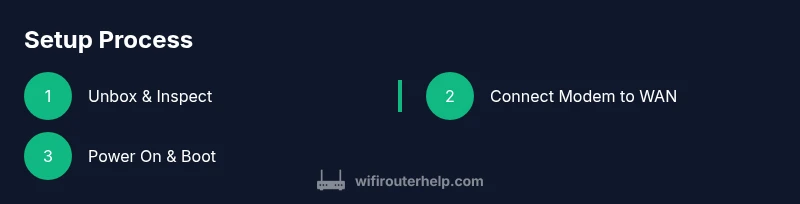
Unbox and inspect the router
Open the packaging, verify all items, and check for physical damage. Read the quick-start guide to locate ports and LED indicators before you touch anything else.
Tip: Having the model and serial handy helps you download the correct firmware later. - 2
Connect the modem to the router WAN port
Use a standard Ethernet cable to link the modem’s LAN port to the router’s WAN/Internet port. This creates the link between your ISP and your local network.
Tip: If your modem is in bridge mode, you may need to adjust settings later in the admin interface. - 3
Power on and wait for boot
Plug in the router and let it boot completely, which usually takes about a minute. Ensure all required lights indicate normal operation.
Tip: If the lights blink rapidly after boot, give it another minute and then retry. - 4
Connect a device to the router
Join the router’s default Wi‑Fi network or use an Ethernet connection to a LAN port for a stable setup session.
Tip: Using Ethernet initially reduces variability during setup. - 5
Open the admin interface
Enter the router’s default IP into a browser and sign in using the default credentials on the label.
Tip: If you can’t reach the interface, try another browser or clear cached data. - 6
Run the setup wizard and configure internet type
Follow prompts to select DHCP or PPPoE as required by your ISP, then apply the chosen settings.
Tip: If you aren’t sure about your connection type, check your ISP’s onboarding guide. - 7
Create SSID and strong Wi‑Fi password
Name your network with a unique, non-identifying label. Choose WPA3 if available; otherwise WPA2‑PSK with AES.
Tip: Avoid personal identifiers in the SSID and use a long password (>12 chars). - 8
Update firmware and tighten security
Check for firmware updates and install them. Change the admin password, enable guest network, and disable unnecessary services.
Tip: Firmware updates often fix security vulnerabilities and improve performance. - 9
Test connectivity and back up settings
Run speed tests on wired and wireless connections, then save or export the configuration to a file for disaster recovery.
Tip: Backups speed up future migrations or resets without redoing the setup.
People Also Ask
What do I need before starting a router setup?
You’ll need a modem or ISP gateway, a router, power, and a device to configure the router. Ensure you have Ethernet cables and the correct credentials for your ISP if PPPoE is required.
You’ll need a modem, router, power, and a device to configure the router. Have the ISP credentials handy if needed.
How do I know my internet is connected after setup?
Check the WAN status in the router admin page and run a quick speed test to confirm download and upload speeds align with your service plan.
Check the WAN status and run a quick speed test to confirm connectivity.
What is the best practice for Wi‑Fi naming and passwords?
Choose a unique SSID that doesn’t reveal your personal information. Use a long, complex password and enable WPA3 if available.
Use a unique SSID and a long, strong password; enable WPA3 if you can.
What if I forget the admin password?
Use the reset button on the router to restore factory defaults, then reconfigure from scratch. After resetting, change the admin password immediately.
If you forget it, reset the router and set up again from scratch.
Is remote management safe to enable?
Remote management is generally not recommended unless you have a controlled, secure use case. If you enable it, restrict access by IP and use strong authentication.
Remote management is usually not safe unless you restrict it strong controls.
How often should I update firmware?
Check for firmware updates monthly or enable automatic updates if your router supports them. Updates fix bugs and security issues.
Check for updates monthly or enable automatic updates.
Watch Video
What to Remember
- Set clear goals for stability, security, and coverage
- Gather necessary hardware before starting
- Follow a step-by-step setup to avoid misconfigurations
- Secure the network with a strong password and current encryption
- Test connectivity and back up settings after configuration