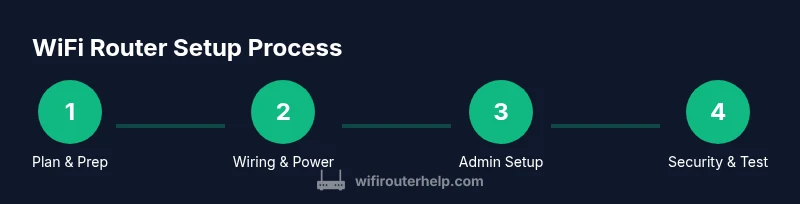
How to Set Up a WiFi Router: A Complete Step-by-Step Guide
Learn how to set up a WiFi router from scratch with a wired-first approach, secure settings, and optimization tips for reliable home networking. Includes troubleshooting, security practices, and maintenance.


Goal: set up a wifi router for a secure, reliable home network. You’ll need a modem (if separate), an Ethernet cable, and a computer or smartphone. According to WiFi Router Help, the team found that starting with a wired connection and changing default passwords dramatically improves security; keep the network name simple to avoid exposing your ISP account details.
Prepping and planning your setup
Before you touch a single cable, map out your network goals. Identify the devices that will connect most often (phones, laptops, smart home gear) and decide where you want the router to live for best coverage. Gather the required equipment and confirm your ISP’s connection type (cable, fiber, DSL). If you rent or share your space, verify whether the modem is provided by the ISP or owned by you. Having a clear plan reduces back-and-forth during the actual setup, and helps you choose the right router features (like guest networks or QoS).
- Clarify goals: coverage areas, device types, and security expectations.
- Confirm needed equipment: modem, router, cables, and a device to configure settings.
- Plan placement: central, elevated, away from interference sources (microwave ovens, thick walls).
According to WiFi Router Help, a well-planned setup reduces rework and speeds up the process. The WiFi Router Help team found that a wired-first approach and early security configurations yield a more stable network over time.
Choosing the right topology for your home
Your home network can be configured in several topologies, depending on your space and devices. A single-router setup works in small spaces with minimal interference, but larger homes may require a second device like a mesh system or range extenders to eliminate dead zones. If your router supports bridge or AP mode, you can place a secondary router as an access point to extend coverage without creating double NAT complications. Consider future growth (new smart devices, gaming consoles, or work-from-home gear) and plan accordingly.
- Single router for compact spaces.
- Mesh networks for multi-story homes or thick walls.
- Access points to extend wired backhaul in larger layouts.
This planning step helps you select a model that aligns with your goals and reduces later reconfiguration.
Physical connections: wiring your hardware correctly
Start by locating a stable power outlet and a clear workspace. Connect the modem to the incoming internet line from your ISP (coaxial, fiber, or DSL, depending on your service). Next, connect the router’s WAN/Internet port to the modem using an Ethernet cable. If you have a separate modem and router, avoid using long cables that create clutter—neatly route cables along walls or under furniture. Once connected, plug in both devices and give them a few minutes to boot up before proceeding to configuration.
- Use a straight-through Ethernet cable for the WAN link.
- Keep cable routing tidy to prevent snagging and damage.
- If you’re upgrading hardware, set aside a few minutes for firmware checks.
This wired foundation ensures a reliable starting point for your wireless network, minimizing setup confusion later.
Secure initial access: login and first-time setup
With devices powered on, use a computer or smartphone to connect to the router. Access the admin interface by entering the router’s default IP address (commonly 192.168.0.1 or 192.168.1.1) into a browser. Log in with the default credentials found in the manual or on a sticker on the router. Change the admin username and password immediately to prevent unauthorized access. If your router supports it, enable two-factor authentication for the admin interface. Document the new credentials in a secure location.
- Use a wired connection when possible for initial access.
- Change default login details before doing anything else.
- Enable 2FA if available for added protection.
This step locks down access and sets the foundation for secure configuration.
WAN/Internet settings: get your internet connection right
Routers can connect to the internet in several modes: DHCP (dynamic IP), PPPoE (often used by fiber providers), or static IP depending on your ISP and plan. If you’re unsure, start with DHCP and verify connectivity. If you need PPPoE, enter your ISP username and password, plus any required VLAN settings. After applying changes, your router should show an active internet status. If not, double-check the cables, ensure you’re not in bridge mode unless intended, and confirm credentials with your ISP if needed.
- DHCP is the default for many home setups.
- PPPoE requires ISP credentials; static IP is less common for home users.
- Reboot devices after changing WAN settings to ensure changes take effect.
A stable WAN connection is essential for all downstream Wi-Fi performance.
Wireless network basics: naming and encryption
Choose a memorable yet unique SSID (network name) that does not reveal personal information. Disable broadcasting of your device name if you prefer greater privacy. Select a strong encryption standard—prefer WPA3 if all your devices support it; otherwise, WPA2-PSK is acceptable. Create a long, random password (passphrase) with at least 12–16 characters, mixing upper and lower case letters, numbers, and symbols. Save settings and reconnect devices using the new credentials.
- Avoid common names or phrases related to you or your address.
- WPA3 offers the strongest protection available today; WPA2-PSK is the fallback.
- Use a passphrase that resists guessing and brute-force attempts.
This step directly impacts security and performance for every connected device.
Advanced wireless settings: channels, bands, and load balancing
Most modern routers operate dual-band (2.4 GHz and 5 GHz). The 2.4 GHz band travels further but is more congested; 5 GHz offers higher speeds but shorter range. Use automatic channel selection if you’re in a crowded apartment, or manually set channels to minimize interference—often channel 1, 6, or 11 on 2.4 GHz perform best in dense environments. Consider enabling beamforming and OFDMA if supported for more efficient traffic handling. If your router supports MU-MIMO, enable it to improve multi-device performance.
- Balance coverage with device density and interference.
- Enable QoS (Quality of Service) for critical devices like work laptops or gaming consoles.
- Use 5 GHz for fast devices close to the router; keep 2.4 GHz for distant or simple devices.
Properly tuned channels and bands can markedly improve throughput and consistency across rooms.
Guest networks, device isolation, and parental controls
A guest network isolates visitors from your main devices and sensitive data, reducing risk from compromised devices on guest phones or laptops. Enable device isolation so guests cannot access other devices on your network. Parental controls help manage content access and screen time for family devices. Set time limits and content filters where supported, and create separate admin access for household coordinators to maintain security.
- Create a distinct SSID for guests with limited access.
- Enable device isolation to prevent lateral movement.
- Use parental controls to enforce safe internet use, if available.
These features reduce risk while increasing versatility for households with varied users and devices.
Firmware updates, backups, and recovery options
Firmware updates fix bugs, patch security vulnerabilities, and introduce new features. Check for updates regularly and enable automatic updates if available. Before applying updates, back up your current router configuration so you can restore settings if something goes wrong. Some routers offer a factory reset option with a preserved backup; others require you to re-enter settings manually after a reset.
- Regularly update firmware to close security gaps.
- Back up configurations before major changes.
- Know how to perform a factory reset and reconfigure quickly.
Keeping firmware fresh and having a plan to recover ensures long-term stability of your network.
Security hardening and ongoing maintenance
Security is not a one-off step but an ongoing practice. Disable WPS, which can be exploited by attackers, and ensure you’re using strong encryption and a robust password policy. Periodically review connected devices and remove anything you don’t recognize. Consider enabling a firewall, disabling remote management unless needed, and turning off UPnP if you don’t require it for gaming or printers. Schedule monthly quick checks to confirm firmware, passwords, and connected devices are in control.
- Disable WPS to reduce attack vectors.
- Review connected devices regularly.
- Turn off remote management unless you truly need it.
Solid maintenance habits prevent many common network issues and improve resilience over time.
Troubleshooting and common fixes: a quick reference
If devices cannot connect, verify that the correct SSID and password were used and that you’re connected to the right band. Reboot the router and modem in a power-cycle (turn off, wait 30 seconds, then turn back on). If speeds drop, test with a wired connection to isolate wireless problems, then adjust channel settings or reposition the router. For persistent issues, restore to factory defaults and reconfigure from scratch, keeping a backup of your current settings.
- Reboot equipment as a first step for many problems.
- Use wired tests to isolate wireless problems.
- Keep a configuration backup for quick recovery.
This field-tested approach helps you resolve most home-network hiccups without calling support.
Maintenance plan: establish a routine that keeps your network healthy
Create a simple maintenance calendar: monthly checks for firmware updates, quarterly audits of connected devices, and annual reviews of security settings and password strength. Update passwords regularly and rotate SSIDs if you suspect a compromise. Document all changes so you can reproduce successful configurations after hardware upgrades. A routine maintenance mindset reduces major outages and keeps your network secure over time.
- Schedule monthly firmware checks.
- Audit connected devices every few months.
- Document configurations for future reference.
A steady maintenance schedule translates into long-term reliability and confidence in your home network.
Tools & Materials
- Modem (if separate from router)(Needed to connect to your ISP's network; only include if you use a standalone modem)
- Ethernet cable (Cat5e or better)(Used for reliable WAN connection and initial setup)
- Computer, tablet, or smartphone(Device to access and configure the router's admin interface)
- Router unit with power adapter(Main device that creates your home network)
- Power outlet or surge protector(Ensure stable power during setup)
- ISP credentials (PPPoe username/password, if required)(Needed for PPPoE or fixed IP configurations)
- Notepad or password manager(Record new SSID and passwords securely)
Steps
Estimated time: 30-60 minutes
- 1
Power down and prep your workspace
Shut off and unplug the modem and router to avoid electrical surges while connecting cables. Clear a clean workspace and lay out all components. This prevents accidental mistakes and makes it easier to trace cables later.
Tip: Keep cables untangled and label them with tape if you have multiple devices. - 2
Connect the modem to the internet line
Attach the incoming ISP line to the modem as designed by your service. Ensure the connection is secure and the modem is receiving power. This establishes the primary internet link before you configure the router.
Tip: If you’re unsure which port to use, consult the modem’s label or manual. - 3
Attach the router to the modem with an Ethernet cable
Plug one end of the Ethernet cable into the modem’s Ethernet port and the other end into the router’s WAN/Internet port. This creates the bridge between your ISP signal and your internal network.
Tip: Use a dedicated cable for the WAN link to avoid cross-wiring with internal devices. - 4
Power on devices and wait for boot
Plug in both devices and wait 1–2 minutes for both to boot. Watch the LED indicators to confirm a stable connection. If something looks off, power cycle the devices and retry the boot.
Tip: Avoid unplugging and replugging too quickly; give each device time to initialize. - 5
Log in to the router's admin page
Connect a computer to the router via Ethernet or Wi-Fi, then enter the default IP (usually 192.168.0.1 or 192.168.1.1) in a browser. Use the default credentials from the manual and immediately change the username and password.
Tip: If you can't access the interface, check the router's label for the correct IP and reset if necessary. - 6
Configure WAN/Internet settings
Set the connection type (DHCP, PPPoE, or Static) according to your ISP. Enter required credentials if PPPoE and save. Verify that the router reports an active WAN status and that you can browse from a connected device.
Tip: If unsure, start with DHCP and adjust if you cannot reach the internet. - 7
Set up SSID and wireless security
Create a unique SSID and pick WPA3 if available, otherwise WPA2-PSK. Create a long, strong passphrase and avoid using personal information. Apply changes and reconnect devices.
Tip: Document your SSID and password securely for future reference. - 8
Enable guest network and device isolation
If you have guests or smart devices that you don’t want sharing access, enable a guest network and enable device isolation if the feature exists. This keeps your main network protected from unfamiliar devices.
Tip: Limit guest network access to internet only if possible. - 9
Configure security features and updates
Turn on the firewall, disable UPnP if not needed, and enable automatic firmware updates if available. Back up current settings before applying major changes.
Tip: Set a reminder for monthly firmware checks. - 10
Test performance with multiple devices
Connect several devices and test speed on both 2.4 GHz and 5 GHz bands. Move devices to ensure stable coverage across your space. Monitor latency for online gaming or video calls.
Tip: If some rooms are weak, consider repositioning the router or adding an extender/mesh node. - 11
Create a backup of the configuration
Export or save the current router settings. This allows quick restoration after a reset or a future upgrade. Store the backup in a secure location.
Tip: Keep one backup version offsite or in a password-protected cloud storage. - 12
Review and document your setup
Note down the network name, password, device list, and any custom features you enabled. This makes future maintenance easier and helps you troubleshoot quickly.
Tip: Maintain a simple one-page reference for quick recovery.
People Also Ask
Do I need a modem if my router has a built-in modem?
Most homes use a separate modem provided by the ISP, connected to the router. If your router has a built-in modem, you can skip the separate device, but ensure compatibility with your service.
Usually you need a modem, but some routers include a built-in modem. Check your device specs and with your provider.
What is the best security protocol for home Wi-Fi?
Use WPA3 if all devices support it; otherwise WPA2-PSK is the recommended fallback. Avoid older standards like WEP.
Prefer WPA3; if not available, WPA2-PSK works best. Avoid WEP at all costs.
Should I enable UPnP on my router?
UPnP can simplify device configuration but can introduce security risks. Leave it disabled unless you need it for specific devices or applications.
Only enable UPnP if you truly need it; otherwise keep it off for better security.
How often should I update router firmware?
Check for updates monthly and enable automatic updates if available. Firmware updates fix security issues and improve features.
Check monthly; enable auto-updates if possible.
How can I improve Wi‑Fi coverage in a two-story home?
Place the router centrally, away from walls and appliances that cause interference. If coverage remains weak, consider a mesh system or extenders.
Put the router in a central spot; add a mesh or extenders if needed.
What should I do if I forget the admin password?
Use the factory reset procedure to restore default credentials, then reconfigure the router from scratch and restore backups if available.
If you forget it, reset to factory defaults and start fresh.
Watch Video
What to Remember
- Start with a wired connection for reliability.
- Change default admin credentials and create strong Wi‑Fi passwords.
- Use WPA3 (or WPA2-PSK) encryption and consider a guest network.
- Regularly update firmware and back up configurations.
- Test coverage and adjust placement or add extenders/mesh if needed.