How to Use a Router Step by Step
Learn how to set up and optimize your home router with a clear, step-by-step guide. From secure login to Wi-Fi configuration and troubleshooting, this educational tutorial helps homeowners build a fast, reliable network.


You will learn how to use a router step by step, covering login, firmware updates, WAN configuration, wireless setup, security, and basic troubleshooting. You’ll need a computer or smartphone, your router, an internet connection, and an ethernet cable for initial setup.
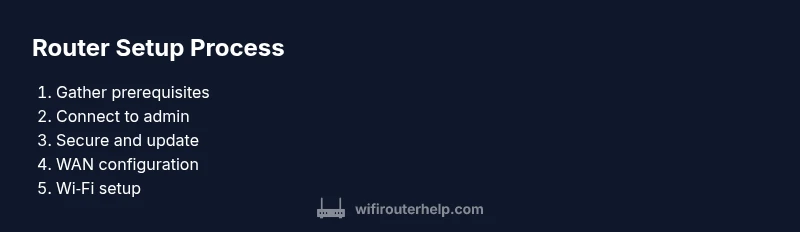
Step 1: Gather prerequisites and locate your router
Your first move is to prepare and identify every tool and fact you’ll rely on during setup. Start by locating your router and confirming its model. Gather the items from your Tools/Materials list: a computer or smartphone, an Ethernet cable, a power outlet, and possibly a notebook for notes. Choose a calm workspace close to the router so you can see the status lights and read the label that sits on the device. The label usually lists the default IP address, the default login, and maybe a quick setup URL. Before changing settings, write down your current network names (SSIDs) and passwords if you’re migrating from an old router. This reduces back-and-forth and helps you recover quickly if something goes wrong.
According to WiFi Router Help, starting with a clean plan and well-labeled components makes the process smoother and cuts setup time.
Step 2: Connect to the router and open the admin page
Physically connect via Ethernet to minimize drift or rely on the default Wi-Fi to reach the admin page. Use a browser to enter the router’s IP (commonly 192.168.0.1 or 192.168.1.1) or the hostname in the manual. If you can't reach it, check your device's IP, ensure you’re connected to the correct network, or try the reset button to restore defaults. Have the manual handy to confirm the exact address and credentials. When you log in for the first time, be prepared to change both the admin password and the Wi-Fi credentials; convenience now equals security later. If you’re using a mobile device, consider temporarily using Airplane mode on other connections to prevent interference.
Step 3: Secure the router and update firmware
Change the default admin password to a strong, unique one. Check for firmware updates and install them; updates fix security holes and improve stability. Create a backup of current settings before applying changes, so you can revert if something goes wrong. Enable automatic updates if the option exists. Record the new login details in a password manager for easy retrieval. This step is essential for long-term security and reliability.
Step 4: Configure internet connection (WAN)
Log into the router’s admin panel and navigate to the WAN or Internet settings. Choose the correct connection type based on your ISP: DHCP (dynamic), PPPoE (username/password), or static IP. Enter the exact details provided by your ISP, and save changes. If you’re unsure, contact the ISP’s support to confirm the correct settings and any required MAC address cloning. After saving, reboot if prompted and verify that you can browse the internet from a connected device.
Step 5: Set up wireless networks (SSID and password)
Create separate SSIDs for the 2.4 GHz and 5 GHz bands to balance coverage and speed. Use a strong, unique password and select at least WPA2, preferably WPA3 if available. Disable WPS for security. Consider enabling automatic channel selection, or manually choose a channel with the least congestion in your area. For consistency, use a memorable naming convention (e.g., HomeWiFi_2.4, HomeWiFi_5). Save changes and reconnect devices to the new networks. This step dramatically improves overall performance and safety.
Step 6: Enable essential security features
Turn on your router’s firewall and review device access controls. Create a guest network for visitors to keep your main network isolated. Disable remote administration unless you absolutely need it, and enable options like UPnP cautiously if you understand the risks. Regularly review connected devices and revoke access for unknown ones. If your router supports parental controls, set these to limit inappropriate content and control screen time for family devices.
Step 7: Optimize performance (QoS, channels, and bands)
Enable Quality of Service (QoS) for sensitive activities like gaming or video conferencing, and enable band steering if available to guide devices to the least congested band. Update to the latest firmware to ensure full support for your features. Use auto-channel selection where possible, or check the neighbor network landscape to select a clean channel. Keep the router in a central location, elevated from obstacles, to maximize signal strength and minimize interference. Regularly test speeds to confirm the expected performance.
Step 8: Backups and maintenance planning
Export or back up the current configuration so you can restore quickly after a reset or a hardware change. Document your SSIDs, passwords, IP ranges, and any custom firewall or QoS rules in a secure location. Schedule periodic firmware checks—monthly or quarterly—and enable automatic updates where feasible. Keep a small hardware inventory (router, modem, cables) and note purchase dates. This practice reduces downtime and makes future upgrades smoother.
Step 9: Troubleshooting common issues and logs
If devices can’t connect, start with simple checks: verify WAN status, confirm SSID, and re-enter the password. Review LED indicators and the system log for clues about misconfigurations or outages. Reboot the router and test with multiple devices. If problems persist, reset to factory defaults and reconfigure carefully, then contact your ISP or router support resources for specific guidance. Having a documented backup helps you recover quickly.
Authority sources
Authoritative guidance from government and major organizations can help you follow safe, industry-standard practices while configuring your home router. Use these sources to supplement this guide:
- https://www.fcc.gov
- https://www.cisa.gov
- https://www.nist.gov
The WiFi Router Help team recommends consulting these sources to stay current on best practices and security updates when you manage your home network.
Tools & Materials
- Router(Model with at least two Ethernet ports; place centrally for best coverage)
- Computer, smartphone, or tablet(For accessing the admin page and changing settings)
- Ethernet cable(Cat5e or Cat6 preferred for stable wired setup)
- Stable internet connection(To verify WAN settings and online access during setup)
- Notebook or password manager(Record credentials and configuration changes)
Steps
Estimated time: Estimated total time: 45-75 minutes
- 1
Gather prerequisites and locate your router
Identify the router and gather all required tools before touching any settings. Ensure power, a device to configure, and a direct/secure connection. Note the default IP, login, and SSID stickers on the device for quick reference.
Tip: Label cables and keep the quick-start manual within reach. - 2
Access the router’s admin page securely
Connect your computer via Ethernet or a known Wi‑Fi network and open a browser to the router’s IP (e.g., 192.168.1.1). Enter the default credentials and log in. If you cannot reach the page, double-check the connected interface and reset the device if needed.
Tip: If you don’t know the IP, read the sticker on the router or consult the manual. - 3
Secure the router and update firmware
Change the default admin password to a strong, unique password and check for firmware updates. Back up current settings before applying updates. Enable automatic updates when possible.
Tip: Use a password manager to store the new credentials. - 4
Configure internet connection (WAN)
Navigate to WAN/Internet settings and select the correct connection type (DHCP, PPPoE, or static IP) per your ISP. Enter required details, save, then reboot if prompted.
Tip: If using PPPoE, insert your ISP credentials exactly as given. - 5
Set up wireless networks (SSID and password)
Create separate SSIDs for 2.4 GHz and 5 GHz bands, use strong passwords, and enable WPA3/WPA2. Disable WPS and enable automatic channel selection if available.
Tip: Aim for a 12- to 16-character password with mixed case and symbols. - 6
Enable essential security features
Turn on the firewall, set up a guest network, and review access controls. Disable remote management unless necessary and monitor connected devices.
Tip: Guest networks should be isolated from your main network. - 7
Optimize performance
Enable QoS for priority devices/apps, use band steering if supported, and select appropriate channels. Place the router optimally to maximize coverage.
Tip: Test with multiple devices to ensure QoS and coverage meet your needs. - 8
Create backups and document settings
Export router configuration, save SSIDs and passwords, and note any custom firewall or QoS rules. Store backups securely and revisit them after future changes.
Tip: Keep a dedicated, encrypted copy of critical settings. - 9
Troubleshooting common issues
If a device can’t connect, verify WAN and Wi‑Fi settings, reboot, and check logs for errors. If problems persist, reset to factory defaults and reconfigure.
Tip: Use a methodical approach: rule out hardware, then settings, then ISP issues.
People Also Ask
Do I need a wired computer to set up a router, or can I use a mobile device?
Both methods work. A wired connection simplifies initial setup and reduces misconfigurations, while a mobile device is convenient for ongoing management. If wireless is weak, start with a direct Ethernet link.
You can use either, but a wired connection often makes setup easier.
What is the best security setting for Wi‑Fi?
Use WPA3 if available; otherwise WPA2. Disable WPS and enable a strong password. Enable the router firewall and separate guest network to protect devices.
Prefer WPA3 and disable WPS for better security.
How often should I update firmware?
Check for updates monthly or when the router app notifies you. Firmware updates fix vulnerabilities and improve stability.
Check monthly for updates or enable automatic updates.
I forgot my router’s admin password. What now?
Use the router’s reset procedure to restore factory settings, then reconfigure. After reset, set a new password and store it securely.
If you forgot it, reset the router and set a new password.
Should I enable remote management?
Enable remote management only if you need to manage the router from outside your home, and use strong authentication or a VPN when possible.
Only enable remote management if you truly need it and protect it well.
What if devices still won’t connect after setup?
Recheck WAN and Wi‑Fi settings, ensure firmware is up to date, and reboot. If problems persist, contact ISP or router support resources.
Double-check settings and reboot; contact support if needed.
Watch Video
What to Remember
- Change the default admin password immediately
- Create separate guest network for visitors
- Use strong, unique Wi‑Fi passwords
- Regularly update router firmware
- Document and back up your settings