How to Get a Router: A Clear Path to Fast Home WiFi
Learn how to get a router for your home network with practical steps, safety tips, and setup guidance. Ideal for homeowners and tech enthusiasts seeking reliable, step-by-step guidance.


You will learn a practical, step-by-step approach to selecting and acquiring a router for your home network. The guide covers evaluating your needs, comparing features, confirming compatibility, safely purchasing, and performing a quick setup to get your WiFi running smoothly in minutes. This quick answer outlines the key requirements and the main decision points before you buy.
What getting a router means and why it matters
When you set out to learn how to get router, you’re choosing a single device that becomes the hub of your home network. A router connects your devices to the internet, manages traffic, and provides essential security features. The right router improves coverage in busy homes, supports multiple devices at once, and gives you control over settings like guest networks and parental controls. If you’re exploring how to get router for your home, this guide helps you move from decision to daily use with fewer headaches. Consider your home size, device count, and typical online activities to shape your choices. WiFi Router Help highlights practical steps and avoid common overpayment or overkill by focusing on what actually improves your everyday experience.
Router types and their implications for home networks
There are several routes you can take to get router functionality. A single stand-alone router provides core coverage for small to mid-size homes. A modem-router gateway from an ISP can simplify setup but may offer limited customization. Mesh systems spread coverage more evenly in large or multi-story homes by using multiple units. When thinking about how to get router, weigh coverage, speed, and the number of devices you regularly support. Modern models often support dual-band or tri-band configurations, offer guest networking, and include straightforward mobile apps for setup. This variety means you can pick a solution that fits your floor plan, budget, and comfort level with technology. Remember to compare real-world performance instead of relying solely on marketing claims.
Real-world considerations and features to prioritize
Look for features like beamforming, MU-MIMO, and band steering for efficient performance. A router with WPA3 security, automatic updates, and a clear admin interface will pay off over time. If you have smart home devices, ensure compatibility with your chosen system and consider a model that supports strong parental controls and device prioritization. Finally, check warranty terms and replacement policies so you won’t be left without help if something goes wrong during the initial setup.
How to assess compatibility before buying
Before purchasing, verify that your internet plan and existing modem (if you have one) are compatible with the router you want. If you use a separate modem, confirm the router’s WAN port type and whether you need bridge mode or a separate modem. Review your internet speed tier and choose a router that can comfortably handle it without becoming a bottleneck. Reading product specifications and user reviews can prevent buying a model that looks good on paper but fails in daily use.
Core features to look for and why they matter
A robust router should offer reliable wireless coverage, multi-user support, and straightforward security controls. Prioritize a device with clear firmware update policies, a responsive admin interface, and easy setup through a mobile app. Look for at least two LAN ports for wired devices, a fast WAN port, and support for the latest security standards (WPA3 is preferred). If you plan to stream 4K video or support gaming, consider QoS features that let you prioritize traffic for important devices or activities. These core features help you avoid common pitfalls and ensure your network remains fast and secure as devices proliferate in your home.
Compatibility and prerequisites for setup
Before you even buy, gather information about your existing internet service, modem, and home layout. If your plan uses a separate modem, you’ll connect the router to that modem and configure the router to manage your home network. If your ISP provides a gateway device, you may choose to disable the built-in router and use the gateway as a modem-only device. Having a basic understanding of your home’s layout and the number of connected devices makes it easier to pick a router with adequate coverage and ports. Check the router’s documentation for compatibility notes with popular ISPs and any required activation steps.
A practical buying and acquisition plan
Approach buying with a clear plan to avoid overpaying for features you won’t use. Start by establishing a reasonable budget range and then shortlist models that meet your must-have features. Compare real-world performance from independent reviews and user feedback, focusing on reliability and ease of use. If you’re unsure about long-term value, consider a model with a generous warranty and straightforward firmware updates. Finally, review return policies so you can exchange or return a device that doesn’t fit your home network after testing.
Quick start: initial setup after you have a router
Once you have the router, begin with the physical setup: connect the modem to the router’s WAN port, plug in power, and wait for the status lights. Use a computer or smartphone to access the router’s setup interface via a browser or app. Change the default admin password, set a strong Wi‑Fi name (SSID), and enable WPA3 if available. If your router supports guest networks, enable one for visitors. Test your devices to confirm you can browse the web, stream, and game with minimal buffering. Keep documentation handy for how to login later and for firmware updates.
Safety, security, and maintenance basics
Security should be part of your routine when learning how to get router. Always change the default admin password and enable a modern encryption standard such as WPA3. Regularly check for firmware updates and apply them promptly to repair vulnerabilities. Place the router in a central, elevated location away from thick walls and large metal objects to optimize coverage. Consider enabling a guest network for visitors, configuring parental controls if needed, and turning on the firewall settings. A few proactive steps now save time troubleshooting later.
Tools & Materials
- Computer or smartphone(Used to access the router's setup interface (web UI or app))
- Ethernet cable(For stable initial configuration)
- Router with power adapter(New or refurbished device)
- Modem (if you have a separate modem)(Needed only if your ISP uses a separate modem)
- ISP account details for activation (optional)(If your ISP requires login for activation)
Steps
Estimated time: Estimated total time: 45-60 minutes
- 1
Identify your needs
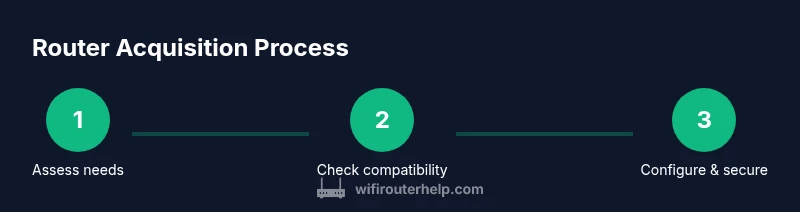
Assess your home size, device count, and typical online activities. Write down minimum requirements for coverage, speed, and security so you don’t get distracted by flashy marketing.
Tip: Start with a simple needs list before browsing models. - 2
Check compatibility
Verify whether you have a separate modem or a gateway, and confirm that the router supports your internet speed and ISP. Look for documentation on bridge mode if you’ll use your own router.
Tip: Double-check WAN port type and modem compatibility. - 3
Set a realistic budget and features
Decide how much you’re willing to spend and which features you truly need, such as tri-band support or advanced parental controls. Avoid paying for capabilities you won’t use.
Tip: Prioritize essential features over marketing buzzwords. - 4
Compare models and reviews
Read independent reviews and user feedback focusing on real-world reliability, throughput, and firmware quality. Compare warranty terms and after-sales support.
Tip: Filter out models with frequent firmware issues. - 5
Procure your router
Purchase from a trusted retailer with a clear return policy. Keep the receipt and packaging until you’ve verified operation and firmware updates.
Tip: Check return windows before buying. - 6
Connect the hardware
Unbox the router, connect the WAN port to your modem with an Ethernet cable, and power on. Wait for the status indicators to stabilize before proceeding.
Tip: Use Ethernet for the initial setup if possible. - 7
Configure the router
Open the setup interface via your browser or app, change the admin password, set a secure SSID, and enable WPA3. Create a guest network if you’ll have visitors.
Tip: Do not reuse default admin credentials. - 8
Test, tune, and secure
Run speed tests in various rooms, reposition if needed, and enable QoS for priority devices. Apply firmware updates and monitor connected devices for any anomalies.
Tip: Schedule regular firmware checks to stay protected. - 9
Create a maintenance plan
Set reminders for firmware updates, review connected devices monthly, and adjust security settings as your network changes.
Tip: Automate updates when possible to reduce effort.
People Also Ask
What is the difference between a router and a gateway?
A router directs traffic between devices and the internet; a gateway combines modem and router in one device. If you have separate devices, you can buy a router and use it with a separate modem.
A router directs traffic; a gateway combines two functions.
Do I need a modem to get a router?
If your internet plan uses a separate modem, you’ll connect the router to that modem. If your ISP provides a gateway, you may use it as a modem and disable its router functionality if you prefer.
Usually you need a modem; with all-in-one devices you can use it as a router.
Can I use an old router with a new internet plan?
An old router can work but may limit speed and features. Ensure it supports current security standards and enough speed for your devices; upgrading is often worthwhile.
Old routers can work, but you’ll lose speed and security features.
Where should I place the router for best coverage?
Place the router in a central, elevated location and away from microwaves or metal appliances that can block signals. This setup generally yields the most even coverage.
Put it up high, in a central spot, not in a cabinet.
Is it safe to buy a used router?
Used routers can pose security risks if the firmware is outdated or unknown. If you buy used, reset to factory settings, update firmware, and ensure security features are current.
Used routers can be risky; reset, update, and verify security.
Watch Video
What to Remember
- Define needs before buying to avoid waste.
- Verify compatibility with your modem and ISP.
- Secure the network and update firmware regularly.
- Test coverage and placement for reliable performance.