How to Install Router WiFi: A Step-by-Step Guide for Home
Learn how to install router wifi from unboxing to securing a reliable home network with clear, actionable steps and practical troubleshooting tips for homeowners and tech enthusiasts.


With this guide you will learn how to install router wifi from unboxing to securing your home network. You’ll confirm kit contents, connect the router to your modem, access the admin interface, set up a strong SSID and password, enable essential security features, and test coverage across your home. Gather a router, a modem, a device to configure from, power, and an Ethernet cable to begin.
Before You Start: Clarify Your Goals and Coverage
Installing a router wifi is more than just plugging in a device. Start by defining what you want: which rooms need strong signal, how many devices will connect, whether you need a guest network, and if parental controls are required. Clear goals help you choose the right placement and settings, reducing the number of post-install tweaks. According to WiFi Router Help, planning your coverage map upfront can dramatically reduce dead zones and WiFi frustration. Consider a simple floor plan, noting where walls or furniture might block signals, and decide whether you’ll expand with a mesh system later if your home is large or multi-story.
This phase also sets expectations for speed and reliability. If you have work-from-home needs or streaming in several rooms, prioritize a robust 2.4 GHz and 5 GHz strategy, balancing range with throughput. By framing your installation goals now, you’ll save time during setup and avoid reconfigurations later.
What You Need Before You Start: Tools, Accessories, and Environment
Having everything on hand before you begin saves time and prevents mid-task trips to the store. Gather the router, the modem, a stable power outlet, an Ethernet cable, a computer or smartphone for setup, and the user manuals. A small notebook or notes app helps you record default credentials and any custom settings you choose. If you plan to mount the router, have a wall-mount bracket or shelf in place. For safety and best performance, ensure the workspace is dry and well-ventilated. WiFi Router Help recommends keeping a clean desk area to avoid cable tangles that can cause accidental unplugging during the process.
Also verify your internet service status with your ISP’s account page or support line so you know whether any service outages could affect installation. If you’re moving from a legacy router, decide whether you’ll keep the same network name (SSID) or create a fresh one to avoid confusing family devices.
Safety First: Power, Placement, and Reset Considerations
Power safety matters when installing a router wifi. Use a grounded outlet and avoid daisy-chaining power strips that can overheat. Place the router in a central, elevated location away from thick walls, metal furniture, and large appliances that can cause interference. Elevation helps with signal propagation between floors. If your home has a dense floor plan, consider a network map to ensure optimal placement and identify potential dead zones. Always read the router’s manual for reset instructions; know how to perform a soft reset (reboot) and a hard reset (factory default) in case configuration goes wrong. Do not press the reset button during busy setup periods to avoid losing your newly entered settings.
This stage sets the groundwork for a smooth installation and reduces troubleshooting later; take time to position thoughtfully and document any pre-existing network configurations.
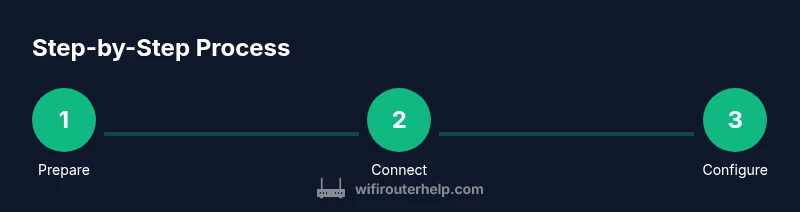
Step-by-Step: Prepare, Connect, and Configure (High-Level Overview)
This section walks through the core actions at a high level. You’ll verify kit contents, connect the router to the modem, power up, access the admin interface, set a strong admin password, configure your WiFi name (SSID) and password, and apply essential security settings. The exact steps are detailed in the STEP-BY-STEP block, but this overview helps you understand the logical flow and interdependencies. Properly coordinating the modem, router, and connected devices ensures a stable network foundation before you start enabling features like guest networks or parental controls.
Remember, every home is different. If you have a modem with built-in router functionality, you may use bridge mode to avoid double NAT and maximize performance. Always plan for easy future maintenance and firmware updates by keeping access credentials secure and updating the firmware after the initial setup.
Optimizing Your WiFi: Names, Security, and Performance Tweaks
Once your router wifi is installed, the next step is optimization. Choose unique, memorable SSIDs and strong passwords. Use WPA3 if available, or WPA2 with a long passphrase if not. Separate your main network from a guest network to protect devices and data. Enable automatic firmware updates to keep security current, but review update notes to ensure compatibility with connected devices. Consider enabling QoS (Quality of Service) to prioritize work devices or streaming gear if your home has multiple online tasks at once. For mixed-device households, enable device-based access controls and set up a guest network with bandwidth restrictions if needed. WiFi Router Help recommends testing in different rooms and floors to identify any signal gaps, then adjust placement or add a repeater/mesh extender if necessary.
This phase ensures you get reliable speeds, stronger security, and a more pleasant online experience for everyone in the home.
Authority and Troubleshooting: What the Experts Recommend
Even with careful planning, some setups encounter issues. When you run into trouble, consult reputable sources for guidance. In addition to your router manual, trusted sources include government and major publications that outline safe network practices and common pitfalls. The FCC encourages users to secure home networks and keep firmware up to date, while the FTC emphasizes avoiding phishing and unsecured configurations. If you encounter persistent connectivity problems, verify the modem’s compatibility, confirm DHCP settings, and check for channel interference caused by neighbors. Remember to back up configurations before making large changes and to document any settings you modify for easy future reference.
This section consolidates practical fixes and official guidance to help you stay secure and resilient.
Testing and Validation: Confirm Coverage One Room at a Time
After configuring, it’s time to validate coverage. Walk from room to room with a connected device to measure signal strength, speed, and reliability. Use simple tests like loading a web page, streaming a video, or joining a video call in various spots to gauge real-world performance. If you notice weak signals in bedrooms or home offices, consider adjusting antenna orientation, relocating the router, or adding a mesh node or extender. Documentation of test results helps you track improvements and identify where additional optimization is needed.
Continuous validation ensures you maintain a strong, stable network as devices and usage patterns evolve over time.
Quick Troubleshooting Checklist: Common Fixes at a Glance
If you hit a snag, start with the basics: verify cables are snug, ensure the router is receiving power, reboot the router and modem, and re-check the admin credentials. Confirm the correct WAN connection type (DHCP/PPPoE) as required by your ISP. If devices can’t connect wirelessly, forget the network on a test device and reconnect with the new password. If you still have dead zones, try changing the WiFi channel and enabling band steering if supported. Finally, ensure your firmware is up to date, not only for performance but for security resilience.
Security and Privacy Best Practices: Protect Your Home Network
Security should be a cornerstone of any router installation. Change all default passwords, enable WPA3 where possible, and disable WPS to reduce the risk of unauthorized access. Regularly review connected devices and remove any unknowns. Use a strong, unique password for the router’s admin page and consider setting up two-factor authentication if your device supports it. Periodically back up your configuration and keep your network documentation secure. These steps help maintain privacy and guard against common home-network threats.
Mesh Networking and Extenders: When to Scale Up
For larger homes, a single router may not deliver uniform coverage. Mesh networking replaces the need for multiple repeaters by providing a single seamless network across all units. Extenders can be a quick fix in a pinch but may introduce latency. If you notice significant dead zones, streaming buffering, or dropped connections in certain areas, devising a plan for a mesh system or strategically placed extenders can deliver consistent performance throughout the home.
Firmware Updates and Routine Maintenance: Keep It Fresh
Regular firmware updates fix security vulnerabilities, improve performance, and add new features. Schedule periodic checks and enable automatic updates if your router supports them. After each major update, verify all critical services (client devices, smart home hubs, printers) reconnect properly. Keeping a changelog of firmware versions and notable changes makes it easier to pinpoint issues after updates and ensures you remain aligned with best practices.
Tools & Materials
- Router(Ensure it supports current standards and has at least one LAN port)
- Modem(Active and provisioned by your ISP)
- Ethernet cable(Cat5e or better for reliable wired backhaul)
- Power adapter for router(Original power supply)
- Computer or smartphone(For accessing the router admin interface)
- Screwdriver or mounting hardware(If you plan to wall-mount the router)
Steps
Estimated time: 30-60 minutes
- 1
Unbox and verify contents
Unpack the router and accessories, verify you have the modem, Ethernet cable, power adapter, and setup manual. If anything is missing, contact the seller before proceeding to avoid mid-install interruptions.
Tip: Keep all accessories in one place and label cables to prevent confusion later. - 2
Power down and disconnect old equipment
Turn off the modem and any previous router or network gear. Unplug power, then disconnect the old devices from the modem. This ensures a clean start and prevents electrical issues during setup.
Tip: Note any existing settings you might want to reuse, but do not apply them until you’re ready. - 3
Position the router for optimal coverage
Place the router in a central, elevated location away from walls and large metal objects. A shelf or high table often works best. Avoid placing it near microwaves or cordless phones to minimize interference.
Tip: If your home is multi-story, consider a central point on the middle floor to reduce dead zones. - 4
Connect the router to the modem with Ethernet
Plug one end of the Ethernet cable into the modem’s LAN port and the other end into the router’s WAN/Internet port. This establishes the wired backhaul essential for stable WiFi.
Tip: Use a quality cable and avoid coiled loops that could constrain speed. - 5
Power on and wait for the router to boot
Connect the power adapter and allow the router to boot fully. This typically takes about a minute. Watch the LED indicators to confirm successful startup.
Tip: If indicators stay on a fault pattern, consult the manual for recovery steps. - 6
Access the router admin interface
From a connected device, open a web browser and enter the router’s default IP address or use the mobile app. Log in with the default credentials provided in the manual.
Tip: Change the admin username and password immediately to secure your device. - 7
Set up your WiFi network (SSIDs and passwords)
Create at least one 2.4 GHz and one 5 GHz SSID (if dual-band) and choose strong, unique passwords. Keep your network names simple but distinct to avoid confusion for guests and family devices.
Tip: Do not reuse default names; choose a name that’s easy for you but not easily guessable by outsiders. - 8
Apply security and firmware updates
Enable automatic firmware updates if available and manually check for updates if not. Enable encryption (prefer WPA3, or WPA2 if not supported) and disable WPS for better security.
Tip: Back up your configuration after completing setup and before updating firmware. - 9
Test connectivity and optimize
Test your network with multiple devices, verify coverage across rooms, and adjust placement if needed. Consider enabling guest networks and parental controls if your household requires them.
Tip: Move devices to test different areas and document signal strengths visually on a floor plan. - 10
Document settings and establish a maintenance routine
Record your network name, password, admin login, and firmware version. Set reminders to check for updates every few months and perform routine reboots to keep performance stable.
Tip: Maintain a simple changelog to track changes and avoid losing configuration details.
People Also Ask
How long does it take to install a router wifi?
Most home installations take 30-60 minutes, depending on the layout and whether you’re configuring advanced features like QoS or parental controls.
Most home setups take about half an hour to an hour, depending on features you enable.
Do I need a modem to set up a router?
Yes. A modem connects to your internet service and provides the modem-to-router connection. Some ISPs supply devices that combine both functions, but for most home networks a separate router and modem work best.
Usually yes. You’ll connect the router to the modem to create your network.
What should I do if I can't access the router's admin page?
First, verify the router’s IP address and ensure your device is connected to the router. If needed, perform a factory reset using the reset button and reconfigure from scratch.
Make sure you’re on the right network and try a reset if you’re locked out.
How do I secure my WiFi after install?
Enable WPA3 or WPA2 security, set a strong passphrase, disable WPS, and regularly update firmware. Separate guest networks to protect primary devices.
Turn on strong encryption, use a unique password, and keep firmware updated.
Can I install a router myself with a pre-existing mesh system?
If you have a mesh system, you may need to place the main router node as the primary gateway and configure remaining nodes for seamless coverage. Check the mesh system’s manual for specific steps.
Yes, but follow your mesh system’s guidance to avoid conflicts.
Watch Video
What to Remember
- Plan coverage before you install to guide placement.
- Secure your network with strong passwords and up-to-date firmware.
- Test in multiple rooms to verify real-world performance.
- Document settings and establish a maintenance routine.