Complete Home Router Setup: A Practical How-To
Practical step-by-step guide to choosing, configuring, and optimizing a home router for reliable WiFi at home. Learn setup, placement, security, and troubleshooting with clear, actionable instructions.


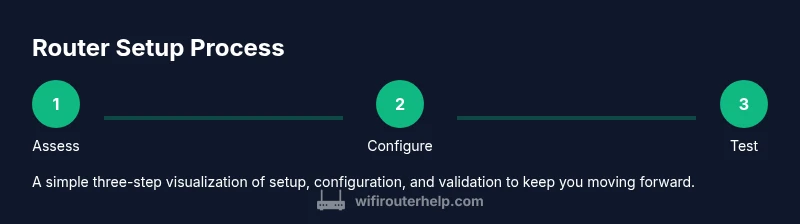
Goal: Set up a reliable home router and get it performing securely. You’ll cover hardware selection, basic network configuration, and essential optimizations in 3 clear steps. Before you start, have your modem, a computer or smartphone, an Ethernet cable, and your ISP login ready. In most homes, a stable, secure WiFi experience depends on a well-chosen router, correct placement, and sensible security settings. This quick guide keeps jargon out and actions simple. This quick answer outlines practical steps homeowners can follow today.
Why a reliable home router matters
According to WiFi Router Help, a reliable home router is the backbone of a connected home in 2026. A well-functioning router ensures that every device—from smartphones to smart TVs, laptops to security cameras—can connect without frequent dropouts, buffering, or dead zones. In practice, reliability means stable speeds, predictable coverage, and consistent security. The modern home relies on multiple devices streaming in parallel, conferencing, gaming, and IoT sensors. A poor router can become a bottleneck, forcing you to reset connections, blame your ISP, or buy new equipment more often than needed. By understanding the role of the router in your network, you can design a setup that scales as your family uses more wifi.
A primary reason to invest time in setup is to reduce support calls and frustration. A misconfigured network often manifests as slow uploads, periodic disconnects, and devices that won’t connect automatically after a power outage. With a clear plan and a few best practices, you can avoid these traps. The WiFi Router Help team found that even modest changes—like selecting a central placement and updating firmware—can yield noticeable improvements in coverage and stability. Beyond performance, a solid home router protects your devices with current security standards and a simple password strategy.
Key features to prioritize when choosing a home router
When you’re in the market, prioritize features that improve real-world use. Look for a router with strong security, modern encryption (WPA3), and firmware update support. If your home has many devices or demands smooth 4K streaming, consider MU-MIMO and beamforming, which help allocate capacity to multiple clients without collisions. Dual-band or tri-band architectures provide separate spaces for everyday devices and high-demand clients like gaming consoles. A single device that supports both 2.4 GHz and 5 GHz bands is common, but a router with smart band steering can automatically move devices to the best band. For homes with weak signal pockets, a mesh-compatible router or a system that enables easy satellite expansion can make a real difference. Finally, check hardware specs such as CPU power and memory, which influence how well the router handles security features and QoS.
Understanding WiFi signals: bands, channels, and coverage
Most homes rely on two fundamental bands: 2.4 GHz for longer reach and 5 GHz for higher speeds over short distances. The right balance depends on your layout and device mix. Channels matter: in crowded apartments or dense neighborhoods, selecting a less congested channel reduces interference. Wider channel widths (40/80 MHz) can boost throughput for supported devices but may cause more overlap; in practice, start with auto channel selection and adjust only if you notice persistent congestion. Coverage is a practical concern: walls, metal objects, and furniture absorb signals. A simple rule is to position the router high and central, away from large metal appliances, and test signal strength in each living area using a speed test or a basic app.
Typical home layouts and placement strategies
A central, elevated location minimizes dead zones and keeps signals flowing toward living rooms and workspaces. Avoid placing the router inside cabinets or behind TVs where heat and metal can degrade performance. In multi-story homes, place the main router on the middle floor and consider a single mesh node for far corners to extend reach. For homes with many walls, thick construction, or basement spaces, test with a mobile device in key rooms and adjust placement as needed. Cable management matters: a clean, short Ethernet run to a wired computer or access point reduces latency and improves stability. If possible, keep the router away from cordless phones and microwaves, which can introduce interference.
Basic configuration steps you should perform first
Begin with a factory reset if you’re connecting a new device or you’re migrating from a different brand. Then connect your computer to the router via Ethernet, open the admin page, and update firmware to the latest version. Change the default admin password immediately and enable WPA3 where available; disable WPS to reduce risk from brute-force attacks. Create a strong, unique SSID and a long passphrase; consider separating guest networks from your main network. Set the internet connection type (DHCP or PPPoE) according to your ISP. If you use a separate modem, consider enabling bridge mode to avoid double NAT issues and improve throughput. Finally, run a basic speed test to confirm baseline performance and adjust settings as needed.
Advanced settings that matter for speed and reliability
Quality of Service (QoS) helps allocate bandwidth to devices or applications that need it most, such as video calls or gaming. Beamforming can direct signal toward active clients, boosting reliability. MU‑MIMO improves simultaneous connections, reducing wait times for multiple devices. Enable a guest network to isolate visitors from your main devices, and use a firewall with appropriate rules to protect your network. For families with smart devices, consider parental controls to manage screen time and content. Port forwarding and UPnP choices should be used carefully; only enable what you need and review rules periodically. Regular backups of router configurations save time after a reset or firmware upgrade.
Security considerations and best practices
Security starts with a strong password policy and regular firmware updates. Disable remote administration except when needed, and enable automatic updates if available. Use WPA3-Personal for home networks, and consider WPA3-Enterprise if you have business-level devices. Enable guest networking with bandwidth limits and expiration where possible. Monitor connected devices regularly and remove unknown clients. Turn off features you don’t use, such as UPnP, if you don’t require them. Regularly review logs and ensure that your router’s firewall is active and properly configured.
Troubleshooting common issues and when to upgrade
If you experience frequent disconnects, test with a wired connection to separate modem from router issues. Check for firmware updates and reboot devices in a sequence: modem, router, then client devices. If speeds remain inconsistent, consider replacing aging hardware or adding a mesh satellite for coverage gaps. A mixed environment (old devices with a new router) can cause compatibility quirks; use compatibility checks and test with updated drivers. If you’re consistently at the edge of your internet plan, upgrading to a newer router with higher CPU power and more RAM can improve stability and performance.
Case study: apartment vs. large home — adapting your setup
In a compact apartment, prioritize compact dual-band models with strong beamforming and a robust 2.4 GHz signal for wall penetration. In large homes, plan for a multi‑node strategy and consider a tri-band router to maintain performance across several zones. For homes with several floors, place the primary router near the center of the building and add a satellite or mesh node in distant wings. Tailor your configuration to device density and usage patterns to achieve a consistent experience across rooms.
Tools & Materials
- Modem(Ensure compatibility with your ISP; use bridge mode if you have a separate router)
- Computer or smartphone(For accessing the router admin UI and applying settings)
- Ethernet cable(Cat5e or better; 1-2 meters is usually sufficient)
- Router power supply(Have the original adapter or a compatible spare)
- ISP login credentials(Needed for PPPoE or other connection types)
- Tape or notepad(Record network details, SSIDs, and passwords)
Steps
Estimated time: 60-90 minutes
- 1
Identify needs and inventory
List the number of active devices, expected usage (streaming, gaming, work), and coverage needs. This helps you pick a router with appropriate speed and features. Gather your modem, a computer or phone, an Ethernet cable, and ISP login details so you can configure without interruptions.
Tip: Document current problem areas (dead spots) before making changes. - 2
Choose placement
Find a central, elevated spot away from walls and metal appliances. A shelf or high table near the middle of the home generally yields the best coverage. Avoid closing the router inside a cabinet or behind a TV.
Tip: Test the signal in key rooms with a device you use frequently to verify coverage. - 3
Connect and update firmware
Connect the router to the modem via Ethernet and log in to the admin UI. Check for firmware updates and install them. This step closes security gaps and fixes bugs that can affect speed.
Tip: Allow several minutes for firmware to install and reboot; avoid skipping restarts. - 4
Set basic network credentials
Change the default admin password, enable WPA3 if available, and configure your primary network with a strong, unique SSID and passphrase. Create a separate guest network for visitors to protect your main devices.
Tip: Use a password manager to store complex credentials securely. - 5
Configure WAN and LAN settings
Set the WAN connection type (DHCP or PPPoE) per ISP, and choose a practical LAN IP range. Enable DHCP server if you’re using a single router to manage local IP addresses.
Tip: If you encounter double NAT issues, enable bridge mode on the modem or use DMZ/IP passthrough as needed. - 6
Enable security features
Turn on the firewall, disable WPS, and enable automatic updates. Consider enabling network isolation for IoT devices and using port filtering for additional protection.
Tip: Review connected devices monthly to spot unfamiliar clients. - 7
Configure QoS and testing
If supported, set QoS rules for high-priority devices/apps (work laptop, video calls, gaming). Run speed tests from multiple locations to confirm performance improvements after changes.
Tip: Start with broad QoS rules and refine as needed. - 8
Create backups and monitor
Export the router configuration file and save it in a secure location. Schedule periodic checks for firmware updates and test speed routinely.
Tip: Keep a local copy of your configuration for quick restores.
People Also Ask
What is a home router?
A home router connects your devices to the internet via your modem and creates a local network, letting devices talk to one another and access online services.
A home router connects your devices to the internet and to each other on a local network.
Do I need a separate modem or can I use a gateway?
Many ISPs provide a gateway that combines modem and router. If you want better performance, consider a dedicated modem with a separate router. Check with your ISP for compatibility.
Some providers give a device that does both; for best control, you can separate them.
How often should I update router firmware?
Update firmware when available to patch security flaws and improve stability. Enable automatic updates if your router supports it.
Update firmware when available, or enable automatic updates.
How can I improve WiFi coverage in a large home?
Consider a mesh system or one or more access points to extend reach. Place nodes strategically and use QoS to balance loads.
For large homes, add a mesh system or extra access points and tune placement.
What is WPA3 and do I need it?
WPA3 is the latest WiFi security standard and is highly recommended for home networks. If your devices support it, enable it.
WPA3 is the strongest standard available; enable it if possible.
How do I reset my router safely?
Use the reset button on the device or the admin UI to perform a factory reset. Re-create your settings from backups afterward.
Reset from the button or UI, then restore your configuration from backup.
What to Remember
- Choose a router with modern security and updates.
- Place centrally and elevated to maximize coverage.
- Enable WPA3, guest networks, and QoS for performance.
- Regularly update firmware and back up settings.
- Test speeds across key rooms to validate improvements.