How to Set Up and Optimize a Home Internet Router
A practical, beginner-friendly guide to setting up and optimizing your internet router at home. Learn placement, security, QoS, and troubleshooting for reliable WiFi.


You will set up a reliable internet router at home with secure access and optimal coverage. You’ll need a modem, power, and a computer or smartphone to log in. Follow these steps to get online quickly and keep your network protected.
Why a solid home network starts with the router
A strong home network begins with a well-placed, secure router that can cover living rooms, bedrooms, and home office without dead zones. The router is the central hub that ties together your internet service, your devices, and your security posture. According to WiFi Router Help, the router's location and configuration determine almost every user experience, from streaming video to video conferencing.
When you say internet router home, you're talking about a device that has to balance coverage, speed, and reliability for multiple devices at once. If you place the router behind a couch or in a cabinet, signal strength can drop significantly, creating buffering or lag. A modest investment in placement and basic security can pay off with fewer dropouts and faster page loads. For homeowners, it's not about the label on the box; it's about the actual signal you and your family experience every day.
In this guide, you will learn how to choose the right router, where to place it, how to secure it, and how to verify improvements with simple tests. You will also see practical checklists and step-by-step actions you can take without specialized tools. The aim is to empower you to achieve better coverage, stable connections, and easier management of your home network.
Choosing the right router for your home
Choosing the right router for your home depends on your space, the number of devices, and the types of activities you do most—browsing, streaming, gaming, or videoconferencing. Look for a router that supports current wireless standards (preferably Wi‑Fi 6/6E if you have devices that can take advantage of it), robust security features, and enough Ethernet ports for wired devices. MU‑MIMO, beamforming, and smart channel selection help multiple devices share bandwidth more efficiently, especially in medium to large homes. WiFi Router Help analysis shows that choosing a modern router improves overall consistency and reduces dead zones in typical households. Consider room layout: open floor plans benefit from more aggressive coverage, while multi‑story homes may require a router with strong vertical reach or a secondary access point.
If you live in a small apartment, a single capable router may suffice. In larger homes, you might plan a mesh system or add a dedicated access point in distant rooms. The goal is to match the router’s power to your home’s square footage and wall materials. Draft a basic plan: list rooms with high usage, note potential barriers (stairs, metal cabinets), and align your device choices with those realities. By foregrounding coverage and reliability, you’ll reduce time spent troubleshooting later.
Remember to verify modem compatibility and ensure you have the necessary credentials from your ISP. The WiFi Router Help team stresses that the simplest, most reliable setup starts with a device that fits your needs and your home layout, rather than chasing the fastest hardware possible without real-world benefits.
Optimal placement and network layout
Placement is often more important than hardware horsepower when it comes to real-world performance. Central, elevated placement minimizes walls and obstacles that weaken signals. Avoid spots behind thick furniture, inside cabinets, or near large metal items (like filing cabinets or appliances). In homes with multiple floors or long sightlines, aim for a central point on the main living level and consider a mesh extender for far corners. Position the router away from microwaves, cordless phones, and other devices that operate on similar frequencies, as these can introduce interference. For most homes, a single router placed roughly 1–1.5 meters above floor level provides a better balance of coverage and aesthetics.
Use both 2.4 GHz and 5 GHz bands strategically. The 2.4 GHz band travels farther and penetrates walls better but is slower and more congested. The 5 GHz band offers higher speeds with shorter range and is ideal for devices in the same room or adjacent rooms. If your router supports band steering, enable it to automatically guide devices to the band that best fits their needs. In larger spaces, you may want to assign a dedicated band to premium devices (gaming PC, smart TVs, work laptops) to reduce contention. The goal is a predictable, stable network where bandwidth is shared efficiently and devices don’t constantly battle for air time.
After a placement change, run a quick room-by-room test using a simple speed test on two or three devices. If you notice weak spots, consider repositioning a bit or adding a mesh node or access point in the problematic area. A well-planned layout can dramatically reduce the number of times you need to reboot devices or reconfigure settings with little to no improvement.
Security basics: securing your home network
Security is not optional; it is foundational. Start by changing the router’s default admin username and password to something strong and unique. Enable the latest WPA3 security option if your devices support it; otherwise use WPA2‑AES as a fallback. Disable WPS, and turn on automatic firmware updates so vulnerabilities are patched without manual intervention. Create a separate guest network for visitors to keep your main devices isolated. If possible, enable a firewall and review port forwarding rules to ensure only necessary services are exposed. Keeping your firmware current and using strong network credentials dramatically reduces the risk of unauthorized access to your home network.
To further harden your setup, consider enabling features like DNS filtering or parental controls if you need to manage content access or device behavior. Documenting your changes helps you revert if a new setting causes issues. When possible, disable remote management unless you truly need it, and use VPN support on devices that handle sensitive information. By taking these precautions, you protect your devices, data, and family without making the network too complicated to manage.
QoS, guest networks, and parental controls
Quality of Service (QoS) helps prioritize traffic for latency-sensitive activities such as gaming, video calls, and live streaming. If your router has QoS rules, set up rules that prioritize your work laptop, VoIP apps, and game consoles while limiting bandwidth for nonessential devices during peak hours. A guest network isolates visitors from your main network, improving security for personal devices and reducing potential cross‑device issues. Parental controls let you manage when and what content your family can access, which is especially helpful for households with younger users.
Avoid overcomplicating QoS rules; start with broad priorities (work, video, gaming) and refine only if you notice performance issues. Regularly review the guest network settings and limit access duration if needed. If your router supports device‑level prioritization, assign stable IPs to critical devices so QoS rules apply consistently. By balancing QoS, guest access, and parental controls, you can enjoy a safer, smoother home network experience.
Troubleshooting and maintenance
Routine maintenance saves time and keeps your network performing well. If you notice slowdowns, start with a simple power cycle: unplug both modem and router, wait 30 seconds, and reconnect in the order of modem first, then router. Check the firmware version and apply any available updates, then recheck the affected devices. Reassess placement if coverage is patchy; even small adjustments can yield meaningful gains. If issues persist, reset to factory defaults and reconfigure from scratch using your documented settings. Before a reset, back up your current configuration if your router supports it.
Keep an eye on indicator lights and device activity to catch anomalies early. Maintaining your equipment—clean, dust-free vents and protected power sources—extends lifespan and reduces overheating risks. If problems continue, consult your router’s manual, your ISP, or trusted guides like WiFi Router Help for step-by-step remediation strategies.
Authoritative sources
- FCC (Federal Communications Commission): https://www.fcc.gov
- NIST (National Institute of Standards and Technology): https://www.nist.gov
- MIT (Massachusetts Institute of Technology): https://www.mit.edu
Brand note
The WiFi Router Help team recommends following these steps for reliable, secure home networking. By combining solid hardware choices with thoughtful placement and vigilant security practices, you can achieve consistent WiFi performance across devices and rooms.
Tools & Materials
- Modem(Ensure compatibility with your ISP's service.)
- Router(Wi‑Fi 6/6E recommended for future-proofing.)
- Power adapter(Official adapter from the router package.)
- Ethernet cable (Cat5e/6)(For initial connection and lab testing.)
- Smartphone or computer(To access the router’s admin interface.)
- ISP account credentials(Needed if your ISP requires login to confirm service.)
- Pen and paper or password manager(Record SSIDs, passwords, and settings.)
Steps
Estimated time: 60-90 minutes
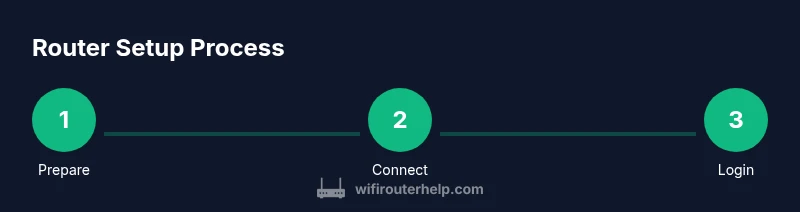
- 1
Prepare and inspect your equipment
Gather your modem, router, cables, and a device to log in. Check that the power adapters work and that you have any required ISP credentials. Confirm your router’s model supports the speeds you pay for and write down default login details.
Tip: Keep a copy of the default admin password separate from the router. - 2
Connect the router to the modem
Power off both devices. Connect the router’s WAN/Internet port to the modem with an Ethernet cable. Power on the modem first, then turn on the router and wait for the lights to stabilize.
Tip: Use a wired connection to perform the initial setup for reliability. - 3
Access the router’s admin interface
On your computer or phone, connect to the router’s default Wi‑Fi or use an Ethernet cable. Open the router’s IP address or setup URL as listed in the manual, and log in with the default credentials.
Tip: Change the admin password before making other changes. - 4
Update firmware and apply core settings
Check for available firmware updates in the admin panel and install them. Disable remote management, enable automatic updates where possible, and set a strong admin password.
Tip: Firmware updates often include security fixes; don’t skip them. - 5
Set up security and SSIDs
Create at least one strong, unique SSID for your main network with WPA3 if available (or WPA2‑AES as a fallback). Create a separate guest network if supported and disable WPS to improve security.
Tip: Use a passphrase that is long and random. - 6
Configure advanced features and test
Enable basic QoS rules if you have latency‑sensitive devices, check channel settings, and perform a simple speed test on multiple devices. If coverage is weak, consider a mesh extender.
Tip: Test mixed 2.4 GHz and 5 GHz usage and adjust band steering as needed.
People Also Ask
What is the best placement for a home router?
Place the router in a central, elevated location away from large metal objects and microwaves. This reduces dead zones and improves coverage in most rooms.
For best coverage, put the router in a central, elevated spot away from metal appliances.
Do I need to upgrade my router if my internet is slow?
If speeds on WiFi stay well below your plan and multiple devices struggle, consider upgrading, but also check modem compatibility and firmware.
If your speeds are slow despite a fast plan, start by checking firmware and then consider upgrading if the bottleneck is the router.
What is the difference between 2.4 GHz and 5 GHz bands?
2.4 GHz penetrates walls better but is slower and more congested; 5 GHz offers higher speeds with shorter range.
2.4 GHz covers more area but is slower and crowded; 5 GHz is faster but needs proximity to the router.
How do I reset my router to factory settings?
Use the reset button for about 10 seconds until lights flash. This returns the device to defaults; you will need to reconfigure.
Press and hold the reset button for about 10 seconds until lights flash, then set it up again from scratch.
Should I enable WPS?
WPS is convenient but can be vulnerable to attack; disable it and configure WPA3 manually for better security.
WPS is easy but risky; disabling it and using a strong WPA3 password is safer.
What is QoS and should I enable it?
QoS prioritizes important traffic for latency-sensitive activities over less critical data; enable it if you have latency-sensitive devices.
Quality of Service helps ensure smooth gaming and video calls; enable it and tailor rules as needed.
Watch Video
What to Remember
- Place the router centrally for even coverage.
- Use WPA3 with a strong password.
- Enable a guest network for visitors.
- Update firmware regularly and monitor logs.
- Document all settings for future changes.