How to Set Up a Modem Internet Router: A Step-by-Step Guide
Learn how to set up a modem internet router for reliable home WiFi. This educational guide covers connections, configuration, security, and troubleshooting to help homeowners optimize their network in 2026.


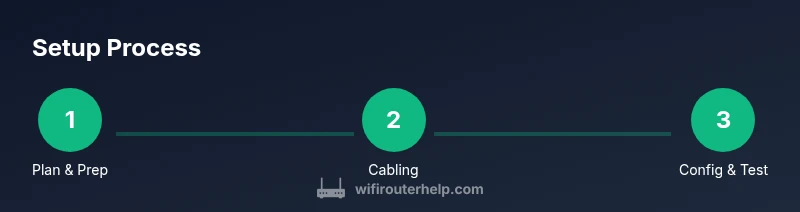
Your goal is to set up and optimize a modem internet router to ensure reliable home WiFi. You’ll learn how to connect the modem to a router, configure essential settings, and verify network performance. Before you start, gather a few basics: a modem, a router, at least one Ethernet cable, and a computer or phone to access the admin interface.
What is a modem internet router and why it matters
According to WiFi Router Help, understanding the distinction between a modem and a router is crucial for reliable home networking. A modem connects your home network to your Internet Service Provider, translating the signal from your cables, fiber, or DSL into a usable data stream. A router takes that data and creates a local network, distributing WiFi to devices. When combined as a gateway device, the two functions may be integrated in one box, but many homes benefit from separating the devices for performance and troubleshooting. Separating the roles can simplify upgrades, improve security, and make it easier to troubleshoot when problems arise. In 2026, homes frequently rely on both devices working in concert to support streaming, gaming, and smart-home ecosystems.
The WiFi Router Help team highlights that a well-chosen modem and router pairing improves reliability and coverage, reduces interference, and enables advanced features like QoS and guest networks. It also clarifies common confusion around “modems” provided by ISPs versus dedicated routers you own. This guide will walk you through the setup with practical, step-by-step instructions, cautions, and best practices to help you get a robust home network that can scale with future devices.
From a homeowner’s perspective, a correctly configured modem-internet-router stack means fewer disconnects, faster local transfers, and better control over who can access your network. The guidance here blends theoretical concepts with actionable steps, so you can move from unboxing to a stable, secure network in a single session.
Key terms and concepts you should know
Before diving into steps, it helps to lock down a few terms. A modem translates the signal from your Internet Service Provider into data the home network can use. A router creates the local network and directs traffic between devices and the Internet. A gateway combines both functions in one device, while a bridge mode disables routing features to let another router handle traffic. SSID is the public network name you connect to; a strong password protects access. Firmware is the software that runs on the devices; keeping it up to date matters for security and performance. Understanding these concepts makes the rest of the guide easier and faster to implement.
An essential distinction in many setups is whether you’ll use bridge mode or keep a router behind a gateway. If you want advanced features like separate guest networks, per-device QoS, or custom firewall rules, you’ll likely want a dedicated router and possibly bridge or bypass mode on the ISP gateway. The exact steps depend on your ISP, device models, and whether you’re using a wired or wireless configuration. This section lays the groundwork for a smooth physical setup and meaningful configuration choices.
Planning your network: topology, coverage, and equipment choices
Effective planning reduces trial-and-error during setup. Start with a quick map of your home: where you use devices most, where walls dampen signals, and where cables can reach. For larger homes, consider a wired backbone (ethernet backhaul) to improve wireless performance, plus a mesh system or additional access points if required. Choose a modem that supports your ISP’s service level and a router with features that matter to you, such as dual-band WiFi, QoS, USB sharing, or robust parental controls. If you rent your gateway from an ISP, you may still use your own router in most cases by setting the gateway to bridge mode or by disabling routing features; check your provider’s policy.
Expected outcomes from careful planning include stronger signal in critical rooms (like home offices or living rooms), fewer dropped connections, and clear separation between guest and primary networks. A practical plan for most homes is to place the router centrally, avoid placing devices behind metal objects or inside cabinets, and run a speed test after setup to confirm performance levels. The WiFi Router Help guidance emphasizes starting with a simple baseline and then expanding coverage only where needed to maintain manageability and security.
Pre-configuration checks and safety
Before making any changes, perform a few safety checks to protect your devices and data. Ensure you have a reliable power source and stable internet access to download updates if needed. If you are replacing an old device, note the current network name (SSID) and password so you can reuse or revoke them as you see fit. Verify that you have the latest firmware available for both the modem and the router; updating in advance avoids post-setup surprises. Keep a record of your new network credentials after you finish. In terms of safety, never access the admin interface over an unsecured public network, and avoid using predictable default credentials. Changing the router’s admin password, updating firmware, and enabling encryption are essential best practices.
The planning phase also involves deciding whether to enable a guest network or to restrict devices that should only connect to a wired backbone. If you use smart home devices, verify that their services still function when on a guest network or a separate IoT VLAN if you implement one. This block prepares you to execute the actual connection and configuration steps with confidence and a focus on security and reliability.
Common pitfalls and how to avoid them
Even seasoned homeowners hit snags, but most setup issues are predictable and solvable. Common pitfalls include using the wrong login credentials, misconnecting cable directions (modem-to-router versus router-to-device), and skipping firmware updates. Avoid assigning the same WiFi password as a default one and forget to enable WPA3 (or at least WPA2) encryption on the network. Another frequent issue is selecting a modem or router with compatibility gaps for your ISP, causing intermittent disconnects or degraded speeds. Always verify compatibility and keep your devices in a ventilated area to prevent overheating. Finally, don’t neglect monitoring and updating devices over time; routine upkeep reduces problems and sustains performance.
Test and verify your network performance
After finishing the setup, run a quick round of tests to verify that the network is functioning as expected. Check the router’s status page for connected devices, firmware version, and signal strength. Use a few devices in different rooms to test both 2.4 GHz and 5 GHz bands, and perform a basic speed test to ensure you get close to what your plan promises. If there are gaps in coverage, consider adjusting antenna orientation or adding a mesh node/secondary access point. Consistently testing and updating settings helps maintain a reliable home network over time.
Tools & Materials
- Modem (ISP-provided or customer-owned)(Make sure it matches your service type (cable, DSL, fiber) and supports your plan.)
- Router (Wi‑Fi router)(Prefer a model with current Wi‑Fi standards and security features.)
- Ethernet cable (Cat5e or better)(One short cable to connect modem to router; longer may be needed for desk setup.)
- Laptop or smartphone(Used to access the router’s admin interface and configure settings.)
- Web browser(Chrome/Edge/Safari or equivalent; ensure it can load modern admin pages.)
- Power outlets and stable power strip(Keep devices powered during setup and avoid power interruptions.)
- Notepad or note-taking app(Optional for recording SSIDs, passwords, and settings.)
Steps
Estimated time: 30-60 minutes
- 1
Power down and prepare
Power off both the modem and router. Disconnect all devices from the network to avoid interference during wiring. Gather the Ethernet cable and a computer or mobile device for configuration.
Tip: Have your modem model and admin login details handy in case you need to lookup default settings. - 2
Connect modem to router with Ethernet
Plug the Ethernet cable into the modem’s LAN port and the other end into the router’s WAN/Internet input. This establishes the primary data path from the ISP to your home network. Don’t force cables into ports; ensure a snug fit.
Tip: If you’re replacing an old gateway, consider bridging the gateway or disabling its router functions as appropriate for your setup. - 3
Power on and access admin interface
Power on the modem first, wait for it to boot, then power on the router. Connect your computer or phone to the router’s admin interface via Ethernet or Wi‑Fi, using the default IP address or a provided link from the manufacturer.
Tip: If you don’t see the login page, double-check that you’re connected to the new network and try a different browser. - 4
Configure Internet/WAN settings
In the router admin page, confirm the WAN/Internet connection type (DHCP/PPPoE/PPPoE over VLAN). If your ISP provides a dynamic IP, DHCP is usually fine. Enter any required credentials if your ISP uses PPPoE. Save changes and reboot if prompted.
Tip: If you’re unsure of the correct type, contact your ISP or check the online account for connection details. - 5
Set up Wi‑Fi network and security
Create a unique SSID for your 2.4 GHz and 5 GHz bands, and choose strong passwords. Prefer WPA3 if supported; otherwise, WPA2. Disable WPS for security. Save settings and reconnect to the new network.
Tip: Write down the SSID and password in a secure place; avoid using easily guessable names or defaults. - 6
Enable protections and update firmware
Enable built-in firewall and enable automatic firmware updates if available. Check the current firmware version and apply updates if required. Reboot after updates to ensure changes take effect.
Tip: Schedule periodic checks for firmware updates, ideally when you’re not actively using the network.
People Also Ask
What is the difference between a modem and a router?
A modem connects your home network to your Internet Service Provider, translating the signal into data. A router distributes that data to devices within your home and can manage network security, IP addressing, and traffic.
A modem brings you online; a router takes that connection and shares it with all your devices.
Can I use my own router with my ISP's gateway?
Yes, in many cases you can use your own router by placing the ISP gateway in bridge mode or disabling its routing features. Check your provider’s policy and support pages for exact steps.
You can usually use your own router if you set the gateway to bridge mode or disable its router features.
What is bridge mode and when should I use it?
Bridge mode turns off the router functionality of a gateway so your own router handles all routing. Use it when you want advanced features or better performance from a separate router.
Bridge mode lets your router do the heavy lifting, while the gateway just passes the internet through.
Why is my WiFi slow after setup?
Possible causes include interference from other networks, congested bands, outdated firmware, or suboptimal placement. Start by updating firmware, choosing less crowded channels, and re-positioning the router for better coverage.
Slow WiFi after setup can come from interference, old firmware, or poor placement; try updating and repositioning first.
Do I need to update firmware regularly?
Yes. Firmware updates fix security issues, improve stability, and add features. Check for updates periodically and enable automatic updates if available.
Yes—keep firmware up to date to stay secure and get better performance.
Watch Video
What to Remember
- Plan your topology before wiring
- Use a dedicated router for features and speed
- Secure the network with strong credentials
- Test coverage after setup and adjust as needed
- Keep firmware updated for stability and security