How to Set Up and Troubleshoot a WiFi Modem Router
Clear, actionable steps to set up, optimize, secure, and troubleshoot a WiFi modem router for reliable home networking. Learn planning, security, and maintenance for 2026.


According to WiFi Router Help, this guide shows you how to set up a wifi modem router, optimize coverage, and troubleshoot common issues in a home network. You’ll learn how to assess your space, choose the right topology, configure security, and verify performance with practical checks and measurements you can perform using built-in tools.
What is a wifi modem router and why it matters
A wifi modem router is the central device in most home networks, combining a modem and a wireless router into one box. The modem connects to your Internet Service Provider (ISP), while the router creates your local network and provides Wi‑Fi for devices. This setup reduces cables and simplifies initial configuration, making it ideal for most households. According to WiFi Router Help, a well-chosen unit with proper placement and current firmware delivers reliable coverage for streaming, remote work, and smart home devices. In 2026, the basics remain the same: ensure compatibility with your ISP, enable strong security, and keep firmware current to avoid gaps in protection or performance.
Planning your home network: coverage, devices, and speeds
Before buying or configuring, map out your space and the devices that will use WiFi. Consider the size of the home, walls that block signals, and the number of devices like smartphones, laptops, smart speakers, streaming boxes, and security cameras. WiFi Router Help analysis shows that proximity to the main living area, high-coverage signals, and a sensible channel plan are more impactful than chasing a marginal speed increase. Decide if you want a single router or a mesh system for larger or multi-story homes. Also plan for future devices like smart TVs or gaming consoles; choose a device that supports modern standards (Wi‑Fi 6/6E, WPA3).
Safety and security basics for home networks
A secure home network starts with unique admin credentials, strong Wi‑Fi passwords, and up‑to‑date firmware. Disable default usernames and change the default SSID to something non-identifying. Enable WPA3 when available, and consider turning off WPS to reduce a common attack surface. Regular firmware updates fix vulnerabilities and improve performance. For protection against common threats, enable the router’s firewall, review connected devices, and monitor for unusual activity. These habits reduce risks for all connected devices, from phones to smart home hubs.
Pre-installation checklist and prerequisites
Before you begin, gather essential information: your ISP’s requirements for device compatibility, activation steps if you’re using a gateway, and login credentials for the modem and router. Have an Ethernet cable handy for a wired initial setup and a device with a modern browser to access the admin interface. Confirm your power outlets are near the setup location to avoid messy cables. If you’re bridging a modem and a separate router, decide on the bridge or pass‑through mode and understand how your ISP handles IP addressing.
Topology: bridge mode vs router mode and when to use them
A common decision is choosing between bridge mode (modem in front, router behind) and router mode (gateway functionality active). Bridge mode disables the router functions of the gateway so your separate router handles distribution and security; this can improve performance and allow full control over settings. If you rely on smart home assistants or certain gaming setups that require precise QoS and port forwarding, a dedicated router in bridge mode often yields the most predictable results. If convenience and simplified setup trump advanced features, router mode with a capable device can suffice for many households.
Setup considerations: placement and interference
Position the router in a central, elevated location away from thick walls and metal objects. Elevation improves signal propagation and reduces interference from appliances or microwaves. Avoid placing the device behind doors or inside cabinets where airflow and heat can degrade performance. For multi‑story homes, consider a mesh system or a higher‑gain antenna arrangement to minimize dead zones. If you must place the device near a neighbor’s network, adjust channels to avoid cross‑talk and interference. Regularly reassess placement as furniture changes or new devices are added.
Configuration basics: SSID, password, encryption, and guest network
Start with a memorable, non-identifying SSID and a long, random password. Use at least WPA2; WPA3 is preferred if supported. Enable auto‑updates for the firmware to maintain security, and disable WPS to reduce a common attack vector. A guest network helps protect your main network by isolating IoT devices and visitors. Document the network name, password, and any guest credentials for future reference. Consider enabling basic parental controls if needed to manage access for family devices.
Common issues and troubleshooting quick fixes
If devices report weak signal, try re‑positioning the router, reducing interference, or adjusting the 2.4 GHz and 5 GHz band usage. If you can’t connect to the admin page, verify you’re using the correct IP address and that the device is in bridge mode (if applicable). Slow speeds may indicate a need to update firmware, replace old routers, or test via wired connections to rule out ISP issues. Always test after each change to verify impact and keep a log of changes for future reference.
Advanced tips for performance optimization
For performance enthusiasts, enable band steering so dual‑band clients can connect to the most appropriate band automatically. Use QoS to prioritize critical devices like work laptops or streaming boxes, and disable unnecessary services to free up resources. Channel selection matters: manually choosing channels with the least interference can improve speeds, especially in dense neighborhoods. If coverage remains uneven, consider mesh networking or additional access points to reinforce signal strength across floors and rooms.
Maintenance and future-proofing
Make firmware updates a quarterly habit, even if you don’t notice immediate issues. Periodically reassess security settings, especially admin passwords and remote access options. Backup the current router configuration so you can restore quickly after a reset or upgrade. When upgrading, aim for devices that support the latest standard (Wi‑Fi 6/6E) and current security features, so future devices can integrate smoothly with your home network. Regular maintenance reduces the risk of surprises when you need peak performance for gaming, work, or streaming.
Authoritative sources
- FCC: https://www.fcc.gov/consumers/guides/wireless-network-security
- CISA: https://www.cisa.gov/publication/home-network-security
- NIST: https://www.nist.gov/publications/guidelines-network-security
Tools & Materials
- Modem (ISP-provided or compatible)(Power adapter and cables included; verify compatibility with your ISP.)
- Router or gateway device(Prefer a model with WPA3, beamforming, and modern standards.)
- Ethernet cable (Cat5e or better)(For reliable initial setup and testing wired performance.)
- Laptop or smartphone with a web browser(Used to access the router admin interface.)
- Power outlets near the setup location(Ensure stable power during setup and troubleshooting.)
- ISP account details(Username/password or activation code if activation is required.)
Steps
Estimated time: 45-60 minutes
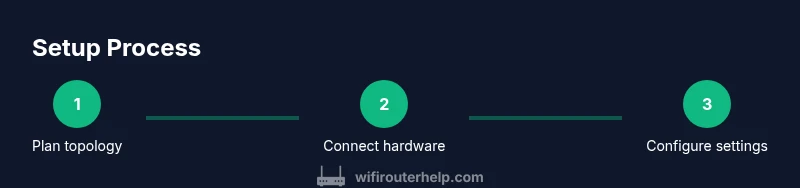
- 1
Power down and organize equipment
Unplug your existing modem and router. Gather the new wifi modem router, power adapters, an Ethernet cable, and a laptop or smartphone. This reduces risk of damage during wiring and helps you verify connections quickly.
Tip: Label ports before unplugging and keep cables untangled to avoid misconnection. - 2
Decide topology: bridge mode vs router mode
If you have a separate router, plan whether to enable bridge/through mode on the modem or place the router behind the gateway. Bridge mode often yields better performance and simpler network management, but router mode is easier for beginners.
Tip: Check ISP guidelines on bridge mode to avoid IP conflicts. - 3
Connect hardware for initial setup
Connect the modem to the internet port, then connect the router to the modem using an Ethernet cable. Power on the modem first, then the router. Wait for status lights to stabilize before proceeding.
Tip: Use a wired connection from your laptop to the router for the initial admin access. - 4
Access the admin interface
Open a web browser and enter the router’s default IP (commonly 192.168.0.1 or 192.168.1.1). Log in with the default credentials and immediately change the admin password.
Tip: If you don’t see the login page, reset the device and try again, ensuring you’re connected to the right network. - 5
Configure internet (WAN) settings
If your ISP uses DHCP, the router can often fetch settings automatically. If needed, enter PPPoE credentials or static IP details as provided by your ISP. Save changes and reboot if required.
Tip: Document any manual settings in case you need to re-enter them later. - 6
Set up Wi‑Fi name, password, and security
Create a distinct SSID and a long, random password. Enable WPA3 if supported; otherwise WPA2‑AES. Disable WPS and enable the firewall.
Tip: Use a password manager to generate and store your Wi‑Fi credentials securely. - 7
Enable guest network and basic QoS
If you have guests or IoT devices, set up a separate guest network. Configure basic QoS rules to prioritize work devices or streaming clients where necessary.
Tip: Keep guest access time-limited and monitor guest usage for security. - 8
Update firmware and test connectivity
Check for the latest firmware and apply updates. Reboot the network and run speed tests on wired and wireless connections to confirm performance.
Tip: Firmware updates often fix security vulnerabilities and improve stability. - 9
Document settings and create backups
Save a backup of the router configuration and note the network credentials. Store these securely so you can restore settings after a reset or upgrade.
Tip: Create a physical or encrypted digital copy to avoid losing access during changes.
People Also Ask
What is the difference between a modem and a router in a wifi modem router?
A modem connects to your ISP to provide internet access; a router distributes that connection to devices on your home network. Some devices combine both functions into a single unit, while others separate them for more control over multilayer features.
A modem brings internet from your provider; a router shares it with your devices. In many homes, a combined device makes setup easier, but you can use separate devices for more control.
Do I need a router if I already have a modem?
If you want Wi‑Fi and a local network, you typically need a router. Some ISPs provide gateway devices that combine both functions; others allow you to use separate router and modem components for better performance and control.
Yes, unless your ISP offers a full gateway with all features you need. A separate router often gives you more control and flexibility.
How can I improve Wi‑Fi range in a multi‑room home?
Place the router centrally, away from thick walls or metal furniture. If coverage is still weak, consider a mesh system or additional access points to fill in dead zones. Use both 2.4 GHz for range and 5 GHz for speed where appropriate.
Move the router to a central spot and add mesh nodes if needed; use 2.4 GHz for distance and 5 GHz for speed.
What security settings are best for a wifi modem router?
Use WPA3 if available; disable WPS; enable the firewall and automatic firmware updates. Use a strong, unique admin password and a separate guest network to isolate devices.
Enable WPA3, turn off WPS, keep firmware updated, and separate guest access for visitors.
Why is my internet slow after setup?
Slow speeds can result from placement issues, interference, outdated firmware, or ISP limitations. Run wired tests to rule out the network, then optimize channel usage and consider a firmware update or a hardware refresh if needed.
If speeds are slow, test wired vs wireless, update firmware, and optimize channels; consider hardware upgrades if needed.
Should I enable UPnP on my router?
UPnP can simplify device setup but may introduce security risks through automatic port forwarding. Enable it only if you need it for specific applications and monitor for unusual activity.
UPnP helps apps, but it can be risky; enable it only when necessary and keep an eye on security.
Watch Video
What to Remember
- Plan topology before setup to simplify management
- Use strong encryption (WPA3) and unique admin passwords
- Test wired and wireless performance after setup
- Document settings and back up configurations