Set Up Router WiFi: A Step-by-Step Home Networking Guide
Learn how to set up router wifi with a clear, step-by-step guide—from prep to securing settings and testing performance. WiFi Router Help guides you today.


You will set up your home network by connecting the modem to the router, powering on, accessing the router's setup page via a browser, configuring SSID and password, enabling security, updating firmware, and testing the connection. You'll need internet, a computer or mobile device, Ethernet cable, and your router's manual.
Why set up router wifi matters
Having a reliable home network begins with a solid router wifi setup. A well-planned configuration improves speed, stability, and security across devices, from smartphones to smart TVs. According to WiFi Router Help, most common connectivity problems stem from weak placement, default credentials, or outdated firmware rather than faulty hardware. When you set up router wifi correctly, you minimize interference, optimize channel use (2.4 GHz vs 5 GHz), and create a foundation that scales as you add devices or expand to mesh systems. In short: a thoughtful setup now saves hours of troubleshooting later. The reader should realize that this step is not optional; it’s the backbone of every online task—streaming, gaming, home office, or homeschooling. The goal is a stable, accessible network that behaves predictably and defends your data. This means selecting a modern router that supports current security standards, enabling automatic updates when possible, and documenting credentials in a safe place. Implementation is not complicated, but attention to detail matters: cable connections, power cycling, and a clean initial configuration set the tone for everything that follows. According to WiFi Router Help, beginning with a deliberate, organized plan yields the best long-term results.
Prerequisites and planning
Before you touch any cables, take a moment to plan. Identify your internet type (cable, fiber, or DSL) and confirm whether you need to bridge a modem or use a combined gateway. Gather the essential gear: a modern router, a compatible modem, power supplies, and an Ethernet cable. Decide on your network name (SSID) and a strong password, and consider enabling a guest network for visitors. Check if your ISP provides a modem-router combo; if so, you may want to put the gateway in bridge mode or disable its Wi‑Fi to avoid double NAT. Create a quick setup checklist to keep track of steps and avoid backtracking. Having a plan reduces setup time and minimizes rework, especially when you move to advanced features later.
Quick-start checklist
- Verify modem and router are powered off before connecting
- Connect the modem to the router’s WAN port with an Ethernet cable
- Power on the modem first, then the router, and wait for lights to stabilize
- Use a computer or mobile device to access the router’s setup page via the default gateway address
- Change the default admin password and update firmware to the latest version
- Create a unique SSID and strong password; enable WPA3 if available
- Set up a guest network if needed and disable WPS for security
- Test both 2.4 GHz and 5 GHz bands in your living spaces and adjust placement if needed
Step-by-step setup: hardware and initial configuration
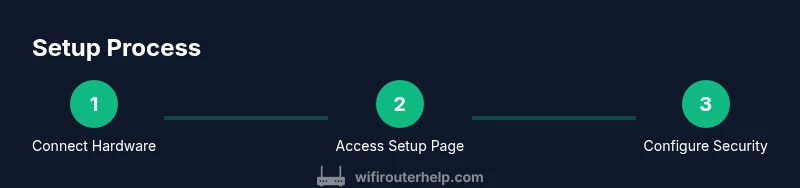
- Power down all devices, then locate the WAN/Internet port on the router. Connect this port to your modem using an Ethernet cable. 2) Power up the modem first and let it initialize fully, then power on the router and wait for the status lights to indicate a stable connection. 3) On a laptop or phone, open a web browser and enter the router’s default gateway address to access the setup page. 4) Log in with the default credentials from the label on the router, then immediately change the admin password to a strong, unique value. 5) If your router supports it, enable auto firmware updates to keep security current. 6) Create your network name (SSID) and a strong password, selecting WPA3 as the preferred security mode when available. 7) Save settings and reconnect any devices to the new network. For best results, perform a full power cycle after saving.
Configuring wireless settings and security
Configure separate 2.4 GHz and 5 GHz networks if your router offers band steering; this helps allocate devices to the best band. Use distinct, long passwords for each network and enable WPA3-Personal where possible. Disable WPS to reduce brute-force risk, and turn off remote management unless you need it. Consider enabling a guest network with restricted access to your primary devices. Enable a basic firewall and review port settings if you run servers. Finally, jot down the admin URL, login system, and credentials in a safe place so you can recover if you forget.
Coverage optimization and placement
Router placement dramatically affects performance. Place the router high, in an open area, and near the center of the living space to maximize coverage. Avoid placing the device behind large metal obstacles, inside cabinets, or near microwaves and cordless phones which can cause interference. If your home is large or has several walls, consider adding a mesh system or a dedicated range extender to eliminate dead zones. For best results, run a quick signal survey using your phone in key rooms to identify weak spots, then relocate the router or add extenders accordingly.
Authority Sources
To support best practices, consult these sources for network security and setup guidance: 1) https://www.fcc.gov 2) https://www.nist.gov 3) https://www.cisa.gov 4) https://www.mit.edu. These resources provide standards for Wi‑Fi security, device hardening, and safe home networking, which align with the guidance in this article. Reading official documents helps homeowners understand why certain configurations matter and how to maintain a secure and reliable home network over time.
Tools & Materials
- Modem(Must be active and compatible with your ISP)
- Router(Supports current security standards (prefer WPA3))
- Power adapters(One for the modem, one for the router)
- Ethernet cable(Cat5e or better, at least 3-5 feet)
- Smartphone or computer(Device to access the setup page)
- Printed notes or password logger(Optional to safely record credentials)
Steps
Estimated time: 25-50 minutes
- 1
Power down and prepare equipment
Turn off the modem and router. Verify you have the necessary cables and a device to configure the setup page. This reduces the risk of shorting ports or misconnecting cables.
Tip: Double-check that you’re using the WAN port on the router for the modem connection. - 2
Connect hardware in the correct order
Connect the Ethernet cable from the modem’s output to the router’s WAN/Internet port. Then plug in power for both devices. This establishes the path from your ISP to the home network.
Tip: Power the modem first, wait for it to initialize, then power on the router. - 3
Access the router setup page
On a computer or phone, open a browser and enter the router’s default gateway address (from the label or manual). Log in with the default credentials.
Tip: If you can't access the page, try a different device on the same network and confirm you’re connected via Ethernet or Wi‑Fi. - 4
Secure the admin account and update firmware
Immediately change the admin password to a strong, unique one. Check for firmware updates and install them to patch known vulnerabilities.
Tip: Enable automatic updates if your router offers this feature. - 5
Configure wireless networks
Create your primary SSID and a robust Wi‑Fi password. If supported, enable WPA3. Consider a separate guest network for visitors.
Tip: Use a mix of uppercase, lowercase, numbers, and symbols for the password. - 6
Test and refine coverage
Test connectivity in multiple rooms and floors. If you notice weak spots, reposition the router or add extenders/mesh components.
Tip: Run speed tests and check both 2.4 GHz and 5 GHz bands to verify stability. - 7
Document credentials and settings
Record the admin URL, login details, SSIDs, and passwords in a safe place. This makes future changes or troubleshooting faster.
Tip: Keep a backup copy offline or encrypted.
People Also Ask
What do I need before starting to set up router wifi?
You’ll need a modem, a router, power supplies, an Ethernet cable, and a device to access the setup page. Ensure your modem is active and compatible with your ISP, and have your network ideas handy (SSID and password).
You’ll need a modem, a router, power supplies, an Ethernet cable, and a device to access the setup page.
What is the difference between 2.4 GHz and 5 GHz bands?
2.4 GHz offers longer range but slower speeds and is more prone to interference. 5 GHz provides faster speeds with shorter range and less interference. If possible, enable both and connect devices to the appropriate band.
2.4 GHz goes farther but slower; 5 GHz is faster but shorter. Use both if your router supports it.
How can I secure my set up router wifi?
Use WPA3 where available, disable WPS, create strong admin and Wi‑Fi passwords, and keep firmware updated. Consider a guest network for visitors and limit remote access.
Use WPA3, disable WPS, and keep firmware updated. Create strong passwords.
How often should I update router firmware?
Check for updates at least quarterly, and enable automatic updates if your device supports it. Updates fix security issues and can improve performance.
Check for updates every few months, enable automatic updates if possible.
What if I still have dead spots after setup?
Reposition the router to a more central location, reduce physical obstructions, or add a mesh system or extenders to fill gaps in coverage.
If spots stay dead, move the router or add a mesh system.
Watch Video
What to Remember
- Plan ahead and gather all gear
- Secure your network with WPA3 and a strong password
- Test coverage in all living spaces and adjust placement
- Update firmware before enabling advanced features
- Document credentials and setup details