Home Internet Router: Setup, Optimize, Troubleshoot
Comprehensive step-by-step guide to setting up, optimizing, and troubleshooting your home internet router for reliable WiFi coverage, security, and performance.


Goal: you will set up and optimize a home internet router, secure your network, and troubleshoot common performance issues. You’ll need a modem or gateway, a computer or smartphone with a web browser, and physical access to the router. This guide walks you through planning, connecting, configuring security, and testing coverage to deliver reliable home WiFi.
What a home internet router does
A home internet router is the central hub that connects your devices to the internet via your modem. It creates wireless networks (WiFi) and directs traffic between phones, laptops, smart TVs, and smart home devices. In practical terms, a good router improves coverage, reduces dead zones, and applies security rules to protect your household. According to WiFi Router Help, a well-chosen router should balance speed, range, and reliability for typical home use. For most households, a single well-placed router provides fast, stable connectivity for streaming, gaming, work calls, and smart devices. The goal is to achieve consistent coverage across living spaces and minimize interference from walls, furniture, and competing networks. Understanding how a router fits into your home network helps you plan upgrades, troubleshoot issues, and optimize performance over time.
It broadcasts in 2.4 GHz and 5 GHz bands; 2.4 GHz penetrates walls better but is slower, while 5 GHz offers higher speeds over shorter distances. A modern router with dual-band or tri-band support usually handles a mix of devices more effectively. Quality of Service (QoS) settings let you prioritize video calls or gaming, while features like firewall protection and automatic security updates help guard your network. A typical home setup benefits from a straightforward, user-friendly interface, enabling most homeowners to configure WiFi, set guest networks, and monitor connected devices without advanced IT skills. This clarity reduces troubleshooting time and improves everyday experiences online.
Planning before you buy a router
Before purchasing, map out your home layout and device needs: how many people, how many devices, and which spaces demand the strongest signal. Consider speed tiers from your internet service provider; if you have gigabit service, choose a router that supports at least Wi‑Fi 6 (802.11ax) or newer with multi-gig WAN/LAN ports. For smaller homes, a mid-range dual-band router often suffices; larger homes may benefit from mesh networking or a high-performance single router with strong antennas. Look at coverage maps and user reviews focusing on real-world range. Also compare security features (WPA3, automatic firmware updates) and ease of use. Budget ranges typically fall into basic, mid-range, and premium brackets, with a noticeable difference in performance at each tier. The planning step helps you avoid overpaying for capabilities you won't use or under-specifying for your floor plan.
When assessing a router, consider future-proofing as speeds increase and more devices enter homes. If you rely on smart home devices, a router with robust IoT security features and good compatibility with common ecosystems can save time later. Look for multi-user MIMO (MU-MIMO) support, strong CPU performance for handling multiple streams, and a quality warranty. Finally, sketch a rough grid of your upper-floor and ground-floor coverage to anticipate potential dead spots and plan whether a mesh system would be worthwhile.
Setup basics: connecting to your modem and power
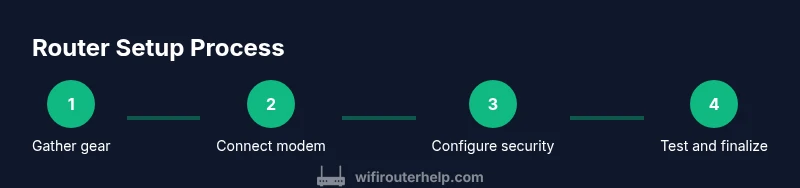
Start by locating your modem. Power it down, then disconnect any devices. Connect the modem to the router's WAN or Internet port with a standard Ethernet cable. Power on both devices in sequence: modem first, then the router. Use a computer or smartphone to connect to the router’s default network name (SSID) and open the router’s admin page at the default IP address (often 192.168.0.1 or 192.168.1.1). Create a strong admin password and note it somewhere safe. The initial configuration should take about 10-20 minutes. If you can’t reach the admin page, verify cables, try a different browser, or reset the router to factory defaults (see the reset step in the tips below).
Optimizing coverage: placement, channels, and QoS
Place the router in a central, elevated location away from metal appliances and microwaves. Avoid bathrooms and closets that block signals. Use both 2.4 GHz and 5 GHz bands; set a unique SSID for each band or enable band steering if available. Channel selection matters: start with automatic, then test a few channels (like 1, 6, 11 for 2.4 GHz). Enable QoS to prioritize real-time activities (video calls, gaming). Consider enabling beamforming if the device supports it. Ensure your network name avoids personal information and is easy to recognize by family members. If you have many devices, a second access point or a mesh system can help blanket larger homes with reliable coverage.
Securing your network: passwords, guest networks, and firmware
Change the default admin username and password immediately. Use a strong, unique password and enable WPA3 if your router supports it; otherwise WPA2 with a strong passphrase. Disable WPS to reduce risk; enable a guest network for visitors. Regularly update firmware to patch vulnerabilities; set automatic updates if possible. Review connected devices periodically and revoke access for unknown clients. Back up your configuration after you finish settings to simplify future changes.
Troubleshooting common issues
Slow speeds or dropouts can come from interference, number of devices, or outdated firmware. Start with a simple speed test from a wired device to verify baseline performance. If speeds drop, try changing the 2.4 GHz/5 GHz channel, reboot devices, and check for firmware updates. For WiFi dead zones, try repositioning the router, removing obstacles, or adding a mesh extender or more capable router. If you can't access the admin page, check cables, reset the device, and reconfigure from scratch. WiFi Router Help analysis shows that most homes see improved stability after a clean reset and firmware update.
When to upgrade or replace and authority sources
Upgrading makes sense if you have many devices, frequent buffering, or new internet speeds beyond current hardware. Signs: persistent dead zones, inability to support 4K streaming, or outdated security features. When shopping, prioritize Wi‑Fi 6/6E or newer, a robust CPU, multi-gig WAN port, and strong thermal design. Authority sources: FCC.gov, CISA.gov, and NIST.gov provide guidelines on home network security and best practices. The WiFi Router Help team recommends evaluating your home layout and device mix first, then upgrading when you can’t achieve reliable performance with your current hardware.
Tools & Materials
- Modem or gateway provided by your ISP(Essential for internet access; ensure it supports your chosen router's WAN input.)
- Computer or smartphone with a web browser(Used to access the router's admin interface for configuration.)
- Ethernet cable(Prefer Cat6 or better for future-proofing; used to connect modem to router.)
- Optional: Uninterruptible Power Supply (UPS)(Keeps router running during power outages; not mandatory but helpful.)
- Pen and paper (or digital notes)(Record SSIDs, passwords, and settings for future reference.)
Steps
Estimated time: 60-120 minutes
- 1
Gather essentials
Collect your modem, router, computer or phone, and Ethernet cable. Verify you have administrative access to the router and the ability to reset if needed. This prep reduces mid-task interruptions and keeps the process smooth.
Tip: Label cables and note which device belongs to which port to avoid misconnections. - 2
Plan router placement
Choose a central, elevated spot away from metal objects and appliances that emit interference. A good position minimizes dead zones and simplifies future maintenance.
Tip: Avoid placing the router inside a cabinet or behind walls; place it on a shelf or countertop for better lines of sight. - 3
Connect hardware
Power off the modem, connect the WAN/Internet port of the router to the modem with an Ethernet cable, then power on the modem followed by the router. Confirm the router’s LED indicators show normal activity.
Tip: If you don’t see a lights pattern you expect, reseat cables and try a different port on the router. - 4
Log in and set basic config
Connect to the router’s default network, open the admin page, and set a strong admin password. Create unique SSIDs for 2.4 GHz and 5 GHz bands or enable automatic band steering if available.
Tip: Disable remote admin access unless you have a specific need; this reduces exposure to the internet. - 5
Secure your network
Enable WPA3 if possible; otherwise WPA2 with a long passphrase. Create a guest network for visitors and disable WPS if your device supports it.
Tip: Choose a passphrase that is long, random, and unique to this network. - 6
Test and optimize
Run wired and wireless speed tests, adjust channels, and set QoS rules for critical devices or activities. Check for firmware updates and enable automatic updates if offered by the router.
Tip: Test at different times of day to capture peak usage patterns. - 7
Document and maintain
Record the network name, password, and firmware version. Back up your configuration after setup and plan periodic checks for security updates.
Tip: Keep a small note with the admin credentials in a secure location.
People Also Ask
What is a home internet router?
A home internet router connects your devices to the internet through your modem, creating WiFi networks and directing traffic. It also provides security features to help protect your home network.
A home internet router links your devices to the internet and manages your WiFi networks, with built-in security.
Do I need a modem and a router, or a combined device?
Many homes use a combined gateway from their ISP, which includes both modem and router functionality. If you already have a standalone modem, you’ll use a separate router to create your WiFi.
You can have a modem and router separately, or a single gateway from your ISP; choose based on flexibility and features.
How often should I update router firmware?
Check for firmware updates monthly or enable automatic updates if supported. Updates fix security vulnerabilities and improve stability.
Update firmware regularly; enable auto-updates if possible.
Why is my WiFi slow after setup?
Slow WiFi can result from interference, poor placement, too many devices, or outdated firmware. Start with placement and channel adjustments, then update firmware and test.
If speeds are slow, adjust placement and channels first, then update firmware.
Where should I place my router for best coverage?
Aim for a central, elevated position away from metal objects and appliances that emit interference. Avoid enclosing the router in cabinets.
Place the router in a central, elevated spot for even coverage.
What to Remember
- Place the router centrally and elevated for best coverage.
- Use both 2.4 GHz and 5 GHz bands, with appropriate channel settings.
- Secure the network with WPA3/WPA2, strong passwords, and guest networks.
- Regularly update firmware and test performance after changes.