Wireless Internet Connection Router: Setup, Optimize, Troubleshoot
A practical, step-by-step guide to choosing, setting up, and optimizing a wireless internet connection router for reliable home Wi‑Fi. Learn placement, security, troubleshooting, and maintenance with clear actions.


Learn how to choose, set up, and optimize a wireless internet connection router for a fast, reliable home network. This guide covers identifying the right router for your plan, placement for best signal, essential security, and step-by-step setup plus quick troubleshooting tips. Expect practical comparisons, common pitfalls, and maintenance reminders to keep your WiFi running smoothly.
The Wireless Router Landscape: What You Need to Know
A wireless internet connection router is the central hub that creates and manages your home Wi‑Fi. In many homes you’ll encounter a standalone router, a modem-router gateway from an ISP, or a combo device that includes both functions. Understanding the basics helps you decide when to upgrade, how to position the device for optimal coverage, and which features truly matter. Modern routers support multiple bands, offer better range, and include smart features like automatic channel selection and basic parental controls. When choosing, look beyond price to firmware update cadence, security options, and support resources. The WiFi Router Help team emphasizes that alignment between your service plan and router capabilities is key to avoiding bottlenecks and dead zones. By knowing the landscape, you can set realistic expectations and plan a setup that grows with your household devices.
Core Features That Drive Performance and Reliability
Performance comes from a mix of hardware and software features. Look for support for current Wi‑Fi standards, broad band coverage, and reliable security defaults. Band steering helps devices connect to the best band automatically, while MU‑MIMO and beamforming improve throughput to multiple devices without collisions. A strong processor and adequate memory help when several smart home devices stream video or participate in real-time gaming. Quality of Service (QoS) options let you prioritize traffic for video calls or gaming. USB ports, mesh compatibility, and guest network capabilities add extra value but don’t overpay for features you won’t use. The WiFi Router Help guidance is to prioritize essential reliability and security over flashy specs. Evaluate real-world performance in your space, not just theoretical throughput, and choose a router that receives timely firmware updates and strong vendor support.
Planning Your Network Layout for Optimal Coverage
Placement is the single most overlooked factor in achieving reliable coverage. Aim for a central, elevated location away from thick walls, metal appliances, and large electronics that create interference. If your home has multiple stories, consider a central hub location on the middle floor to balance signal across the home. Don’t rely on a single router to blanket a large area; for larger homes or dense construction, a mesh system or additional access points can dramatically reduce dead zones. When configuring channels, prefer auto if your router supports it, but be prepared to manually select a less congested channel in a crowded apartment complex. The goal is consistent, strong signals on both the 2.4 GHz and 5 GHz bands with minimal interference.
Security and Privacy Essentials
Security should be built into every setup. Change the default admin password and enable WPA3 or at least WPA2‑WPA3 mixed mode if WPA3 isn’t available. Use a unique, strong SSID name for your network and disable WPS to prevent easy access. Create a separate guest network for visitors to protect your primary devices. Regularly update firmware to patch vulnerabilities, and consider enabling firewall features and automatic security updates if offered. For households with IoT devices, isolate them on a dedicated network or VLAN where possible to minimize lateral movement if a device is compromised. Keeping your router secure reduces risk across all connected devices and helps you maintain a private home network.
Troubleshooting Common Issues and Quick Fixes
Most Wi‑Fi issues fall into a few buckets: no internet, weak signal, or slow speeds. Start with the basics: verify the modem is online, reboot the router and modem, and check for firmware updates. If devices can’t see the network, forget and rejoin the SSID and ensure the correct password is used. For slow speeds, test wired vs. wireless performance to determine if the issue is the wireless link or the internet connection itself. Interference from neighbors, microwaves, or Bluetooth devices can harm performance; changing the channel or relocating the router often helps, and upgrading to a newer router or enabling mesh networking can restore throughput. Keep a log of changes to trace what improves stability.
Authority Sources
- FCC. gov: https://www.fcc.gov
- NTIA. gov: https://www.ntia.doc.gov
- Stanford. edu: https://www.stanford.edu
- CNET: https://www.cnet.com
Verdict: Practical Recommendation
Based on practical setup principles and ongoing guidance from the WiFi Router Help team, a well-placed router with current security settings, regular firmware updates, and a named guest network delivers the most reliable home Wi‑Fi. For larger homes or those with many smart devices, a mesh system paired with a single primary router can simplify management while maintaining coverage. The WiFi Router Help team’s verdict is to start with a solid router, test coverage, and then scale with your needs as devices and usage evolve.
Tools & Materials
- Wireless router(Wi‑Fi 6/6E capable preferred; ensure it supports modern security features)
- Modem (if separate from router)(Needed only if your service uses a separate modem; many deployments use an all-in-one gateway)
- Ethernet cable (Cat5e or better)(Used to connect modem to router and for wired testing)
- Power outlet and surge protection(Place near router location; avoid daisy-chained power strips if possible)
- Laptop, tablet, or smartphone(To access the router’s admin interface or app during setup)
- ISP login information (if required)(Some providers disable bridging by default; have credentials handy)
Steps
Estimated time: 45-75 minutes
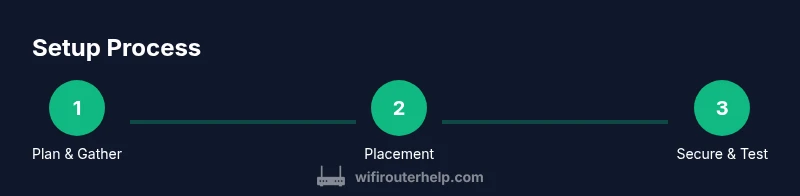
- 1
Prepare your plan and gather information
Clarify whether you will use a standalone router or an ISP gateway. Collect the service plan speeds, login credentials, and the physical layout of your home to anticipate coverage needs and potential expansions.
Tip: Document your current speeds and device count to set realistic expectations. - 2
Choose the optimal router location
Select a central, elevated spot away from walls and large metal appliances. Avoid placing the device in cabinets or behind TVs where signal can be absorbed by obstacles. Aim for a height around knee to shoulder level for best propagation.
Tip: Test the signal by walking around and noting where it drops; adjust placement accordingly. - 3
Connect the modem to the router
Plug the modem into power, then connect the modem’s ethernet port to the router’s WAN/Internet port using an Ethernet cable. If using a gateway, you may skip this step and place emphasis on bridging if available.
Tip: Use a quality Ethernet cable and avoid long, tangled runs that create interference. - 4
Power up and initialize the router
Turn on both devices and wait for status lights to stabilize. Use a connected device to access the router’s admin page via the default gateway address or the companion app. Follow the setup wizard if offered.
Tip: If you don’t see a setup page, try a different browser or reset the device to factory defaults as a last resort. - 5
Configure basic settings
Change the default admin password, set a unique network name (SSID), and enable WPA3 or WPA2‑WPA3 security. Create two networks if possible: one 2.4 GHz for range and one 5 GHz for performance.
Tip: Avoid using easily guessable SSIDs; use a strong, unique password for each network. - 6
Test coverage and optimize
Run speed tests from multiple rooms to identify weak spots. If needed, adjust channel settings, enable beamforming if available, or add a mesh node to extend coverage. Verify that all devices connect to the intended network bands.
Tip: Disable legacy 802.11b/g modes if your router allows it to improve reliability. - 7
Secure and maintain your network
Update firmware, enable firewall options, and review device access controls. Keep a backup of configuration settings and periodically audit connected devices for unfamiliar connections.
Tip: Set automatic firmware updates if supported to stay protected against new threats.
People Also Ask
What is a wireless internet connection router?
A wireless internet connection router creates a local network and distributes internet access to devices via Wi‑Fi. It may be a standalone device, or part of an ISP gateway that combines modem, router, and network features.
A wireless router is the central device that provides Wi‑Fi to your home. It may come as a separate box or be part of your internet provider's gateway.
Do I need a separate router if I have an ISP gateway?
Not always. Many homes can use the ISP gateway as the router, but adding a dedicated router can improve performance, control, and security, especially in larger homes or with many smart devices.
You can start with the gateway, but a separate router often gives you better performance and control.
How can I improve Wi‑Fi coverage in a multi‑story home?
Place the router centrally on a middle floor, away from walls and metal appliances. If coverage remains weak, consider adding a mesh system or range extenders to eliminate dead zones.
Center the router, avoid obstacles, and use mesh or extenders if needed.
What security settings should I enable on my router?
Use WPA3 or at least WPA2‑WPA3, disable WPS, use a strong admin password, and create a separate guest network for visitors to protect your devices.
Enable WPA3, turn off WPS, and keep a strong admin password.
How often should I update router firmware?
Check for updates monthly or enable automatic updates if supported by the router. Firmware updates patch security gaps and improve stability.
Check for updates monthly or enable automatic updates.
How do I choose the best channel for 2.4 GHz and 5 GHz?
Use auto if your router supports it, or test common channels to find the least congested one in your area. Separate channels help reduce interference from neighbors.
Let the router pick the best channel or test a few to reduce interference.
What should I do if I can't access the router admin page?
Ensure you’re connected to the router’s network, try the default gateway address, and if needed, reset the device to factory settings. Avoid repeated resets as a first resort.
Make sure you’re connected, use the right URL, and reset only if necessary.
Watch Video
What to Remember
- Plan placement first to maximize coverage.
- Prioritize security: change defaults and enable WPA3.
- Test coverage and adjust before adding extenders.
- Regular firmware updates improve reliability and safety.
- Document settings for easy future tweaks.