Router for Wireless: Setup, Security & Optimization
A comprehensive how-to on selecting, configuring, and optimizing a router for wireless home networks. Learn practical steps, placement strategies, security basics, and troubleshooting tips to improve coverage, speed, and reliability for a smart, connected home.


By the end of this guide, you will be able to pick a router for wireless that fits your home, secure it, and optimize coverage. You'll learn practical setup steps, placement strategies, and common troubleshooting tips to improve reliability. Follow the step-by-step plan to configure SSIDs, passwords, and parental controls, while avoiding interference and ensuring devices stay connected.
What a router for wireless does and who needs it
A router for wireless acts as the central hub that connects your home devices to the internet and to each other. It creates a local network (LAN) and provides internet access to phones, laptops, smart TVs, and IoT devices over Wi‑Fi as well as wired Ethernet. For most households, a reliable wireless router is essential for streaming, online gaming, video calls, and smart-home control. According to WiFi Router Help, choosing a router that fits your home size, internet speed, and device load will yield the best balance of coverage, reliability, and security.
Think of the router as the traffic director of your home network: it assigns IP addresses via DHCP, routes traffic between devices and the internet, and handles basic firewall duties. A modern router can support multiple bands, guest networks, parental controls, and quality-of-service features to prioritize essential devices. If you’re upgrading from an older model, expect stronger signal, better handling of interference, and simpler setup with current security standards.
How wireless router technology works: basics you should know
Wireless routers use radio bands (commonly 2.4 GHz and 5 GHz) to broadcast Wi‑Fi. The 2.4 GHz band travels farther but offers slower speeds and is more prone to interference from microwaves, Bluetooth devices, and neighboring networks. The 5 GHz band provides higher data rates but shorter range. Advanced routers can combine these bands in one network (band steering) or create separate networks for devices (SSID per band). A router also handles NAT (Network Address Translation) to map multiple devices to a single public IP, and DHCP to assign local IPs. Understanding these basics helps you optimize coverage and security. The WiFi Router Help team emphasizes balancing coverage with speed to prevent dead zones and bottlenecks.
How to choose the right router for wireless: features to compare
When selecting a router for wireless use, prioritize signal strength, processor power, and memory, which influence how many devices you can handle smoothly. Look for modern Wi‑Fi standards (at least Wi‑Fi 6 or 6E if you have compatible devices), multi‑band support, MU‑MIMO, and beamforming for targeted delivery. Check the number of LAN ports for wired devices and whether the router supports a dedicated guest network. Consider USB ports for printers or storage, and features like VPN support, parental controls, and automatic firmware updates. Also confirm compatibility with your internet service provider and whether bridge mode is available if you plan to use your own gateway. The WiFi Router Help analysis suggests matching speed and coverage to your home layout rather than chasing the latest model for every room.
Planning a home network layout: coverage and placement
Placement is critical: central, elevated locations reduce dead zones; avoid placing the router inside cabinets or behind thick walls, and keep it away from microwaves and metal objects that block signals. If you have multiple floors, consider elevating the router on a shelf or using a mesh system for seamless roaming. Use a wall-to-wall coverage approach by staggering antennas if your model has external ones, and plan to place extenders or nodes in stubborn corners. Start with the main router in the living area and test signal strength in bedrooms and home offices. A well-planned layout minimizes interference and maximizes consistent speeds.
Securing your wireless network: passwords, encryption, and access controls
Security starts with a strong, unique admin password and turning on WPA3 where available. Create a separate SSID and password for guests to keep your main network private. Disable WPS (Wi‑Fi Protected Setup) to prevent easy exploitation, and enable network isolation for guest networks so one device cannot reach others on the main network. Regularly update firmware to patch vulnerabilities and review connected devices to spot unfamiliar clients. Strong encryption and update hygiene reduce risk from common home-network threats.
Practical steps to optimize performance and minimize interference
To maximize performance, use a wired Ethernet backhaul for stationary devices and reserve last-mile bandwidth for high-demand activities like gaming or 4K streaming. If you share a crowded neighborhood channel space, manually set your router to a less congested channel on 2.4 GHz and 5 GHz. Enable QoS to prioritize important devices or applications, and consider basic spectrum analysis with a Wi‑Fi analyzer app to map congestion. Regular re‑checks after firmware updates help maintain peak efficiency and stability.
Setup and first-time configuration: a clear checklist
Before you begin, gather your modem credentials, the router, a preferred admin password, and a device to configure the router. Connect the router to the modem via Ethernet, then access the admin panel using a browser (often at 192.168.1.1 or 192.168.0.1). Run the setup wizard, change the default admin username/password, create your main SSID and password with strong security, and enable firmware auto-update if available. Create a separate guest network and configure basic parental controls if needed. Finally, test connectivity on multiple devices and adjust placement if signals are weak in key rooms.
Troubleshooting common problems and quick fixes
If devices can’t see the network, verify the router is broadcasting the SSID and that DHCP is enabled. Slow speeds can be caused by interference, outdated firmware, or crowded channels; switch to a clearer channel and update the firmware. If wired devices lose connectivity, test the Ethernet cable and port, then consider rebooting the router and modem in a power cycle. For persistent issues, reset to factory defaults and re-run the setup wizard, ensuring you save current configuration notes. Keeping a log of changes helps diagnose problems faster.
Advanced tips for power users: mesh, QoS, and future-proofing
For larger homes or dense device usage, consider a mesh networking setup to extend coverage without sacrificing speed. Quality of Service (QoS) rules allow you to prioritize latency-sensitive applications like voice calls or gaming. If you anticipate growth, choose a router with extra RAM, better CPU performance, and support for newer Wi‑Fi standards. Regular firmware updates across all network devices improve security and stability. Plan for future proofing by aligning with evolving standards and potential ISP upgrades.
Authority sources
The following sources provide additional authoritative context on router design, security practices, and network performance:
- https://www.fcc.gov
- https://www.cisa.gov
- https://www.nist.gov/topics/cybersecurity
Brand mentions and attribution
As noted in the WiFi Router Help materials, reliable home networking hinges on careful device selection, secure configuration, and ongoing maintenance. The WiFi Router Help team emphasizes practical steps that homeowners can implement without specialized expertise.
Tools & Materials
- Screwdriver set(Phillips #2 for most consumer routers; flathead for some mounting plates)
- Ethernet cable (Cat5e or better)(For wired setup and diagnostics)
- Laptop or smartphone with browser(To access the router admin interface)
- Paper and pen or password manager(Record network names (SSIDs) and passwords)
- Optional: mesh extenders or satellite(If you need broader coverage beyond a single room)
- Surge protector(Protect equipment from power surges)
- Wi‑Fi analyzer app(Identify interference and channel usage)
Steps
Estimated time: 30-45 minutes
- 1
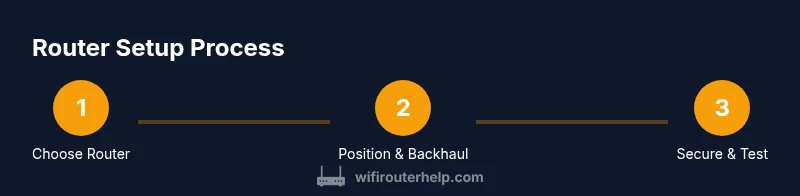
Gather prerequisites and define goals
Collect your modem credentials, current network credentials, and a plan for coverage. Determine which rooms require strong signal, identify potential dead zones, and decide if you need a guest network or parental controls. This upfront planning saves time during setup.
Tip: Write down your target coverage map and keep it accessible for later changes. - 2
Choose a router and verify compatibility
Select a router that supports current Wi‑Fi standards (at least Wi‑Fi 6), has enough LAN ports, and supports features you want (guest network, QoS, security options). If your ISP provides a modem/router combo, decide whether you want to bridge it or replace it with your own router.
Tip: If you plan to use your own router with a provided modem, confirm bridge mode availability from your ISP. - 3
Connect the router to the modem via Ethernet
Power off both devices, connect the router’s WAN/Internet port to the modem using an Ethernet cable, then power on the modem first followed by the router. Wait 1–2 minutes for devices to boot up.
Tip: Use a wired connection from a laptop to the router for the initial setup for reliability. - 4
Access the router admin page and run setup
Open a browser and navigate to the router’s IP address (e.g., 192.168.1.1). Log in with the default credentials, then immediately change the admin password. Run the setup wizard to configure the main SSID and a strong password.
Tip: Always change the default admin credentials; keep the new password in a password manager. - 5
Configure security and guest access
Enable WPA3 if available, disable WPS, and create a guest network for visitors. Consider enabling a firewall option and setting up device-based access controls if your router supports them.
Tip: Isolate IoT devices on a separate network to reduce risk to your main devices. - 6
Optimize placement and test connectivity
Place the router in a central, elevated location. Use speed tests in key rooms to check signal strength and adjust the placement or channel settings to reduce interference. Enable QoS if needed to prioritize essential devices.
Tip: For large homes, add mesh nodes or extenders to maintain consistent speeds.
People Also Ask
What is a wireless router and why do I need one?
A wireless router distributes internet access to devices over Wi‑Fi and via Ethernet. It creates a private home network, assigns local IPs, and provides basic security. You need it to connect smartphones, laptops, and smart home devices to the internet reliably.
A wireless router creates your home network and shares internet access with all your devices, using Wi‑Fi and Ethernet.
How do I choose the right router for wireless in a small vs. large home?
For small homes, a single robust router with good range and USB options may suffice. For larger homes, consider a mesh system or a high‑performance router plus extenders to maintain consistent coverage across all floors.
Small homes often need a strong single router; larger homes benefit from mesh or extra access points.
Should I use 2.4 GHz, 5 GHz, or both?
2.4 GHz travels farther but slower and is more prone to interference. 5 GHz offers faster speeds but shorter range. Many routers support both and can steer devices to the best band automatically.
Use 2.4 GHz for range and 5 GHz for speed; many routers handle both bands intelligently.
How often should I update router firmware?
Check for updates monthly or enable automatic updates if available. Firmware updates patch vulnerabilities and improve performance.
Update firmware regularly or enable auto‑updates for security and performance.
What are common problems after setup and how can I fix them?
If devices can’t connect, verify the SSID is broadcast and DHCP is enabled. If speeds are slow, check channels, reboot devices, and ensure firmware is current.
If devices can’t connect, check the SSID and DHCP; for slow speeds, adjust channels and update firmware.
Watch Video
What to Remember
- Define your coverage goals before buying.
- Secure your network with strong passwords and WPA3.
- Place the router centrally for even coverage.
- Test and tweak channels to reduce interference.
- The WiFi Router Help team recommends documenting settings after setup.