Router with WiFi: Complete Step-by-Step Setup Guide for 2026
Learn to choose, install, and optimize a router with wifi for reliable home coverage. This guide covers placement, security, guest networks, QoS, firmware updates, and troubleshooting for a strong, accessible home network.


With this guide, you’ll learn how to pick, install, and optimize a router with wifi for reliable home coverage. You’ll plan placement, set up secure wireless networks, configure guest access, and implement firmware updates and basic troubleshooting. By the end, you’ll have a strong, safe home network that delivers consistent performance across rooms.
Router with WiFi: Foundations and Relevance
A router with wifi is the central nervous system of your home network, combining routing capabilities with wireless access so devices like phones, laptops, smart TVs, and IoT gadgets can communicate with each other and the internet. According to WiFi Router Help, a reliable wireless router should provide steady coverage, simple setup, and strong security without requiring you to become a networking expert. In practice, you’ll use the router as the hub that assigns local addresses, manages traffic, and broadcasts your wifi signal. Understanding how it fits into your home ecosystem helps you decide on placement, capability, and advanced features. This guide emphasizes practical, hands-on steps you can follow to get a solid, secure setup that scales as your home grows. You don’t need a dozen specialized terms to get started—just a plan, a few essential actions, and a willingness to test and adjust as needed.
Below we cover core concepts, from coverage planning to security hardening, and finish with maintenance habits that keep your network resilient over years. Throughout, you’ll find actionable steps, real-world examples, and clear checks to ensure you aren’t leaving coverage gaps or weak security behind. The goal is practical guidance that homeowners and tech enthusiasts can implement without pricey consultants or complicated gear.
Planning Your Home WiFi Coverage
Coverage planning is the single most important step for a router with wifi. Before you touch any settings, map your home—note where you spend the most time, where signals tend to drop in dead zones, and how many devices you’ll support. Consider multi-floor layouts, dense walls, and common interference sources like microwaves or cordless phones. A practical approach is to sketch a simple floor plan and mark potential dead zones; this becomes your reference when placing the router. In most homes, a central, elevated position yields the best average coverage. If you have large rooms or multiple floors, you may need a second access point or a mesh system, but start with a well-placed single router to understand baseline performance. Finally, set realistic expectations for speeds; wireless throughput varies by distance, channel congestion, and device capabilities, so plan around typical usage patterns (streaming, video calls, gaming) rather than peak theoretical speeds.
A solid test strategy helps you quantify progress. Use a smartphone or laptop to run small speed tests in key rooms both near and far from the router. Note which areas still show weak performance and adjust placement or channel selection accordingly. If you’re upgrading from an echoing older setup, your goal is seamless coverage with minimal buffering—if you still see buffering, revisit placement and interference sources. The WiFi Router Help team emphasizes that practical testing—not guessing—is the fastest route to reliable coverage across the home.
Understanding WiFi Bands, Standards, and Capacity
Not all wifi is created equal, and understanding the basics helps you choose a router with wifi that fits your home. Most households benefit from devices that support both 2.4 GHz and 5 GHz bands. The 2.4 GHz band travels farther and penetrates walls better but usually offers slower speeds, while the 5 GHz band delivers higher speeds over shorter distances with more limited range. Modern routers implement newer standards (often labeled as Wi-Fi 4/5/6-era, commonly known as 802.11n/ac/ax) that provide better efficiency, range, and capacity. If you have many smart devices or multiple family members streaming video, look for features like MU-MIMO and beamforming, which help multiple devices share bandwidth more smoothly. For a household with mixed devices, a router that can automatically balance traffic and support Wi-Fi 6 (or newer) tends to reduce congestion and improve performance.
Interference is another factor—neighbors’ networks, baby monitors, and even Bluetooth devices can create crowded airwaves. Selecting a router that allows you to choose or auto-select channels can mitigate this. When possible, run a quick site survey at different times of day to identify the least congested channels. If you’re unsure which bands or standards to prioritize, start with a dual-band router that supports both bands and upgrade to tri-band or mesh if your coverage needs outgrow a single node.
Remember that devices themselves determine effective speeds. A modern smartphone or laptop may reach high speeds on the 5 GHz band, while older gear may never realize those gains. A balanced approach—matching device capabilities with network features—produces the most stable home experience.
Placement and Physical Setup for Best Performance
Placement is the simplest lever you have to improve wifi performance. Place the router in a central location away from walls and metal objects, ideally on a shelf or high cabinet in the living area rather than tucked in a closet. Elevation matters: signals travel better when the router sits higher than furniture and appliances. Avoid placing the router near microwaves, cordless phones, tall metal cabinets, or large water bottles, as these can attenuate or disrupt the signal. If you have a multi-story home, place the primary router on the middle floor to balance coverage vertically. For homes with dense construction, consider a dedicated access point or a mesh system for uniform performance across all rooms.
Keep cables tidy and out of sight, and ensure the router has adequate ventilation. Overheating can throttle performance and shorten the device’s lifespan. If you must place the router near a window or glass surface, be mindful that glass can reflect signals, potentially creating unpredictable coverage in adjacent rooms. After you find a position that looks promising, perform a quick test by moving through key living areas and re-checking speeds and stability. Subtle shifts in placement can yield noticeable improvements.
Finally, consider your layout over time. If you’re planning renovations or furniture changes, document your current router position and plan alternative placements that won’t disrupt cable routes. The goal is consistent, predictable wifi across the spaces where you spend most of your time.
Configuring the Router: Access, WAN, and Wireless Settings
Accessing the router’s admin interface is the gateway to a well-tuned network. Start by connecting a device to the router via ethernet or wifi. Use the default IP address and login credentials printed on the device label, then run the built-in setup wizard if your model includes one. In the wizard, confirm your internet connection type with your ISP—this could be DHCP, PPPoE, or a static IP—and let the router obtain its WAN settings. Next, configure wireless networks by creating a primary SSID for your household devices and, if possible, a separate SSID for guests. Use a strong, unique password and enable WPA3 or the strongest available encryption.
For naming, avoid common defaults that reveal the router model. Use a unique network name and, if you have both 2.4 GHz and 5 GHz bands, name them distinctively (for example, HomeWiFi-2.4 and HomeWiFi-5). If your router supports a guest network, enable it to isolate guest traffic from your main devices. Save your changes and reboot if required. Some routers offer a quick-start guide within the app; follow those steps to ensure your settings are applied correctly and that the internet connection is stable after the changes.
If you encounter issues during setup, consult the router’s support pages for model-specific instructions. Persistent problems may require a firmware update, which is typically available in the router’s admin console. Keeping firmware current is a cornerstone of performance and security.
Security, Passwords, and Guest Access
Security should be the default mode for any router with wifi. Change the default admin password immediately to prevent unauthorized access. Enable strongest available encryption (prefer WPA3 if supported, otherwise WPA2). Disable remote management unless you specifically need it, and consider using a VPN service if your privacy concerns rise with remote access. Create a strong master wifi password and avoid sharing it widely; consider rotating it periodically.
For households with visitors or guests, use a dedicated guest network. Guest networks keep your main devices isolated from visitors’ devices, reducing risk if a guest’s device is compromised. If your router supports client isolation within the guest network, enable it to prevent guests from seeing other guests on the network. Regularly review connected devices in the admin panel and remove any unknown or unrecognized devices. Finally, enable automatic security updates if your device offers them; this reduces exposure to known vulnerabilities.
Education and routine maintenance are the best defense. Set a reminder to review your security settings every few months, verify that you are running a current firmware version, and periodically test for open ports or misconfigurations that could expose your network to risk.
Performance Tuning: QoS, Channel Management, and Firmware
Quality of Service (QoS) features let you prioritize essential traffic, such as video calls or gaming, over less critical activities like background updates. If you notice consistent buffering on streaming or long loading times on video calls, enabling QoS and prioritizing the affected device or service can yield smoother performance. Channel management helps minimize interference, especially in crowded neighborhoods. Many routers automatically select the best channel, but manual channel selection during peak hours can significantly improve stability.
Firmware updates are not glamorous, but they are essential. Manufacturers release updates to fix bugs and close security gaps, and automatic updates are the simplest route to ongoing reliability. If your router supports a firmware image check that you are on a supported version and install updates promptly. Some routers also offer a feature called “auto-tune” or “Smart Connect” that dynamically selects the best band for each device; experiment with these features if available, but verify stability after enabling them.
For households with many devices or smart home gadgets, consider enabling MU-MIMO where supported and ensuring your router’s hardware can manage concurrent connections. If your layout requires more coverage, plan for a mesh extension rather than overburdening a single device. The result is a consistently responsive network that supports work, play, and smart devices without constant tinkering.
Maintenance, Troubleshooting, and Advanced Options
Once your network is up and running, establish a routine to keep it healthy. Regularly check for firmware updates, review connected devices, and run occasional speed tests in different rooms to confirm performance remains stable. If you encounter slowdowns, first verify cables and power, then check for interference or new devices appearing on the network. Basic troubleshooting often resolves most issues without needing to contact support.
As your home grows, you may consider more advanced options. A mesh network can extend coverage evenly across multiple floors, while a single high-quality router may suffice for smaller homes. For power users, explore features like VPN passthrough, firewall rules, and port forwarding if you run services at home. Remember to document your network configuration so future updates are not confusing.
In short, the best router with wifi is the one that remains secure, easy to manage, and consistently reliable for your daily activities. With deliberate placement, sane defaults, and periodic maintenance, your home network will stay fast and dependable for years.
The Bottom Line: Practical Steps to Get It Right
The secret to a resilient home network is a mix of planning, proper setup, and ongoing maintenance. Start with a central, elevated router position, plan for guest access, and use strong security settings. Then keep firmware up to date and monitor performance over time. Small tweaks—like adjusting QoS or changing the wifi channel—often yield meaningful gains without requiring new hardware. By treating your router with wifi as an ongoing project rather than a one-time install, you ensure better reliability, stronger privacy, and smoother experiences for every connected device in your home.
Tools & Materials
- Smartphone or computer with a web browser(Essential for accessing the router’s admin interface during setup)
- Ethernet cable (RJ-45)(Helpful for a wired initial connection or troubleshooting)
- Router and power supply(Ensure power reliability and a stable seating location)
- Notepad and pen(Record SSIDs, passwords, and configuration notes)
Steps
Estimated time: 60-90 minutes
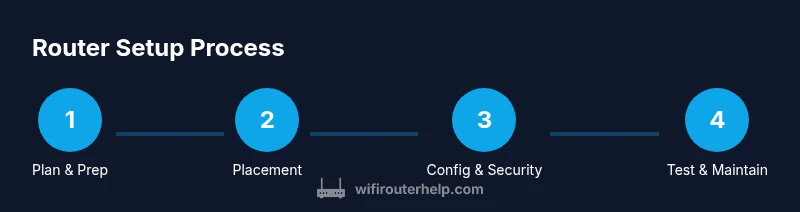
- 1
Identify connection type and gather tools
Confirm your internet service type (DHCP/PPPoE/Static) and ensure you have a device to configure the router, plus a means to connect (Wi‑Fi or Ethernet). This clarity prevents missteps when the wizard asks for WAN settings. If you’re unsure of your connection type, contact your ISP before starting.
Tip: Have the ISP login details handy and a photo of the router’s labels for quick reference. - 2
Plan placement for optimal coverage
Choose a central, elevated spot away from walls and appliances that may block signals. A single strong location reduces dead zones more effectively than several weak spots. If you have a large or multi-story home, plan for a secondary node or mesh later if needed.
Tip: Test signal strength with a phone in each major living area after choosing the spot. - 3
Connect power and the modem
Plug in the router and connect its WAN/Internet port to your modem using an Ethernet cable. Power up the modem first, then the router, and wait for lights to indicate a stable connection. If you don’t see a connection, verify the cable is seated and try a reboot.
Tip: If your ISP uses a fiber ONT, place the router close to it for a stable uplink. - 4
Access the admin interface
On a connected device, open the router’s admin page using the default IP address shown on the device label. Sign in with the default credentials, then start the setup wizard if available. If you can't reach the admin page, try a wired connection or reset the router to factory defaults.
Tip: Change the default admin password during the initial setup. - 5
Configure WAN and create wireless networks
Set the WAN/Internet type to DHCP, PPPoE, or Static IP as advised by your ISP. Create a primary 2.4 GHz and a 5 GHz network with distinct SSIDs, and use strong, unique passwords. Enable a guest network if offered and isolate it from your main network.
Tip: Keep the SSID simple but not personally identifying; enable WPA3 if available. - 6
Enhance security and performance
Enable strongest encryption (WPA3 if possible), disable remote management unless needed, and update firmware. Configure basic QoS if you have latency-sensitive devices (work calls, gaming). Reboot after saving settings and monitor device connections for unfamiliar items.
Tip: Set automatic firmware updates if your router supports it. - 7
Test, monitor, and maintain
Run speed tests in key rooms, check for dead zones, and verify devices connect reliably to the intended networks. Schedule regular checks for firmware and review connected devices quarterly. Document changes to simplify future upgrades or troubleshooting.
Tip: Keep a log of changes and test results to spot drift over time.
People Also Ask
Do I need a modem if I have a router with wifi?
Most setups require a modem from your ISP to connect to the internet. The router handles local wireless distribution. Some devices combine both functions, but a separate modem is still common for many services.
Usually you need a modem to connect to the internet; the router then provides wifi and routing. If you aren’t sure, check your ISP’s requirements.
How do I enable WPA3 on my router?
Open the router’s admin page, navigate to the wireless settings, and choose WPA3 (or WPA3/WPA2). Save changes and reboot if required. If WPA3 isn’t available, use WPA2 with a strong password as a fallback.
Go to wireless settings, pick WPA3 if possible, save, and reboot. If not available, use WPA2 with a strong password.
How can I extend wifi coverage beyond the main router?
You can add a mesh system or a wireless repeater/extender, or place a second access point with a wired backhaul. Start from a central location and test coverage room by room after installation.
Add a mesh system or a wired-access-point setup, then test in each room to verify coverage.
How often should I update the router firmware?
Check for updates monthly or enable automatic updates if available. Firmware updates fix security gaps and improve reliability, so regular checks are worthwhile.
Check for updates monthly or enable automatic updates to stay current.
Is a guest network safer for visitors?
Yes. A guest network keeps visitor devices separate from your main network, reducing risk if a guest device is compromised. Enable guest network isolation if the option exists.
Guest networks isolate visitors from your main devices for added safety.
How do I reset my router if I forget the admin password?
If you forget the password, perform a factory reset using the hardware button on the router, then reconfigure from scratch. Note that this will erase all custom settings.
Factory reset the router and set it up again from scratch.
What’s the difference between 2.4 GHz and 5 GHz bands?
2.4 GHz covers more area and penetrates walls better but is slower; 5 GHz is faster but shorter range. A dual-band router uses both to balance coverage and speed.
2.4 GHz travels farther, while 5 GHz is faster but shorter range.
Can I use my old router as a secondary access point?
Yes, many old routers can be repurposed as access points with the correct settings. This can extend coverage if wired backhaul is available.
Yes, repurpose an old router as an access point to boost coverage.
Watch Video
What to Remember
- Plan coverage first, then place the router.
- Use strong passwords and current encryption (WPA3 preferred).
- Enable guest access to protect main devices.
- Keep firmware updated and monitor network health regularly.