WiFi Router Setup and Optimization: A Complete Guide
Learn to choose, install, secure, and optimize a wifi router for fast, reliable home internet. A practical, step-by-step guide to setup, firmware updates, and coverage testing to maximize performance.


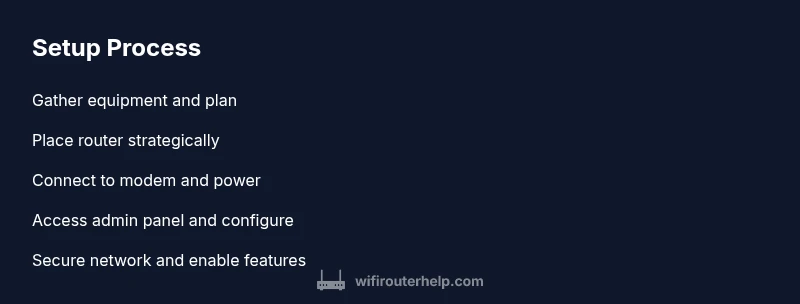
Learn how to choose, set up, and optimize a wifi router for reliable home networking. You’ll need an internet connection, a compatible router, and a device to configure it. Step 1: select a model with solid coverage; Step 2: connect the router to your modem and power; Step 3: configure SSID, password, and security, then test coverage.
Why a reliable wifi router matters
A dependable wifi router is the backbone of your home network. It affects streaming quality, online gaming responsiveness, smart-home reliability, and overall network security. The WiFi Router Help team emphasizes that modern households rely on a stable, well-configured router to keep devices connected without interruptions. A strong router reduces dead zones, supports faster speeds, and helps protect against common threats by allowing timely firmware updates and proper security settings. In 2026, more devices connect simultaneously, making good placement, coverage planning, and feature awareness essential for sustained performance. By investing in a quality router and following best practices, you can avoid bottlenecks, optimize bandwidth, and enjoy a smoother online experience across multiple rooms and floors.
According to WiFi Router Help, a well-planned home network starts with a solid router and ends with consistent results across the house. The team’s guidance blends practical setup steps with clear design choices, ensuring homeowners can rely on their wifi router without guesswork. Good equipment, placed thoughtfully, reduces frustration and keeps smart devices responsive.
- Core benefits of a reliable wifi router include stable streaming, faster downloads, lower latency for gaming, and better overall network security.
- A smart router enables guest networks, parental controls, and firmware updates that shield your devices from known vulnerabilities.
- The right setup reduces interference from microwaves and neighboring networks, helping you get the most from your internet plan.
Understanding home network basics
Your home network consists of a modem from your Internet Service Provider (ISP) and a router that creates a private Wi-Fi network. The router translates the internet signal into wireless and wired connections for devices like laptops, phones, smart TVs, and IoT gadgets. Key concepts include SSID (network name), password, encryption (WPA2/WPA3), and channels/bands (2.4 GHz and 5 GHz). A well-planned network uses proper security, guest networks for visitors, and QoS to prioritize essential traffic. The WiFi Router Help approach emphasizes clarity and reliability, focusing on practical steps you can implement without specialized equipment. Understanding these basics helps when comparing models and planning upgrades.
To optimize performance, ensure your router supports current security standards, has a clear management interface, and can handle your typical device load. When in doubt, start with a dual-band model that can handle both legacy devices and newer smart devices. Regularly review connected devices and remove unused ones to reduce congestion and improve bandwidth for critical tasks.
- SSID names should be unique and easy to recognize.
- Use WPA2 or WPA3 encryption and a strong password to protect your network from unauthorized access.
- Regular firmware updates improve performance and security.
How to choose the right wifi router
Choosing the right wifi router depends on your home size, internet speed, and device mix. Look for dual-band or tri-band support, sufficient CPU/RAM for handling multiple streams, and features like QoS, parental controls, and a firewall. If you have a large home or multiple floors, consider a router with strong antennas or a mesh-ready system to extend coverage. For security, ensure the router supports WPA3 and regular firmware updates. The WiFi Router Help method weighs reliability and ease of use, so prioritize intuitive interfaces and robust customer support. Compare models by speed ratings, number of simultaneous streams, and warranty terms, then read user reviews to gauge real-world performance.
If you’re unsure about compatibility with your ISP, check if the router supports your expected modem connection type (cable, DSL, or fiber) and verify whether it requires a dedicated app for configuration. A future-proof choice also considers upgrade paths, such as mesh compatibility for expanding coverage as your home changes.
Preparing for setup: placement and planning
Before configuring your wifi router, plan placement to optimize coverage and minimize interference. Place the router at a central, elevated location away from thick walls and metal appliances. Avoid microwaves, cordless phones, and large metal enclosures that can degrade signal. For larger homes, plan to position additional access points or a mesh system to maintain strong coverage on every floor. Keep the default credentials and firmware up to date, and write down your network name (SSID) and password for easy reference during setup.
Good placement is as important as the router’s capabilities. Even a high-end router can underperform if it sits in a cupboard or behind a TV stand. A clear line of sight to most devices improves signal strength, especially for devices on the outer edges of your home. If possible, run a quick site survey by walking through your home with a connected device to spot dead spots and adjust placement accordingly.
- Central, elevated placement is best for maximizing coverage.
- Avoid obstacles that absorb or reflect signals (thick walls, metal cabinets).
- Consider a mesh system for multi-story homes.
Step-by-step setup considerations
This section outlines practical, non-technical considerations that complement the official setup guide you’ll follow. Start with a wired connection if possible, using an Ethernet cable to connect a computer for initial configuration. Always back up your current settings before making changes. Create a clear naming scheme for your networks (SSID) so guests and family members can connect without confusion. Decide whether to enable guest networking and configure access controls to limit what guests can access. Finally, enable automatic firmware updates so your router stays protected with the latest features and security patches.
Helpful preparation steps include collecting the modem’s login details, downloading the router’s manual, and ensuring you have a stable power outlet nearby. If you encounter issues, have the ISP’s support number ready and be prepared to reboot the modem and router in sequence.
Security and optimization best practices
Security and optimization go hand in hand when maintaining a healthy wifi router environment. Always use a strong, unique password and enable WPA3 if available. Disable remote administration unless you need it, or restrict it to specific IPs. Regularly check for firmware updates and apply them promptly, as they often include security fixes and performance enhancements. Enable features like QoS to prioritize video calls or gaming, and consider a guest network for visitors to protect your main network.
Optimization also involves choosing the right channel and frequency for your environment. Use a 2.4 GHz network for longer range and a 5 GHz network for higher speeds in close proximity. If your router supports automatic channel selection, enable it; otherwise, perform a manual channel scan to avoid interference from neighboring networks. Strong security, regular updates, and mindful feature use will keep your wifi router performing well over time.
- Enable WPA3 and keep firmware updated.
- Use QoS to prioritize essential traffic.
- Separate guest networks reduce risk to your main devices.
Common problems and quick fixes
Even with a solid setup, issues can arise. Common problems include slow speeds, dropped connections, or weak coverage in certain rooms. Start with quick fixes such as rebooting the router and modem, checking for firmware updates, and ensuring the device is not overcrowded with simultaneous connections. If slow speeds persist, verify that your plan’s speed matches the router’s capabilities and consider upgrading to a higher-performance model or adding a mesh node in problematic areas. For coverage gaps, reposition the router or add an access point. If devices can’t connect, check for IP address conflicts, reset network settings on affected devices, or re-enter the Wi-Fi password.
For security concerns, review connected devices and remove any unknown items. Resetting the router to factory defaults is a last resort when configuration issues persist. Always document your settings after any changes so you can reproduce them later if needed.
- Rebooting solves many temporary glitches.
- Check firmware and security settings first.
- Use a dedicated network name for guests to reduce main network load.
Advanced features to consider (QoS, guest networks, mesh)
Advanced features expand your wifi router’s capabilities beyond basic internet access. QoS lets you prioritize critical applications like video conferencing or online gaming, improving performance under load. Guest networks keep visitors isolated from your main devices, improving security and reducing the risk of accidental changes to your primary network. Mesh networking provides scalable coverage for large homes, allowing multiple nodes to work together as a single network.
When evaluating routers, consider the number of bands, the availability of mesh-ready options, and the ease of configuring these features via a user-friendly app or web interface. Some routers offer smart features such as device-based prioritization, scheduled bandwidth limits, and parental controls that help manage usage. For power users, exploring advanced settings like QoS rules, NAT, and firewall configurations can further optimize performance and security.
- Choose mesh-ready devices for multi-story homes.
- Enable guest networks and parental controls as needed.
- Use QoS to prioritize critical traffic during peak times.
Testing performance and ongoing maintenance
Testing and maintenance are ongoing tasks that ensure consistent wifi router performance. Start with a baseline speed test across multiple rooms and devices to understand real-world performance. Check for signal strength, latency, and packet loss in areas where you use media-heavy applications. After adjustments or firmware updates, rerun tests to confirm improvements. Schedule regular reviews of connected devices and network usage to identify bottlenecks and reallocate bandwidth if necessary.
Maintenance tasks also include monitoring firmware updates, cleaning dust from vents to prevent overheating, and periodically resetting or rebooting your router to refresh its memory. Keeping a log of changes helps you track what works best and makes future upgrades smoother.
- Run multi-site speed tests to map coverage.
- Monitor device load and adjust QoS as needed.
- Keep hardware clean and firmware up to date.
Authority sources
To support the guidance in this article, see authoritative sources on wireless networks and security:
- https://www.fcc.gov/consumers/guides/wireless-networks
- https://www.cisa.gov
- https://www.nist.gov/topics/network-security
Authority sources
Carefully cited sources to reinforce best practices for wifi routers and home networks:
- https://www.fcc.gov/consumers/guides/wireless-networks
- https://www.cisa.gov
- https://www.nist.gov/topics/network-security
Tools & Materials
- Internet service(Active broadband connection (cable/DSL/FTTP) provided by your ISP; ensure service is active before setup.)
- WiFi router(Choose a model that supports your internet speed; verify dual-band (2.4 GHz + 5 GHz) or higher and supports WPA3.)
- Configuration device(Phone, tablet, or computer with Wi-Fi; a wired connection to the router can help during initial setup.)
- Ethernet cable(Cat5e or better; useful for a stable initial setup or if wireless access is weak.)
- Power outlet(Ensure a stable power source near the router for uninterrupted setup and operation.)
Steps
Estimated time: 45-60 minutes
- 1
Gather equipment and prep
Collect the modem, router, configuration device, Ethernet cable, and power supply. Confirm you have account details from your ISP and any default credentials from the router manual. This prep reduces back-and-forth during setup.
Tip: Have your ISP login, router manual, and default credentials handy before starting. - 2
Choose optimal placement
Place the router in a central, elevated spot away from large metal objects and electronics that cause interference. A higher position improves coverage across multiple rooms and floors.
Tip: Avoid placing the router inside cabinets or behind TVs for best signal spread. - 3
Connect the hardware
Power up the router and connect the WAN/Internet port to your modem with an Ethernet cable. If possible, temporarily connect a computer to the router with Ethernet for a stable initial configuration.
Tip: Wired connections during setup reduce risk of interrupted configuration. - 4
Access the admin interface
Open a web browser or the router’s app and log in using the default credentials. Change the admin password first, then set up the local network (SSID) and a strong password.
Tip: Use a memorable but strong password; avoid common terms. - 5
Secure and customize
Enable WPA3 (or WPA2 if WPA3 isn’t available), enable a guest network if desired, and configure QoS rules if you know your network needs prioritization. Update firmware if prompted.
Tip: Don’t skip firmware updates; they fix security vulnerabilities. - 6
Test and adjust
Run speed tests from multiple rooms, check for dead zones, and tweak antenna positions or add a mesh node if needed. Document settings for future reference.
Tip: If performance is inconsistent, try changing the wireless channel to reduce interference.
People Also Ask
What is the difference between a router and a modem?
A modem connects your home to the internet. A router creates your home network and shares that connection with devices. Some devices combine both functions, but standalone routers offer more control and features.
A modem connects you to the internet, while a router creates the home network and shares that connection. Some devices combine both functions, but routers give you more control over your network.
How do I decide between dual-band and tri-band routers?
Dual-band routers cover 2.4 GHz and 5 GHz, which is sufficient for most homes. Tri-band adds an extra 5 GHz band to handle busy networks with many devices — beneficial in large homes or dense device environments.
Dual-band is usually enough for most homes; tri-band helps in very busy networks with many devices.
Why is my wifi slow after setup?
Slow wifi can result from interference, too many connected devices, or mismatched plan speeds. Check placement, switch channels, limit bandwidth-hungry apps, and verify your service plan supports the speeds you expect.
If things feel slow, check placement, reduce interference, and ensure your plan matches what you’re getting.
How often should I update router firmware?
Check for updates monthly or enable automatic updates if available. Firmware updates fix security issues and can improve performance and stability.
Update firmware when available to keep security strong and performance optimized.
What is a guest network and should I enable it?
A guest network isolates visitors from your main network, protecting your devices and data. Enable it if you have guests or smart home devices frequently adding new items.
A guest network keeps your main network safer when guests connect.
Where should I place my router for best coverage?
Central, elevated placement maximizes coverage. Avoid obstructions like thick walls and metal appliances. If needed, use mesh nodes to fill gaps.
Place the router high and in a central location for best coverage.
Watch Video
What to Remember
- Choose a router that fits home size and speed.
- Position the router for maximum coverage and minimal interference.
- Secure with a strong password and keep firmware updated.
- Test coverage and adjust placement or add mesh as needed.