Internet Connection Router: Setup, Optimize, Troubleshoot
Learn to choose, install, and optimize your internet connection router for reliable home Wi‑Fi. This step-by-step guide covers placement, security, firmware updates, and troubleshooting.


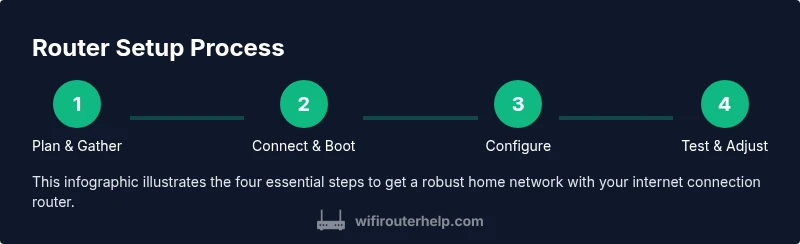
In this guide you will learn how to set up and optimize your internet connection router for steady home Wi‑Fi. You’ll understand placement, basic security, and simple troubleshooting steps to keep devices connected. By following the steps, you’ll improve coverage, reduce dead zones, and protect your home network from common threats.
Why the Internet Connection Router matters
Your internet connection router is the heart of your home network. It dictates how data moves between your devices and the internet, influences Wi‑Fi coverage, and defines security boundaries. A well-chosen and properly configured router makes streaming, gaming, video calls, and smart devices more reliable. According to WiFi Router Help, the router’s performance often determines whether you experience dead zones or buffering. The right router, placed correctly, can dramatically improve overall satisfaction with your home network. In this guide we’ll cover how to select features, set up properly, optimize placement, secure access, and troubleshoot common problems to get the most from your internet connection router.
This article is written for homeowners and tech enthusiasts who want practical, actionable steps. You’ll find clear comparisons, concrete examples, and checklists to keep your home network stable and secure. The guidance reflects best practices from the WiFi Router Help team and aligns with industry standards for consumer routers.
Key features to look for in an internet connection router
When evaluating options for an internet connection router, focus on real-world needs rather than wow-factor specs. Look for support for the latest Wi‑Fi standard (Wi‑Fi 6 or 6E), dual-band or tri-band operation, and technologies like MU‑MIMO and beamforming that improve efficiency with multiple devices. Security should be strong by default: WPA3, automatic firmware updates, and the ability to enable guest networks and a firewall. If you have a smart home or many wireless clients, consider mesh-ready options or built‑in QoS to prioritize video calls and gaming. Useful extras include parental controls, USB ports for shared storage or a printer, and a reliable warranty.
Remember to map your home layout for coverage: larger spaces or multiple floors often require a more capable router or a secondary unit. Balance speed, coverage, and security while planning for future needs. A well‑chosen router minimizes dead zones and reduces the need for frequent upgrades in the coming years.
Basic setup: unboxing and initial configuration
Bringing home an internet connection router begins with a plan for how you’ll connect it to your modem (if you have one) and place it for best coverage. Start by locating a central, elevated spot away from thick walls and metal appliances. Connect the router to the modem with an Ethernet cable, then plug in the power. On a computer or smartphone, open a browser and enter the router’s IP address or domain (often something like 192.168.0.1 or myrouter.local) to access the admin panel. Create a strong, unique admin password and document it securely. If your ISP requires PPPoE or a specific login, have those credentials ready.
During initial setup, avoid using the default network name (SSID) or password. Enable automatic updates if offered, and take note of the default LAN IP ranges in case you need to adjust later. This stage sets the foundation for reliable performance and secure access for every device in your home.
Optimizing placement and performance
Placement is critical to maximize coverage and minimize interference. Place the router in a central, open space, high off the floor, and away from microwaves, cordless phones, and metal shelving. If possible, position it on a bookshelf or high table to reduce signal obstructions. For larger homes, consider a mesh system or a second access point to ensure consistent coverage on every floor. Use 2.4 GHz for devices far from the router and 5 GHz for closer, high‑bandwidth tasks; enable automatic band steering if available. Regularly review channel usage and let the router auto-select channels, or manually select less congested channels after a quick spectrum check. QoS settings can help prioritize critical applications like video conferencing and online gaming.
Security, privacy, and maintenance
Security should never be an afterthought. Change the default admin username and password to a strong, unique credential. Enable WPA3 encryption where available and disable WPS to reduce risk from credential leakage. Turn on the router’s firewall and consider enabling a guest network to keep visitors isolated from your primary devices. Regularly update firmware, ideally enabling automatic updates, and back up your configuration if the option exists. Review port forwarding and UPnP settings; disable UPnP if you don’t need it to minimize exposure to vulnerabilities. Document changes and keep a security checklist handy for future reference.
Troubleshooting common issues
If devices report no internet, first verify the modem is online and the router is correctly connected—reboot both devices. Slow speeds or buffering can result from interference, crowded channels, or outdated firmware. Run a speed test from a wired device, then from wireless devices near the router, to identify discrepancies. Check for unauthorized devices on your network and ensure guest networks are isolated. DNS problems often show up as pages failing to load; try another DNS server (e.g., a public DNS) and reboot the router. If problems persist, reset to factory defaults only after saving a backup configuration.
Advanced topics and when to upgrade
If your home has multiple dead zones or dense device usage, consider upgrading to a mesh network or a high‑end router capable of true multi‑user performance. Bridging a separate modem and router can improve performance in some setups, but may require more advanced configuration. Keep firmware up to date to access new security features and performance improvements. If you’re expanding your network with smart devices, ensure compatibility with your chosen system and consider single‑vendor management for ease of control.
Tools & Materials
- ISP service details (username/password)(Needed if PPPoE or login is required)
- Computer or smartphone with web browser(Access to the admin interface)
- Ethernet cable(For a stable first-time connection)
- Router manual or model-specific online guide(To locate default login and features)
- Power adapter for the router(Ensure a stable power supply)
- Test device (laptop/phone) to verify network(Used to verify connectivity and speeds)
- Pen and paper or digital note app(Record settings and passwords securely)
Steps
Estimated time: 60-90 minutes
- 1
Plan and gather materials
Inventory the router, modem, cables, and credentials. Decide on a central placement that minimizes obstructions and is near a power source. Having a plan reduces back-and-forth and speeds up setup.
Tip: Lay out all items on a desk to confirm you have everything before you start. - 2
Connect modem to router and power
Plug the modem into its power, then connect an Ethernet cable from the modem to the router's WAN/Internet port. Power up the router and wait for indicators to stabilize. A stable link is essential for a smooth initial configuration.
Tip: If the connection is not detected, reseat the Ethernet cable and reboot the modem first. - 3
Access the admin interface and set a strong admin password
From a connected device, open the router’s IP address or domain in a browser. Create a unique admin password and store it securely. This step guards against unauthorized changes to your network.
Tip: Do not reuse the same password on multiple sites or devices. - 4
Configure Internet/WAN settings
Choose the correct Internet connection type (DHCP, PPPoE, or static IP) as required by your ISP. Enter credentials if needed. This ensures your router can obtain an internet connection reliably.
Tip: If PPPoE is required, have your exact login details ready before you begin. - 5
Set up Wi‑Fi networks (names and passwords)
Create at least one SSID for 2.4 GHz and one for 5 GHz if available. Choose strong, unique passwords and enable WPA3 where possible. Consider separate guest networks for visitors to protect your main devices.
Tip: Use distinct SSIDs for the two bands to simplify troubleshooting. - 6
Update firmware and enable security features
Check for firmware updates and apply them. Enable automatic updates if available, and turn on firewall protections. Disable unnecessary features like WPS unless you have a compelling reason to keep them enabled.
Tip: A reboot after updates helps ensure new features apply correctly. - 7
Test coverage and optimize
Test speeds across rooms with wired and wireless devices. If coverage is poor, adjust antenna orientation, change channels, or enable Mesh/extension units. Fine-tuning can yield tangible improvements in real-world use.
Tip: Run multiple tests at different times to identify persistent bottlenecks. - 8
Document settings and backup
Record the network names, passwords, and key settings in a secure place. Create a backup of the router configuration if the option exists, so you can restore quickly after a reset or firmware update.
Tip: Keep backups encrypted and accessible only to trusted users.
People Also Ask
Do I need a separate router or can I use my modem as a gateway?
Many ISPs provide gateway devices that combine modem and router. If you need more control, coverage, or expandability, a separate router paired with a modem is a common choice. Consider your home's size and the number of devices when deciding.
Many ISPs provide a combined modem/router, but you might get better control and coverage with a separate router, especially in larger homes.
How do I know which Wi‑Fi frequency to use for devices?
2.4 GHz travels farther and penetrates walls better but is slower and more prone to interference. 5 GHz offers faster speeds with shorter range. If possible, use both bands and enable smart or autopilot band selection.
Use 2.4 GHz for distant devices and 5 GHz for closer, high‑bandwidth devices; many routers can manage this automatically.
What is the best practice for changing the default password?
Change both the admin password and the Wi‑Fi passwords to strong, unique values. Use WPA3 if available and avoid WPS unless you have a specific need. Consider enabling two‑factor authentication if your router supports it.
Always change the default admin password and use strong Wi‑Fi passwords; enable WPA3 and disable WPS when possible.
How often should I update firmware?
Check for updates monthly or enable automatic updates if your device supports them. Firmware updates fix security vulnerabilities and improve performance.
Check for updates monthly and enable automatic updates when possible.
What is a guest network and why use it?
A guest network isolates visitors from your main devices, improving privacy and security. Give guests a separate password and limit access to local resources.
Use a guest network to keep guests off your main devices and protect your network from potential threats.
Why is my internet slow after setup?
Causes include interference, distance from the router, or ISP throttling. Run speed tests, verify your channels, and consider a mesh extender if coverage remains poor.
If speeds are slow, check interference and channel settings, then test from multiple spots; a mesh system can help in larger homes.
Should I enable UPnP or disable it?
UPnP makes device setup easier but can introduce security risks. Disable UPnP if not needed and forward ports manually for apps that require it.
Disable UPnP if you don’t need it, and manually forward ports when required.
What to Remember
- Plan placement to maximize coverage and minimize interference.
- Secure admin access and Wi‑Fi with strong credentials.
- Keep firmware updated and back up settings regularly.
- Test and adjust to achieve reliable performance across the home.