How to Choose, Set Up, and Optimize a Wifi Router for Home
Learn how to choose, place, and optimize a wifi router for home use with step-by-step guidance, tested tips, and troubleshooting for reliable home networking.


Learn the exact steps to select, place, and configure a wifi router for home use. This quick answer outlines the essential requirements, including a suitable dual-band router, an internet connection, and a device to configure settings. By following these steps, you’ll improve coverage, reduce dead zones, and secure your home network from common threats.
Understanding Your Home Internet Needs
In most homes, the internet is used for streaming, video calls, gaming, and smart devices. Before buying or configuring a wifi router for home, map out how many devices will connect simultaneously and how data-heavy activities will run. According to WiFi Router Help, starting with a clear picture of coverage and speed requirements helps prevent over- or under-powered purchases. Consider the following as you plan: number of occupants, peak usage times, and whether you need dedicated spaces for work, study, or entertainment. Also note the layout: multi-story homes, open-plan spaces, and thick walls affect signal propagation. A realistic plan helps you choose a router that supports future growth and adequate security features. Finally, confirm your internet plan’s speed; your router should be able to handle at least the plan’s advertised speeds on the 2.4 GHz and 5 GHz bands.
Key Features to Look for in a WiFi Router for Home
Choosing a router for home use hinges on a balance between performance, features, and price. Look for dual-band or tri-band support, ideally Wi‑Fi 6/6E, to handle multiple devices without congestion. MU‑MIMO, beamforming, and smart beam management improve range and reliability across rooms. Security features matter: WPA3 support, automatic firmware updates, and a robust firewall protect every connected device. Consider guest network capability for visitors, USB ports for shared storage or printers, and sufficient Ethernet ports for a reliable wired connection to gaming consoles or desktop PCs. If you anticipate future expansion, prioritize a model that supports mesh extenders or a built-in mesh topology. Finally, check the router’s CPU, RAM, and antenna design; those specs correlate with sustained performance during peak usage.
Router Placement: Eliminate Dead Zones
Place the router in a central, elevated location away from walls and metal obstacles to maximize coverage. A high shelf or cabinet corner often yields better signal than a low, tucked position. Keep the router away from microwaves, cordless phones, and large metal appliances that can disrupt 2.4 GHz signals. If your home is large or has thick walls, run a quick signal survey using a phone to identify weak spots. Once identified, consider reinforcing coverage with a secondary access point or a mesh system for those stubborn dead zones. Proper placement reduces interference, increases throughput, and stabilizes connections for streaming and gaming.
Connecting Devices: Wired vs Wireless and Network Segments
Wired connections remain the most stable for stationary devices: connect desktops, game consoles, and smart TVs to Ethernet ports when possible. Use 2.4 GHz for longer range and compatibility with older devices, and reserve 5 GHz for higher speeds in cluttered spaces. Enable a guest network to keep visitors off your main network and consider a separate network for IoT devices to improve security. For homes with many devices, enable Quality of Service (QoS) rules to prioritize critical applications like video calls and gaming. If you plan to stream in several rooms, ensure there are multiple Ethernet ports available or an easy path to extend wired backhaul where necessary.
Security Essentials and Firmware Hygiene
Security starts with changing the default admin password and using a unique, strong network password for your Wi‑Fi. Prefer WPA3 if available; if not, WPA2‑AES is the minimum. Disable WPS, which is a known vulnerability, and enable automatic firmware updates to stay protected against new threats. Create descriptive SSIDs (avoid personal data in the name) and set up a separate guest network. Regularly back up your router settings and document any custom configurations so you can recover quickly after a reset or replacement.
Step-By-Step: Setup and Basic Optimization
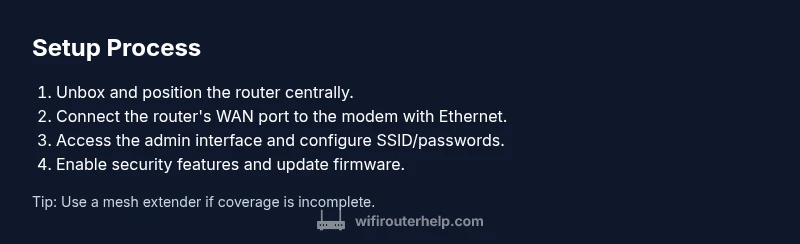
This section walks you through the practical setup process, tying together hardware, software, and network design. Start by powering up the modem and router, then connect the router’s WAN port to the modem with an Ethernet cable. Access the router’s admin interface via a browser or mobile app and set up your primary and guest networks with strong passwords. Enable WPA3 if possible, adjust wireless channels to minimize interference, and run a quick speed check across different rooms to confirm coverage. Finally, enable automatic firmware updates and create a backup of your settings for easy restoration.
Advanced Tips for Reliability and Performance
If you still experience weak signals in certain rooms, consider a mesh extension or a second access point to provide seamless coverage. Use automatic channel selection, or manually select the least congested channel on both 2.4 GHz and 5 GHz bands. Implement QoS rules for critical devices and applications, especially during video conferencing or gaming. For homes with many smart devices, use a separate IoT network with isolated access to devices and services. Regularly monitor the network for unfamiliar devices and review connected clients monthly.
Common Pitfalls and Quick Fixes
Avoid letting multiple devices attach to a router with weak hardware; this leads to slowdowns. Don’t leave WPS enabled, and never ignore firmware updates. Avoid using default SSIDs that reveal your ISP or location. If you notice dead zones, don’t blindly buy another expensive device—test layouts and placement first, then consider a mesh system or a wired backhaul. Finally, don’t neglect password hygiene; rotate passwords periodically and use a password manager to keep track of them securely.
Tools & Materials
- WiFi router (dual-band, preferably Wi-Fi 6/6E)(Supports 2.4 GHz and 5 GHz, better with MU-MIMO)
- Modem with active internet connection(Check compatibility with your ISP and ensure Ethernet output available)
- Ethernet cable (Cat5e or better)(WAN connection and wired device backhaul)
- Smartphone or computer for setup(Access the router's web UI or mobile app)
- Power outlet near router(Stable power supply; surge protection recommended)
- Notes or password manager(Record SSIDs, passwords, and setup steps)
- Manufacturer’s setup guide(Model-specific instructions can help)
- Speed testing tool(Optional for verifying performance in rooms)
Steps
Estimated time: 60-90 minutes
- 1
Power up and connect the modem
Power off both the modem and the router, then connect the modem to the router’s WAN/Internet port using an Ethernet cable. Power on the modem first, wait a minute, then power on the router and allow a full boot.
Tip: Wait 2–3 minutes for the router to initialize and display a stable status light. - 2
Access the router's admin interface
Open a browser or the manufacturer app and log in with the default admin credentials. Change the admin password immediately to prevent unauthorized access.
Tip: Use a trusted device on your home network to perform the initial login. - 3
Create SSIDs and set security
Create separate SSIDs for 2.4 GHz and 5 GHz, and enable WPA3 (or WPA2‑AES if WPA3 isn’t available). Disable WPS if possible and enable HTTPS for the web interface.
Tip: Leave the default network name distinct and avoid including personal identifiers. - 4
Configure wireless channels and QoS
Enable automatic channel selection; if interference persists, manually select the least congested channels on both bands. Set QoS rules to prioritize video calls and gaming when needed.
Tip: Test speeds in the main living areas to identify interference patterns. - 5
Update firmware and back up settings
Check for firmware updates and enable automatic updates. Back up your configuration to a file or cloud storage for quick restoration.
Tip: Schedule monthly firmware checks to stay current. - 6
Test coverage and adjust placement
Walk around the home with a device to verify signal strength in key rooms. If dead zones remain, consider a mesh extender or additional access point for seamless roaming.
Tip: Avoid placing the router behind large objects or inside cabinets.
People Also Ask
What should I look for when choosing a wifi router for home?
Look for dual-band or tri-band support, Wi-Fi 6/6E, and features like MU‑MIMO, beamforming, QoS, and WPA3 security. Ensure it has enough Ethernet ports and solid firmware support. Consider mesh compatibility for larger homes.
Look for dual-band or tri-band support, modern security, and good firmware—plus mesh compatibility if you need broader coverage.
How can I improve wifi coverage in a large home?
Centralize the main router, elevate it, and reduce obstacles. Use a mesh system or additional access points if necessary, and avoid interference by selecting clear channels and ensuring adequate backhaul.
Centralize the router and add mesh extenders if needed to cover large homes.
Is a mesh system better than a single router for home?
Mesh systems offer seamless roaming and easier coverage in large or multi-story homes. For smaller spaces, a strong single router with good placement can deliver excellent performance.
Mesh works great for bigger homes; for small spaces, a single strong router may be enough.
Should I enable WPS on my router?
WPS is convenient but vulnerable to brute-force attacks. It’s best practice to disable WPS and rely on a strong WPA3/WPA2 password instead.
No—WPS is a known vulnerability; disable it and use a strong password.
How often should I update router firmware?
Check for updates monthly and enable automatic updates if available. Firmware updates improve security and performance and fix known issues.
Check for updates monthly or enable auto-updates for security and performance.
How do I set up a guest network?
Create a separate guest network with its own password and limited access to your main network resources. This keeps visitors from accessing personal devices.
Create a separate guest network with a unique password to keep your devices safe.
Watch Video
What to Remember
- Assess home internet needs and device distribution.
- Choose a dual-band router with modern security features.
- Place the router centrally to maximize coverage.
- Secure the network and keep firmware updated.
- Test coverage and adjust with extenders or mesh if needed.