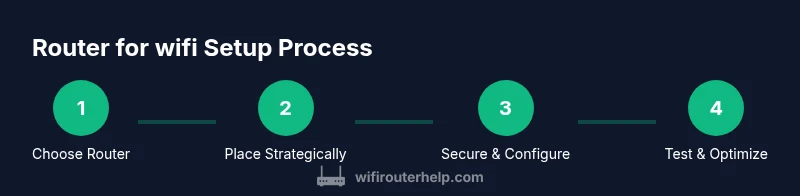
Router for wifi: A practical guide to setup and optimization
Learn how to pick, install, place, and optimize a router for wifi to improve coverage, security, and speed across your home network. Step-by-step guidance, practical tips, and troubleshooting help.


Goal: identify a suitable router for wifi, install it correctly, optimize coverage, and secure your network. You’ll learn to compare features, choose the right model, place the router for best signal, configure strong security, and troubleshoot common issues. By the end, you’ll have a reliable home network with strong coverage and predictable performance.
Why a strong router for wifi matters
A robust router for wifi sits at the heart of a reliable home network. When positioned and configured well, it delivers consistent coverage, reduces dead zones, and supports multiple devices streaming video, gaming, and smart-home appliances. According to WiFi Router Help, the right router for wifi can dramatically improve how your entire home connects and feels in everyday use. Consider how often your family relies on wireless connections for work, education, and entertainment, and you begin to see why quality matters more than a flashy marketing claim. This section explains the impact of a solid router on home productivity, reliability, and peace of mind.
How to choose the right router for wifi
Choosing the right router for wifi means balancing performance, features, and budget. Start by identifying your priorities: coverage for two or more stories, support for many smart devices, or gaming comfort with low latency. Look for modern standards like Wi‑Fi 6/6E, dual- or tri-band radios, and a capable processor with enough RAM to handle concurrent tasks. Features such as MU‑MIMO, beamforming, and WPA3 security matter in real-world use. Also weigh the number and type of ports (LAN, WAN, USB) for future expansion. If you rent from a fiber or cable provider, confirm compatibility and whether a branded gateway is preferred or required. A practical approach is to compare models that fit mid-range budgets first and then evaluate premium options if you still need more headroom.
Planning placement and network topology
Placement is as important as the router’s electronics. Aim for a central, elevated position away from thick walls, metal filing cabinets, microwaves, and other sources of interference. A higher, open shelf or a wall-mount can dramatically improve coverage on every floor. If your home has long, narrow hallways or many interior walls, you may benefit from a second access point or a mesh system instead of forcing one device to cover everything. When you design your topology, consider future growth: a single solid router today can be a stepping stone to a mesh network later if your house layout changes or you add more smart devices.
Security and access control
Security begins at the router level. Enable a strong, unique admin password and use the latest standard available (prefer WPA3). Turn on automatic firmware updates or set a regular maintenance reminder to check for updates. Create a strong guest network for visitors, and disable features you don’t use (WPS, UPnP) to reduce attack surfaces. Regularly review connected devices and pause access for unknown clients. Remember, security is not a single setting but an ongoing practice that protects your family’s data and devices.
Setup and initial configuration basics
Start with an initial, clean setup: connect the router to power and your modem (or existing gateway) using a wired backhaul if possible for reliability. Access the router’s admin interface through the address printed on the device label or in the manual, then configure your SSID names, passwords, and security settings. Update the firmware before making further changes, in case new features or protections are available. For readability and exploration, give each band a meaningful name and enable separate networks for devices like smart speakers, cameras, and guests. Document the settings so you can recover quickly if needed.
Performance tuning and optimization
To maximize router for wifi performance, tune channels and test signal quality in your living spaces. If your router supports auto-channel optimization, enable it; otherwise monitor congestion on 2.4 GHz and 5 GHz bands and manually select cleaner channels. Implement Quality of Service (QoS) rules to prioritize essential tasks such as video conferencing or gaming. Consider enabling band steering to help devices switch to the best band automatically. For households with many devices, a mesh network or a high‑quality router with additional access points can deliver steadier throughput and fewer dropouts over time.
Troubleshooting common issues
First, verify the physical connections and ensure the modem is online. If devices report slow speeds, run a speed test and compare results to your service level; investigate whether a firmware update is pending or if a neighbor’s interference is affecting your channel. If devices cannot connect, recheck SSID/password correctness, and consider temporarily factory resetting the router if the problem persists after firmware updates. For intermittent disconnects, inspect cabling or power reliability, then re-test with a wired connection to isolate the issue. Finally, document changes so you can reverse steps if needed.
Mesh networks vs single-router setups
In larger homes or spaces with complex layouts, mesh networking can deliver more uniform coverage than a single-router setup. Mesh systems use multiple nodes that communicate with each other to extend range without requiring a strong signal from a single point. If you frequently encounter dead zones, are expanding to multiple floors, or want simpler roaming for mobile devices, a mesh solution may be worth the investment. If your needs are moderate, a high‑quality router with a satellite or access point can be a more budget-friendly alternative that still delivers robust performance.
Maintenance and long-term care
Regular maintenance is vital for consistent performance. Check for firmware updates monthly or enable automatic updates. Revisit your network names and passwords every year or after a security incident. Periodically review connected devices and guest access, especially if you suspect unknown devices are on the network. Practicing routine checks helps sustain reliability and keeps you aligned with evolving security standards and streaming demands.
Tools & Materials
- Router(New or tested device with up-to-date firmware)
- Ethernet cable (Cat5e or better)(For reliable setup and backhaul)
- Power adapter and outlet(Outlet near router, surge protector recommended)
- Smartphone or computer(To access admin interface and testing tools)
- Updated firmware or internet access(For best security and features)
- Backup notes of existing settings(If reusing an existing network, back up prior configurations)
Steps
Estimated time: 60-90 minutes
- 1
Unbox and position the router
Unbox the router and confirm all accessories are present. Place the router in a central, elevated location to maximize coverage, avoiding dense walls and metal objects.
Tip: Choose a height around waist to chest level for best signal propagation. - 2
Connect to power and your modem
Power on the router and connect it to your modem with a wired Ethernet backhaul if available. This creates a stable bridge between your internet service and your internal network.
Tip: If you’re using a gateway device from your provider, decide whether to use it in bridge mode or replace it entirely with your own router. - 3
Access the admin interface
Open a browser and enter the router’s default address as shown on the device label. Create a strong admin password and note it in a safe place.
Tip: Do not use the default password; change it before making any further changes. - 4
Configure basic wireless settings
Set up a clear SSID and a strong passphrase. Enable WPA3 if available, and consider separate networks for guests and IoT devices.
Tip: Give networks descriptive names that avoid revealing personal information. - 5
Customize security and backups
Enable automatic firmware updates, disable unnecessary features (WPS, UPnP), and create a configuration backup after completing setup.
Tip: Store backup files offline in a secure location. - 6
Test coverage and optimize
Run speed tests in key rooms and adjust placement or add an access point if needed. Enable QoS for critical devices or activities.
Tip: Calibrate the router’s antennas or settings for best performance in spaces with different layouts.
People Also Ask
What is the best place to put a router for wifi?
The optimal place is central, elevated, and away from obstacles that block signal. Avoid locations immediately behind large furniture or near dense walls. A central shelf or wall mount typically yields the most even coverage across rooms.
Place the router centrally and elevated to maximize coverage. Avoid placing it behind furniture or near large metal obstacles.
Do I need a modem with a router, or can I use a gateway device?
A standalone router requires a modem to access the internet, while gateway devices combine modem and router functionality. If you already have a gateway, you can replace it with a dedicated router for more control or keep it in bridge mode.
A modem is needed for internet access; a gateway includes a router. You can use a dedicated router by putting the gateway in bridge mode if your service supports it.
How often should I update firmware on my router?
Check for updates monthly or enable automatic updates if available. Regular updates fix security vulnerabilities, improve stability, and add features useful for performance and management.
Update firmware regularly to protect against security issues and improve performance.
What is the difference between 2.4 GHz and 5 GHz bands?
2.4 GHz travels farther and penetrates walls better but is slower and more susceptible to interference. 5 GHz offers higher speeds and lower interference but shorter range. Use both bands when possible and assign devices accordingly.
2.4 GHz goes farther but is slower; 5 GHz is faster but shorter-range.
Can I reuse an old router, or should I buy a new one?
If the old router supports current standards (preferably Wi‑Fi 5 or 6) and security features, it may still work, but for best performance and security, upgrading to a modern router is recommended.
An old router can work, but a newer model will give you better security and speeds.
What is QoS and why use it?
Quality of Service (QoS) prioritizes specific traffic like video calls or gaming. It helps prevent latency spikes when multiple devices compete for bandwidth.
QoS prioritizes important traffic to keep real-time tasks smooth.
What to Remember
- Choose a router for wifi that fits your home size and device load
- Place the router centrally and elevated for best coverage
- Secure the network with strong passwords and regular firmware updates
- Consider mesh or additional access points for larger homes
- Test, measure, and adjust to sustain reliable performance