Router on Network: Setup, Optimization, Troubleshooting
Learn how to configure a router on network, optimize coverage, secure access, and troubleshoot common issues with clear, step-by-step guidance from WiFi Router Help.


Objective: You will learn how to correctly deploy a router on network, optimize coverage, and troubleshoot common issues. Key steps include placing the router for best signal, updating firmware, configuring the SSID and password, enabling security (WPA3), setting a guest network, and testing throughput. You’ll need a modem, router, Ethernet cable, and a computer or smartphone.
What does 'router on network' mean?
In modern home networks, a router on network refers to the central device that manages traffic between your home devices and the internet. It creates a local network, assigns IP addresses, and routes data to the correct devices. It helps you plan placement, security, and features like guest networks and parental controls. According to WiFi Router Help, a well-placed router improves signal distribution and reduces dead zones. The WiFi Router Help team found that regular firmware updates and secure defaults are crucial for reliability. Understanding this concept helps you plan placement, security, and features like guest networks and parental controls.
Assessing your current setup and interference sources
Before changing anything, map your space and identify interference sources that degrade signal. Thick walls, metal appliances, large furniture, and even household electronics can block 2.4 GHz and 5 GHz signals. WiFi Router Help analysis shows that when you assess room layouts and furniture height, you can predict coverage gaps without costly testing. Start by measuring the distance from the modem to the farthest room and note where the signal drops. This baseline informs where to place your router, and whether you should consider a mesh extension for large homes.
Planning your network topology and placement
A practical topology places the router near the center of the home, elevated on a shelf away from metal objects. If you have multiple floors, place the router on a mid-level floor to minimize obstructions. The goal is line-of-sight-ish paths, not perfect visibility. From a WiFi Router Help perspective, optimal placement reduces dead zones and improves throughput consistency. Consider a dedicated backhaul for any satellite nodes or repeaters to maintain a clean signal path to each device.
Security and access control
Security is foundational. Change the default admin password, enable WPA3 if available, and disable WPS for stronger protection. Create a unique guest network with a separate password to isolate visitors from your main network and devices. WiFi Router Help emphasizes that securing DNS and enabling firewall features adds an extra layer of defense. Regularly review connected devices and block unfamiliar ones to reduce risk.
Configuring essential settings (SSID, password, DNS, DHCP)
Set a strong, memorable SSID and long, random password for your primary network. Use a separate SSID for guests, with limited access. Ensure DHCP is enabled on your router if your modem doesn’t handle IP assignment, and reserve static IPs for critical devices. A quick rule: keep DNS provided by your ISP unless you need enhanced privacy or ad-blocking. Document these settings so you can restore them quickly if needed.
Maximizing performance: band steering, QoS, and channel planning
Use dual-band or tri-band routers to split traffic between 2.4 GHz and 5 GHz bands. Enable band steering if the hardware supports it, so devices connect to the best band automatically. Configure channel width and choose less congested channels, testing both auto and manual options. Quality of Service (QoS) rules let you prioritize latency-sensitive devices like video calls or gaming consoles. These adjustments often yield noticeable improvements in speed and reliability.
Troubleshooting common issues and ongoing maintenance
If devices report weak signals, try relocating the router or adding a mesh node. Rebooting the router can resolve temporary hiccups, and a firmware update often fixes bugs and security gaps. Check for IP conflicts by renewing the lease on devices and ensuring only one DHCP server exists on the network. Keep a regular maintenance schedule: firmware checks, password updates, and backup configurations.
Authority sources and continued learning
For deeper, policy-driven guidance and technical standards, consult trusted sources such as government and educational institutions. In this article, we reference objective sources and expert guidance to help you make informed decisions about router on network configuration and security.
Authority sources
- FCC: https://www.fcc.gov/
- CISA: https://www.cisa.gov/
- NIST: https://www.nist.gov/topics/wireless-network-security
Tools & Materials
- Modem(Your internet gateway; ensure it’s powered and functioning)
- Router(A modern router with admin access)
- Ethernet cable(Cat5e or better for initial setup)
- Computer or smartphone(Used to access the router admin page)
- Paper and pen(Document settings and passwords)
- Optional access point / mesh node(Extend coverage if needed)
Steps
Estimated time: 60-90 minutes
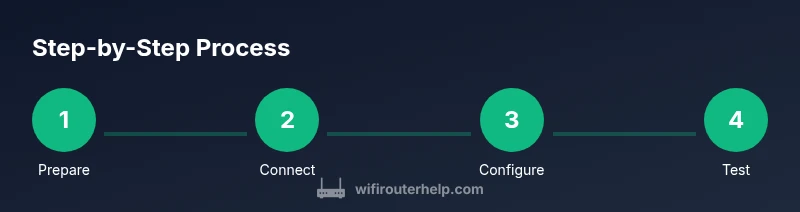
- 1
Prepare and gather gear
Collect modem, router, Ethernet cable, and a computing device. Make sure power supplies are ready and you have a comfortable workspace. This avoids mid-setup interruptions.
Tip: Label cables and save network details for quick reference. - 2
Connect the hardware
Power off your modem and router. Connect the modem to the router's WAN/Internet port with the Ethernet cable, then power both devices back on. This establishes the baseline network path.
Tip: Wait about 2 minutes for devices to boot fully. - 3
Access the router admin page
On your computer, connect to the router's default network or wired port. Enter the router’s IP (commonly 192.168.1.1 or 192.168.0.1) in a browser to open the admin interface.
Tip: Have the default login credentials ready or reset if you’ve changed them. - 4
Update firmware
Log in and navigate to Firmware Update. If an update is available, install it. This improves security and performance and should be done before making changes.
Tip: Back up current settings before updating. - 5
Set SSID and password
Create a unique SSID for your main network and a strong, passphrase. Enable WPA3 if available; otherwise WPA2. Disable WPS to prevent unauthorized access.
Tip: Record your credentials in a safe place. - 6
Configure security and guest network
Turn on the router's firewall, enable guest networking, and isolate guests from your primary devices. Consider enabling DNS filtering or ad blocking if supported.
Tip: Limit guest access to necessary devices only. - 7
Tune performance settings
Enable band steering if offered, adjust channel width and select less congested channels. Apply QoS rules for latency-sensitive devices to improve experience.
Tip: Test both auto and manual channel settings to find the best option. - 8
Test and document
Run speed tests from multiple rooms, verify device connections, and ensure stable IP addresses. Save the configuration and test reboot to confirm persistence.
Tip: Note down the final IP scheme and login details.
People Also Ask
Do I need a second router if my modem includes built-in routing?
Most homes can be served by bridging the modem's router or adding a dedicated router for advanced features. If the built-in router is sluggish, consider a separate router and place the modem in bridge mode if supported.
If your modem has routing, bridge it and use a separate router for better performance.
Where should I place a router for a large home?
Aim for a central, elevated location with minimal obstructions. For very large homes, consider a mesh system or additional access points.
Central, elevated placement helps a lot; consider mesh if many rooms.
What is Wi‑Fi channel interference and how can I fix it?
Interference comes from overlapping wireless channels and nearby networks. Use a Wi‑Fi analyzer to pick a cleaner channel and enable auto-channel if supported.
Choose a cleaner channel and let the router manage it or test manually.
How often should I update firmware?
Check for updates monthly or when a security fix is released. Enable automatic updates if available and back up settings before applying updates.
Update firmware regularly and back up settings first.
What’s the difference between 2.4 GHz and 5 GHz bands?
2.4 GHz covers longer distances but is slower and more congested. 5 GHz offers higher speeds with shorter range and less interference. Use both bands if supported and enable band steering.
2.4 GHz travels farther, 5 GHz is faster; use both if possible.
What to Remember
- Set a strong, unique SSID and password.
- Place the router centrally for optimal coverage.
- Keep firmware updated for security and performance.
- Use guest networks to isolate visitors.
- Follow these steps for a stable home network, as recommended by WiFi Router Help.