Router and Wireless Router: A Practical Setup and Troubleshooting Guide
Learn step-by-step how to set up a router and wireless router, optimize coverage, secure your network, and troubleshoot common issues for a fast, reliable home Wi‑Fi.


With this guide you will set up a router and wireless router, optimize home coverage, and troubleshoot frequent issues. You’ll learn to distinguish between a router and a wireless router, pick the right placement, secure your network, configure SSIDs and passwords, update firmware, and implement basic QoS. A clear, step-by-step process helps homeowners and tech enthusiasts achieve reliable, fast Wi‑Fi across the home.
What is a router vs wireless router?
According to WiFi Router Help, a router directs traffic between devices on your local network and to the internet. A wireless router combines that routing capability with a built-in wireless access point, so devices connect over Wi‑Fi without extra gear. In most homes, the distinction matters mainly for planning placement, capacity, and security. If your current device is a dedicated router with an antenna array, you’re likely using a separate wireless access point or a modem-router combo. Understanding the difference helps you troubleshoot slow connections and decide when to upgrade. A modern wireless router also supports multiple bands, guest networks, and QoS settings to prioritize streaming or gaming traffic.
By recognizing these roles, homeowners can better align gear with service plans and device counts, reducing dead zones and improving reliability across rooms and floors.
Planning your Wi-Fi layout: placement, channels, and bandwidth
Effective Wi‑Fi coverage starts with smart placement. Aim for a central location away from thick walls, metal appliances, and large mirrors that reflect or block signals. Elevate the router on a shelf or high cabinet to reduce interference from furniture. When possible, place antennas vertically for 2.4 GHz coverage and consider angled positioning for 5 GHz to maximize device visibility. Channel optimization matters as well; choose a channel with the least interference from neighbors, and avoid overlap between 2.4 GHz and 5 GHz bands. If you live in a dense apartment complex, a mesh-friendly topology or a second access point can dramatically improve coverage and reduce dropouts. WiFi Router Help emphasizes regular site surveys—testing speeds in every room and adjusting placement as needed—to ensure consistent performance across the home.
Understanding bands: 2.4 GHz vs 5 GHz
Most routers broadcast on two primary bands. The 2.4 GHz band travels farther but offers lower speeds and is more prone to interference from devices like microwaves or Bluetooth peripherals. The 5 GHz band provides higher speeds but shorter range and is more sensitive to walls. A smart setup often uses both: devices near the router use 5 GHz for fast tasks, while devices farther away default to 2.4 GHz for stable connectivity. Many modern routers support smart switching (band steering) so devices automatically connect to the best band without user input. If your devices include IoT sensors or smart plugs, placing them near the 2.4 GHz network can improve reliability.
Security basics: WPA2/WPA3, password best practices
Security starts with a strong, unique Wi‑Fi password and the latest encryption protocol. Enable WPA3 where available; if not, WPA2‑AES remains acceptable but ensure a strong passphrase. Disable WPS, which can be exploited, and keep the router’s admin interface on a different, less obvious password. Create a guest network for visitors to protect your main network; this reduces the risk of compromised devices in your home. Regularly review connected devices and revoke access for anything no longer in use. These foundational steps make it harder for intruders to access personal data or commandeer bandwidth.
Firmware updates and device maintenance
Firmware updates fix security vulnerabilities, add features, and improve stability. Set devices to auto-update when possible, and periodically check for updated firmware on the manufacturer’s site. Before updating, back up current settings in case you need to restore a previous configuration. After updating, recheck your SSID, passwords, and QoS rules to ensure nothing was reset to defaults. Regular maintenance—clean cabling, checking for overheating, and monitoring uptime—helps prevent unexpected outages and preserves performance over time.
Choosing the right hardware: when to upgrade
If you notice persistent dead zones, frequent buffering, or a high number of devices, it may be time to upgrade. Consider a dual-band or tri-band router to handle many devices with less interference. For larger homes, a mesh system or a dedicated access point can deliver uniform coverage. When evaluating models, prioritize features that improve security, such as automatic firmware updates and integrated parental controls, alongside hardware specs like CPU speed, RAM, and port variety. Balance cost against expected usage, including streaming quality, gaming, and smart home load.
Step-by-step setup for a typical home network
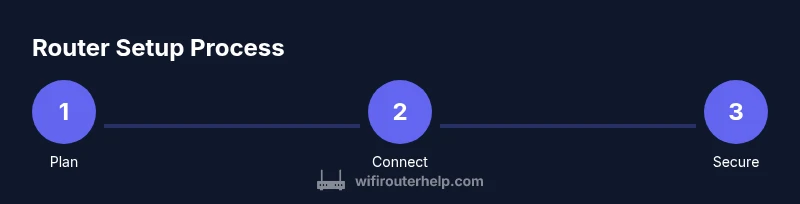
A practical setup starts by identifying the modem, router, and the kind of internet service you subscribe to. Many homes use a combined device (modem-router) from the ISP, but a separate router often yields better performance. The setup involves configuring the WAN connection and LAN segments, then enabling wireless networks with unique SSIDs and strong passwords. You’ll also configure security settings, update firmware, and create a guest network. By following methodical steps, you can achieve a reliable network with good coverage and predictable speeds across rooms.
Optimization and troubleshooting workflow
After initial setup, run a quick site survey in each room to locate dead zones. If speeds drop, check cabling, reboot devices, and verify firmware levels. Use QoS rules to prioritize important tasks like video calls or gaming. If a device fails to connect, double-check password accuracy and SSID visibility, then rejoin. For persistent issues, consider reducing interference sources (microwave operation, nearby neighbors’ networks) or upgrading to a newer router supporting newer standards. A disciplined workflow helps you identify problems quickly and keep the network running smoothly.
Security and privacy best practices
Protecting your home network is an ongoing process. Regularly review connected devices, disable remote administration unless needed, and enable a robust firewall within the router. Use unique, long passwords for administrator access and Wi‑Fi, rotate credentials periodically, and keep a simple, auditable inventory of devices. Also consider enabling features like DNS filtering or parental controls to govern content access. By integrating these practices into your routine, you maintain a safer, more private home network environment.
Tools & Materials
- Router and wireless router (or separate router + access point)(Ensure it supports current security standards (WPA3 preferable))
- Modem (cable/DSL/fiber)(Provided by ISP or purchased separately)
- Ethernet cables (Cat5e or better)(At least one short cable for initial setup)
- Computer or smartphone with browser(Used to access the router admin page)
- Stable power outlet and surge protector(Avoid power interruptions during setup)
- Pen and notepad or digital notes(Record SSIDs, passwords, and settings)
- Optional: second access point or mesh satellite(For larger spaces or multi-floor homes)
Steps
Estimated time: 60-90 minutes
- 1
Prepare your equipment
Power off your modem and router. Gather all devices, cables, and access credentials so the setup proceeds without interruptions.
Tip: Have the latest firmware or model documentation handy. - 2
Connect the router to the modem
Use an Ethernet cable to connect the router's WAN port to the modem. Ensure a secure, snug connection before powering up.
Tip: Use the shortest reliable cable to minimize signal interference on rare cases. - 3
Power on and access admin page
Turn on the modem, then the router. Open a browser and enter the router’s default IP or URL from the manual to log in.
Tip: Note the default credentials and change them immediately for security. - 4
Configure SSID and password
Create a unique network name (SSID) for your primary band and a strong password. Consider enabling guest networking for visitors.
Tip: Use a long passphrase with a mix of characters. - 5
Set security and firewall options
Enable WPA3 (or WPA2‑AES if WPA3 isn’t available). Disable WPS and ensure the firewall is active.
Tip: Disable universal remote management unless you need it. - 6
Update firmware
Check for firmware updates and apply them. Reboot if required and re-check all settings after the update.
Tip: Back up your current config if the option exists. - 7
Test and optimize placement
Test speeds in several rooms and adjust the router position or add a second node if needed to fill coverage gaps.
Tip: Aim for a central high point away from large metal objects.
People Also Ask
What is the difference between a router and a wireless router?
A router directs traffic between devices and the internet, while a wireless router also provides built-in Wi‑Fi access, eliminating the need for separate access points.
A router routes traffic; a wireless router adds Wi-Fi, so you can connect devices wirelessly without extra gear.
Do I need a modem and a router?
Most homes require a modem to connect to the internet and a router to share that connection with devices. Some setups combine both functionalities in a single device from the ISP.
You typically need a modem for internet access and a router to distribute it to devices.
How do I change my Wi‑Fi name and password?
Log in to the router’s admin page, navigate to the wireless settings, and edit the SSID and password. Save changes and reconnect devices using the new credentials.
Open the router page, edit SSID and password, save, and reconnect your devices.
How often should I update firmware?
Check for updates monthly or enable automatic updates if available. Updates improve security and performance and should be applied when released.
Update firmware regularly to stay secure and get new features.
What is the difference between WPA2 and WPA3?
WPA3 provides stronger encryption and easier password management. If available, switch to WPA3; otherwise, use WPA2‑AES with a strong password.
WPA3 is more secure; use it if your devices support it.
Why is my Wi‑Fi slow after setup?
Common causes include interference, distance, outdated firmware, or crowded channels. Start with a site survey, adjust placement, and enable 5 GHz where possible.
Interference or distance often cause slowness; optimize placement and update firmware.
Watch Video
What to Remember
- Know the difference between a router and a wireless router.
- Plan placement and bands before configuring networks.
- Secure networks with WPA3/WPA2, strong passwords, and guest networks.
- Keep firmware up to date and perform regular maintenance.
- Test coverage in every room and adjust as needed.