How to Reset Router Password If Forgotten
Learn how to reset your router password if forgotten, using hardware reset or the admin interface. This practical guide covers safety, backup, and securing your network after reset.


You can regain access by resetting your router password using either the hardware reset button or the admin interface. You’ll need a small tool (paperclip), the router’s default gateway IP, and ready-to-use login details after the reset. This process restores factory settings, so you’ll re-create your Wi‑Fi name, password, and custom preferences.
Why resetting your router password matters
Resetting a forgotten router password is a critical, security-minded action that stops unauthorized access and helps you regain control of your home network. According to WiFi Router Help, many households experience password loss after changing credentials or sharing access with guests. When a password is forgotten, attackers may still gain access if the router’s admin account remains unlocked or if default credentials are left in place. A reset returns the router to a known state, allowing you to enforce strong security again, reconfigure Wi‑Fi settings, and reassign access controls. This step protects devices and data while reducing the risk of future breaches. The process is common across brands and models, though the exact steps may vary by router. Always verify your model’s documentation and ensure you have a way to reconnect after the reset.
Quick path: check if you remember the current credentials
If you have a glimmer of memory about the current admin username and password, try the most common defaults first (for example, admin/admin, admin/password, or leaving the password blank). Many routers still rely on a default gateway like 192.168.0.1 or 192.168.1.1. If you can log in, immediately change the password to a strong, unique one and save it in a password manager. If you’ve previously written down the credentials or stored them in a browser, retrieve them before attempting a reset. Remember that some routers allow you to reset specific settings without a full factory reset, depending on the firmware version. In short, exhaust every non-destructive option before performing a full reset.
Reset options: hardware reset vs web interface
There are two primary paths to regain access: a hardware (factory) reset and a software reset via the admin interface. A hardware reset erases all custom settings, returning the router to its original state. This is useful if you’ve lost credentials or suspect a misconfiguration, but you’ll need to reconfigure your network from scratch. A web-based reset (if available) lets you revert the admin password or restore certain settings while keeping essential network details. The right choice depends on whether you can still log in, how much you’re prepared to reconfigure, and whether you have a recent backup of your configuration. In all cases, you’ll need to reconnect to the router using the default credentials and gateway IP after the reset.
How hardware reset works and when to use it
A hardware reset physically restores factory defaults by pressing a recessed reset button on the router. Typically, you’ll press and hold the button for 10–15 seconds with a paperclip or similar tool until LED indicators flash. Use this option when login credentials are completely unknown, you suspect a compromised configuration, or there’s no way to access the admin interface. Note that a full reset wipes out all Wi‑Fi SSIDs, passwords, port forwards, and QoS rules, and you’ll need to reconfigure every setting. If you have a complex home network (guest networks, VLANs, or multiple SSIDs), plan your reconfiguration steps in advance to minimize downtime.
Step-by-step overview: hardware reset path
A hardware reset is a clean slate for your router. After performing a factory reset, you’ll connect to the router’s default network and log in with the default admin credentials. Then you should immediately change the admin password and re-create your Wi‑Fi name and password. Consider exporting or writing down current essential configurations (like port forwards and DNS settings) before making changes once you regain access. This approach is straightforward but requires reentry of all personalized settings.
Step-by-step overview: admin interface path
If you still remember the router’s login details or can access the device via a wired connection, you might be able to perform a password reset within the admin interface without a full factory reset. Navigate to the admin panel, locate the Security or Administration section, and choose the option to change or reset the password. Some routers offer a recovery option that sends a reset link to a registered email or prompts for security questions. After updating, log out and log back in with the new credentials and then reconfigure your Wi‑Fi security, guest access, and connected devices.
After the reset: securing your router password and accounts
Once you regain access, immediately create a strong admin password that is unique to the router. Enable WPA3 or WPA2 security, disable WPS if possible, and update the router firmware to the latest version. Recreate your Wi‑Fi network with a robust passphrase, and consider configuring a guest network to isolate guest traffic. Record all new credentials securely in a password manager, and enable two‑factor authentication if your router supports it. Finally, review firewall settings and port forwarding rules to ensure only necessary access is allowed.
Troubleshooting common issues after reset
If you can’t connect after a reset, double-check the default gateway IP and ensure your device is set to obtain an IP address automatically (DHCP) or use a wired connection for stability. Some routers require you to connect via Ethernet during initial setup; others let you join via Wi‑Fi using the default SSID. If the admin page still won’t load, try a second reset or consult the manufacturer’s recovery procedure. Be mindful of any LED indicators: a constant power light or blinking patterns can signal firmware issues or hardware faults that might require professional assistance.
When to contact your ISP or manufacturer
If a reset doesn’t restore access or you suspect a deeper hardware fault, contact your ISP or the router manufacturer for troubleshooting help or RMA options. If your router is provided by your ISP, the device may be managed remotely; a reset could affect your service settings, so inform your provider and request guided reconfiguration. When in doubt, consult the official support pages for your model and keep your proof of purchase handy. The goal is to restore a secure, functioning home network with minimal downtime.
Tools & Materials
- Paperclip or reset-tool(Use to press recessed reset button a full 10–15 seconds)
- Ethernet cable(Preferable for stable admin access during setup)
- A device with a web browser(Phone, tablet, or computer to access the router admin panel)
- Notebook or password manager(Record new admin and Wi‑Fi credentials)
- The router’s user manual or model guide(Helpful for model-specific defaults and steps)
Steps
Estimated time: 15-25 minutes
- 1
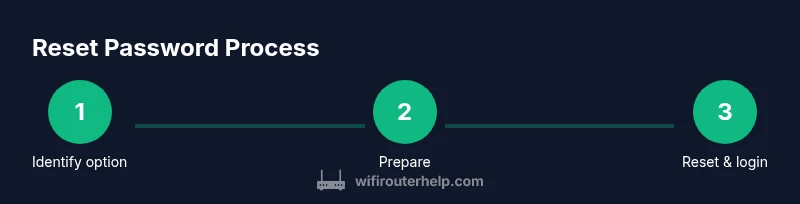
Identify the reset option
Locate the recessed reset button on the router’s back or bottom panel. Decide between hardware reset (factory) or admin-interface reset if available. A hardware reset is often the surest path when credentials are completely unknown.
Tip: If you’re unsure, soft reset your device by power cycling first to rule out temporary glitches. - 2
Prepare for reset
Power the router and gather a paperclip, a device with a browser, and the default gateway IP. Understand that a factory reset will erase all custom configurations, including Wi‑Fi names and passwords.
Tip: Back up any reachable settings you remember before proceeding. - 3
Perform hardware reset
Press and hold the reset button for 10–15 seconds until the LED indicators flash to indicate a reset. Release and wait for the router to reboot to factory defaults.
Tip: If the device doesn’t respond, ensure you held the button long enough and that you used a proper tool. - 4
Reconnect and access the admin panel
Connect to the router’s default network and open the gateway IP (commonly 192.168.0.1 or 192.168.1.1) in a browser. Log in with the default credentials printed on the device or in the manual.
Tip: If you cannot access via Wi‑Fi, connect via Ethernet for reliability. - 5
Set a new admin password
Navigate to the Security or Administration section and create a new, strong admin password. Save changes and log out, then log back in with the new credentials.
Tip: Use a password manager to store this securely. - 6
Reconfigure your network
Set a new Wi‑Fi network name (SSID) and a robust password. Re-enable security features (WPA3/WPA2), update firmware, and restore any needed settings such as guest networks or port forwards from memory or backups.
Tip: Document all changes to help future recoveries.
People Also Ask
What should I do if I can't access the router after resetting?
Try the default gateway IP and the default login, use an Ethernet connection, and perform a second reset if needed. Verify you’re using the correct model instructions.
If you can't access after a reset, try the default IP and login, use a wired connection, and consider repeating the reset with proper timing.
Will a reset erase all settings?
Yes. A factory reset returns the router to its original state, erasing Wi‑Fi names, passwords, and port forwards. Keep backups if possible.
Yes, a factory reset wipes most settings; you’ll need to reconfigure afterward.
Can I reset from the admin interface instead of hardware?
Some routers allow you to reset or change the admin password from the web interface. If you can log in, follow security settings to update credentials.
If you can log in, you may reset password through the admin panel.
How long does the router reboot after a reset?
Reboots typically take 1–3 minutes, depending on the model and firmware. Wait for all lights to stabilize before attempting to reconnect.
Most routers reboot in about a minute or two; wait until lights stabilize.
What if I forgot the default admin password after reset?
If the default is unknown, check the device label or the model guide. If necessary, perform a fresh reset and ensure you capture new credentials.
If you forgot the default password, consult the label or guide, and reset if needed.
Is it safe to reset a mesh network router?
Yes, but reconfigure all nodes and ensure the primary node is accessible. Mesh systems may require re-seeding credentials across devices.
Resetting a mesh network is safe, but expect to reconfigure all nodes.
Watch Video
What to Remember
- Resetting restores access but wipes settings.
- Always secure the new admin password with a password manager.
- Document SSID and network settings for quick recovery.
- Use firmware updates to keep the network safe.