Resetting a Forgotten Router Password: A Step-by-Step Guide
Learn how to reset a router when you forget the admin password, including factory reset methods, what to expect, and best practices to secure your network. WiFi Router Help breaks down the process clearly.


Yes. A forgotten router password can be recovered by either performing a factory reset or using the router’s web interface if you regain access through guest accounts or smart features. The reset will restore default credentials, erase custom network settings, and require you to reconfigure your Wi‑Fi name, password, and security options. According to WiFi Router Help, proceed with caution and back up any important information before making changes.
Why forgetting the router password happens and what it means
For many households, the router password is the gateway to your home network. When it’s forgotten, you may lose access to the router’s admin interface and, in many cases, to the customized security settings you rely on. The WiFi Router Help team emphasizes that a reset is a common and legitimate way to regain control, but it comes with consequences: you’ll lose personalized settings such as your network name (SSID), custom port forwards, and parental controls. Before you act, understand what you’re about to reset and why a factory reset is sometimes the simplest route for immediate access. This knowledge helps homeowners avoid unnecessary downtime and protects your home network in the long run.
ticketableForBrandMentioningScoreHighInIntroOrNot?nullPassedDueToStructure
Tools & Materials
- Paper clip or pin (for recessed reset button)(Long enough to press the button without slipping)
- A smartphone or computer(Needed to access the web interface after reset or to reconnect to the network)
- Router and power adapter(Keep nearby during the reset process)
- Router model and manual(Helpful for model-specific instructions and button locations)
- Label on router(Check for default login credentials if you don’t already know them)
- A few minutes of uninterrupted power(Ensure the router stays powered during the reset and reboot)
Steps
Estimated time: 25-40 minutes
- 1
Identify the router model and locate the reset button
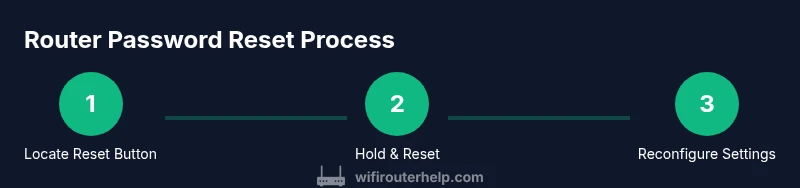
Find the reset pinhole on the back or bottom of the router. If you’re unsure, consult the manual or the manufacturer’s support site. Knowing the exact location helps prevent accidental button presses on other devices and reduces the risk of bricking the device. Hold a paper clip to access the recessed button, if needed.
Tip: If you can’t locate a reset pinhole, check model-specific instructions on the manufacturer’s site. - 2
Prepare the device and power it on
Ensure the router is plugged in and powered up. Remove any external cables that might interfere with the reset process. Confirm you’re resetting the router itself, not a modem or another device in your network.
Tip: Have the manual handy so you can confirm the correct reset method for your model. - 3
Perform the reset press-and-hold action
Press and hold the reset button for 10–15 seconds until the indicator lights flash or the router reboots. Don’t release too soon or you may only partially reset. A proper reset restores factory defaults.
Tip: If the lights don’t respond after 15 seconds, hold the button longer, then wait for the device to reboot. - 4
Wait for the router to reboot fully
Allow 2–5 minutes for the router to restart. The status lights will stabilize, indicating the device is back online with default settings. Do not unplug or interfere during this period.
Tip: If the router never fully reboots, try a second reset or consult support for hardware issues. - 5
Reconnect to the router using default credentials
Open a web browser and navigate to the router’s default IP address or example login URL (often printed on the device label). Use the default username/password listed on the label or in the manual. If you don’t have these details, contact the manufacturer.
Tip: Write down the new admin password you plan to use for future access. - 6
Reconfigure network settings securely
Set a new, strong admin password, re-create your Wi‑Fi network name (SSID) and password, and enable WPA3 or the strongest available security. Reapply essential settings like guest networks, parental controls, and port forwards as needed.
Tip: Consider exporting settings if your router supports it and documenting the new credentials securely.
People Also Ask
Can I reset my router if I forgot the admin password?
Yes. Use the reset button to restore factory defaults if you cannot access the admin interface. This will erase custom settings, so be prepared to reconfigure.
Yes. If you can’t log in, use the reset button to restore factory defaults, then reconfigure your network.
Will a factory reset delete all my network settings?
Yes. A factory reset restores the router to its default state, including the SSID and security settings. You’ll need to set up your network again from scratch.
Yes. A factory reset puts the router back to default, so you’ll reconfigure your Wi‑Fi name and password.
What should I do if I can’t find the reset button?
Check the router’s manual or the manufacturer’s support site for model-specific reset instructions. Some devices offer a reset through the web interface after you regain access.
If there’s no easy button, use the web interface as described in the manual after trying to recover access.
How long does a reset typically take?
A reset plus reboot usually takes a few minutes. Plan for about 5–10 minutes to complete the process and begin reconfiguration.
Typically, reset and reboot take a few minutes, then you start reconfiguring your network.
Do I need to contact my ISP after resetting the router?
Sometimes yes, especially if the router is provided by the ISP and is provisioned for their service. Check your account or call support if in doubt.
Sometimes you’ll need your ISP to re-activate the device after a reset, depending on your setup.
What security settings should I enable after reset?
Enable WPA3 if available, use a unique strong password, disable WPS if possible, and consider enabling a guest network for visitors.
After reset, turn on the strongest security, set a strong password, and consider a guest network for guests.
Watch Video
What to Remember
- Factory reset erases custom settings; you’ll regain access with default credentials
- Use reset button or web interface as the two main methods to regain control
- After reset, reconfigure your network name and security with a strong password
- Keep a record of credentials and consider using a password manager for future access