How to Forgot Router Password: Safe Reset Guide
Learn how to forgot router password safely with a step-by-step reset, recover admin access, reconfigure your network, secure Wi‑Fi, and keep future lockouts from happening.


To regain router admin access after forgetting the password, you can reset the device to factory defaults or use any password recovery option your model supports. Start by locating the reset button and confirming the router's IP address, then follow on-screen prompts or the manual to complete the reset and reconfigure security.
Why forgetting router password matters
According to WiFi Router Help, forgetting your router password is a common frustration that can lock you out of essential security and parental controls. If you're looking for how to forgot router password, this guide provides practical, safe paths to regain control and re-secure your network. The two main options are a password recovery (where supported by the model) and a full factory reset. Recovery is faster but not always available; a reset restores access but erases custom settings. Either method should be performed with care to keep firmware up to date and to minimize downtime.
Before you start, gather the essentials: your router model, the IP address, any backup configurations, and a plan for reconfiguring security afterward. If you have a guest network or IoT devices, plan to reconnect them after the reset. Finally, document your new admin password and store it in a password manager to prevent future lockouts.
Methods at a glance: recovery vs. reset
Not all routers support password recovery, and options vary by manufacturer. In general, you can attempt password recovery through the web interface if the model offers that function, or you can perform a factory reset to restore admin access. Recovery tends to be faster and retains your existing network settings, but it requires you to remember or have access to recovery credentials. A reset, while disruptive, guarantees access and gives you a clean slate to set a strong new password. Regardless of method, you should plan to reconfigure security afterward and check for firmware updates to close any known gaps. According to WiFi Router Help analysis, most home users end up resetting after forgetting the admin password because recovery options are inconsistent across devices. This is particularly true for older routers.
The factory reset path: when and how
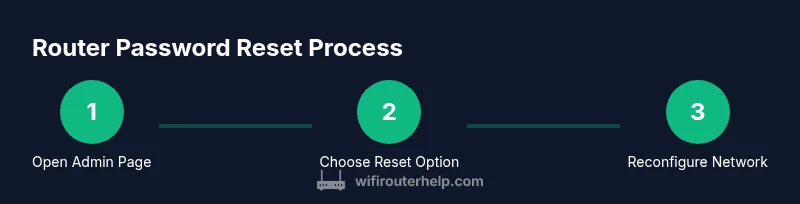
A factory reset reverts the device to its original settings, including the default admin username and password. Use this method if recovery options are unavailable or you are locked out completely. To begin, power the router on and locate the reset button (often recessed). Use a paperclip or similar item to press and hold the button for several seconds until the LED indicators flash or reboot. After the reset completes, connect to the router using a wired or wireless connection and open the admin page using the default IP address. You will be prompted to create a new admin password and re-enter your network settings. Remember: you will need to reconfigure your Wi‑Fi name (SSID) and password, plus any port forwards or parental controls you had previously set.
After reset: reconfiguring security and Wi‑Fi
Once you regain access, immediately change the administrator password to a strong, unique one. Create a passphrase that combines length, randomness, and memorability, and store it in a password manager. Update the router firmware to the latest version, enable WPA3 (or WPA2 at minimum) for your Wi‑Fi, and review security features such as UPnP and firewall settings. Re-create your SSID, or at least the network password, and save it securely. If you use a guest network, configure restrictions to prevent guests from accessing your main devices. Finally, consider enabling automatic firmware updates if available to reduce future risk.
Safety considerations and common missteps
Resetting a router is safe when done carefully, but there are potential pitfalls. Never perform a reset while devices rely on the current configuration for critical work; you may lose port forwarding rules and custom DNS. If your ISP provided a dynamic IP setup, you might need to re-enter settings to restore internet access. Do not click through suspicious recovery prompts or enter passwords on untrusted pages. Always verify you are on the legitimate router login page by checking the URL and certificate if applicable. If you are unsure of the model's default credentials, check the label on the bottom or back of the router or the manufacturer’s support site. Finally, avoid reusing the same password across services to reduce risk if one account is compromised.
Preventing future lockouts: best practices
To minimize future lockouts, store admin credentials in a trusted password manager and enable two-factor authentication if your router supports it. Regularly update firmware, enable strong encryption, and back up your configuration after meaningful changes. Keep a written note of critical settings in a secure location, and consider setting a reminder to audit permissions and connected devices every few months. If you frequently forget passwords, consider using a dedicated admin account with managed access for family members or roommates. These steps help keep your home network secure without sacrificing convenience.
Troubleshooting post-reset issues
If you cannot reconnect after a reset, verify the correct IP address for the admin page and ensure your device is on the same network. Try clearing browser cache or using an incognito window. If the login page loads but you cannot sign in, double-check you are using the correct default credentials and try a reset again if necessary. If you still cannot access the admin interface, contact the manufacturer’s support or consult the model-specific guide. In rare cases, hardware faults or ISP provisioning quirks can prevent access, requiring professional assistance.
Quick-start checklist after resetting
- Identify the router's default login URL and IP address.
- Connect a computer directly to the router via Ethernet for reliability.
- Create a new strong admin password and record it securely.
- Update firmware to the latest version.
- Reconfigure Wi‑Fi name (SSID) and password; enable WPA3 if available.
- Re-verify all security settings and saved rules (port forwards, parental controls).
Tools & Materials
- Web browser (Chrome/Edge/Safari)(To access the router admin page and prompts.)
- Router admin IP address(Common IPs: 192.168.0.1 or 192.168.1.1; check label.)
- Default login credentials or reset pin(Found on router label or manual; if unknown, factory reset is needed.)
- Reset tool (paperclip or pin)(Needed to press recessed reset button.)
- Backup notes or screenshots of current settings(Useful for re-creating port forwards and rules.)
Steps
Estimated time: 20-40 minutes
- 1
Open the router login page
Connect to the router using your computer or mobile device and type the router’s IP address into the browser’s address bar. If the login screen doesn’t load, double-check your device is on the same network and try a different browser. This step establishes access to the admin panel, which is essential for any password-related actions.
Tip: If you can’t access the page, try a wired connection to rule out wireless issues. - 2
Try default credentials or recovery options
If the login screen appears, attempt the default administrator username and password from the router label or manual. If your model supports password recovery, follow the on-screen prompts to regain access without a full reset.
Tip: Do not reuse weak defaults; plan to change the password immediately after logging in. - 3
If recovery fails, perform a factory reset
Locate the recessed reset button and press it with a paperclip for a few seconds until the device reboots. This resets admin credentials and returns settings to factory defaults, so you’ll need to reconfigure your network from scratch.
Tip: Be patient during the reboot; LED indicators can help confirm the reset occurred. - 4
Log in with default credentials after reset
After reset, connect to the router again and log in using the default IP and credentials. Set a new, strong admin password as soon as the login page loads to secure your device.
Tip: During this phase, disconnect any IoT devices to avoid accidental exposure. - 5
Create a new admin password and secure it
Choose a long, unique password or passphrase and store it in a password manager. This password should not be reused for other services and should be updated periodically.
Tip: Consider enabling two-factor authentication if your router supports it. - 6
Reconfigure Wi‑Fi and security settings
Update the Wi‑Fi name (SSID) and password, and select the highest supported encryption (WPA3 or WPA2). Review firewall and UPnP settings, and re-create any port forwards or parental controls you had before resetting.
Tip: Document changes so you can revert if needed later.
People Also Ask
Can I recover the router password without resetting?
Some routers offer basic password recovery options, but many do not. If recovery is unavailable, a factory reset is required to regain access. Always check your model’s manual for model-specific guidance.
Some routers have built in recovery options, but many require a reset to regain access. Check your model's manual for the exact steps.
What if I can’t access the admin page after reset?
Ensure you’re connected to the router’s network and use the correct default IP. If you still can’t reach the page, try another device or perform the reset again if necessary.
If you can’t access the admin page after reset, double-check your connection and the default IP, then try again if needed.
Will resetting erase ISP settings or port forwards?
A factory reset typically clears custom settings, including port forwards. You’ll need to reconfigure these after login. If you rely on ISP-supplied configurations, note them before resetting.
Yes, a reset clears most custom settings, so you’ll need to reconfigure them afterward.
How do I create a strong admin password?
Use a long, random passphrase combining letters, numbers, and symbols. Avoid common phrases and reuse across accounts. Store it in a password manager.
Choose a long, random password and keep it in a password manager so you don’t forget it.
Are default credentials safe to use after reset?
Default credentials should be changed immediately after login. They are commonly known and can expose your network if left unchanged.
No—change them as soon as you can after logging in.
How long does a typical router reset take?
A reset plus reboot usually takes a minute or two. You’ll know it’s ready when the lights stabilize and you can access the admin page again.
Usually a minute or two for the reset and reboot.
Watch Video
What to Remember
- Take control with a safe reset or recovery path.
- Always set a strong admin password after regain.
- Update firmware and review security settings immediately.
- Document credentials and store them securely to prevent future lockouts.